

Review: Luminar 4 Golden Master version
Monday 15 June 2020, 11:14 by Michelle Peeters | 15,019 views | 2 commentsThis article was translated from Dutch with the help of AI. Read the original.
Through Skylum, I was given the opportunity to test the Golden Master, and therefore not the final, version of Luminar 4. This GM version includes all the features, but performance improvements and localisation are still being worked on for the upcoming final release.
Luminar 4 has by now firmly secured its own place in the already saturated world of photo-editing software. Luminar 4, Skylum's latest creation, is once again packed with user-friendly editing tools that are perfect if you want to streamline the editing process for your photos.
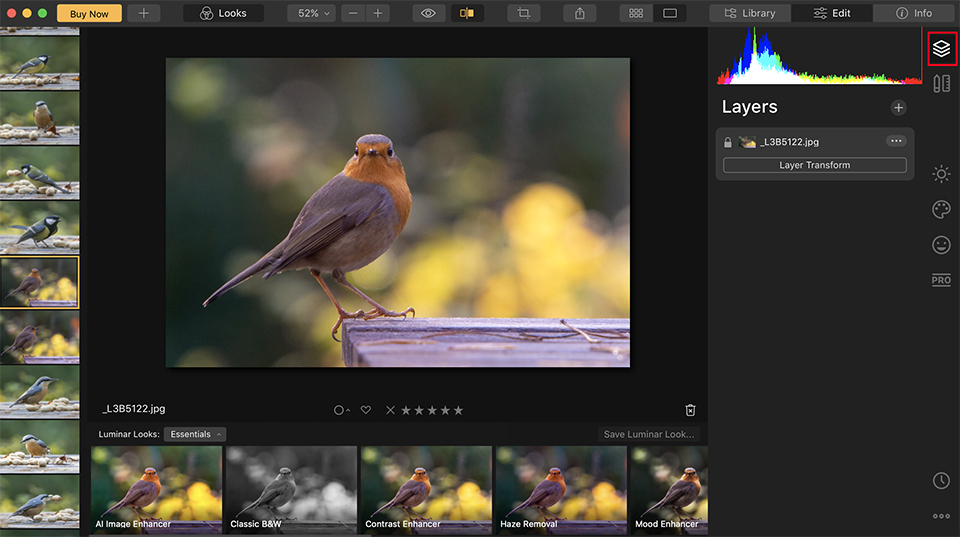
If you want to spend less time behind your computer, this programme is a serious contender. In this Luminar 4 review, I looked at what this software can do.
There is a lot of talk in photography circles about Luminar versus Lightroom, and I think Luminar 4 will now persuade more Lightroom users to switch.
The loose ends from Luminar 3 have now been tidied up, resulting in a much more stable and exciting editor. It feels fresh, it feels new and it is genuinely enjoyable to work with!
Upgrade from Luminar 3?
Luminar 4 is its own stand-alone software. It is a completely new version in the Luminar series and is therefore not a free upgrade from Luminar 3. If you already have Luminar 3, you can switch to Luminar 4 at a reduced price.
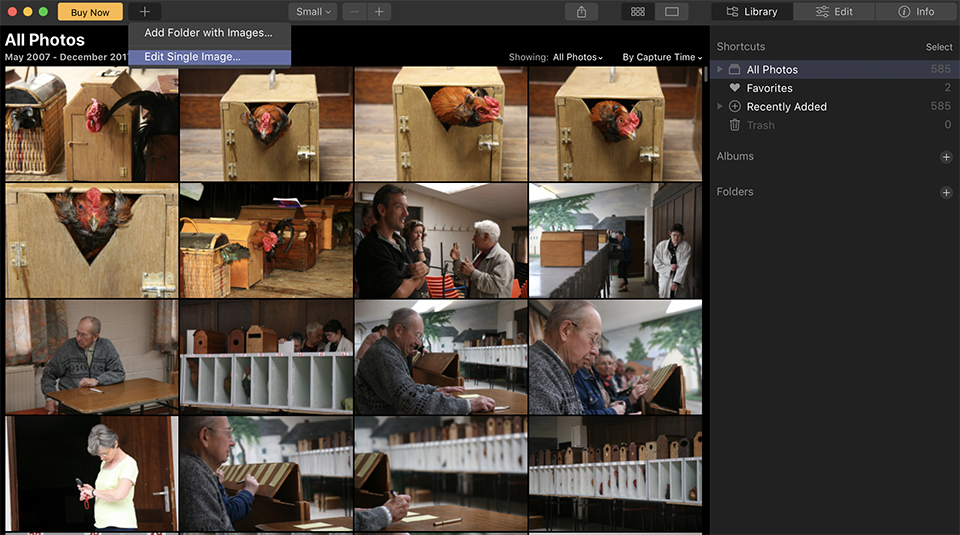
When you install Luminar 4, you are offered the option of migrating the Luminar 3 Library to version 4.
AI photo editing tools
When I used the previous version of Luminar, I was already impressed by how customisable it was. It felt as if the software had been written personally for you, because you could set it up exactly as you wanted. This time, Luminar 4 once again seems to be looking well ahead to the future of photo editing.
AI and automation are here to stay in all aspects of life, and Skylum has now brought them into the world of photography too. Very few people genuinely enjoy photo editing, and Luminar 4 hopes to reduce the time you spend editing photos even further. To do this, the software has several powerful AI tools.
Replacing the sky with Luminar 4
One of the really interesting features in Luminar 4 is the sky replacement tool. This tool probably is not for everyone. For some people, it is sacrilege. Everyone has different needs, however, and I think replacing skies is especially appealing to photographers who work with commercial clients.
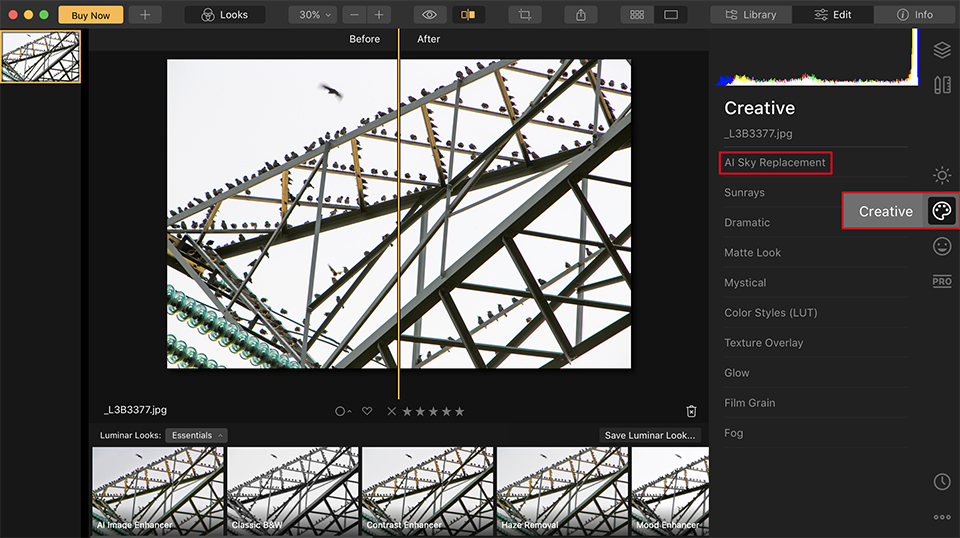
With Luminar 4, you can edit the sky in your photos with a slider using the “AI Sky Enhancer tool”, or even replace it entirely with another sky. You do this with the “AI Sky Replacement tool”. With just one click, you can choose from various other skies that come as standard with the Luminar 4 package.
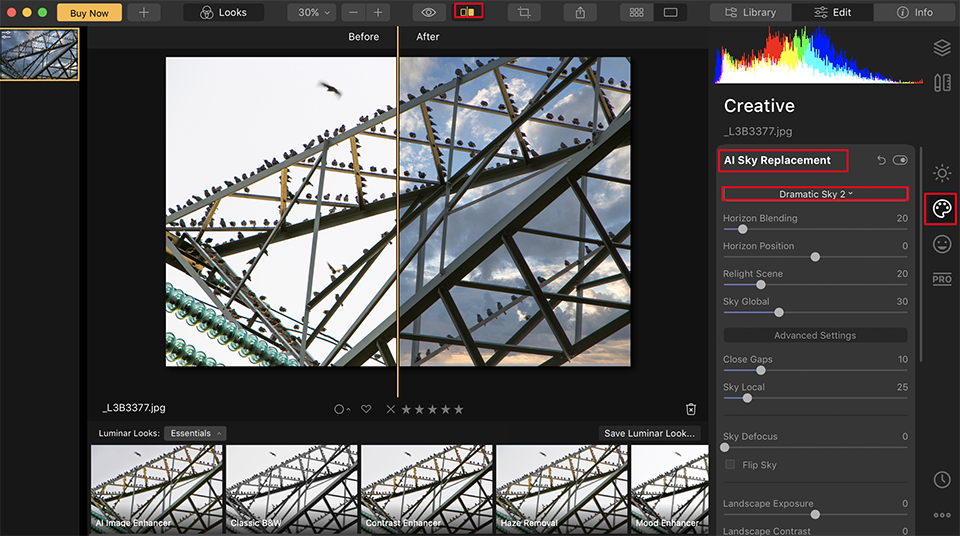
With these tools, you can quickly and easily give any landscape the perfect conditions. You can make it as crazy as you like!
For example, you may have created an image, but a client wants a different sky.
Traditionally, you would have to go through the laborious and slow process of masking the sky, then positioning your sky and relighting the scene.
Luminar 4 has completely turned this process around, however. You can now switch skies directly, with a single click. Fine-tuning it with a selection of sliders takes only a few seconds.
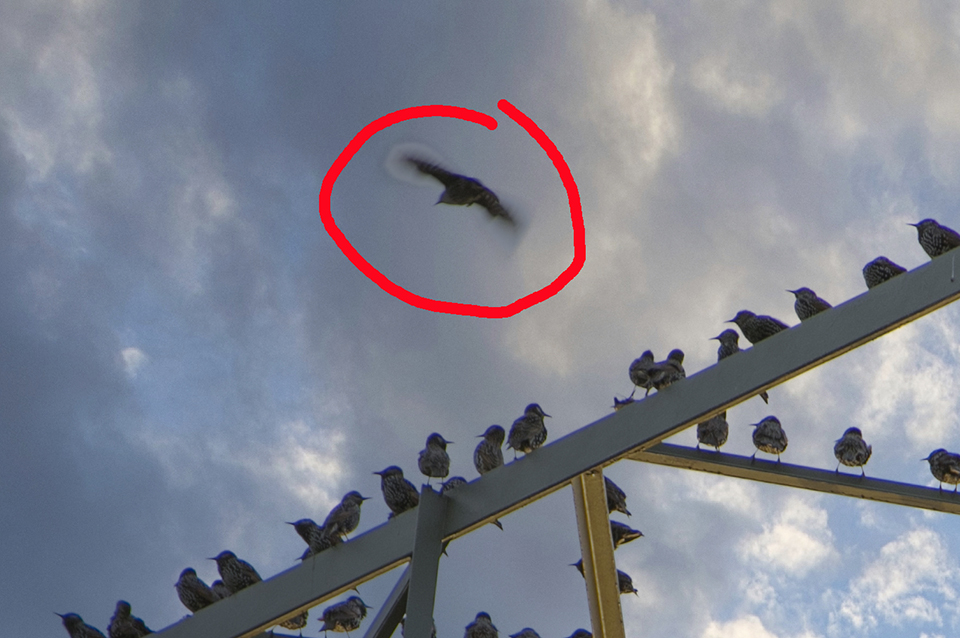
It is also incredibly accurate and impressive. Only a wing that is moving too quickly is somewhat difficult to mask, as you can see in the image below.
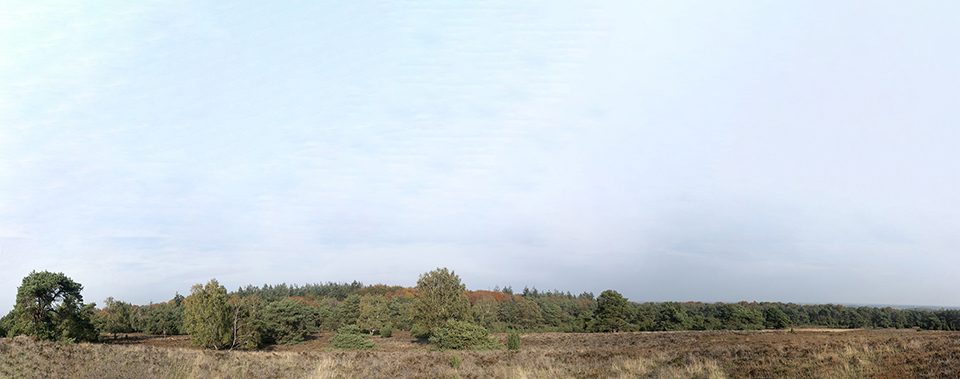
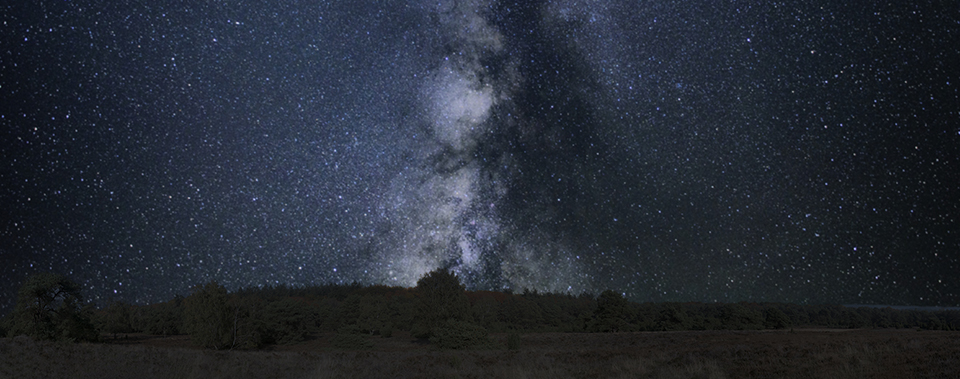
In addition to the 26 standard skies, you can also load your own sky photos as a “custom sky”. The great thing is that Luminar 4 also adjusts the landscape's light and colours to match the sky you have chosen. Of course, you can easily adjust this yourself with a few sliders.
This allows you to keep things unique, and may discourage people from all using the same skies!
AI Structure
This is a tool you can use to adjust the apparent sharpness of an image without actually sharpening it. It is a contrast adjustment that improves background details without negatively affecting your subject.
AI Structure does not introduce noise, halos or artefacts into the image.
You can also apply both a positive and a negative value. This means that instead of increasing the apparent sharpness of your background, with a positive slider value, you can actually make it more blurred, using a negative value.
Essentially, it is an intelligent clarity slider. When you first experiment with AI Structure, it is important to note that the “Amount” slider indicates the part of the image that is affected, while the “Boost” slider indicates the intensity of the adjustment.
Perhaps most useful for landscape or portrait photographers, in my opinion AI Structure is best used somewhat subtly in nature photography.
AI Skin & Portrait Enhancer
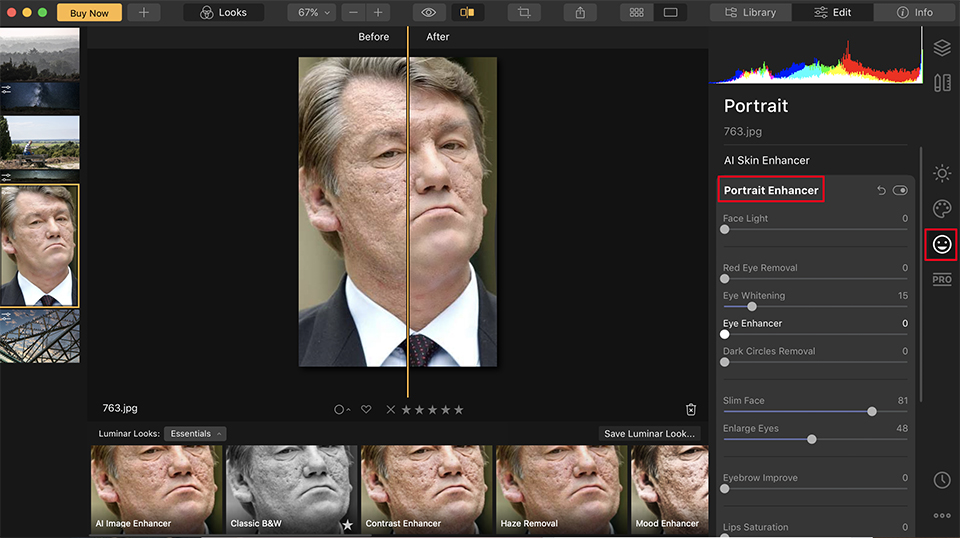
If you photograph people, the new AI skin and portrait tools may be a welcome addition for you. With the ability to airbrush your subjects quickly and intelligently, the editing process becomes much faster.
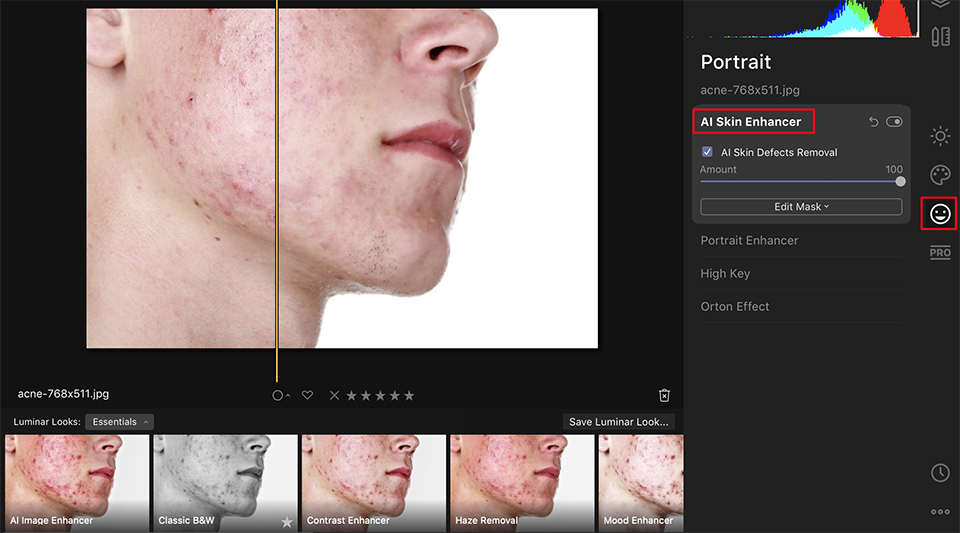
The 'Amount' slider determines how intense the tool is. You can push the slider all the way to 100 for a strong "airbrush" look, or keep it in the lower numbers for a more natural feel, for example with a value of 27.
AI vertical alignment
A particularly interesting tool on the horizon is the AI vertical alignment tool. It seems that this is coming in version 4.1 of Luminar, a free upgrade from Luminar 4. It allows you to correct your horizon and straighten things in your image immediately.
Working with layers
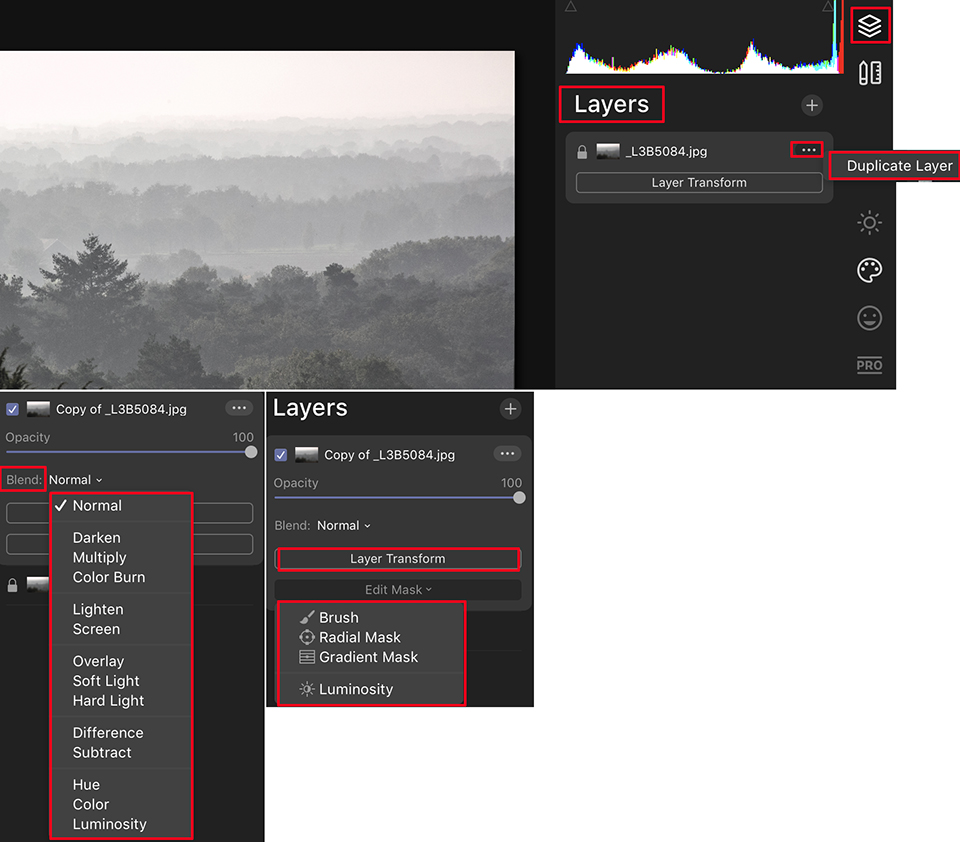
Okay, AI is not for you? What else does Luminar 4 have to offer? You can still benefit from working with layers. This allows you to stack your edits in adjustment layers, making Luminar 4 almost seem like a hybrid of Lightroom and Photoshop.
If you can edit in layers, you can also make more complex adjustments if you want, and turn your edits on and off as required. If you want to take the time to edit, you can still do that with Luminar 4. The AI tools are not compulsory, and the layers help you with this.
Advanced masking
Advanced masking with brushes, radial, gradient and even luminosity masks is possible. The latter allows you to mask the image based on brightness, which is a great way to quickly mask skies and other highlights.
Lens profiles
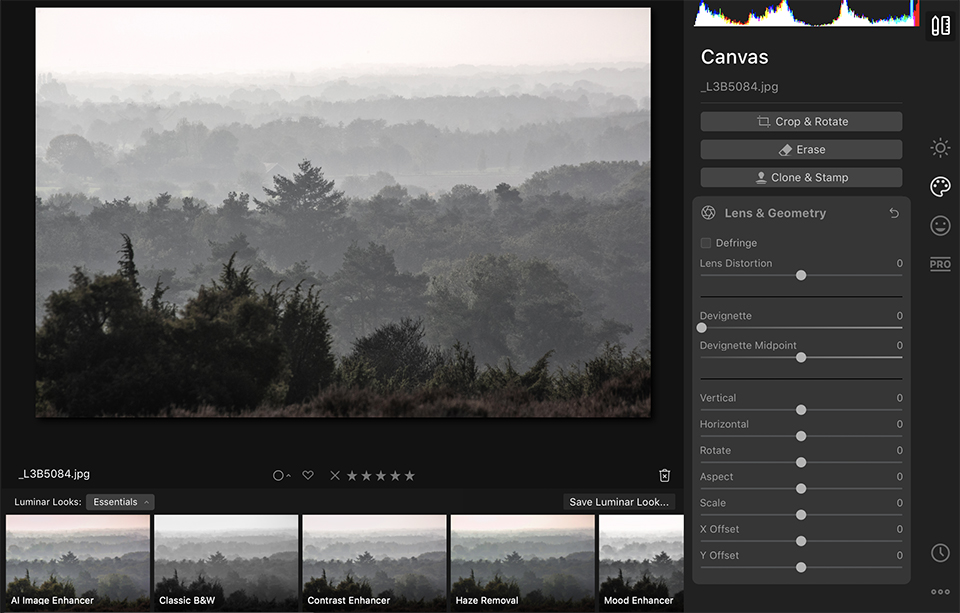
Lens profiles will also become available in a future update. This means you can tick a box to remove vignetting and any slanted edges in the image caused by the glass in a particular lens.
Each adjustment is unique to every lens used, and is a clear and welcome addition to Luminar.
Keeping adjustments in Luminar
As Luminar 4 has a library linked to it, your adjustments remain within the software until you export them. For example, you can make some edits and then close the software without saving the changes.
When you return, the edits are still there. It is a non-destructive process, just as with Lightroom.
Luminar Looks
Luminar still has a wealth of presets, which it now calls 'Looks', that you can apply to your images. This is a good way to get a quick starting point for your image or to remove the editing process completely, although nobody would probably recommend relying entirely on a preset.
You can also create your own adjustments and save a custom Look, so that you can apply it to a series of images if you want.

The user interface, the editing window
Although Luminar 3 was highly customisable, it still felt a little complex. With so many options and filters to apply, it lost some of its simplicity.
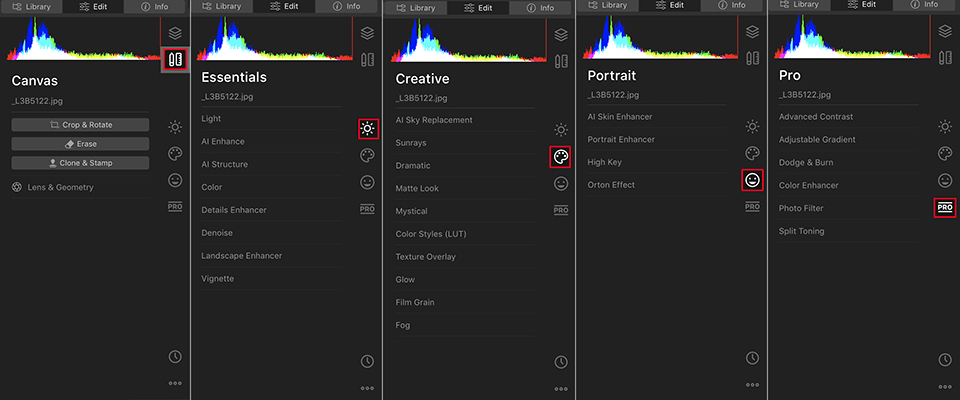
Luminar 4 has addressed this by improving the layout and giving you five different sidebars with tools. This allows you to select the right set of tools for your image. You can easily switch between them to use the different tools.
It is now much tidier and feels easier to navigate through the editing process. One thing is that the export window was not very straightforward in Luminar 3. Unfortunately, Luminar 4 has not brought any updates in this area.
The options for exporting images are still fairly restrictive, and you cannot create export presets. Hopefully this is something they will address, but at the moment there are no updates in this area.
Both Luminar 3 users and future Luminar 4 users will be pleased to hear that the ability to edit the metadata of your photos, the caption, keywords and so on, appears to be coming for both versions!
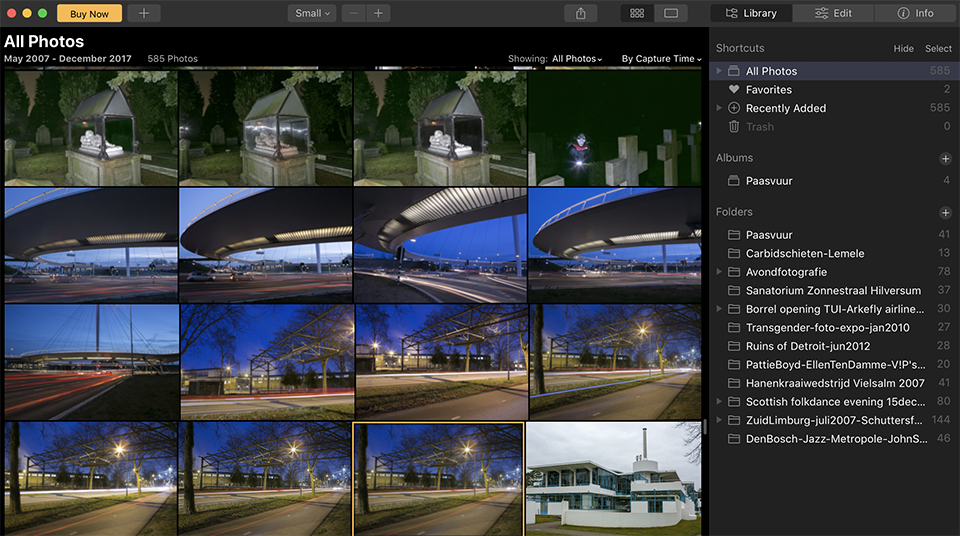
Library window
There have been few improvements in the Library section of Luminar 4 so far. This is partly because Skylum does not want to copy Lightroom, but instead wants to position itself as an independent product.
Some areas have nevertheless been tidied up, and we will also be able to search images using metadata once this update is released in early 2020.
Speed and performance
It has been reported that Luminar 3 was slow, particularly on a Windows computer. Personally, I have never experienced such problems, and the Windows users I spoke to had no issues with the software's speed.
The main factor here was of course the build of each machine used to run Luminar. If the computer does not have the necessary hardware, it will be slow. With that in mind, Skylum has worked on a balance between the Windows and Mac versions of Luminar 4.
Mac and Windows users should now see the same features, and speed and performance improvements have been built into Luminar 4.
In my personal experience with Luminar 4, the adjustments made are quick and easy. There seems to be no delay when applying small adjustments, and only minimal delay when applying the larger AI tools.
Is Luminar better than Lightroom?
I still find this comparison difficult to make. Skylum has always been very clear that it does not want to make its own version of Adobe's Lightroom, but instead wants to establish its own position in the industry.
Lightroom may be the better choice for organising huge libraries of photos. If you are only looking for workflow management, you will probably stick with Lightroom. If you want to make editing faster and more streamlined, however, Luminar 4 is probably for you.
Do bear in mind, though, that Luminar has its own catalogue feature. And it simply is not as extensive as Lightroom's. So consider the trade-off for the better editing tools. Skylum is also rolling out many updates and updating the catalogue feature to make it all even better.
In conclusion
Honestly, when I first read that Luminar was bringing AI tools and lots of "futuristic" updates, I was rather sceptical. I was even a little disappointed because I thought none of it would work very well.
But I was very wrong! I have used the software for a few weeks and I am now completely won over. The tools really do work well! I am hugely impressed, and it is clear that Skylum has invested the necessary time and money in Luminar 4 to create a serious contender.
The "usual" photo editors feel monotonous and old compared with Luminar 4, and Skylum has given the necessary photo-editing process quite a new lease of life.
Pre-order discount on Luminar 4
In terms of price, you could almost call 89 euros a bargain. There are no subscription costs, and once you have bought it, you own Luminar 4 forever. Pre-sales are available via this link.
Dit artikel is voor het laatst bijgewerkt op 15 juni 2020.
De eerste publicatiedatum is vrijdag 29 november 2019, 14:41.
About the author
Michelle Peeters is fotografe en oprichter van DeuxBleus Fotografie. Michelle herkent het bijzondere in het gewone en het gewone in het bijzondere. Ze heeft zich nooit willen specialiseren en is daardoor van alle markten thuis.
You might also like
-
 Photoshop now also has a sky replacement option
by Elja Trum
-
 Skylum launches Luminar NEO
by Nando Harmsen
-
 The imgmi app, Luminar for your smartphone
by Nando Harmsen
-
 Real skies instead of Luminar skies
by Nando Harmsen
-
 Review: How Luminar Works by Henny Temmink
by Elja Trum

2 comments
-
 Rob IJsselstein wrote on Tuesday 3 December 2019 at 11:42 | reply
I bought the Luminar plug-in, but it doesn't offer me enough compared to Lightroom. They say you can get your money back, but they don't respond to requests for it. Is there a Dutch point of contact?
Translated from Dutch. -

 Michelle Peeters wrote on Tuesday 3 December 2019 at 14:59
| reply
Michelle Peeters wrote on Tuesday 3 December 2019 at 14:59
| reply
@Rob: I’ll look into it!
Translated from Dutch.
Have your say
Please note: Articles older than a week can only be commented on by signed-in visitors.Would you still like to comment? sign in or create a free account.
Become a better photographer every week
A practical photography tip in your inbox every week.
39,024 photography enthusiasts already receive the tips! More about the weekly mail. Or keep up to date via  Facebook.

Elja Trum
Photofacts; everything to do with photography!
Would you like to take better photos and keep up with what is happening in photography? Photofacts publishes articles that teach you something about photography — from a product announcement to a practical shooting tip or a look at a website. Photofacts covers photography every day and is a hobby project of Elja Trum's that got out of hand. The articles are written by a team of volunteer authors. If you would enjoy writing one or more articles for Photofacts, do get in touch.More about PhotofactsPhotofacts is made possible in part by
