

Copying and pasting in Photoshop
Thursday 13 December 2018, 12:25 by Michelle Peeters | 29,153 views | 0 commentsThis article was translated from Dutch with the help of AI. Read the original.
Photoshop's biggest strength is that you can work with layers. This means you can place multiple photos on top of each other, copy and paste selections, and even make parts transparent. How? In the Layers panel, right at the bottom on the right.
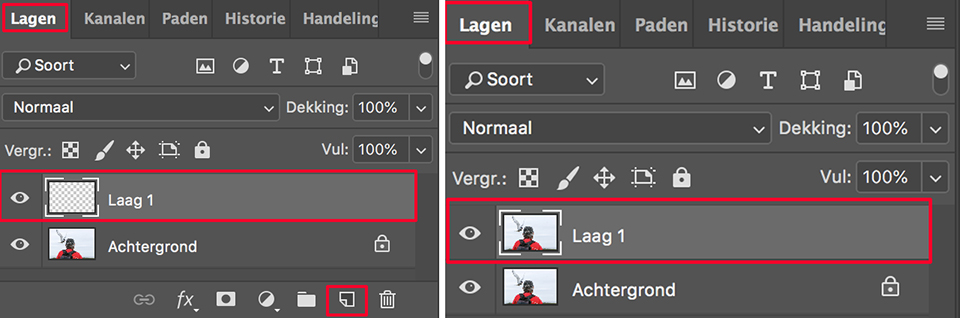
When you open a photo, it is often shown as the Background layer. This means it is locked. Double-click it to unlock it. Go to Layer, New, Layer to create an extra layer.
Use Ctrl-J (Cmd-J on a Mac) to create a duplicate layer. In the Layers panel, you can then move this layer or these layers to a different position if you wish.

Copying and pasting
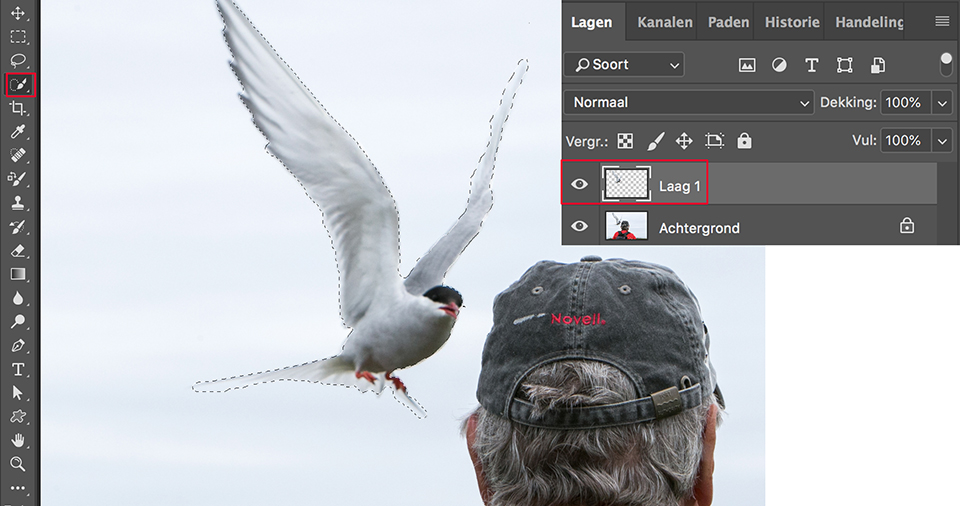
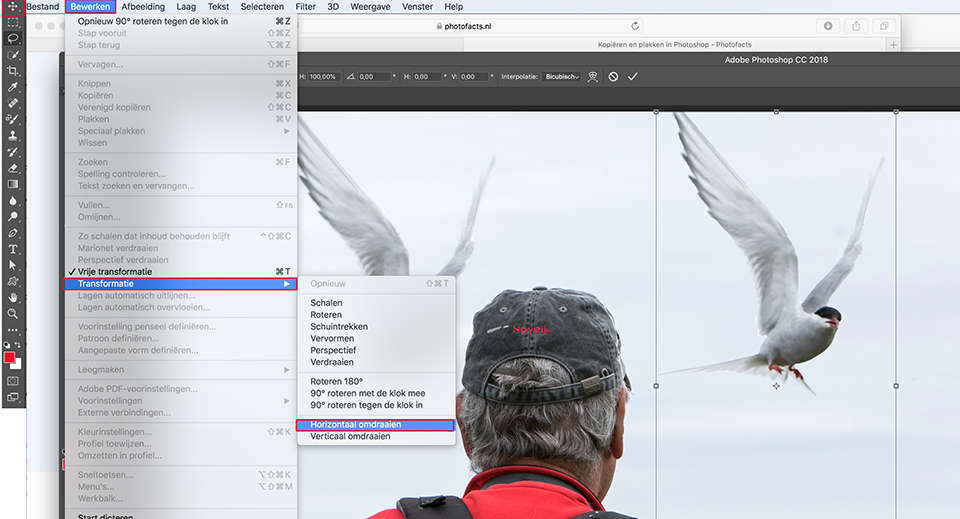
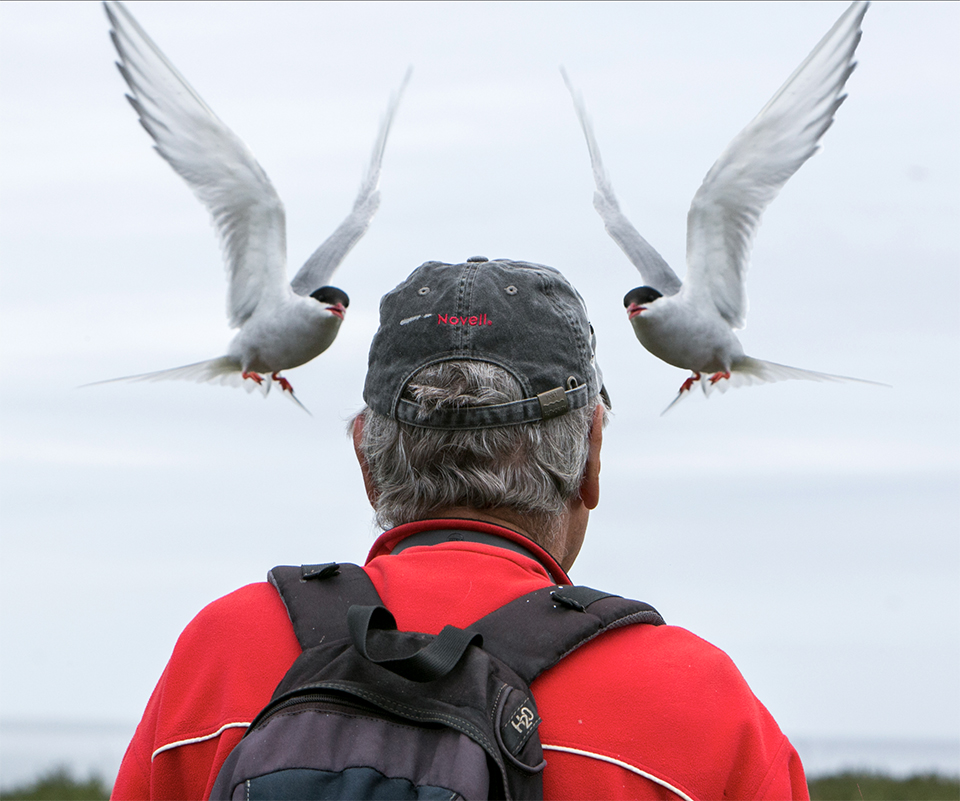
Use the Ctrl-C and Ctrl-V keyboard shortcuts (Cmd-C and Cmd-V on a Mac) to copy a selection you have made, for example with the Quick Selection Tool, and paste it into a new layer.
This new layer is created automatically when you 'paste' the selection you have made. You can then move the selection to the correct position.
Want to learn more about image editing in Photoshop?
At Photofacts Academy, our online learning environment for photographers, we have several courses on Adobe Photoshop.
- Photoshop for Beginners (Johan Elzenga)
- Photoshop for Photographers (Piet van den Eynde)
- Photoshop for Advanced Users (Marit Hilarius)
- Photoshop Effects (Elja Trum)
And much more...
You can take these courses for two weeks with a free trial membership.
About the author
Michelle Peeters is fotografe en oprichter van DeuxBleus Fotografie. Michelle herkent het bijzondere in het gewone en het gewone in het bijzondere. Ze heeft zich nooit willen specialiseren en is daardoor van alle markten thuis.
You might also like
-
 Photoshop tip: Use a copy of a merged layer
by Nando Harmsen
-
 Review: The Photoshop Layers Book - Johan Elzenga
by Michelle Peeters
-
 Street photography tip: Add layers to your street photo
by Michiel Heijmans
-
 Inspiration for Multiple Exposures
by Nando Harmsen
-
 Save a Photoshop file with layers
by Michelle Peeters
-
Photoshop tip: Keep your layer stack organised
by Nando Harmsen
0 comments
Be the first to share what you think!
Have your say
Please note: Articles older than a week can only be commented on by signed-in visitors.Would you still like to comment? sign in or create a free account.
Become a better photographer every week
A practical photography tip in your inbox every week.
38,886 photography enthusiasts already receive the tips! More about the weekly mail. Or keep up to date via  Facebook.

Elja Trum
Photofacts; everything to do with photography!
Would you like to take better photos and keep up with what is happening in photography? Photofacts publishes articles that teach you something about photography — from a product announcement to a practical shooting tip or a look at a website. Photofacts covers photography every day and is a hobby project of Elja Trum's that got out of hand. The articles are written by a team of volunteer authors. If you would enjoy writing one or more articles for Photofacts, do get in touch.More about PhotofactsPhotofacts is made possible in part by
