

Have Photoshop automatically restore your photo
Thursday 8 November 2018, 15:51 by Michelle Peeters | 9,150 views | 0 commentsThis article was translated from Dutch with the help of AI. Read the original.
There are a few different automatic corrections that Photoshop can perform, and each produces a different result. So you could try a few to see which one looks best for a particular photo.
First, I would try Auto Tone: in the Image menu, select Auto Tone and see how it looks. If it doesn't look right, press Cmd-Z (PC: Ctrl-Z), which undoes the automatic correction.
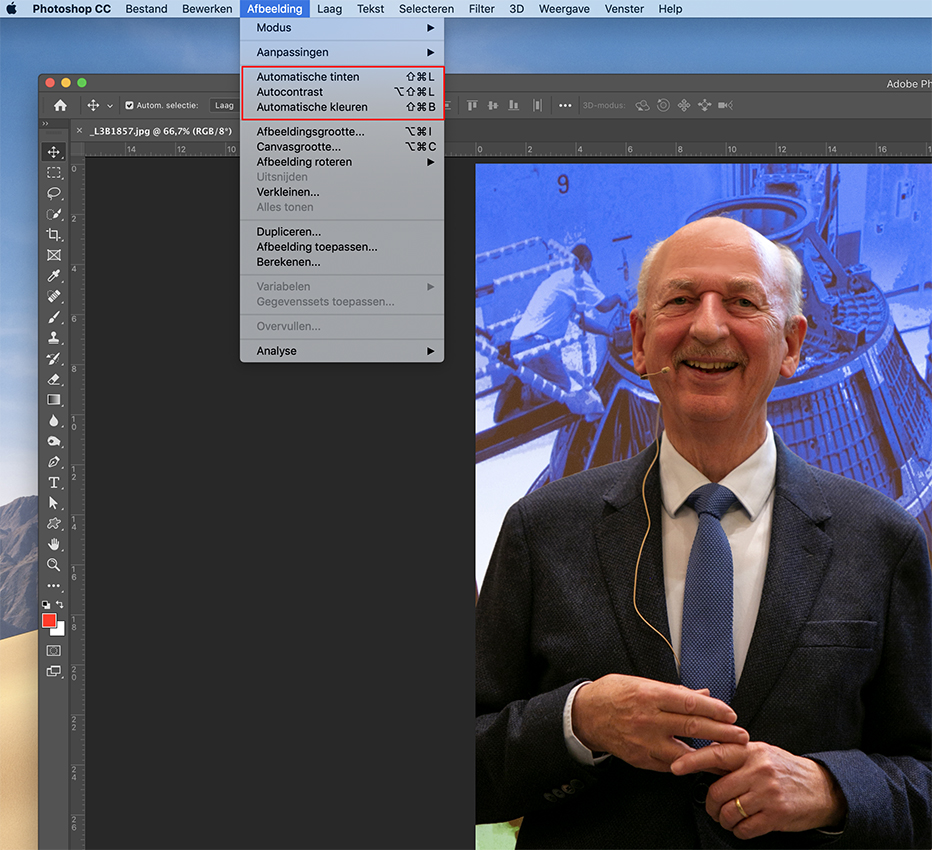
In the same menu, try Auto Contrast (this is more focused on adding contrast, which may be just what your photo needs). If that doesn't look good enough either, undo it as well and try the next one, Auto Colour.
If none of these produce the desired result, go to Camera Raw Filter in the Filter menu. When the Camera Raw Filter window appears, click the Auto button (this looks more like a link than a button and is located below the white balance sliders).
If your photo now looks too bright, as is sometimes the case with this automatic correction in Camera Raw, move the Exposure slider a little until you think it looks right.
Photoshop for beginners
Want to learn more about Photoshop and really get to work with it yourself? Then our Photoshop for Beginners course is an ideal starting point.
Photoshop for Beginners is taught by expert Johan Elzenga. Johan is an award-winning travel and wildlife photographer who has written several books about photography and post-processing, including a Photoshop CC book that was published in April this year. Johan also teaches Photoshop, among other subjects, at various professional training courses for photographers.
His expertise comes through in his clear, calm explanation of what may seem like complex material at first glance. In this course, you will discover how to make selections, and you will learn how to use layers, masks and layer styles to edit your photos professionally.
About the author
Michelle Peeters is fotografe en oprichter van DeuxBleus Fotografie. Michelle herkent het bijzondere in het gewone en het gewone in het bijzondere. Ze heeft zich nooit willen specialiseren en is daardoor van alle markten thuis.
You might also like
-
 Photoshop tip: Using a clipping mask
by Nando Harmsen
-
 Photoshop tip: Keep your layer stack organised
by Nando Harmsen
-
Photoshop tip: Use a copy of a merged layer
by Nando Harmsen
-
 Photoshop now also has a sky replacement option
by Elja Trum
-
The 6 most important new options for photographers in Photoshop 2020
by Nando Harmsen

0 comments
Be the first to share what you think!
Have your say
Please note: Articles older than a week can only be commented on by signed-in visitors.Would you still like to comment? sign in or create a free account.
Become a better photographer every week
A practical photography tip in your inbox every week.
38,937 photography enthusiasts already receive the tips! More about the weekly mail. Or keep up to date via  Facebook.

Elja Trum
Photofacts; everything to do with photography!
Would you like to take better photos and keep up with what is happening in photography? Photofacts publishes articles that teach you something about photography — from a product announcement to a practical shooting tip or a look at a website. Photofacts covers photography every day and is a hobby project of Elja Trum's that got out of hand. The articles are written by a team of volunteer authors. If you would enjoy writing one or more articles for Photofacts, do get in touch.More about PhotofactsPhotofacts is made possible in part by
