

The 6 most important new options for photographers in Photoshop 2020
Monday 18 November 2019, 15:30 by Nando Harmsen | 7,981 views | 2 commentsThis article was translated from Dutch with the help of AI. Read the original.
Every year, around the Adobe MAX event, there is a major update of the programmes in the Creative Cloud app. The same applies to Photoshop, which can now be installed as a completely new Photoshop version, 21.0.1.
For this year's update, this means the arrival of a number of useful improvements, changes and new options that are interesting for photographers.
Not all updates are interesting for photographers. After all, Photoshop is also suitable for the graphics world, to give just one example. I will therefore limit myself to a few new options that a photographer is likely to use a lot.
I will not cover improvements made to the appearance of programme components, presets, fonts and animated GIF files. Here are six new or changed options in the new Photoshop 2020 for photographers.
1. Object Selection tool
You can now make a selection of an element in your photo even more easily using the “Object Selection tool”. It comes in two forms, a rectangle and a lasso. You can very simply make a rough selection around an object with the rectangle or lasso, after which Photoshop 2020 accurately selects the object within that rough selection.
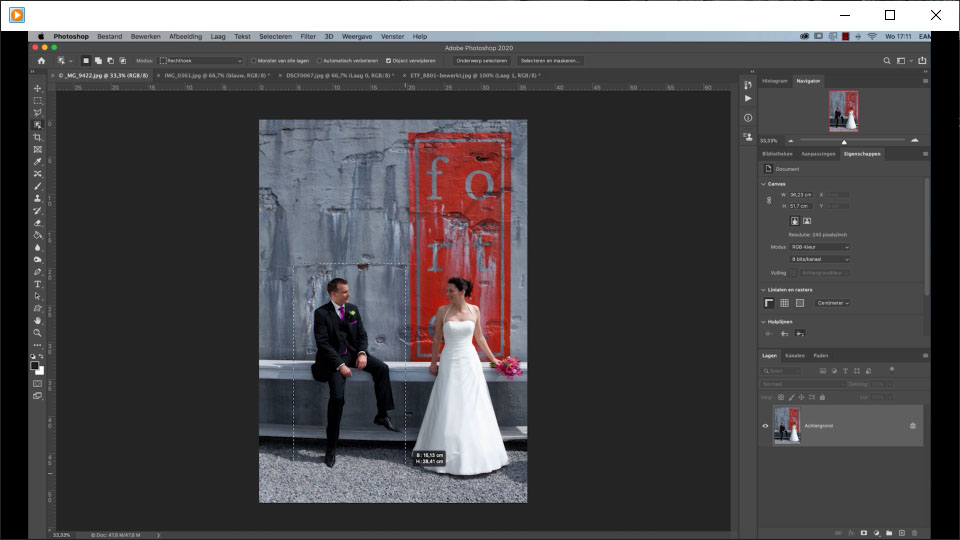
You can also expand an existing selection by holding down the Shift key and making an additional rough selection, or make it smaller with the Alt key.
2. Change smart objects into layers
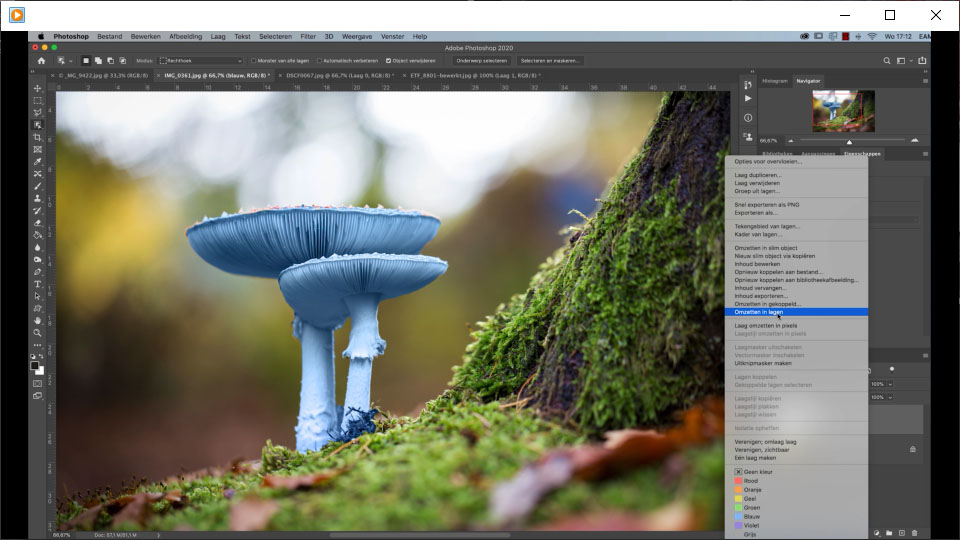
A smart object can contain multiple layers. It is now possible to change a smart object into a set of layers.
Previously, you had to open a smart object first, then select all the layers and copy them to the original document. Now you can do this much more easily using the “Convert to Layers” option, which you can find in the right-click menu.
Bear in mind that you will lose any filter effects you have applied.
3. Properties panel has been expanded
The properties for a document, pixel layer and text layer have been greatly expanded.
It has become easier to adjust the size of a document, and quick actions are available to change the image size, crop or adjust the rotation directly, without first having to look for the option in the toolbar.
The document properties are only visible when no layers are selected.
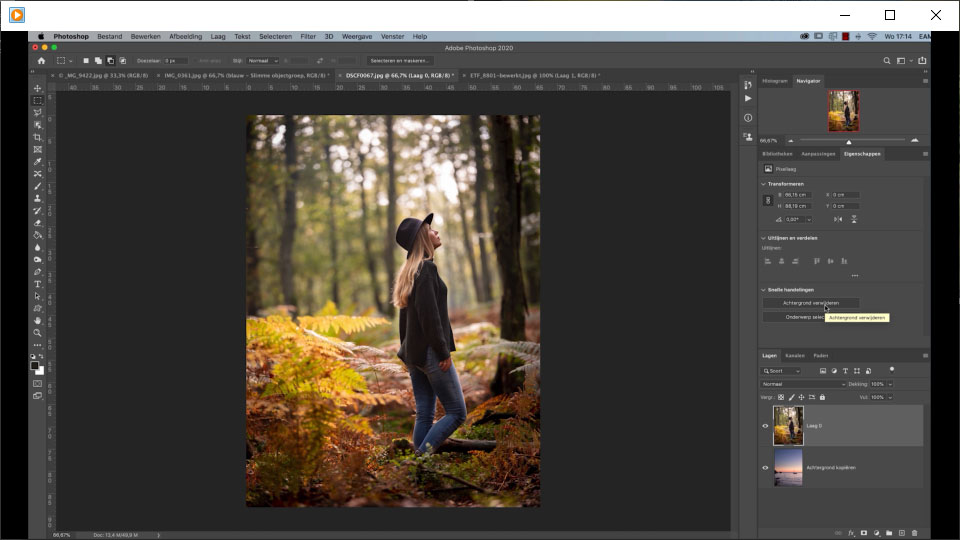
The pixel layer properties include a button to quickly remove the background or select the subject.
In the text properties, it is now possible to convert the text into a vector or a frame at the press of a button.
4. Improved Content-Aware Fill
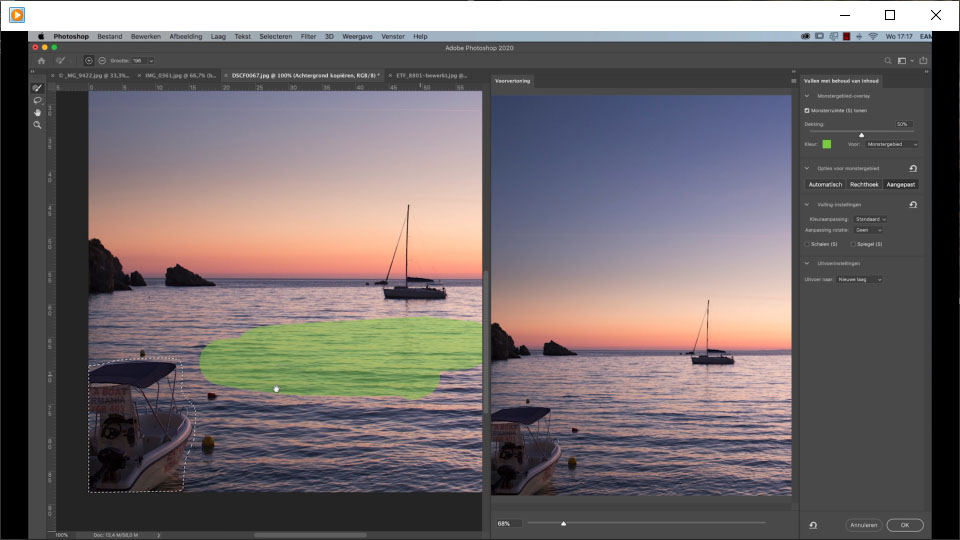
With “Content-Aware Fill”, it is possible to magically remove objects from a photo.
When creating new content, you could previously only choose a rectangular selection in a photo, or the auto function. This choice has now been expanded with the “Custom” option, which lets you choose which part of the photo Photoshop should use to fill in the object being removed.
5. Improved Free Transform
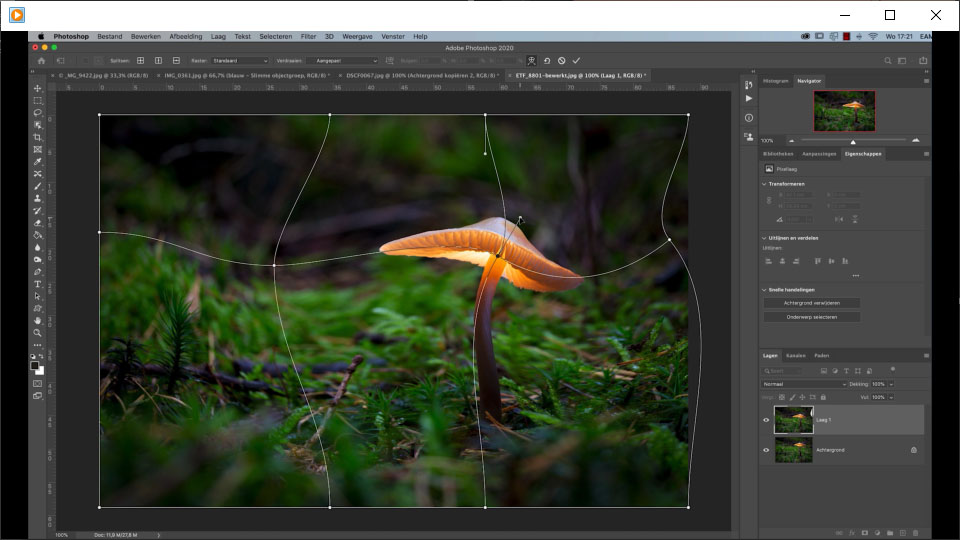
Free Transform has been greatly improved and made more flexible, as it is now possible to place your own grid over the photo and manipulate every point in that grid. It is also possible to select multiple points in the grid by holding down the Shift key.
You can now enlarge, distort or rotate part of the photo much more flexibly and accurately.
6. Close all other photos
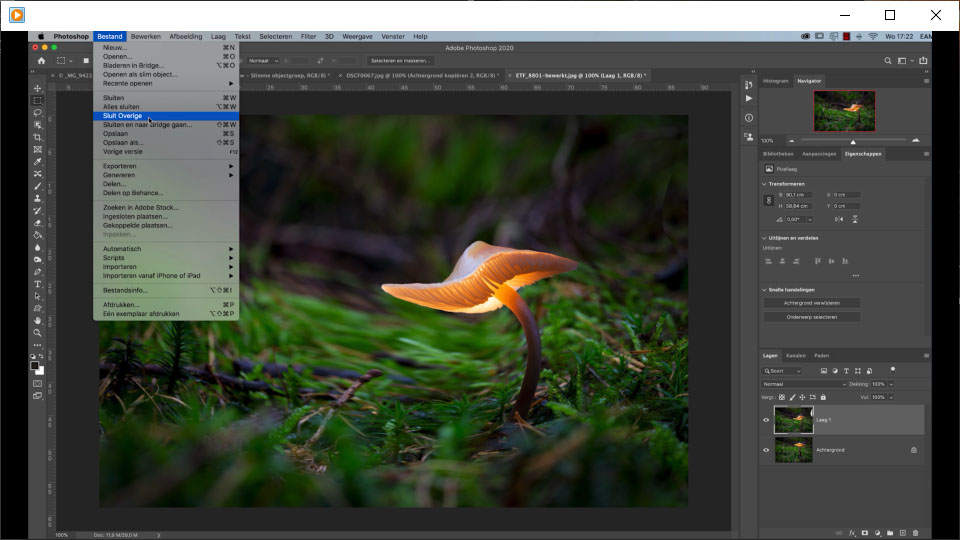
When you have multiple photos open, you can now close all photos at once, except for the photo you want to continue working on. Previously, it was only possible to close all photos. Now you can close all the other photos at the same time. You can find this option in the menu under File / Close Others.
One final tip
Finally, I would like to point out that none of these great new features can be found in the old Photoshop CC, version 20.0.7. You need to install the completely new version, 21.0.1.
Also, some options may not be immediately visible, including the Object Selection tool in the toolbar. If you cannot find the Object Selection tool, open the Customise Toolbar window, which can be found under the three dots in the toolbar, and restore the default settings.
About the author
Nando Harmsen has been photographing for more than 40 years. He specialises in wedding photography and landscape photography. Nando also gives talks, workshops, masterclasses and photo trips, and regularly reviews new and interesting equipment.
You might also like
-
 Photoshop tip: use the export function
by Nando Harmsen
-
 The New Photoshop 2020 Updates
by Nando Harmsen
-
 Photoshop tip: Use keyboard shortcuts to work faster
by Elja Trum
-
 New in Photoshop Beta: Generative Fill
by Nando Harmsen
-
 Photoshop beta update April 2024
by Nando Harmsen
-
 Review: 'Photoshop Masters' by Rob de Winter
by Huub Keulers
2 comments
-

 Doreen wrote on Monday 25 November 2019 at 19:59
| reply
Doreen wrote on Monday 25 November 2019 at 19:59
| reply
Ik heb een abonnement op Photoshop CC versie 19.19
This comment was written in another language and has not been translated yet.
Daarboven verschijnt een kader met deze nieuwe versie 21.01
(zonder CC erbij vermeld).
Hoe kan ik deze installeren en kan dat überhaupt wel of moet je dan een uitgebreider abonnement hebben?
Bij voorbaat dank. -
 Nando
wrote on Tuesday 26 November 2019 at 10:57
| reply
Nando
wrote on Tuesday 26 November 2019 at 10:57
| reply
Hallo Doreen,
This comment was written in another language and has not been translated yet.
Als je een abonnement hebt moet je in de Creative Cloud Desktop omgeving de nieuwe versie kunnen installeren. Dit kan naast de oude versie, of je kiest bij installatie om de oude direct te verwijderen.
Er is geen aanpassing voor je abonnement voor nodig, voor zover ik weet.
Succes met het updaten.
Have your say
Please note: Articles older than a week can only be commented on by signed-in visitors.Would you still like to comment? sign in or create a free account.
Become a better photographer every week
A practical photography tip in your inbox every week.
39,024 photography enthusiasts already receive the tips! More about the weekly mail. Or keep up to date via  Facebook.

Elja Trum
Photofacts; everything to do with photography!
Would you like to take better photos and keep up with what is happening in photography? Photofacts publishes articles that teach you something about photography — from a product announcement to a practical shooting tip or a look at a website. Photofacts covers photography every day and is a hobby project of Elja Trum's that got out of hand. The articles are written by a team of volunteer authors. If you would enjoy writing one or more articles for Photofacts, do get in touch.More about PhotofactsPhotofacts is made possible in part by
