

Getting started with Lightroom CC
Tuesday 28 November 2017, 11:11 by Elja Trum | 11,303 views | 4 commentsThis article was translated from Dutch with the help of AI. Read the original.
The new Lightroom CC was announced just over a month ago. A new programme from Adobe, but with a familiar name. Lightroom CC and the renamed Lightroom Classic CC are two different products. In this article, we'll get started with the new programme.
Lightroom CC versus Lightroom Classic CC
What exactly is the difference between the new Lightroom CC and Lightroom Classic CC? You can edit your photos with both programmes.
The most important difference is that 'the cloud' is central to Lightroom CC. All photos, the original files, are backed up to Adobe's web servers. This means you can always access them, wherever you are.
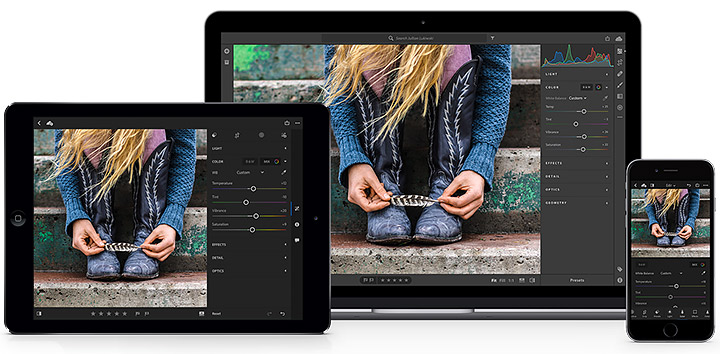
Whether you're sitting at your desktop computer, travelling with your laptop, accessing your photos on the sofa with your tablet or standing at the bus stop with your smartphone. With Lightroom CC, you have access to all the photos you have in Lightroom CC.
The setup of Lightroom CC is also simpler than that of Lightroom Classic CC. People who are already used to Lightroom Classic CC probably won't see any benefits here, but if you haven't worked with Lightroom before, the learning curve is nice and low.
Advantages of Lightroom CC
Because your photos are synchronised directly to the cloud, you automatically have a backup of your photos. Once the photo is in the cloud, you can no longer lose it because of something like a computer crash. That is a reassuring thought.
Another important advantage is that you can now access the photo on all your devices. Handy if you want to show photos to someone, for example. You don't have to think about it, it happens automatically.
Fast internet connection
A fast internet connection can be useful with the new Lightroom CC. If you have a lot of photos, it can take quite a while before everything is available online as well. Although for most people this is no longer a problem these days.
There are various membership plans, with the price increasing as you have more photos in storage.
Cost of Lightroom CC
You can get Lightroom CC in various ways. If you don't have anything yet and only want Lightroom CC, you can take out a Lightroom CC membership for 12.09 euros per month, including VAT. You then get Lightroom CC with 1 terabyte of cloud storage.
That terabyte is enough to store around 40,000 photos, from a camera with approximately 25 megapixels, in its large RAW format. So that should keep you going for a while. If your terabyte is full, you can buy extra space from Adobe.
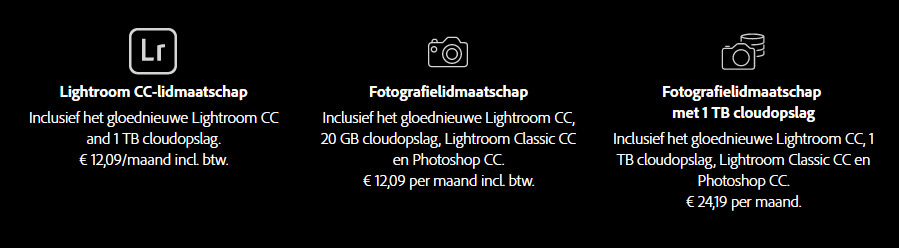
If you choose a Photography membership, the package you also have if you previously subscribed to just Lightroom and Photoshop, you also pay 12.09 euros per month.
You then get Lightroom CC with 20 gigabytes of storage. Enough for around 800 photos of approximately 25 megapixels. You also get Lightroom Classic CC and Photoshop CC. I have this package myself, and it is perfectly suitable for trying Lightroom CC properly.
A third option is the Photography membership with 1 terabyte of cloud storage. This costs 24.19 euros per month and gives you access to Lightroom Classic CC, Photoshop CC and the new Lightroom CC with 1 terabyte of storage.
How do I install Lightroom CC?
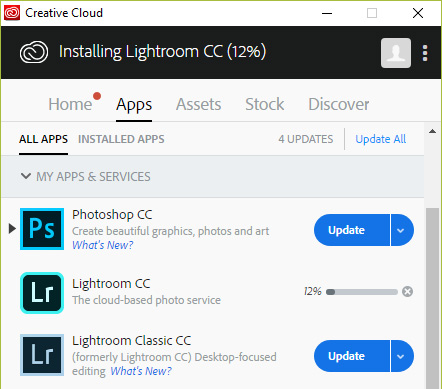
If you have an Adobe CC membership, you can easily download the apps you want to install on your computer using the Adobe CC app. Open the Creative Cloud app and click 'install' next to Lightroom CC.
On your tablet and smartphone, you can install the app by searching for Lightroom CC in the App Store. With the app on your smartphone, you can also take photos that are immediately available on your desktop via the cloud. Handy.
The interface on a tablet looks quite similar to the desktop version. Strangely enough, there are even a few more options in the tablet version than on the desktop. This will probably be brought into line in the near future.
On your smartphone, the interface has been adapted for use on the small screen. There are quite a few options available for editing your photos in the smartphone version.
If you don't have an Adobe membership yet, you can also try Lightroom CC as a 7-day trial. You then have access to all the programme's features.
» Try Lightroom CC free for 7 days
In practice
What stood out to me about Lightroom CC was how smoothly it runs. The programme runs nice and quickly on my desktop, iPad and iPhone. Photos are immediately visible at a large size.
The new interface takes some getting used to, but after just a few minutes you can easily find everything. Most of the time, it is mainly a matter of learning the icons.
I think you'll have a good grasp of the basics of the programme within half an hour.
Presets
Just like with Lightroom Classic CC, you can also work with presets in Lightroom. That is good, because a preset lets you give one or more photos a specific look in no time.
Even better, existing Lightroom Classic CC presets can simply be used in Lightroom CC. Ideal if you have already built up a nice collection of presets.
Unfortunately, presets are currently not synchronised automatically across all your devices.
The cloud as an external hard drive
Do you use Lightroom CC on your laptop, for example, but does it not have much disk space? That is not a problem, because you can store your photos in the cloud without keeping them locally.
In Lightroom CC, you can specify exactly how much disk space you want to use. The rest is then stored in the cloud. When you start working on a photo from the cloud, it is transferred to your local computer.
Very practical if your computer has little storage space, as your cloud works like an external hard drive.
Searching for photos
The search function in Lightroom CC is really impressive. The programme uses Sensei, Adobe's artificial intelligence, which analyses the content of your photos. So you can search for 'water', for example, and Lightroom will automatically return photos that contain water.
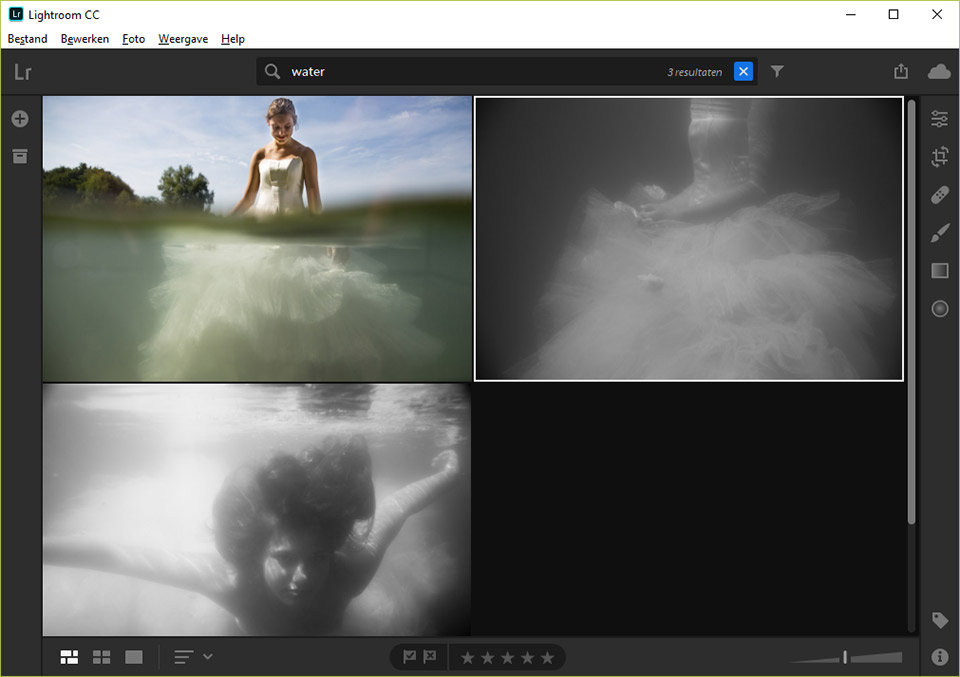
You therefore don't need to add any tags or anything else to your photo. The image is recognised automatically. The results are impressive.
Want to know more?
Would you like to find out more about Adobe Lightroom CC? Adobe's website has some useful (English-language) pages with explanations.
About the author
Elja Trum is the founder of Photofacts and online photography course website Photofacts Academy. He has been writing about photography since 2006. Elja is also the author of (Dutch) books on composition, black-and-white photography, flash photography and portrait photography.
You might also like
-
 5 tips for the new Lightroom CC
by Elja Trum
-
 Adobe launches beta for Photoshop CC on iPad
by Michelle Peeters
-
 The new updates for Adobe Lightroom and Photoshop
by Nando Harmsen
-
 Adobe and the cost of AI generative fill
by Nando Harmsen
-
 Adobe claims Lightroom Classic performance update
by Michelle Peeters
-
 20 new features in Adobe Photoshop CC 2019
by Michelle Peeters
4 comments
-
 Jan wrote on Tuesday 28 November 2017 at 11:31 | reply
How is the speed of Lightroom Classic in Develop mode? I mean going through each photo, zooming in and out at 1:1 to determine sharpness and then moving on to the next photo. I’m very curious about this performance with, for example, the Nikon D850.
Translated from Dutch. -

-
 Cor Scholma wrote on Tuesday 28 November 2017 at 12:29 | reply
Nice program. Only I do notice I need Help. Would like to look for private Help at home. To familiarize myself with the program.
Translated from Dutch. -
 Jan Koning wrote on Wednesday 29 November 2017 at 09:51 | reply
Immediately made the switch to this “cloud” version. Was a bit skeptical at first but now very enthusiastic. As applies to every package: read first, then ... enjoy. You have to spend money to make money, so to speak.👍
Translated from Dutch.

Have your say
Please note: Articles older than a week can only be commented on by signed-in visitors.Would you still like to comment? sign in or create a free account.
Become a better photographer every week
A practical photography tip in your inbox every week.
38,836 photography enthusiasts already receive the tips! More about the weekly mail. Or keep up to date via  Facebook.

Elja Trum
Photofacts; everything to do with photography!
Would you like to take better photos and keep up with what is happening in photography? Photofacts publishes articles that teach you something about photography — from a product announcement to a practical shooting tip or a look at a website. Photofacts covers photography every day and is a hobby project of Elja Trum's that got out of hand. The articles are written by a team of volunteer authors. If you would enjoy writing one or more articles for Photofacts, do get in touch.More about PhotofactsPhotofacts is made possible in part by
