

5 tips for the new Lightroom CC
Monday 4 December 2017, 15:51 by Elja Trum | 9,632 views | 5 commentsThis article was translated from Dutch with the help of AI. Read the original.
We've already shown you how to get started with the new Lightroom CC. In this article, five tips for anyone getting started with this cloud version of Lightroom.
1. Import directly from your phone
To use your photos in Lightroom, you first need to import them. You can do this from any folder on your computer, but also directly from a device connected to your computer.
For example, if you have connected your iPhone and press the plus icon (import), you will automatically see the option to import from your smartphone.
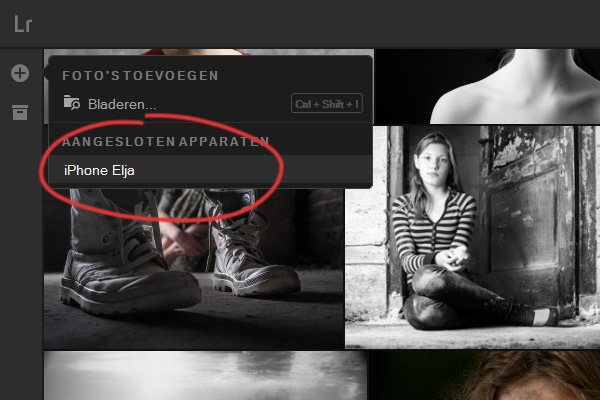
Do you want all your phone photos to always be in Lightroom CC? You can set this up on your phone through the Lightroom CC app (Android or iOS).
When you open the app for the first time, you will be asked whether you want this, but you can also set it up afterwards. To do this, click the Lr logo in the top left of the app. Go to 'general' and tick the 'Auto Add Photos' option under 'import'.
As soon as you take photos with your smartphone, they will automatically appear in your Lightroom CC, including on the desktop. That saves you a lot of importing.
2. Deleting photos is reasonably safe
Pay close attention when you delete a photo from Lightroom CC. Your photo will also be deleted from Lightroom on all your other devices. So the photo will no longer be available in Lightroom on your mobile either.
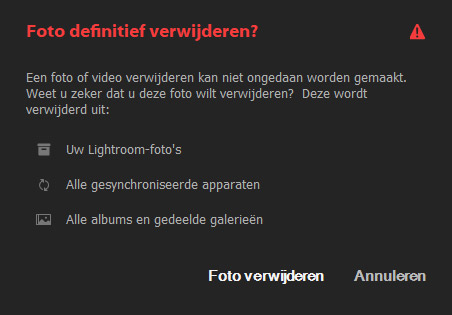
However, Lightroom leaves the original alone, as long as you still have it somewhere else. When you import a photo into Lightroom CC, a copy of the photo is always made: one in Lightroom CC and the original you imported from.
So suppose you took a photo on your smartphone, but you no longer want it in Lightroom. The photo will still be in your smartphone's camera roll after deleting it. It will have disappeared from your Lightroom app on your smartphone.
Note: if you copy photos from your memory card and later format your memory card so you can take photos again, you will of course lose the photos.
3. Use folders and albums
Within Lightroom CC, you can work with albums. Albums are collections of photos. You can create albums by clicking the archive box. After creating one, you can drag the photos you want in the album into it.
If you click the plus icon, you can create folders as well as albums. You can use these folders to organise albums. For example, you can create a folder for holidays, with an album for each holiday.
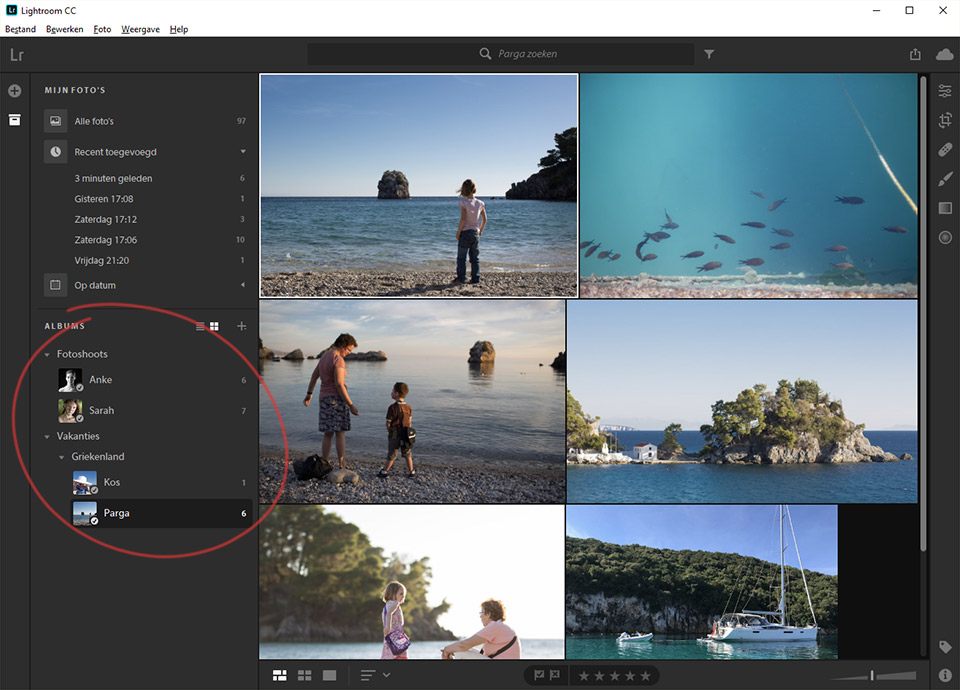
You can also put folders inside other folders. This lets you build a structure. For example, a 'Holidays' folder and a 'Greece' folder containing the different albums of the places in Greece you have visited.
4. Search in English
Lightroom CC uses Adobe Sensei, an artificial intelligence solution from Adobe. Sensei automatically adds keywords to your photos. That's very useful, because many photographers regularly 'forget' to add keywords to their photos.
Sensei isn't extremely good yet, but it gets smarter every day. So you hardly need to add keywords to photos anymore (although a name can still be useful at the moment, for example).
The only thing is that Sensei isn't very good at Dutch yet. When I tried searching, it quickly became clear that I had much more success with English keywords. So I recommend searching for your photos in Lightroom CC in English.
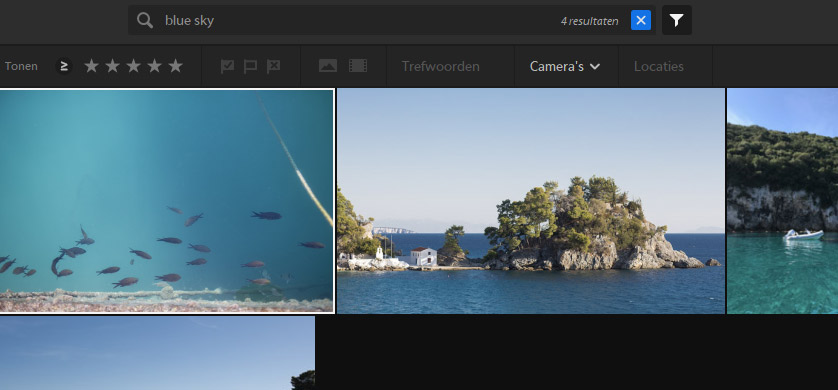
A good way to refine your search or quickly find your best photos, for example, is to use filters. Press the filter icon next to the search bar to show the filter bar.
For example, click the first star to view all photos you have rated with at least one star. So I do recommend adding stars to your better photos, unlike the hassle of assigning keywords manually.
5. Use (existing) presets
Within Lightroom CC, you can work with presets, just as in Lightroom Classic CC. With a preset, you can change several settings on a photo with a single click.
You can create presets yourself in Lightroom CC, but you can also use existing presets from Lightroom Classic CC. You can find thousands of these presets on the internet, both free and paid.
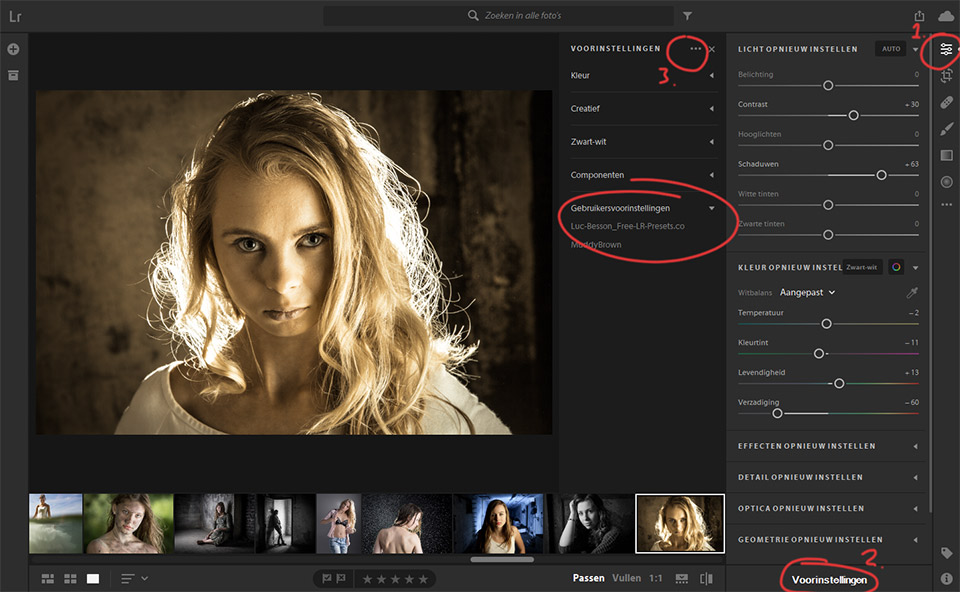
To get your presets into Lightroom CC, first choose the 'Edit' icon (1). Then click 'Presets' at the bottom of the page (2). Another menu will now appear, where you click the dots (3).
Now choose 'Open Presets Folder'. Lightroom will open the folder where you can drag your presets. For example, presets you downloaded from the web.
You now need to restart the programme before the new presets appear under 'User Presets'. Click a preset to apply these settings directly to the selected photo. You can also hover over one to see what the effect will be.
Unfortunately, presets are not yet automatically synchronised with the cloud. So you cannot reuse them on your smartphone, for example.
Get started
If you have an Adobe CC membership (for Photographers), you can get started with the new Lightroom CC for free straight away. Your existing membership includes 20 gigabytes of cloud storage and, of course, access to the apps.
Don't have a membership yet? You can also try Lightroom CC free for 7 days.
Your tip?
Have you already started using Lightroom CC?
Share your favourite tip for this programme in the comments below!
About the author
Elja Trum is the founder of Photofacts and online photography course website Photofacts Academy. He has been writing about photography since 2006. Elja is also the author of (Dutch) books on composition, black-and-white photography, flash photography and portrait photography.
You might also like
-
 Getting started with Lightroom CC
by Elja Trum
-
 20 new features in Adobe Photoshop CC 2019
by Michelle Peeters
-
 Adobe previews new Sensei-powered Object Selection Tool
by Michelle Peeters
-
 Adobe launches beta for Photoshop CC on iPad
by Michelle Peeters
-
 Adobe warning: not compatible. What now?
by Nando Harmsen
-
 Adobe claims Lightroom Classic performance update
by Michelle Peeters
5 comments
-
 Johan wrote on Tuesday 5 December 2017 at 11:25 | reply
Maybe only partly relevant... but what is Lightroom's obsession with importing? I've been using Photoshop for a very long time and only recently started using Lightroom sometimes. Why can't I just open a photo and edit it like I can with Photoshop?
Translated from Dutch. -
CC wrote on Tuesday 5 December 2017 at 12:31 | reply
Johan: Lightroom adds nothing relevant in terms of content if you work with Bridge, ACR and Photoshop. Lightroom is built around a database called the catalog. It is intended to shield the user from the physical storage of their photos. When Lightroom was conceived, many computer users had difficulty managing files through folders. Nowadays this is much less the case and the catalog is more of a hindrance than a convenience.
Translated from Dutch. -

 Elja Trum
wrote on Tuesday 5 December 2017 at 13:56
| reply
@CC; I do think that Lightroom does indeed add something, especially in terms of ease of use. But I know that you are a fan of your way of working, which is fine too.
Translated from Dutch.
@Johan; The advantages are mainly in the database you build up, which means you can always quickly find your photos again. You can also have standard edits carried out (automatically) during importing.
It is indeed a different way of working. Once you get used to it, it is very pleasant. A single individual photo is best edited quickly in Photoshop in combination with ACR. -
 Johan
wrote on Tuesday 12 December 2017 at 11:10
| reply
I'm also not really into "It is intended to shield the user from the physical storage of their photos" I happily do that myself. But if I want to edit my raw photos, is it still best to do that in Lightroom before continuing to work on them in Photoshop, or would I be better off using another program for that?
Translated from Dutch. -
Elja Trum
wrote on Tuesday 12 December 2017 at 13:09
| reply
@Johan; Many people especially don't have their backup in order. In that respect, it's nice that Lightroom now partly takes care of that.
Translated from Dutch.
I edit my photos with Lightroom Classic CC myself and, if necessary (usually not), afterwards in Photoshop. I find that a pleasant workflow.
Have your say
Please note: Articles older than a week can only be commented on by signed-in visitors.Would you still like to comment? sign in or create a free account.
Become a better photographer every week
A practical photography tip in your inbox every week.
38,836 photography enthusiasts already receive the tips! More about the weekly mail. Or keep up to date via  Facebook.

Elja Trum
Photofacts; everything to do with photography!
Would you like to take better photos and keep up with what is happening in photography? Photofacts publishes articles that teach you something about photography — from a product announcement to a practical shooting tip or a look at a website. Photofacts covers photography every day and is a hobby project of Elja Trum's that got out of hand. The articles are written by a team of volunteer authors. If you would enjoy writing one or more articles for Photofacts, do get in touch.More about PhotofactsPhotofacts is made possible in part by
