

Improve your workflow with your own Lightroom scripts
Tuesday 1 February 2022, 14:41 by Dick Holtman | 5,596 views | 0 commentsThis article was translated from Dutch with the help of AI. Read the original.
Ever heard of Lightroom scripts? Everyone knows you can expand Lightroom with plug-ins, but few people know about the option of using simple scripts. And yet they can sometimes be incredibly useful. This blog is for Lightroom users who are not afraid of a bit of technical stuff.
What are scripts?
You can think of scripts as lightweight plug-ins. A piece of code that lets you perform a function that is not included in Lightroom by default. And that is what makes plug-ins and scripts so important: you can expand Lightroom and/or automate tasks, improve your workflow, prevent manual errors and increase your productivity.
In this blog I will show you how to create a very simple script yourself. And don't worry, most of the code you are going to see serves as scaffolding, with just a single line acting as the heart of our function. This also means that you can vary the theme by replacing one line with something else.
This is certainly not a tutorial, as this blog is not suitable for that. It is more an introduction to, or awareness of, the existence of scripts. And who knows, someone may get the taste for it and a new Lightroom plug-in writer may be born.
What are we going to make?
Our fictional client has said: as a photographer, I want to get a list of the filenames of all selected photos in Lightroom, which I can copy into, for example, my email, Word, Excel or any other file.
What do you need?
You do not need to install any special programmes or download anything to create the script. Everything you need is available on your standard Windows or Mac computer. Further on, I will give you some tips about tutorials, reference works and programmes that make life a little easier, but they are not required.
Step-by-step plan
Let's begin. I will take you through the process of creating and running our script in Lightroom step by step.
Step 1: determine Lightroom's scripts directory
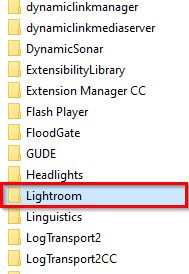
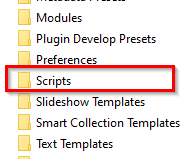
Lightroom expects all scripts to be in a particular directory. When you save a script file in this directory and restart Lightroom, Lightroom will find it and show it in the menu, as shown in the image below.
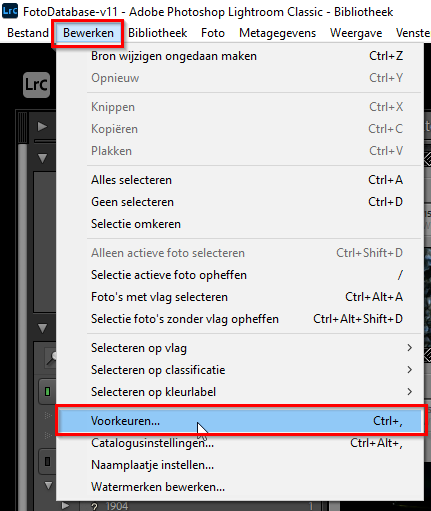
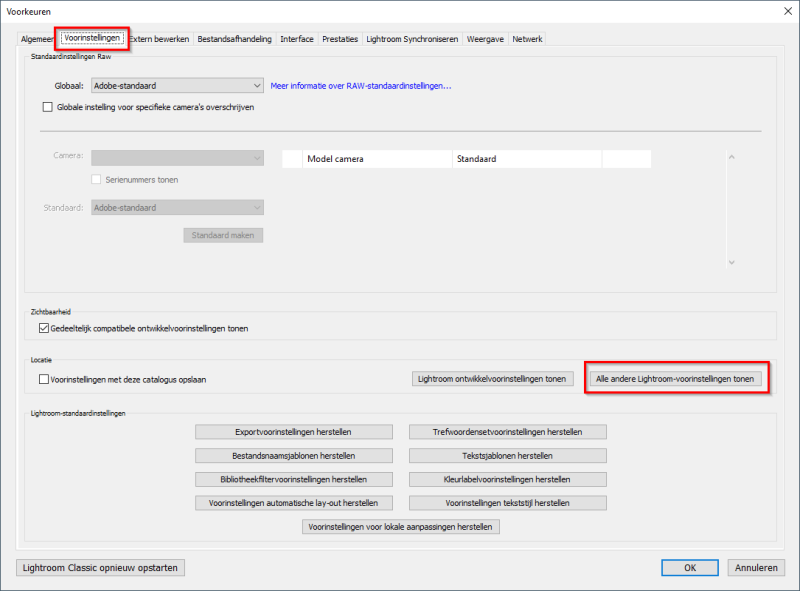
The location of this directory differs between Windows and Mac. To find this directory, you can perform the following steps:
- Start Lightroom if you have not already done so
- Open the "Edit" menu -> Preferences
Then click the "Show All Other Lightroom Presets" button
Step 2: create the script
Copy the code below and paste it into a simple text editor such as Notepad or Notepad++ for Windows, or TextEdit for Mac. Note: do not use Word or anything similar. Then save the file under the name "Bestandsnamen.lua" in Lightroom's scripts directory.You can also download all the code from my repository.
As a final check, open the file you saved with Notepad on Windows or TextEdit on Mac, to make sure that it is a plain text file without all sorts of strange characters.
The code
To keep the code as short as possible, I removed all unnecessary text, such as comments. The scripts in my repository include comments.
local LrTasks = import "LrTasks"
local catalog = import "LrApplication".activeCatalog()
local LrDialogs = import "LrDialogs"
local LrView = import "LrView"

LrTasks.startAsyncTask( function()
    local photos=catalog:getTargetPhotos()
    if #photos == 0 then return end

    varFileName = ""
    for j, photo in ipairs(photos) do
        varFileName =  varFileName .. photo:getFormattedMetadata("fileName") .. "
"
    end

    local f = LrView.osFactory()
    local c =
        f: row{
            bind_to_object = props,
            f:column {
                f:edit_field { value = varFileName, width_in_chars = 80, height_in_lines = 10 },
            },
        }

    dialogValue = LrDialogs.presentModalDialog(
        {
            title = "Filenames" ,
            contents = c,
        }
        )
end)
Okay, that is a bit daunting.
Once you have recovered from the shock, let's be realistic. In about 30 lines, we have written a programme that displays all the filenames of the photos we selected in Lightroom.
Further on, we will vary this theme
Step 3: restart Lightroom
If Lightroom is running while you add a script, Lightroom will not see it. Simply close Lightroom and start it again
Step 4: run the script
If everything went well, you will now see your script under the "Scripts" menu in Lightroom, as shown in the image below.

Now we can run the script. Select a number of photos, open the "Scripts" menu and then select "Bestandsnamen".
If everything went well, a dialogue box will now open containing the filenames of the selected photos.
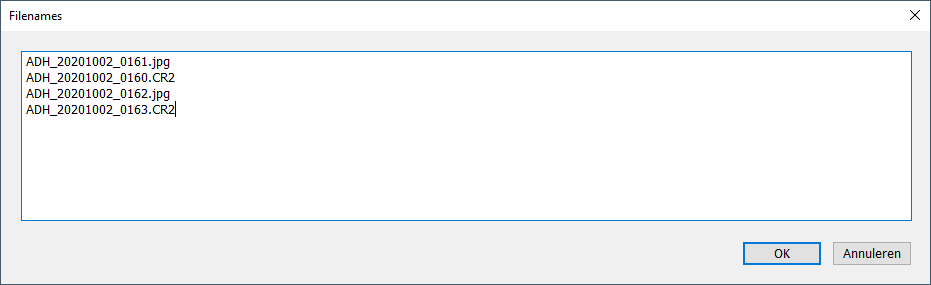
Varying the theme
But it is even more fun that you can also vary the theme with this code. Suppose you want to see the filenames including the directory, then you only need to change one line. Or you want an overview of the focal length, ISO value and so on, and paste this into Excel.
Building on this code, we will make two variations:
- Filename + directory name
- Filename + ISO value, focal length and shutter speed, suitable for pasting into Excel.
Variant 1: filename plus directory
Make a copy of the script you created above and save it under the name"bestandsnaam plus directory.lua"You can also download this script from my repository.
Replace this line
varFileName = varFileName .. photo:getFormattedMetadata('fileName') .. "
"
with this line
varFileName = varFileName .. photo:getRawMetadata('path') .. "" .. photo:getFormattedMetadata('fileName') .. "
"
As you can see, we put the directory before the filename.
A brief explanation: in the Lua language, you can join texts, or strings, by using
.., and with the command photo:getRawMetadata('path') you retrieve the directory of each file. You can find all the commands that are available in the SDK manual. See the next section for more information.Don't forget to restart Lightroom and there you go, you now have two scripts in your menu!
Variant 2:
Again, make a copy of your first script file and name it
"Bestandsnaam plus camera informatie.lua".The same applies here: you can also download this script from my repository.
Suppose you want to copy the shutter speed, ISO value and focal length of all selected photos and paste them into Excel.
Replace the line
varFileName = varFileName .. photo:getFormattedMetadata('fileName') .. "
"
with these lines
varFileName = varFileName .. photo:getFormattedMetadata('fileName')
.. "	" .. photo:getRawMetadata('aperture') .. "	" .. photo:getRawMetadata('focalLength35mm') .. "	" .. photo:getRawMetadata('shutterSpeed').. "
"
Note: although it is actually one line, I have formatted it a little more neatly.
Don't forget to restart Lightroom and there you go, you now have three scripts in your menu!
Background information
In this section you will find more technical background information in case you want to create scripts or plug-ins.
Lua
Lua is the name of the programming language that Adobe, the maker of Lightroom, has chosen for writing scripts and plug-ins.
Lightroom SDK
The Lightroom SDK is the programming interface against which you write your programmes. You can find more information here.
You then need to log in with your Adobe ID. You can then download the Lightroom SDK information from this page. Look for "Lightroom Classic".
Note: you do not need to download this information to run the code above. However, if you want information about which functions are available to you, this information is crucial.
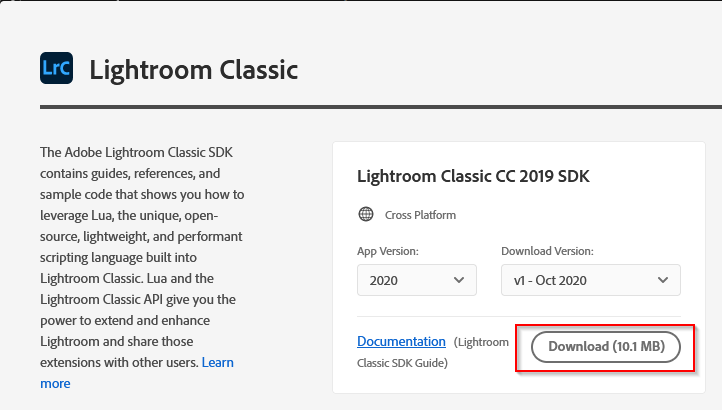
You will then get a ZIP file which you need to extract.
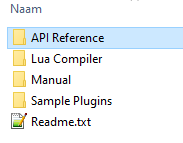
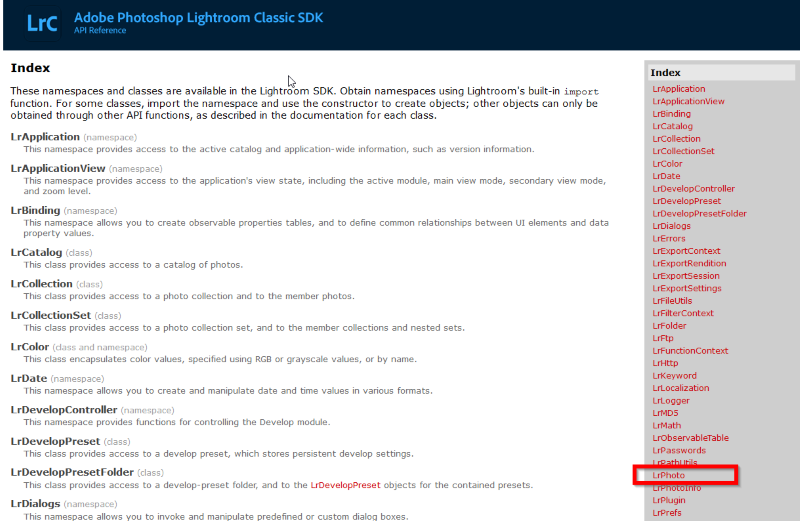
The final step to view the SDK functions is to open the "API Reference" directory and then double-click the file "index.html".
This opens your browser, where you will find the groups of functions on the right. Under "Photo" you will find the functions we used in the example above.
You can also find out here what other information we can retrieve from a photo, such as shutter speed, crop values, GPS and so on.
In the "Manual" directory you will find a manual for writing plug-ins, and in the "Sample Plugins" directory you will find examples of plug-ins.
Programmes
A good editor makes life easier for every programmer. You can find a huge amount of information about good programming editors on the internet.
Other plug-ins
Many plug-ins have now been written for Lightroom.
A well-known marketplace for plug-ins is Photographers-toolbox.com, but there are several others.
I have written a number of Lightroom plug-ins myself. For more information, see:
About the author
Dick Holtman is getrouwd met een enthousiaste fotografe en een ervaren Lightroom post-processing specialist. Hij werkt al ruim 30 jaar in de IT. Uit deze interesses is het bedrijf LightroomStatistics.com ontstaan. Dick maakte al 11 Lightroom plug-ins die te vinden zijn op de Photographers-Toolbox.com. Ook geeft hij IT en workflow adviezen aan fotografen.
You might also like
-
 What are Lightroom plug-ins and what can you do with them?
by Dick Holtman
-
 ImageMagick, photo editing from the command line and Lightroom
by Dick Holtman
-
 My 10-step Lightroom Classic workflow
by Nando Harmsen
-
 Workflow tips for Lightroom Classic in 7 steps
by Nando Harmsen
-
Plug-in: Translating keywords, titles and captions in Lightroom
by Dick Holtman
-
 Speed up Lightroom Classic by reinstalling it
by Elja Trum
0 comments
Be the first to share what you think!
Have your say
Please note: Articles older than a week can only be commented on by signed-in visitors.Would you still like to comment? sign in or create a free account.
Become a better photographer every week
A practical photography tip in your inbox every week.
38,982 photography enthusiasts already receive the tips! More about the weekly mail. Or keep up to date via  Facebook.

Elja Trum
Photofacts; everything to do with photography!
Would you like to take better photos and keep up with what is happening in photography? Photofacts publishes articles that teach you something about photography — from a product announcement to a practical shooting tip or a look at a website. Photofacts covers photography every day and is a hobby project of Elja Trum's that got out of hand. The articles are written by a team of volunteer authors. If you would enjoy writing one or more articles for Photofacts, do get in touch.More about PhotofactsPhotofacts is made possible in part by
