

How to create a clipping mask in Photoshop
Saturday 26 January 2019, 16:32 by Michelle Peeters | 9,375 views | 2 commentsThis article was translated from Dutch with the help of AI. Read the original.
A clipping mask is a link between one layer and another. The edges of one layer are used, along with the contents of the other layer. So you are essentially creating a template from one layer, which you use to cut an image in another layer into a particular shape.
In this article, you'll practise using a clipping mask by placing an image inside text.
Create a new document with Command-N (PC: Ctrl-N) and select the Horizontal Type Tool (T) in the toolbar. Click in your document and create some text. A thick, bold font works best for this.
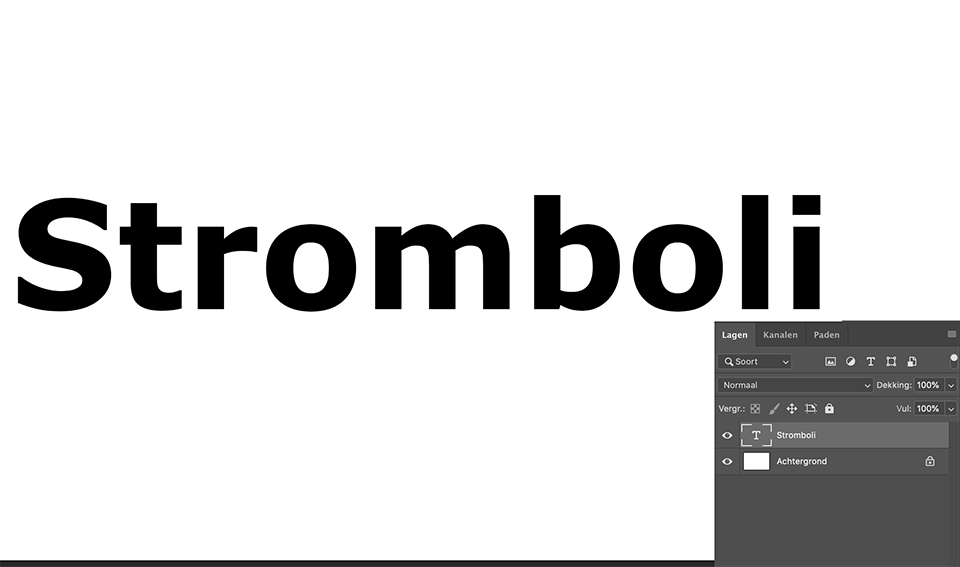
Next, open the photo you want to display in this text and place it in the same document. You can copy and paste it, or drag and drop it using the Move Tool, as long as you place it in the same document.
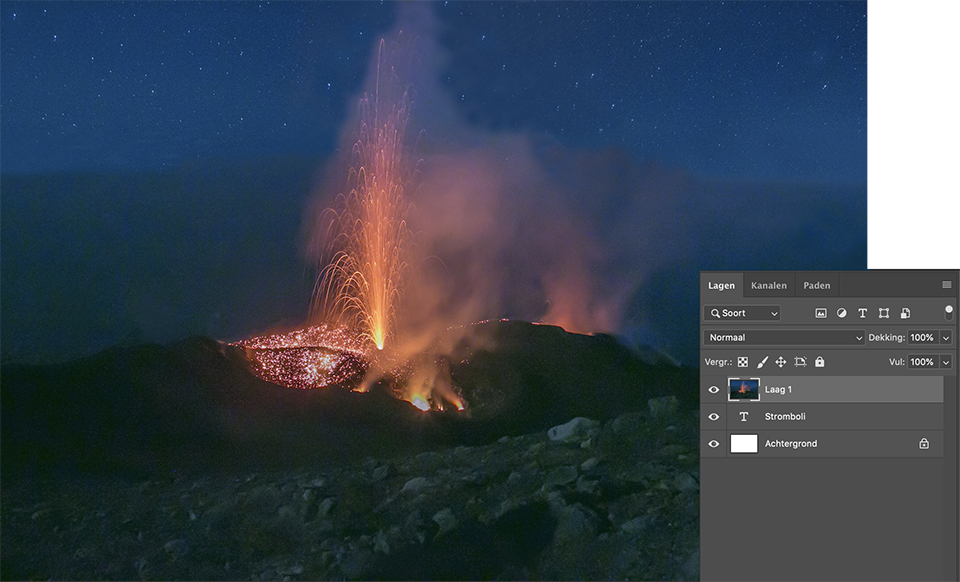
Now, in the Layers panel, make sure that the text layer is directly below the image layer. All you have to do is press Command-Option-G (PC: Ctrl-Alt-G). A clipping mask is then created, placing the image inside your text.
Once this has been done, you can use the Move Tool to click and drag the image around inside the text. To remove the image from the text, use the same shortcut.
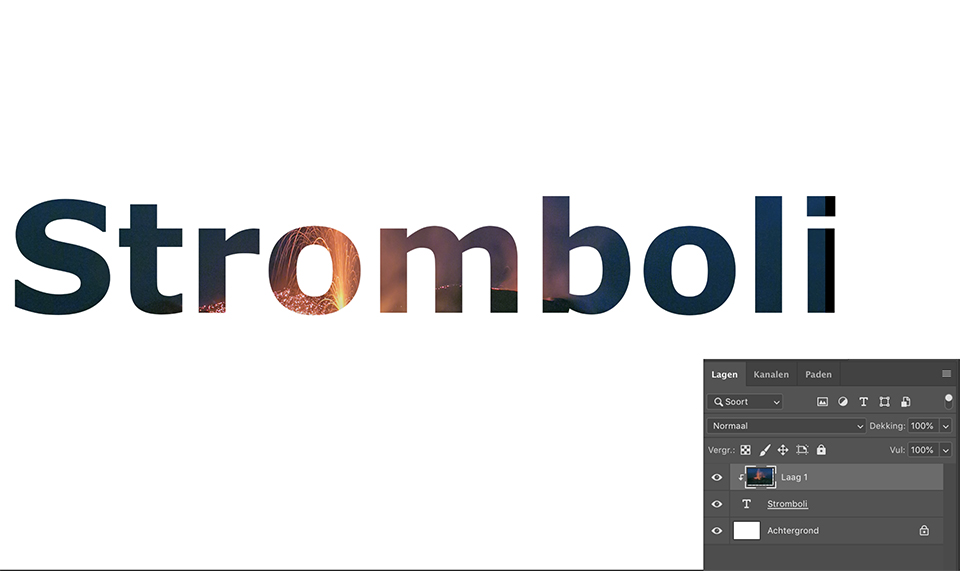
Another useful thing is that once your image has been placed inside the text, you can still change the font or font size. Click the text layer in the Layers panel, select the text and make the changes you want.
Want to learn more about editing images in Photoshop?
At Photofacts Academy, our online learning platform for photographers, we have several courses about Adobe Photoshop.
- Photoshop for Beginners (Johan Elzenga)
- Photoshop for Photographers (Piet van den Eynde)
- Photoshop for Advanced Users (Marit Hilarius)
- Photoshop Effects (Elja Trum)
And much more...
You can take these courses for two weeks with a free trial membership.
About the author
Michelle Peeters is fotografe en oprichter van DeuxBleus Fotografie. Michelle herkent het bijzondere in het gewone en het gewone in het bijzondere. Ze heeft zich nooit willen specialiseren en is daardoor van alle markten thuis.
You might also like
-
 Photoshop tip: Using a clipping mask
by Nando Harmsen
-
 Review: The Photoshop Layers Book - Johan Elzenga
by Michelle Peeters
-
 A critical note on the new landscape masks in Lightroom
by Nando Harmsen
-
 Photoshop tip: Keep your layer stack organised
by Nando Harmsen
-
Photoshop tip: Use a copy of a merged layer
by Nando Harmsen
-
 Have Photoshop automatically restore your photo
by Michelle Peeters
2 comments


Have your say
Please note: Articles older than a week can only be commented on by signed-in visitors.Would you still like to comment? sign in or create a free account.
Become a better photographer every week
A practical photography tip in your inbox every week.
38,937 photography enthusiasts already receive the tips! More about the weekly mail. Or keep up to date via  Facebook.

Elja Trum
Photofacts; everything to do with photography!
Would you like to take better photos and keep up with what is happening in photography? Photofacts publishes articles that teach you something about photography — from a product announcement to a practical shooting tip or a look at a website. Photofacts covers photography every day and is a hobby project of Elja Trum's that got out of hand. The articles are written by a team of volunteer authors. If you would enjoy writing one or more articles for Photofacts, do get in touch.More about PhotofactsPhotofacts is made possible in part by
