

Create a Photo Collage in Photoshop in 10 Steps
Saturday 19 January 2019, 14:41 by Michelle Peeters | 11,695 views | 0 commentsThis article was translated from Dutch with the help of AI. Read the original.
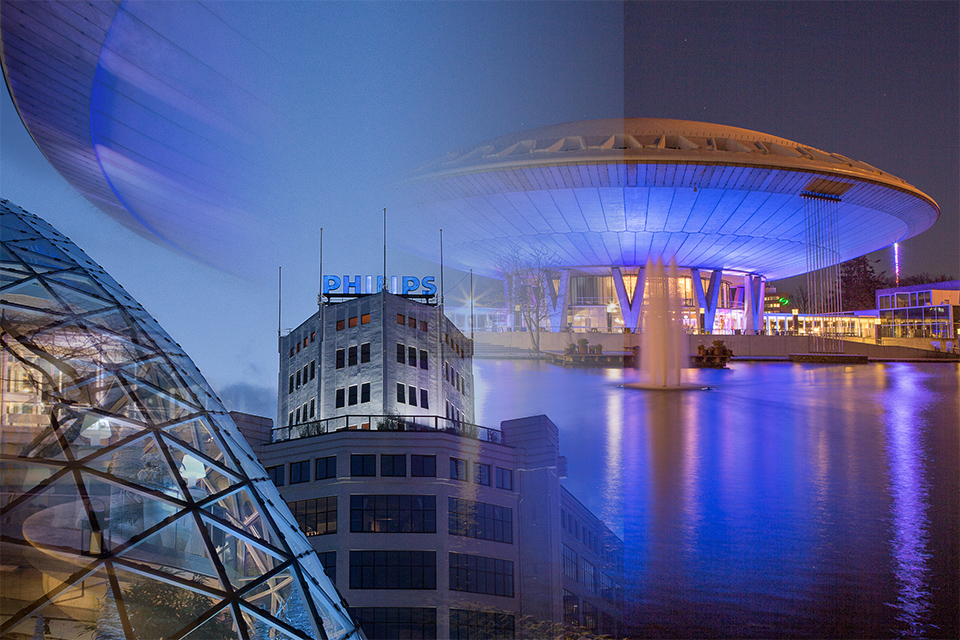
You could write a whole chapter, perhaps even a book, about Photoshop's collage techniques, but the layer masks discussed in this article are certainly the most popular and powerful technique.
The best thing is that you can combine photos seamlessly with ease, flexibility and enjoyment.
Step one
Open the photo you want to use as the basis for the collage. This photo serves as the background.

Step two
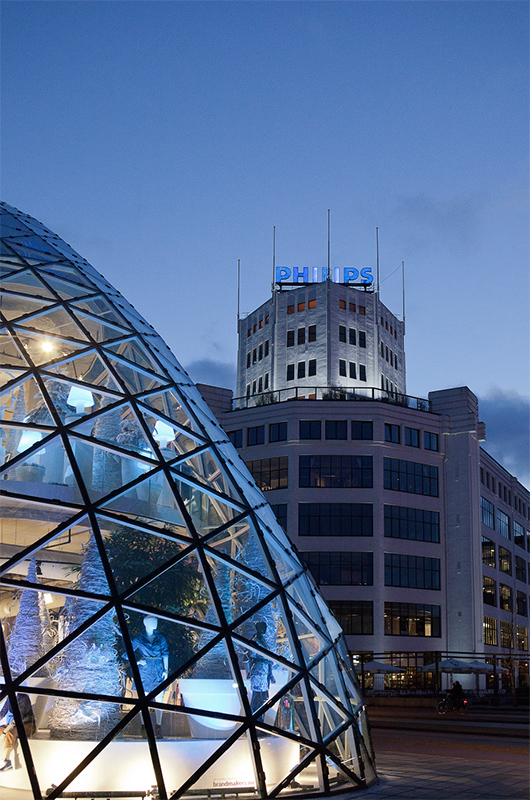
Open the second photo you want to add to the collage.
Step three
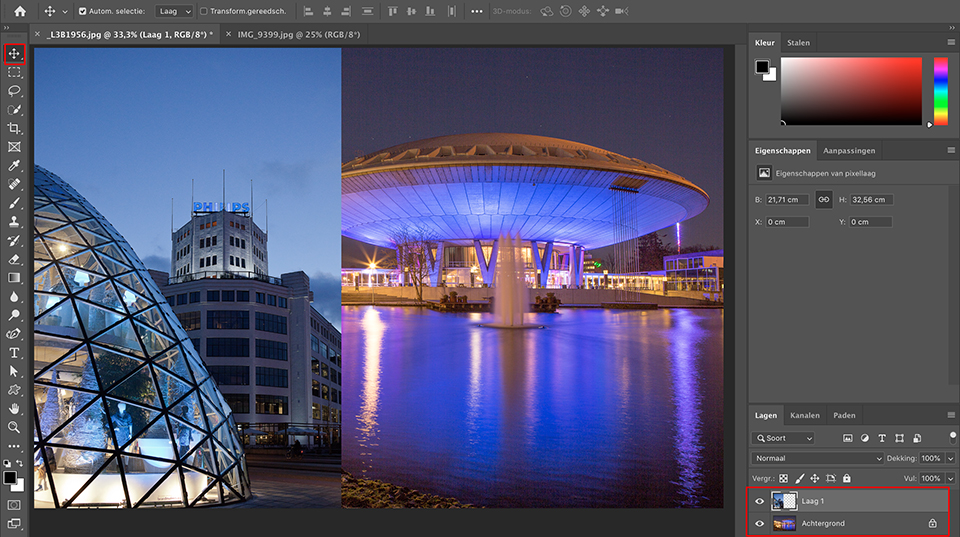
Press the V key for the Move tool. Click and drag the photo you have just opened directly onto the background photo.
You can also copy the second photo (Cmd-A (select all), Cmd-C (copy) and Cmd-V (paste) in the first photo you opened). It appears on its own layer in the collage document.
Step four
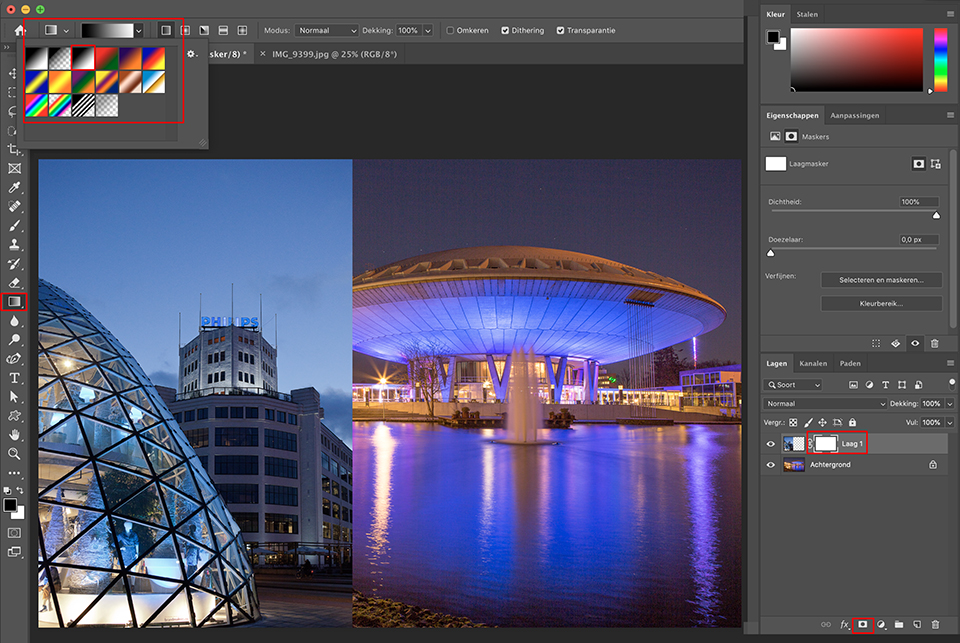
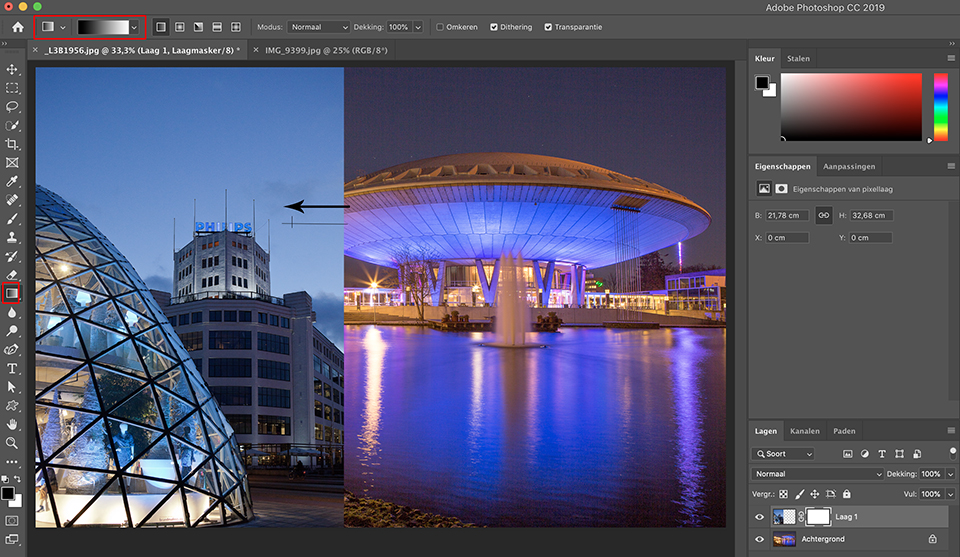
Click the Add Layer Mask symbol at the bottom of the Layers panel. Press the G key for the Gradient tool and press Return (PC: Enter) to open the window with the different gradients. Choose the gradient from black to white (the third gradient in the overview.
Step five
With the Gradient tool, click in the photo at the point where the photos overlap, the dividing line. In this case, drag to the left with the mouse button held down until you reach the point you want to make transparent. Everything outside the line you draw remains opaque.
Step six
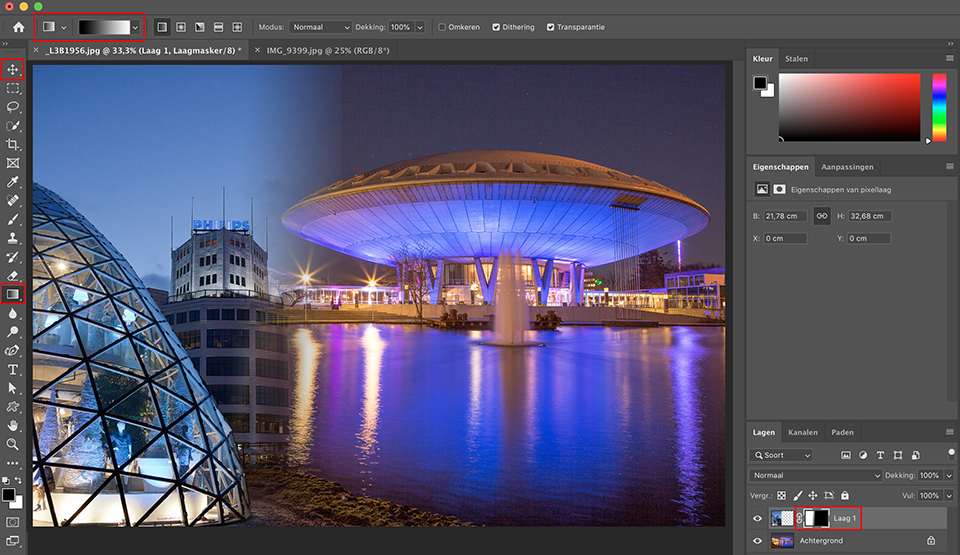
As soon as you release the mouse button, the top photo smoothly changes from right, fully opaque, to left, fully transparent.
If you notice after adding the blend that the Evoluon covers too much of the Blob, select the Move tool and drag the Blob slightly to the left, until the image just touches the Evoluon.
Step seven
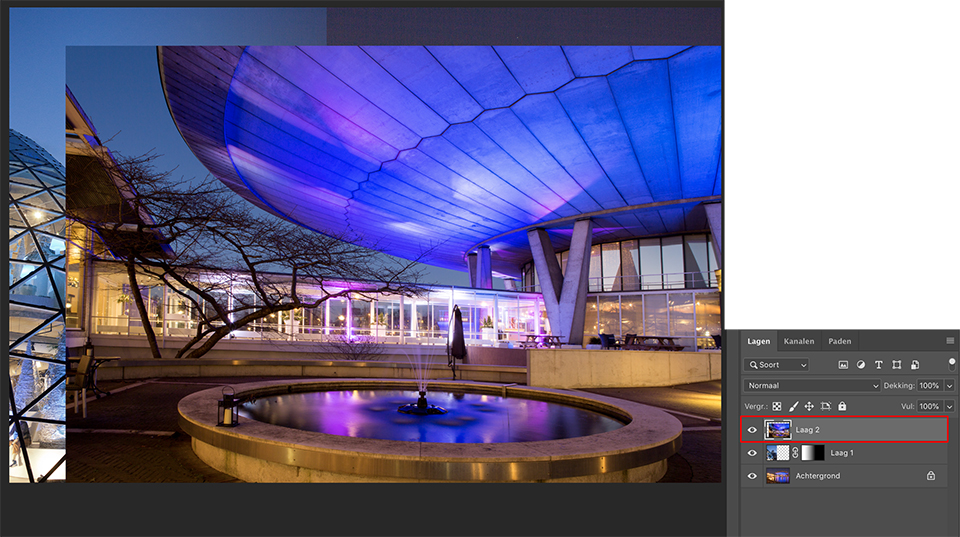
Open another photo that you want to add to the existing collage. Use the Move (V) tool to drag this photo into the collage in progress.You can also copy the third photo (Cmd-A (select all), Cmd-C (copy) and Cmd-V (paste) in the first photo you opened). It then appears on its own layer in the collage document as well.
Step eight
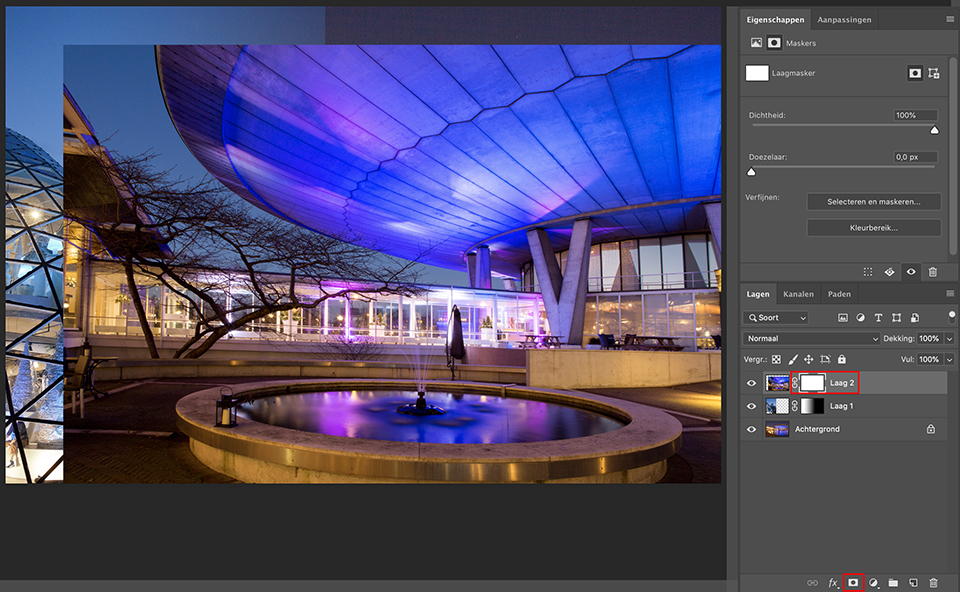
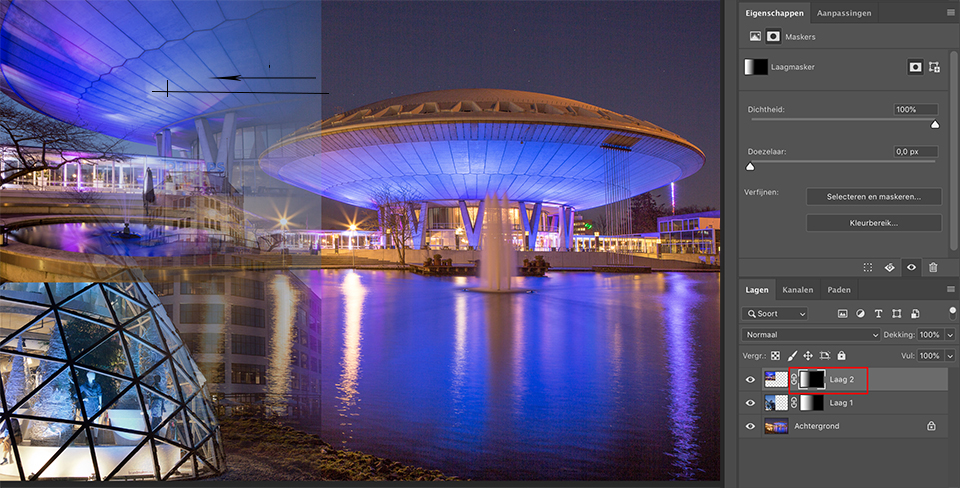
Click the Add Layer Mask symbol at the bottom of the Layers panel to add a layer mask for the new layer.
Step nine
With the Gradient tool, click just beyond the dividing line between the overview photo of the Evoluon and drag to the left, towards the centre of the detailed photo of the Evoluon.This also makes the new photo blend nicely into the collage. As soon as you release the mouse button, the gradient appears in the layer mask.
Step ten
If the subjects are too close together in the photo, use the Move (V) tool to drag them slightly to the left, into the right position. Bear in mind that you can only move the layers, not the background.If you want to adjust the blend, press B for the Brush tool. Choose a large brush with a soft edge and paint over the layer mask. Wherever you paint with white, more of the subject appears.
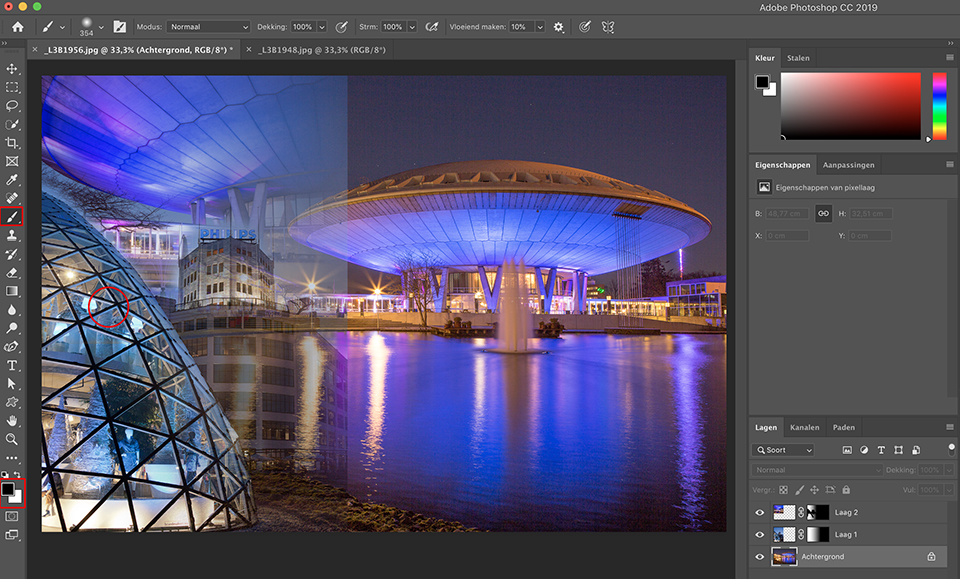
If you press the letter X for black, the subject is hidden wherever you paint.
Want to learn more about Photoshop image editing?
At Photofacts Academy, our online learning environment for photographers, we have several courses about Adobe Photoshop.
- Photoshop for Beginners (Johan Elzenga)
- Photoshop for Photographers (Piet van den Eynde)
- Photoshop for Advanced Users (Marit Hilarius)
- Photoshop Effects (Elja Trum)
And much more...
You can take these courses for two weeks with a free trial membership.
About the author
Michelle Peeters is fotografe en oprichter van DeuxBleus Fotografie. Michelle herkent het bijzondere in het gewone en het gewone in het bijzondere. Ze heeft zich nooit willen specialiseren en is daardoor van alle markten thuis.
You might also like
-
 Create a collage in Affinity in nine steps
by Nando Harmsen
-
 Book: Scott Kelby, how do you do that in Photoshop?
by Michelle Peeters
-
 Review: The Photoshop Layers Book - Johan Elzenga
by Michelle Peeters
-
 Making a Solar Eclipse Collage in Photoshop
by Nando Harmsen
-
 Review: 'Photoshop Masters' by Rob de Winter
by Huub Keulers
-
 Putting together a triptych
by Nando Harmsen
0 comments
Be the first to share what you think!
Have your say
Please note: Articles older than a week can only be commented on by signed-in visitors.Would you still like to comment? sign in or create a free account.
Become a better photographer every week
A practical photography tip in your inbox every week.
38,937 photography enthusiasts already receive the tips! More about the weekly mail. Or keep up to date via  Facebook.

Elja Trum
Photofacts; everything to do with photography!
Would you like to take better photos and keep up with what is happening in photography? Photofacts publishes articles that teach you something about photography — from a product announcement to a practical shooting tip or a look at a website. Photofacts covers photography every day and is a hobby project of Elja Trum's that got out of hand. The articles are written by a team of volunteer authors. If you would enjoy writing one or more articles for Photofacts, do get in touch.More about PhotofactsPhotofacts is made possible in part by
