

Adobe Spark; quickly create social media content
Thursday 1 September 2016, 20:02 by Elja Trum | 7,052 views | 4 commentsThis article was translated from Dutch with the help of AI. Read the original.
We know Adobe from Photoshop, Lightroom and the other Creative Cloud applications. But they also release other services and apps. I took a look at Adobe Spark, a service that lets you quickly create a portfolio from a shoot or social media graphics.
Within Spark, there are three options: Post, Page and Video. Separate apps are available for these three options, but you can also use all three through the Adobe Spark website.
Spark Post
Spark Post is designed for creating images for social media posts. For example, for Facebook, Instagram and Twitter. If you have taken a photo somewhere while out and about, you can quickly add a nice bit of text to it. The app is very useful in situations like this.
When creating a Spark Post, you first choose the background, a solid colour, a photo from your library, a photo you take on the spot, a free-to-use photo from a large library, or photos from your Lightroom or Creative Cloud account.
Next, you choose the medium where you want to place the photo, such as Instagram, Facebook, Twitter, Pinterest, a Facebook Ad or a blog post. You can also create a cover for social media sites, or choose a 'standard' size, a specific ratio such as 16:9.
You can then add text, for which you can also adjust the brightness and transparency. Afterwards, you can adjust and fine-tune all kinds of selected settings. It all works quite simply and smoothly.
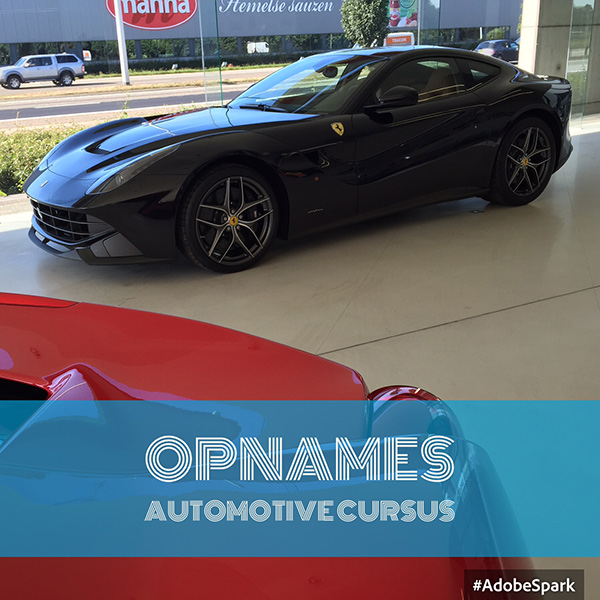
You can also simply remove the #AdobeSpark hashtag that is included in the image by default, but it is something you have to do every time.
The presets are useful too, so you do not have to choose everything yourself. You can adjust a nice example with your own text and photo.
Spark Pages
With Spark Pages, you can quickly create a 'page'. A page on the internet containing, for example, a number of photos. You can get the photos from Facebook, Google Photos, Dropbox and, of course, from Lightroom and your Creative Cloud membership.
Spark Pages uses a basic page layout. You can add photos, text, buttons, video, photo grids and slideshows to your page. You can then apply one of the standard themes offered by Adobe.
You cannot vary things very much or fine-tune anything, but you can create a nice-looking page in just a few minutes. For example, it is a nice way to present the photos to your client or model after a photoshoot.
Below you can see the result of a page that I put together in a few minutes using photos from a recent shoot.

What I find disappointing is that the quality of the photos in the final presentation is not very high. The quality is fine when you use a photo gallery, but not when you choose a full-page photo.
The photo I used in my Spark Page was 2500 by 1667 pixels as the source file. That should be more than enough. Unfortunately, this makes the full-screen display less suitable for showing your photos.
Spark Video
Spark Video is not for recording videos, but rather for creating videos consisting of animation, text and voice-overs. This lets you quickly create a decent animation from static photos and other information.
Here is a short demo from Adobe about the app:
About the author
Elja Trum is the founder of Photofacts and online photography course website Photofacts Academy. He has been writing about photography since 2006. Elja is also the author of (Dutch) books on composition, black-and-white photography, flash photography and portrait photography.
You might also like
-
 Using social media as a photographer
by Fabian Viester
-
 Adobe and the cost of AI generative fill
by Nando Harmsen
-
 What does Adobe ending its cloud services mean for Lightroom?
by Nando Harmsen
-
 5 social media tips to build a relationship with your followers
by Aäron Nasarany
-
 20 new features in Adobe Photoshop CC 2019
by Michelle Peeters

4 comments
-
 Jan wrote on Tuesday 6 September 2016 at 13:28 | reply
Hi Elja, בעקבות your article I also tried something and here's the result.
Translated from Dutch. -

-
 guest wrote on Tuesday 6 September 2016 at 14:16 | reply
I paid for a Creative Cloud membership
Translated from Dutch.
kept getting an error message during installation
I did have to pay half because I had to cancel out of misery.
Had to phone Ireland but my English isn't good enough to explain my problem
I already had LR 6 -
 linda wrote on Wednesday 7 September 2016 at 19:40 | reply
Hi, do you know if you can also add a logo of yours as the sender/company in the image? Thanks
Translated from Dutch.

Have your say
Please note: Articles older than a week can only be commented on by signed-in visitors.Would you still like to comment? sign in or create a free account.
Become a better photographer every week
A practical photography tip in your inbox every week.
38,729 photography enthusiasts already receive the tips! More about the weekly mail. Or keep up to date via  Facebook.

Elja Trum
Photofacts; everything to do with photography!
Would you like to take better photos and keep up with what is happening in photography? Photofacts publishes articles that teach you something about photography — from a product announcement to a practical shooting tip or a look at a website. Photofacts covers photography every day and is a hobby project of Elja Trum's that got out of hand. The articles are written by a team of volunteer authors. If you would enjoy writing one or more articles for Photofacts, do get in touch.More about Photofacts Photos





Photofacts is made possible in part by
