

Be careful when removing power lines and dust spots in Luminar NEO
Thursday 25 August 2022, 15:30 by Nando Harmsen | 3,857 views | 3 commentsThis article was translated from Dutch with the help of AI. Read the original.
With Luminar NEO, we gained the ability to automatically remove power lines and dust spots. That is very handy, of course, and Luminar is keen to promote it. Especially because other software does not have this feature yet. But it also has disadvantages. It can sometimes be rather time-consuming.
It was naturally one of the selling points: removing power lines and dust spots from a photo with the press of a button. The so-called artificial intelligence recognises lines or dust spots in the photo and automatically removes them for you.

Forget the populist term artificial intelligence for a moment. There is nothing intelligent about it. It is nothing more than image recognition, a piece of software that recognises certain pre-programmed elements in an image.
Once it recognises them, a clever, but not intelligent, edit is applied so that they appear to simply disappear.
However easy and appealing it may be, this image recognition is far from intelligent, so mistakes are made. Some elements in the photo are incorrectly recognised as a power line, or are not recognised when they should be. The same applies to dust spots.

If you let Luminar NEO loose on a photo with the power line and dust spot removal tools, part of the work will be done for you. Power lines disappear and dust spots on the sensor are neatly removed. Handy, isn't it? That saves work.
Removing dust spots, and sometimes other things too
If your sensor is not completely free of dust spots, which is perfectly normal, you can see them in your photo. They become visible especially with very small apertures, but also when you apply very strong and aggressive contrast.
Luminar NEO can automatically filter these out using image recognition. And Luminar does this reasonably well to well. They are filtered out quite effectively, especially in the sky, where they are often easiest to see.
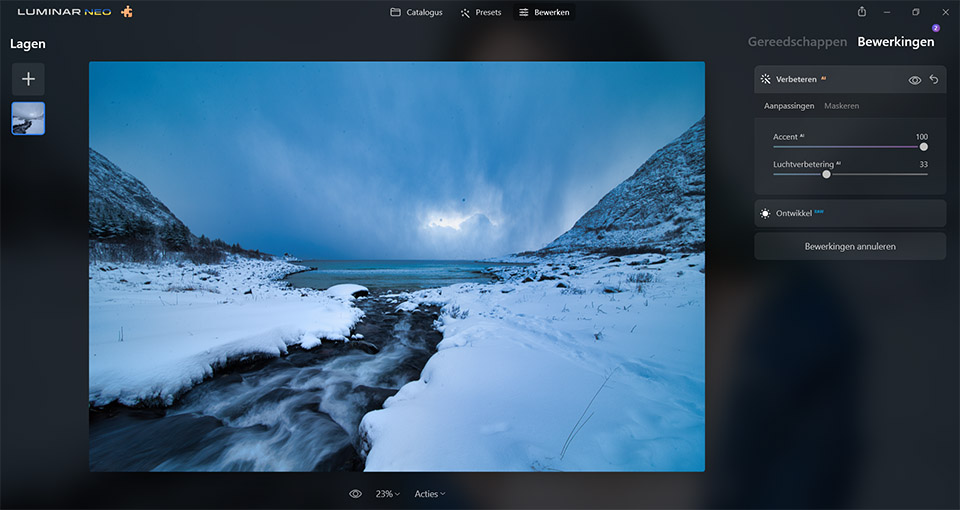
However, if you look closely at a photo, there may still be dust spots present. Luminar does not always recognise them, especially in areas with lots of detail. Keep that in mind.
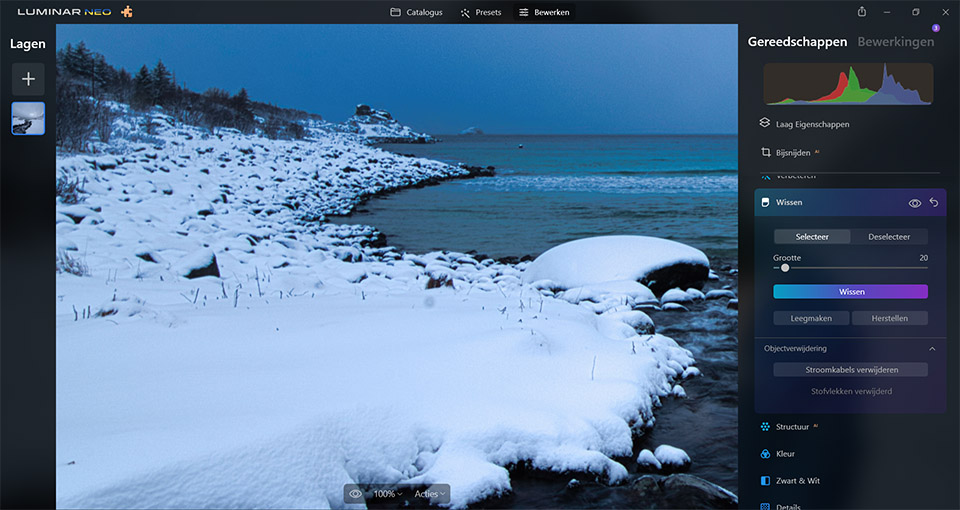
Elements in your image can also be incorrectly identified as dust spots. You notice this especially when photographing a starry sky, where many faint stars are filtered out.
Even though some dust spots may be missed, it naturally saves a lot of work if 90% has already been done. Looking through the photo afterwards is the finishing touch.
Removing power lines
Things become more difficult for Luminar NEO when 'remove power lines' is used. Lines against the sky are easy. Luminar NEO handles those almost perfectly.
It is different when lines run against a busy background, or pass in front of or behind objects. In that case, lines are only partly removed, or too much is removed, causing your object to become distorted or even disappear completely.
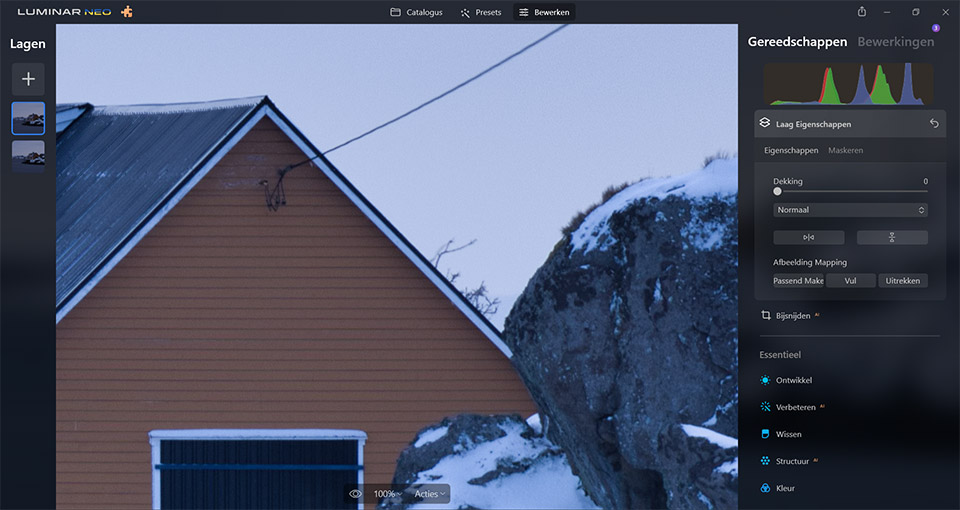
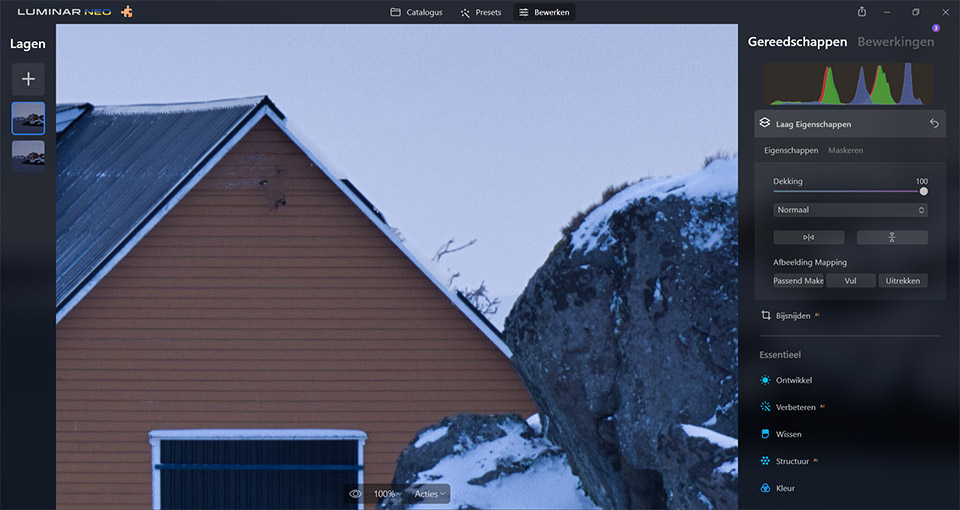
Luminar NEO cannot recognise all of them either, and sometimes parts are identified as power lines when they are not. This makes the result seem rather random. The result is a photo with many small, inconspicuous errors that you do not notice immediately.
Check your photo after automatic removal
If you use the automatic power line or dust spot removal, it is advisable to look at the photo carefully and closely afterwards. Find the areas where things went wrong and correct them.
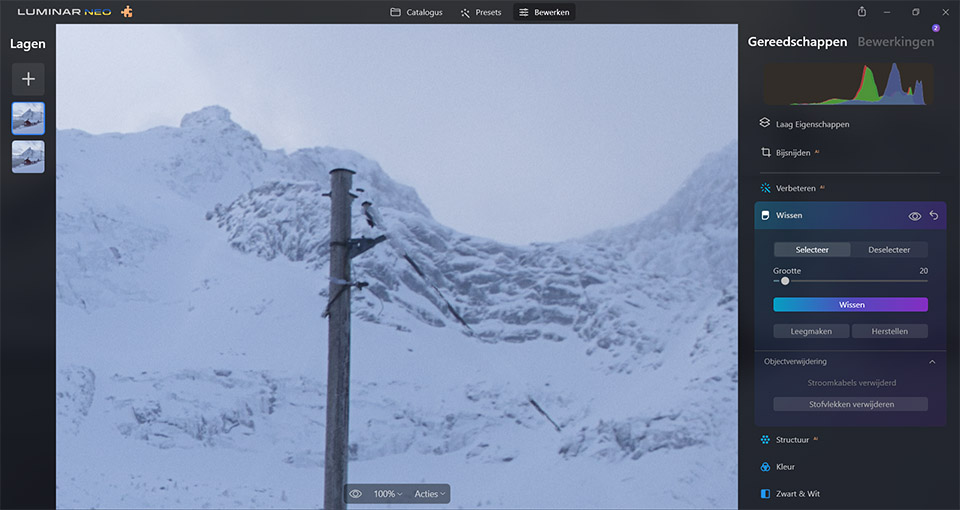
With dust spots, it is a matter of removing any spots that were missed and repairing any elements that were incorrectly identified as dust spots.
With power lines, it is more difficult, because you also need to look for areas where parts that were not power lines have been removed. By stepping back one step at a time in the editing panel and looking at 'before' and 'after', you will find them.
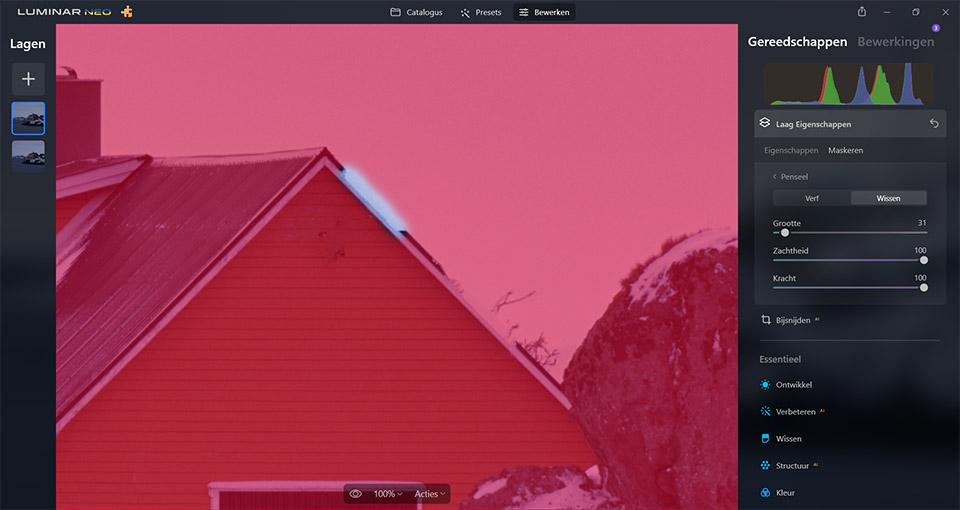
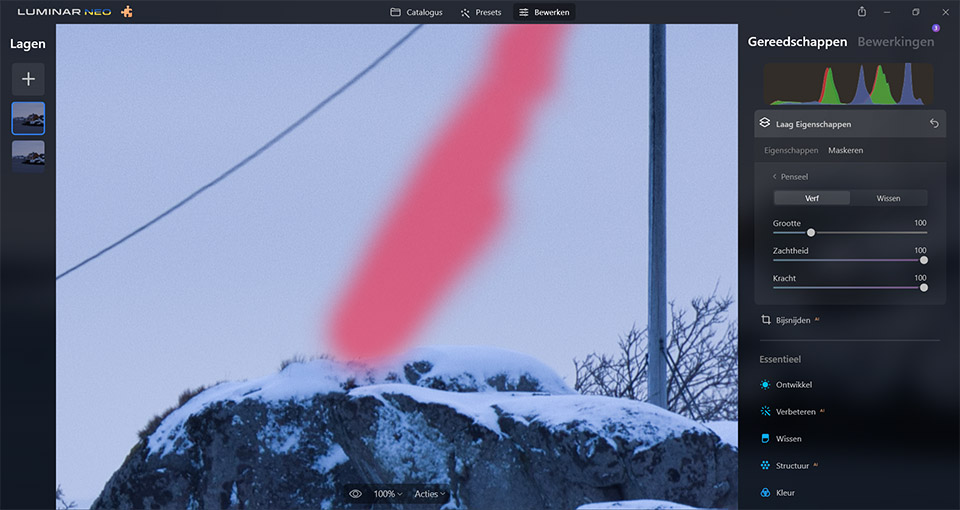
Time-saving or time-consuming?
Are these automated features actually time-saving, or not? If the software had genuine artificial intelligence, it would save time. In that case, the software would recognise the difficult parts of the photo without any problems.
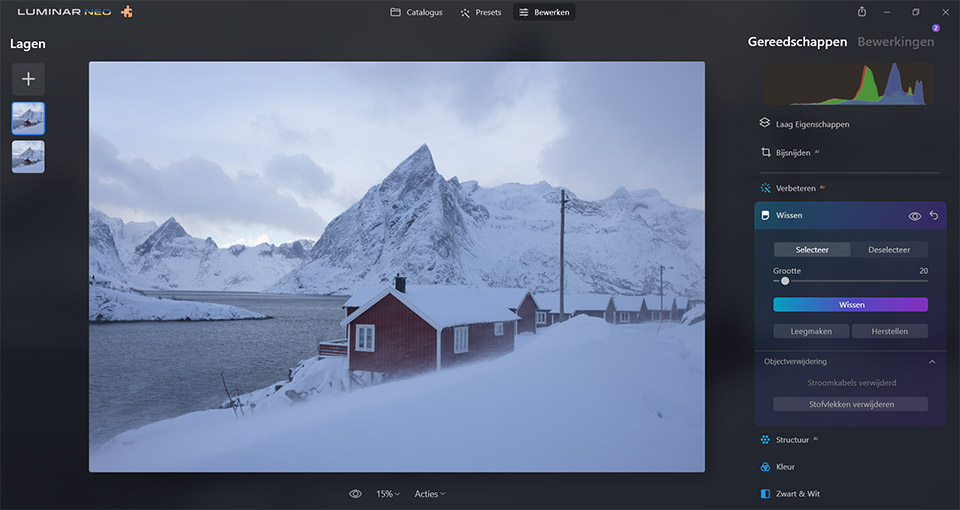
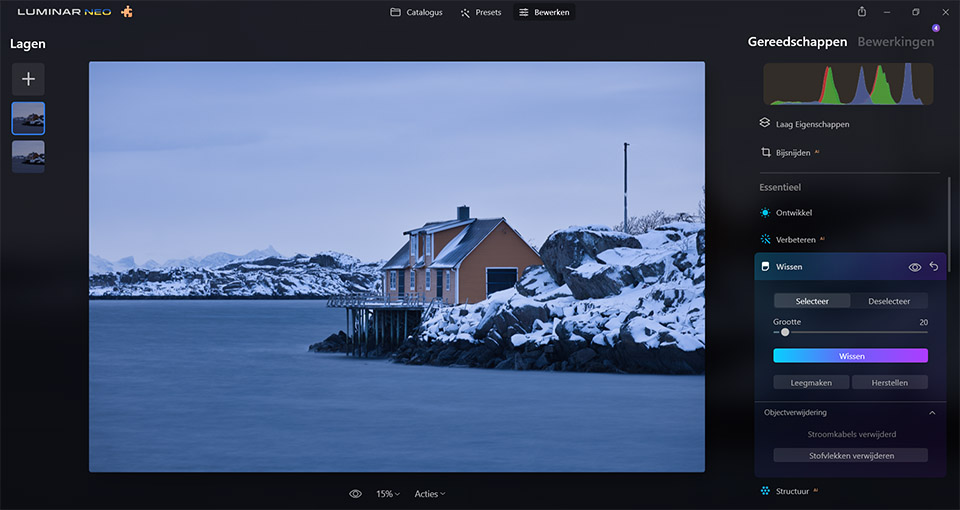
Because there is nothing intelligent in the programme and it only uses image recognition, it is far from perfect. Checking the photo for errors, especially after removing power lines, can sometimes take considerably more time than simply doing it manually.
A simple line in the sky is usually not a problem for Luminar NEO, but it becomes problematic against a busy background. The same applies to dust spots, although to a lesser extent.
About the author
Nando Harmsen has been photographing for more than 40 years. He specialises in wedding photography and landscape photography. Nando also gives talks, workshops, masterclasses and photo trips, and regularly reviews new and interesting equipment.
You might also like
-
 Skylum launches Luminar NEO
by Nando Harmsen
-
 The imgmi app, Luminar for your smartphone
by Nando Harmsen
-
 Converting a Luminar AI catalogue to Luminar NEO
by Nando Harmsen
-
 Luminar NEO gets a panorama feature
by Nando Harmsen
-
 Luminar NEO gets AI-generated content with GenSwap
by Nando Harmsen
-
 Luminar NEO gets a new update
by Nando Harmsen
3 comments
-
 will gillemot wrote on Tuesday 30 August 2022 at 10:38 | reply
I've used it regularly and am very satisfied with it, every photo I print on A2 is fine every time when it comes to dust spots !
Translated from Dutch. -

 Donald Willemsen
wrote on Tuesday 30 August 2022 at 11:19
| reply
Donald Willemsen
wrote on Tuesday 30 August 2022 at 11:19
| reply
Nando, I completely agree with you. I've tried removing power lines a few times with Luminar Neo, but it's not that great. It works fine with a clear blue sky as the background, but you can't get wires against a background of foliage removed with it. So I no longer use Luminar for that. The number of errors is such that I can do it better with the spot healing brush in Photoshop. If you let Luminar do it automatically, you lose an enormous amount of time looking for the places where it went wrong. So I do it by hand in Photoshop.
Translated from Dutch. -
 guest wrote on Tuesday 30 August 2022 at 11:35 | reply
For me, the upper part of the electricity pole disappeared. Saarna didn't spend any more time on it.
Translated from Dutch.
Have your say
Please note: Articles older than a week can only be commented on by signed-in visitors.Would you still like to comment? sign in or create a free account.
Become a better photographer every week
A practical photography tip in your inbox every week.
38,938 photography enthusiasts already receive the tips! More about the weekly mail. Or keep up to date via  Facebook.

Elja Trum
Photofacts; everything to do with photography!
Would you like to take better photos and keep up with what is happening in photography? Photofacts publishes articles that teach you something about photography — from a product announcement to a practical shooting tip or a look at a website. Photofacts covers photography every day and is a hobby project of Elja Trum's that got out of hand. The articles are written by a team of volunteer authors. If you would enjoy writing one or more articles for Photofacts, do get in touch.More about PhotofactsPhotofacts is made possible in part by
