

How to create reflections in Photoshop
Saturday 16 February 2019, 20:02 by Michelle Peeters | 12,291 views | 3 commentsThis article was translated from Dutch with the help of AI. Read the original.
You can easily apply this reflection effect to a landscape or cityscape photo, but you can actually use it for anything, from people to products.
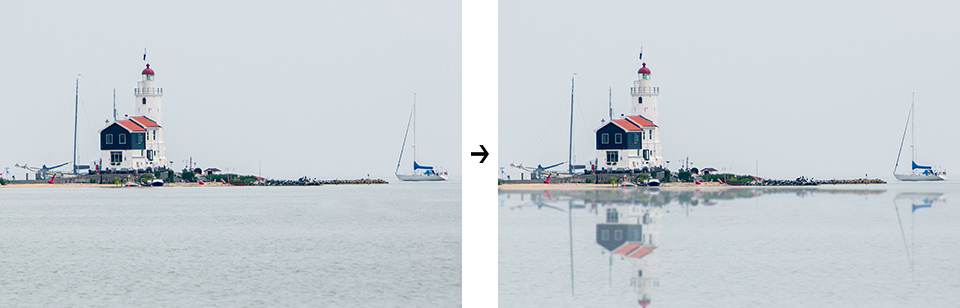
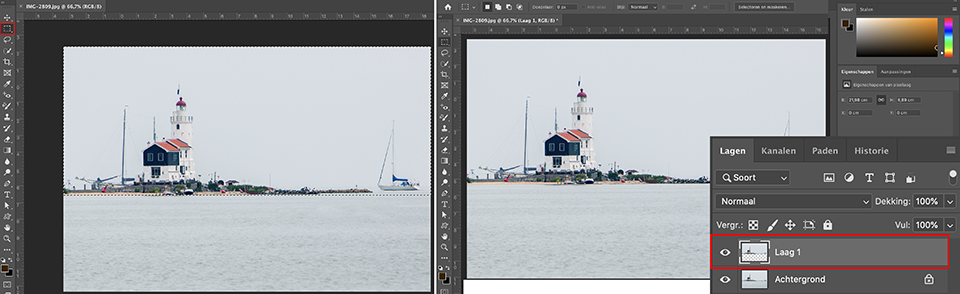
For a landscape photo, proceed as follows: select the Rectangular Marquee Tool (M) in the toolbar and select the area from the horizon line all the way to the top of the image.
Press Command-J (PC: Ctrl-J) to place this selected area on its own layer. Then press Command-T (PC: Ctrl-T) to activate Free Transform.
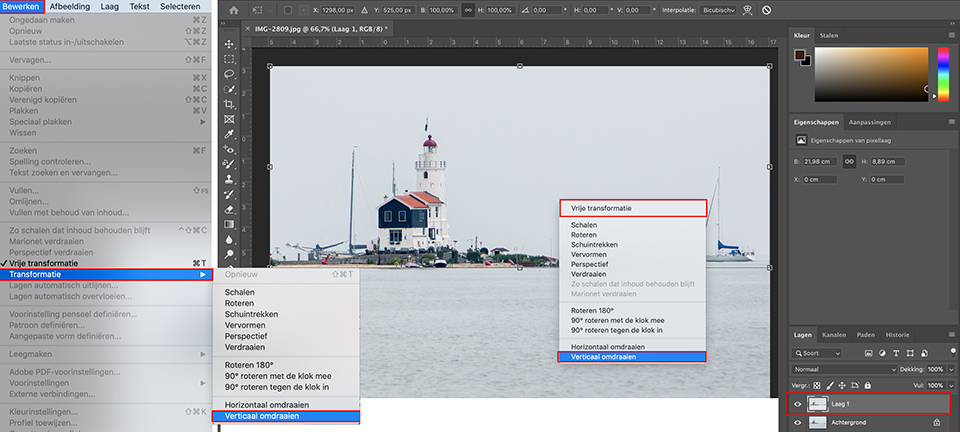
Right-click somewhere inside the selection and, in the contextual menu that appears, choose Flip Vertical to turn the image on this layer upside down. You can also do this via the menu: Edit, Transform, Flip Vertical.
Press the Return key (PC: Enter) to apply the transformation. Now switch to the Move Tool (V), hold down the Shift key (to keep things perfectly straight while dragging) and drag this flipped layer down until its top edge touches the horizon line in your original image. This creates a reflection.
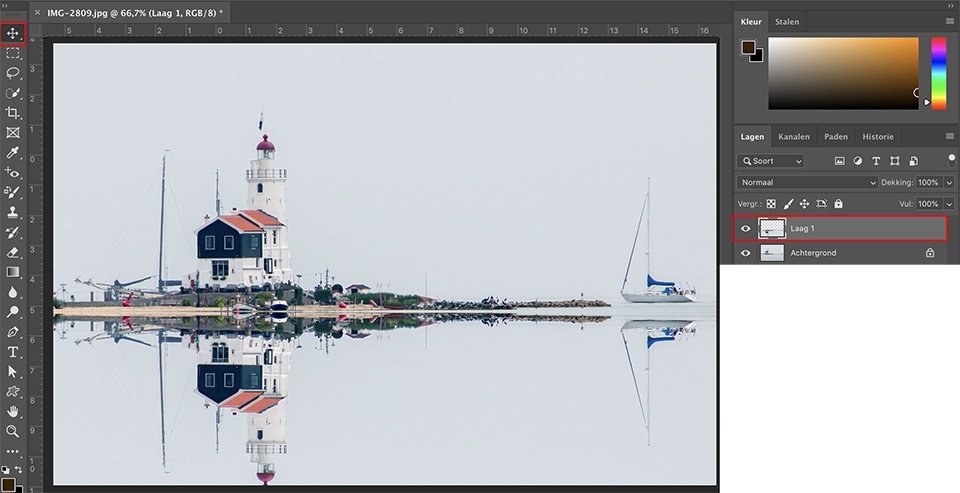
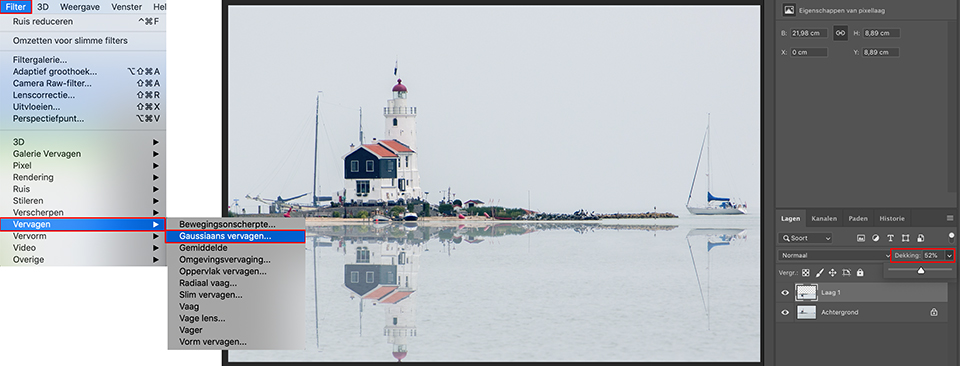
You can optionally lower the opacity of the new layer with the reflection a little, so that the ripples become slightly visible again. You can also blur the layer using Gaussian Blur for a more natural effect.
Want to learn more about editing images in Photoshop?
At Photofacts Academy, our online learning environment for photographers, we have several courses about Adobe Photoshop.
- Photoshop for Beginners (Johan Elzenga)
- Photoshop for Photographers (Piet van den Eynde)
- Photoshop for Advanced Users (Marit Hilarius)
- Photoshop Effects (Elja Trum)
And much more...
You can follow these courses for two weeks with a free trial membership.
About the author
Michelle Peeters is fotografe en oprichter van DeuxBleus Fotografie. Michelle herkent het bijzondere in het gewone en het gewone in het bijzondere. Ze heeft zich nooit willen specialiseren en is daardoor van alle markten thuis.
You might also like
-
 Reduce reflections on a face with Photoshop
by Elja Trum
-
 Avoiding or removing reflections in glasses
by Michelle Peeters
-
 Control reflections with a polarising filter
by Erik Nevels
-
 Time for self-reflection
by Laura van der Burgt
-
 Photoshop tip: Use a copy of a merged layer
by Nando Harmsen
-
 Everything about Generative Fill in Photoshop Beta
by Nando Harmsen
3 comments
-
 Geert wrote on Sunday 17 February 2019 at 12:17 | reply
Great
Translated from Dutch. -
 Jo Snijckers wrote on Tuesday 19 February 2019 at 22:51 | reply
This reflection isn't really beautiful. If you look at the sailboat, it seems to be floating above the water, whereas with a reflection the intention is that both objects touch visually. Or am I seeing it wrong. I'm just an amateur photographer.
Translated from Dutch. -

 Michelle Peeters wrote on Tuesday 19 February 2019 at 23:15
| reply
Michelle Peeters wrote on Tuesday 19 February 2019 at 23:15
| reply
@Jo: it is indeed the intention that the reflection touches the subject. Sometimes that is difficult and the mirrored layer has to be rotated a bit or even distorted to make it fit nicely.
Translated from Dutch.
Have your say
Please note: Articles older than a week can only be commented on by signed-in visitors.Would you still like to comment? sign in or create a free account.
Become a better photographer every week
A practical photography tip in your inbox every week.
38,943 photography enthusiasts already receive the tips! More about the weekly mail. Or keep up to date via  Facebook.

Elja Trum
Photofacts; everything to do with photography!
Would you like to take better photos and keep up with what is happening in photography? Photofacts publishes articles that teach you something about photography — from a product announcement to a practical shooting tip or a look at a website. Photofacts covers photography every day and is a hobby project of Elja Trum's that got out of hand. The articles are written by a team of volunteer authors. If you would enjoy writing one or more articles for Photofacts, do get in touch.More about PhotofactsPhotofacts is made possible in part by
