

Reduce reflections on a face with Photoshop
Saturday 25 July 2020, 15:30 by Elja Trum | 7,243 views | 0 commentsThis article was translated from Dutch with the help of AI. Read the original.
When taking a portrait, greasy skin combined with hard light can sometimes cause bright reflection spots on the skin. In this article, a quick solution for this in Photoshop.
It is perhaps worth emphasising first that it is always smarter to prevent these kinds of reflections. You can do this, for example, by applying make-up to your model beforehand, such as powder. It also helps to work with softer light, as this is less likely to cause hard reflections.
Create a new layer
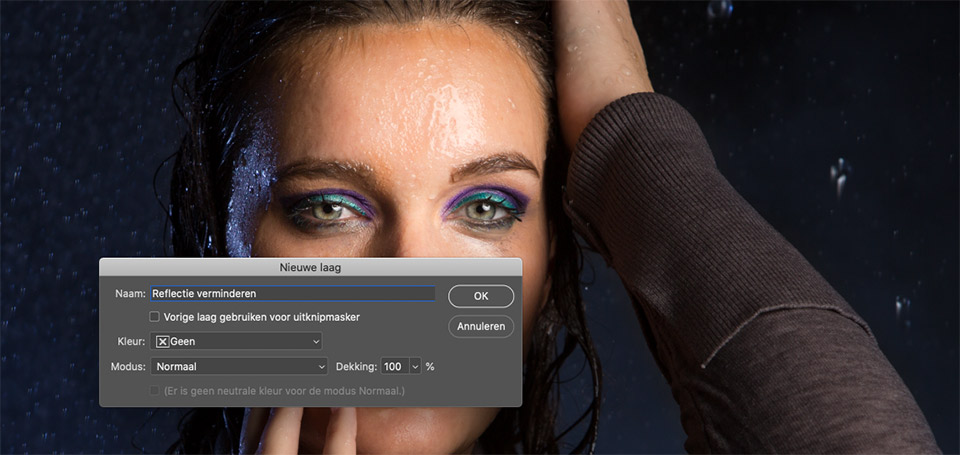
In Photoshop, it is always smart to perform an edit on a new layer. This lets you easily see the difference afterwards and adjust it where necessary.
You can easily create a new layer with the shortcut CRTL, or Command on a Mac, + SHIFT + N. For clarity, you can of course give the new layer a name.
Set up the brush
You can remove reflections in many different ways. The method I use in this article is very quick to carry out. There are also more complex methods that can produce even better results, but this is often already very useful.
We are going to reduce the reflections with a simple brush. So select the Brush tool, shortcut: B.
Now we do not want to paint with a standard brush, as that would not work. Choose a soft brush, set the opacity to around 15 per cent and choose the 'Darken' mode.
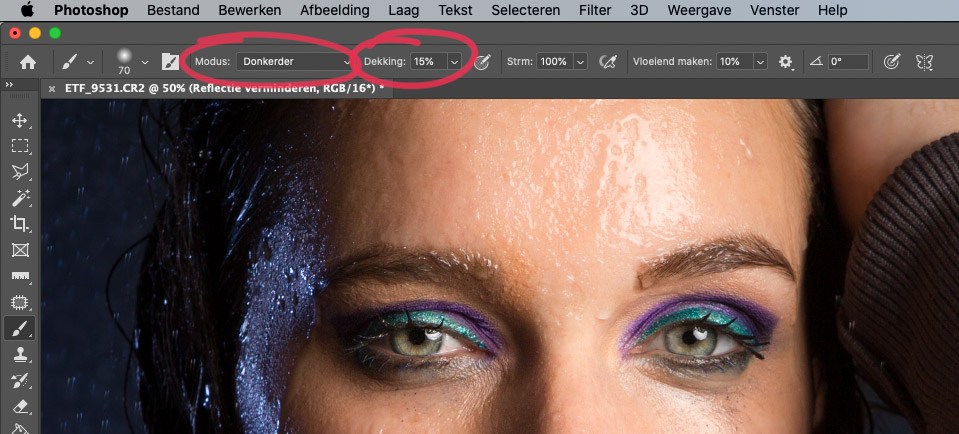
By choosing 'Darken' as the mode, the brush will only recolour pixels that are lighter than the colour of the brush itself.
Choose the desired colour
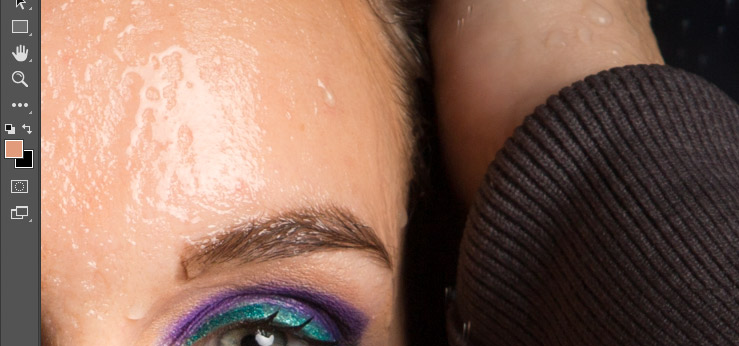
You take the brush colour from the photo itself. Pressing the ALT key changes the brush into an eyedropper.
You can now choose the skin colour right next to the bright spot you want to reduce by clicking on it with the eyedropper. Your brush now has the colour of the skin.
Paint over the reflection
Now that the brush colour is right, paint over the reflection with the brush. Because the opacity is set so low, the effect is not immediately too strong.
By releasing the brush and painting again, you can make the bright spots even darker. Sometimes you may need to change the brush colour to make it fit. It is generally not a good idea to fill in very large areas of reflection with the same colour.
Fine-tuning
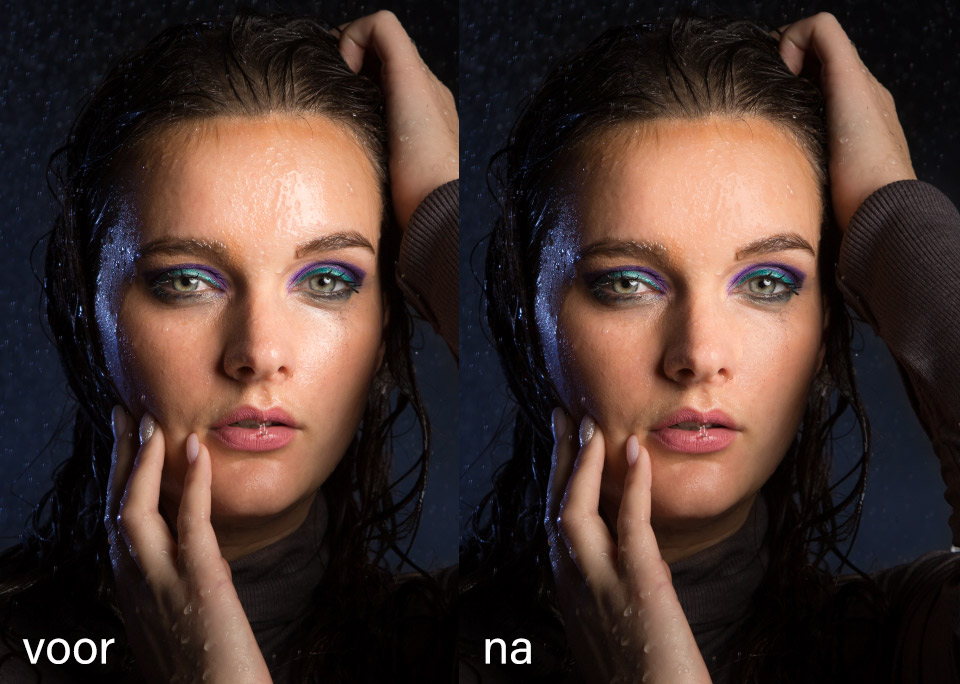
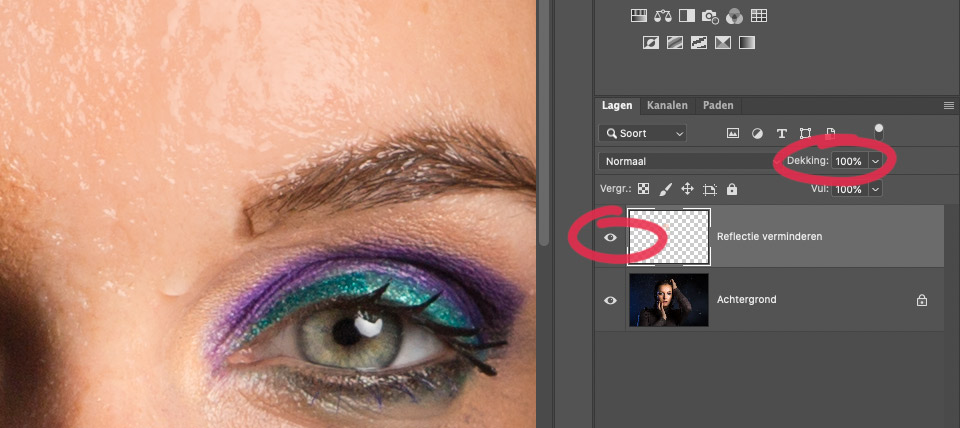
Now that you have reduced the reflection, it is a good idea to switch off the layer you created by clicking the eye icon in front of the layer. This lets you immediately see the before and after effect of your edit.
Is the effect too strong? Reduce the opacity of the layer. Is it still not good enough? Continue with the brush for a little longer.
About the author
Elja Trum is the founder of Photofacts and online photography course website Photofacts Academy. He has been writing about photography since 2006. Elja is also the author of (Dutch) books on composition, black-and-white photography, flash photography and portrait photography.
You might also like
-
 Control reflections with a polarising filter
by Erik Nevels
-
 Seeing and photographing reflections
by Erik Nevels
-
 Everything about Generative Fill in Photoshop Beta
by Nando Harmsen
-
 Removing shadows from faces with AI
by Elja Trum
-
 Portrait photography tip: Add water for extra shine
by Elja Trum
0 comments
Be the first to share what you think!
Have your say
Please note: Articles older than a week can only be commented on by signed-in visitors.Would you still like to comment? sign in or create a free account.
Become a better photographer every week
A practical photography tip in your inbox every week.
39,024 photography enthusiasts already receive the tips! More about the weekly mail. Or keep up to date via  Facebook.

Elja Trum
Photofacts; everything to do with photography!
Would you like to take better photos and keep up with what is happening in photography? Photofacts publishes articles that teach you something about photography — from a product announcement to a practical shooting tip or a look at a website. Photofacts covers photography every day and is a hobby project of Elja Trum's that got out of hand. The articles are written by a team of volunteer authors. If you would enjoy writing one or more articles for Photofacts, do get in touch.More about PhotofactsPhotofacts is made possible in part by
