

Remove distracting objects from your photo
Wednesday 12 December 2018, 21:26 by Michelle Peeters | 12,087 views | 2 commentsThis article was translated from Dutch with the help of AI. Read the original.
During post-processing, you only notice that distracting spot or the dark marks caused by dust on your sensor. Or the tourist who suddenly walked through your frame and ruined your perfect timing.
Fortunately, Photoshop is getting smarter at removing distracting elements.
Since version CS6, the Content-Aware Fill or Content-aware fill feature has been available. You select the unwanted part of your shot. Then remove it simply by pressing the Delete key.
The Fill window then appears on your screen. Under Use, select Content-Aware and click OK. Photoshop uses the surrounding area as a reference here too. It adjusts the exposure, colour and even noise so that the background continues seamlessly.

In the photo above, I found the cable beneath the double bass on the right distracting. I selected it with the lasso tool, as close to the edges of the cable as possible, and clicked Delete. The Fill window then appeared, with Content-Aware Fill in it.
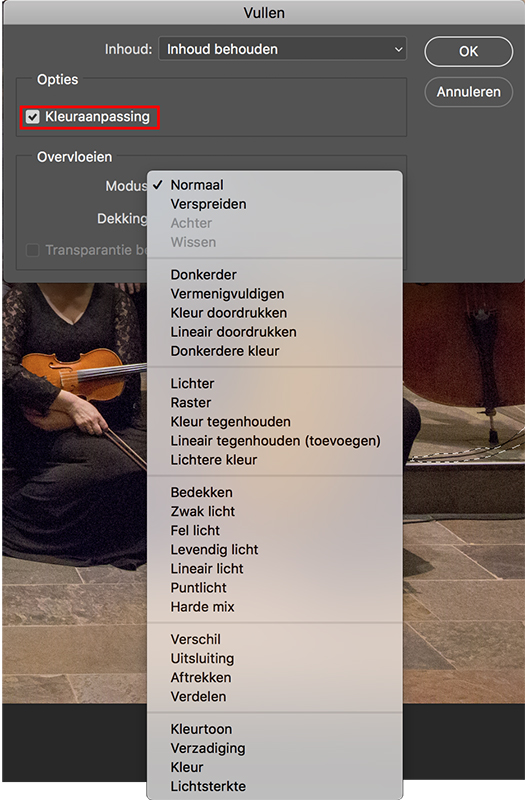
You can also select different blending modes and adjust the opacity. In the new CC version, you can now also tick Colour Adaptation.
Below is an example of a photo from which several cables, marked with circles, have been removed in this way.

Want to learn more about Photoshop image editing?
At Photofacts Academy, our online learning environment for photographers, we have several courses on Adobe Photoshop.
- Photoshop for Beginners (Johan Elzenga)
- Photoshop for Photographers (Piet van den Eynde)
- Photoshop for Advanced Users (Marit Hilarius)
- Photoshop Effects (Elja Trum)
And much more...
You can follow these courses for two weeks with a free trial membership.
About the author
Michelle Peeters is fotografe en oprichter van DeuxBleus Fotografie. Michelle herkent het bijzondere in het gewone en het gewone in het bijzondere. Ze heeft zich nooit willen specialiseren en is daardoor van alle markten thuis.
You might also like
-
 Be careful when removing power lines and dust spots in Luminar NEO
by Nando Harmsen
-
 Removing blemishes in Lightroom
by Michelle Peeters
-
 Canon's Lens Dust Cap RF mark II
by Nando Harmsen
-
 Adobe previews new Sensei-powered Object Selection Tool
by Michelle Peeters
-
 Review of the fantastic Canon EOS R6 Mark II
by Nando Harmsen
-
 Sony A9 Mark II announced
by Aäron Nasarany
2 comments
-
 Rias.Photography wrote on Saturday 21 April 2018 at 23:05 | reply
Content-aware fill is really soooo handy. It’s also useful when straightening crooked horizons so you don’t have to crop.
Translated from Dutch. -
 W. Snieder wrote on Friday 27 April 2018 at 19:45 | reply
Removing unwanted objects, cables etc. I always do that with Photoshop Elements 2018 and then with the spot healing brush. I even remove entire lampposts with it
Translated from Dutch.
Have your say
Please note: Articles older than a week can only be commented on by signed-in visitors.Would you still like to comment? sign in or create a free account.
Become a better photographer every week
A practical photography tip in your inbox every week.
38,886 photography enthusiasts already receive the tips! More about the weekly mail. Or keep up to date via  Facebook.

Elja Trum
Photofacts; everything to do with photography!
Would you like to take better photos and keep up with what is happening in photography? Photofacts publishes articles that teach you something about photography — from a product announcement to a practical shooting tip or a look at a website. Photofacts covers photography every day and is a hobby project of Elja Trum's that got out of hand. The articles are written by a team of volunteer authors. If you would enjoy writing one or more articles for Photofacts, do get in touch.More about PhotofactsPhotofacts is made possible in part by
