

Removing blemishes in Lightroom
Thursday 13 December 2018, 11:14 by Michelle Peeters | 9,679 views | 8 commentsThis article was translated from Dutch with the help of AI. Read the original.
You don't need to switch to Photoshop to remove a distracting element such as an ugly spot or a piece of dust. You can do this very easily in Lightroom too.
In Develop mode, click the button with the circle and arrow below the histogram in the right-hand column to select the clone and healing brush.
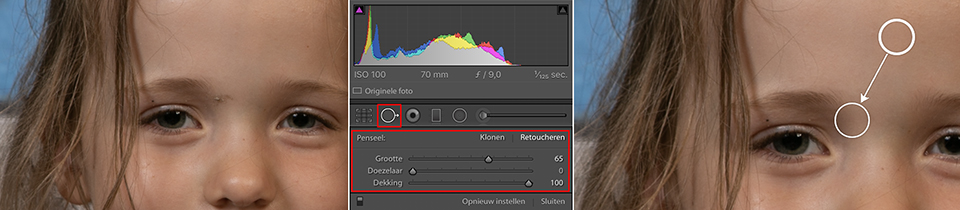
Then select Retouching at the very top. Use the navigator to zoom in sufficiently so you can see it properly. In the panel in the right-hand column, you can set the Size, Feather and Opacity.
Then click once on the distracting object in the photo that you want to remove. Another circle appears, connected to the circle containing the element you want to remove.
This second circle shows where the source pixels are taken from. If this isn't correct, change the position by moving the second circle.
Want to learn more about Lightroom?
Then follow one of Piet van den Eynde's Lightroom courses at Photofacts Academy. The Lightroom Workflow tips & tricks course is a very useful one to start with.
You can follow these courses for two weeks with a free trial membership.
Dit artikel is voor het laatst bijgewerkt op 13 december 2018.
De eerste publicatiedatum is zaterdag 9 juni 2018, 13:31.
About the author
Michelle Peeters is fotografe en oprichter van DeuxBleus Fotografie. Michelle herkent het bijzondere in het gewone en het gewone in het bijzondere. Ze heeft zich nooit willen specialiseren en is daardoor van alle markten thuis.
You might also like
-
 Retouching and cloning in Photoshop
by Johan Elzenga
-
 Be careful when removing power lines and dust spots in Luminar NEO
by Nando Harmsen
-
 Remove distracting objects from your photo
by Michelle Peeters
-
 Review: Discover Photoshop Elements 2022
by Elja Trum
-
 Photoshop Elements 2020 with AI-powered photo effects
by Michelle Peeters
-
 Canon's Lens Dust Cap RF mark II
by Nando Harmsen
8 comments
-

 patrick180 wrote on Sunday 10 June 2018 at 10:39
| reply
Nice but I still prefer to do it in Potoshop.
Translated from Dutch.
Much better and much neater and more solid. -
 Michelle Peeters wrote on Sunday 10 June 2018 at 12:14
| reply
@Patrick: I do agree with you on that. But if you have to process thousands of photos, this is a much faster option!
Translated from Dutch. -

-
 guest wrote on Monday 11 June 2018 at 10:00 | reply
This is both more complicated and less accurate than in Photoshop.
Translated from Dutch. -
Michelle Peeters wrote on Monday 11 June 2018 at 10:02
| reply
@gast: I had to get used to it too and some spots (such as shiny spots) don't work for me in Lightroom either. But the standard pimples work fine. And you can indicate very precisely yourself where the source pixels should be taken from. Zooming in is definitely a must!
Translated from Dutch. -
Elja Trum
wrote on Monday 11 June 2018 at 10:13
| reply
@guest; if you like doing it with Photoshop: totally fine. Everyone has their own way of working.
Translated from Dutch.
Personally, I think this works perfectly in Lightroom. Nothing wrong with that. Not complicated (extremely simple, actually) and just good results. -
Mac wrote on Monday 11 June 2018 at 13:25 | reply
it's even ideal if you have a sensor spot. Remove the spot once, and then copy the settings to the other photos. You'll still have to correct a few.
Translated from Dutch. -
 wiak wrote on Friday 3 August 2018 at 15:32
| reply
There is another method to remove spots and it goes particularly quickly. In LR, click Tools in Develop mode. Then click Remove Spots, which will now show a checkmark. Click on the spot, and two circles will now appear, one of which has an arrow pointing to the spot. The spot has now disappeared. Return to Tools and remove the checkmark for Remove Spots and you're done.
Translated from Dutch.
Have your say
Please note: Articles older than a week can only be commented on by signed-in visitors.Would you still like to comment? sign in or create a free account.
Become a better photographer every week
A practical photography tip in your inbox every week.
38,886 photography enthusiasts already receive the tips! More about the weekly mail. Or keep up to date via  Facebook.

Elja Trum
Photofacts; everything to do with photography!
Would you like to take better photos and keep up with what is happening in photography? Photofacts publishes articles that teach you something about photography — from a product announcement to a practical shooting tip or a look at a website. Photofacts covers photography every day and is a hobby project of Elja Trum's that got out of hand. The articles are written by a team of volunteer authors. If you would enjoy writing one or more articles for Photofacts, do get in touch.More about PhotofactsPhotofacts is made possible in part by
