
Retouching and cloning in Photoshop
Saturday 12 October 2019, 15:15 by Johan Elzenga | 8,195 views | 1 commentThis article was translated from Dutch with the help of AI. Read the original.
Photoshop has quite a few tools for retouching photos. Which tool you choose depends on the situation. We therefore cover them in a slightly different order from the one in which they appear in the tools.
The Clone Stamp is the oldest retouching tool in Photoshop. Adobe could also have called it the 'Copy and Paste Brush'. That is essentially what you use it for. It works as follows. First, you indicate where you want to copy from. You do this by clicking a spot in the photo while holding down the Alt key (Option key on Macintosh).
You then move to the spot in the photo that you want to repair and start painting there. This 'pastes' the image you are copying from the first spot into the new location. You see the contents of the pasted material in the cursor, so you can see exactly what you are doing and, if necessary, neatly line up certain details.
Don't find that useful? You can turn it off in the Clone Source panel. Untick Show Overlay there.
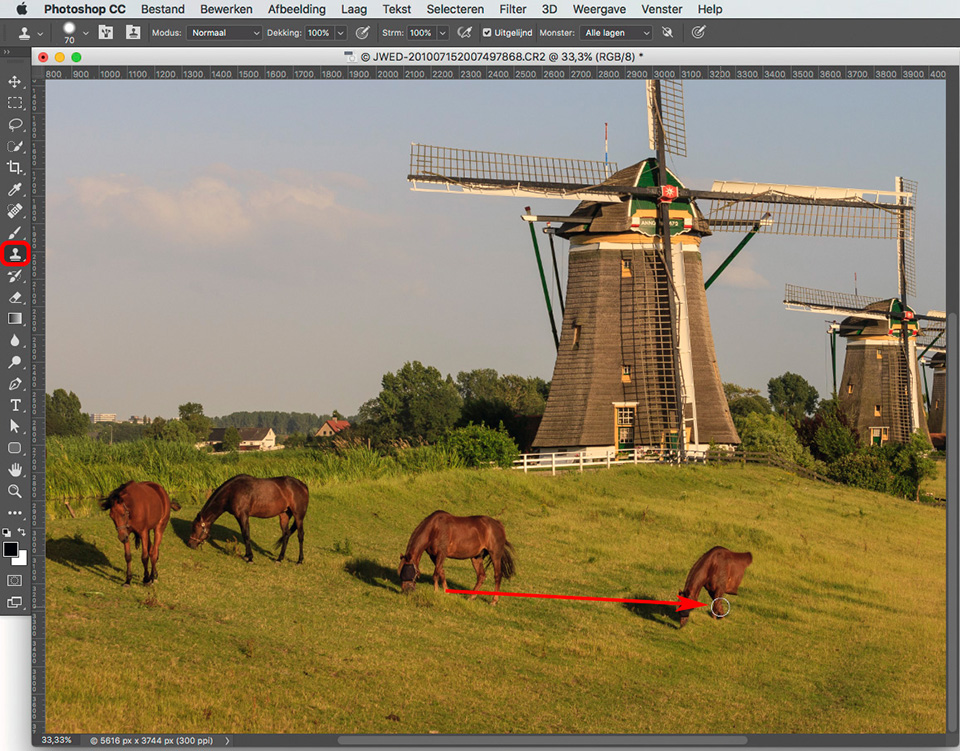
You can adjust how the Clone Stamp works a little further in the options bar. First of all, you can choose Aligned here. This means that the distance between the 'copy point' and the point where you are painting remains the same, even if you briefly release the mouse button and then continue.
This is the default setting. If you turn it off, the 'copy point' jumps back to its original position each time you release the mouse. This can be useful if you only have a small area to copy from, while the area that needs repairing is clearly larger. You do run the risk of creating a visible repeating pattern.
If you set Opacity below 100%, the original image remains slightly visible through the new image, as if the 'paint' does not fully cover the area in a single brush stroke. This allows you to work more gradually, using several brush strokes.
After several brush strokes, the replacement is 100% again, just as with real painting. Flow affects brush behaviour when you use a graphics tablet. When using a mouse, there is no difference between Opacity and Flow. The Clone Stamp completely replaces an image.
You therefore use this tool when you really want to completely replace one piece of the image with another. For example, you can replace that ugly shed in a landscape photo with a bush or grass, but you can also duplicate a horse in a field so it has some company.
The Clone Stamp can also be used in another mode, in which the pixels interact with each other differently. This is rarely useful, but try experimenting with it to see how it works.
Healing Brush
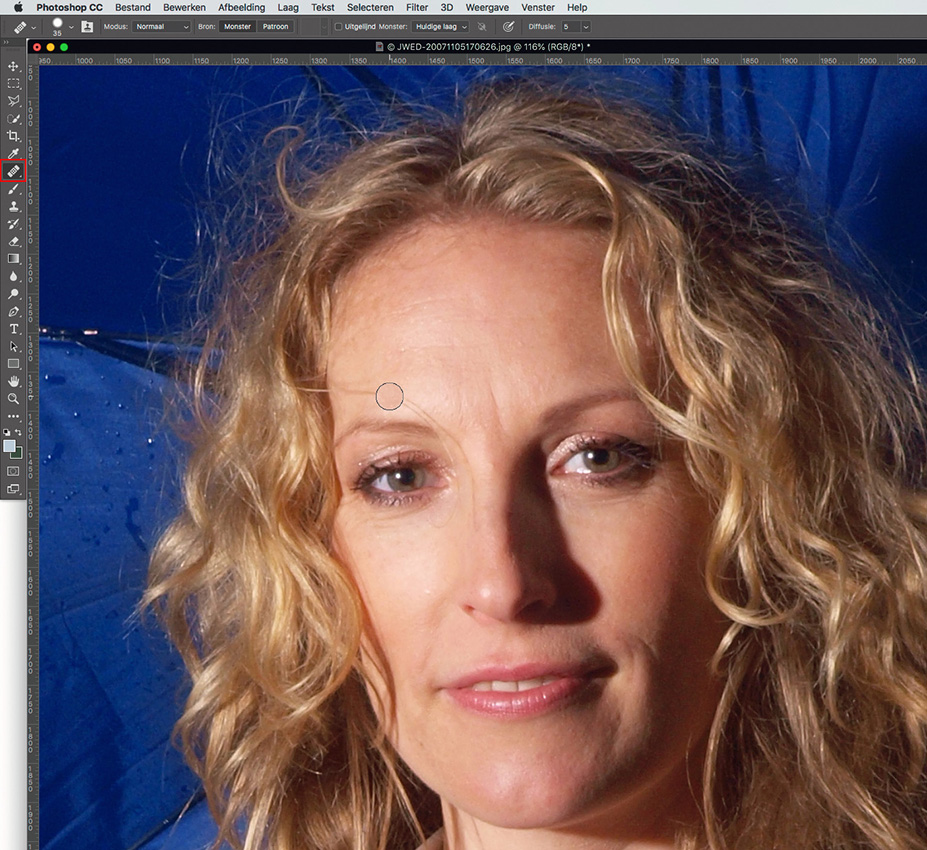
The Healing Brush works broadly the same way as the Clone Stamp. Again, you first use Alt-click to indicate where you want to copy from. You then paint over the area that needs repairing. Photoshop now looks at the colour and brightness of the original area and adjusts those of the newly painted area accordingly.
You see the new section seemingly 'melt' into the original area, creating a seamless and invisible connection. The advantage of this tool over the Clone Stamp is clear: you no longer have to painstakingly search for a copy spot whose brightness and colour match the part of the image you want to replace.
You can actually use almost any spot in the photo as a 'copy point', because Photoshop makes sure it fits. Even if that spot has a completely different colour. The only drawback is that the programme has limited intelligence.
If the underlying image has a complicated structure, with major differences in brightness and/or colour, things go wrong. If the underlying area is something completely different and therefore needs to be replaced, you naturally do not want the copied section to be adjusted. In that case, the Clone Stamp remains the right choice.
In practice, you mainly use the Healing Brush to retouch relatively even areas, such as spots on a face. It works perfectly for this, because you do not have to look for a piece of clear skin that also matches in colour and brightness. Any clear piece of skin will do.
Only when you get very close to a dark or light edge does the brightness calculation sometimes go wrong because that edge is included. In that case, switch to the Clone Stamp.
Retouching on a new layer
The Clone Stamp and the Healing Brush can also copy to a new layer. Create a new layer and then click Sample: All Layers in the options bar. This allows you to adjust the cloned section afterwards.
Suppose you are retouching a spot in a wall with bricks, or a building with lots of windows. It can be very difficult to align the exact line structure when cloning. If you work on a separate layer, you can always correct this afterwards by slightly moving or distorting the layer with the cloned section.
You can also easily erase a cloned section that has gone a little too far.
Spot Healing Brush
The Spot Healing Brush is a kind of more intelligent version of the Healing Brush. In many cases, this brush can replace the Healing Brush too. You no longer have to indicate a 'copy point' at all. In fact, there is no copy point anymore.
Photoshop simply looks at the area around the spot you want to remove and works out for itself what to do. So it determines not only the colour and brightness from the surrounding image, but also the structure that is pasted. A spot in a blue sky? One click and it is gone. A spot on a forehead? Click, gone.
It really cannot get any easier or faster. In the options bar, you can choose from three replacement methods, but Content-Aware is almost always the best. Always try the Spot Healing Brush first to remove spots, and use the Healing Brush, or the Clone Stamp, if that does not work.
The latter is often the case when there are strong transitions in the image close to the spot you want to remove. A spot in the blue sky, but right next to the branches of a tree, for example, or a spot close to the hairline.
Because Photoshop needs the area around the spot to determine the structure, that branch or hairline is included too, sometimes creating a strange effect. In such a case, the other two brushes work better. After all, you indicate yourself where the copying material should come from.
Want to know more about image editing in Photoshop?
At Photofacts Academy, our online learning environment for photographers, we have several courses on Adobe Photoshop.
- Photoshop voor Beginners (Johan Elzenga)
- Photoshop voor Fotografen (Piet van den Eynde)
- Photoshop voor Gevorderden (Marit Hilarius)
- Photoshop Effecten (Elja Trum)
And much more...
You can follow these courses for two weeks with a free trial membership.
About the author
Johan W. Elzenga is een award-winnende freelance fotograaf en schrijver van boeken over Photoshop en Lightroom Classic. Hij schrijft en fotografeert ook voor een aantal tijdschriften in binnen- en buitenland. Zijn artikel 'Why zebras are striped' is gepubliceerd in vijf talen en zes landen en het lijkt erop dat zelfs de beroemde auteur Desmond Morris werd geïnspireerd door dit verhaal.
You might also like
-
 The 6 most important new options for photographers in Photoshop 2020
by Nando Harmsen
-
 Photoshop tip: Using a clipping mask
by Nando Harmsen
-
 Review: 'Photoshop Masters' by Rob de Winter
by Huub Keulers
-
 Generative Expand added to Photoshop Beta
by Elja Trum
-
 Everything about Generative Fill in Photoshop Beta
by Nando Harmsen
-
 Review: The Photoshop Layers Book - Johan Elzenga
by Michelle Peeters
1 comment
-
 guest wrote on Tuesday 15 October 2019 at 11:54 | reply
Clear and comprehensible explanation of these tools! Many thanks
Translated from Dutch.
Have your say
Please note: Articles older than a week can only be commented on by signed-in visitors.Would you still like to comment? sign in or create a free account.
Become a better photographer every week
A practical photography tip in your inbox every week.
38,982 photography enthusiasts already receive the tips! More about the weekly mail. Or keep up to date via  Facebook.

Elja Trum
Photofacts; everything to do with photography!
Would you like to take better photos and keep up with what is happening in photography? Photofacts publishes articles that teach you something about photography — from a product announcement to a practical shooting tip or a look at a website. Photofacts covers photography every day and is a hobby project of Elja Trum's that got out of hand. The articles are written by a team of volunteer authors. If you would enjoy writing one or more articles for Photofacts, do get in touch.More about PhotofactsPhotofacts is made possible in part by
