

'Color Adaptation' gebruiken om Content-Aware Fill te verbeteren
Wednesday 1 January 2020, 15:30 by Michelle Peeters | 5,111 views | 2 commentsThis article was translated from Dutch with the help of AI. Read the original.
Meredith Stotzner shows in the video below how you can make Photoshop's 'Content-Aware Fill' tool more accurate using the 'Color Adaptation' setting.
Photoshop's Content-Aware Fill tool seems fairly straightforward, but a recent tutorial shared by Adobe shows a clever little trick that can lead to more accurate edits.
The tutorial shows how changing the default 'Color Adaptation' setting in the Content-Aware Fill workspace can result in much more accurate fills when working with images that contain gradients, for example.
As Adobe's Meredith Stotzner explains, this setting adjusts the brightness and contrast of the filled area so that they match the surroundings more closely when the default setting produces a too-rough edit. The setting is on by default, but not at its highest strength.
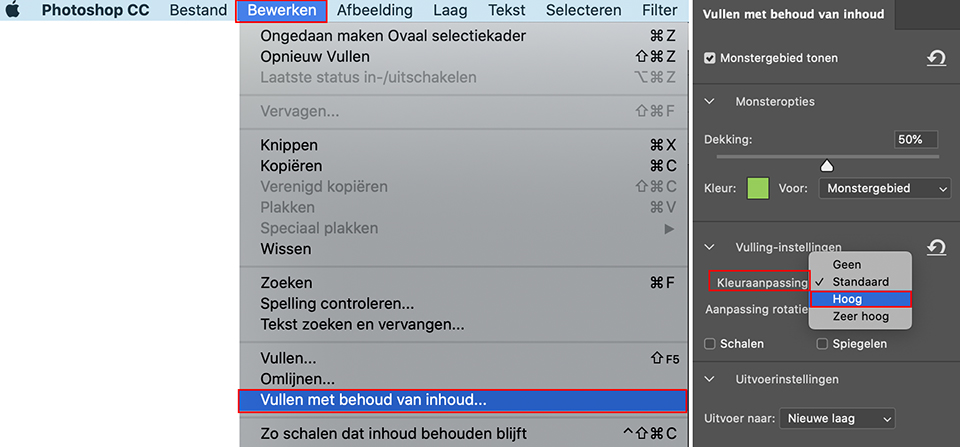
To improve the feature, Photoshop offers a 'High' and 'Very High' setting for smoother transitions, as well as a 'None' setting for when you are working with hard edges with overlapping colours.
It is a small change, but it can lead to much more pleasing edits when you need to remove objects from an image.
About the author
Michelle Peeters is fotografe en oprichter van DeuxBleus Fotografie. Michelle herkent het bijzondere in het gewone en het gewone in het bijzondere. Ze heeft zich nooit willen specialiseren en is daardoor van alle markten thuis.
You might also like
-
 Adobe's improved Content-Aware Fill coming soon to Photoshop
by Michelle Peeters
-
 Fill gaps in your photo realistically
by Michelle Peeters
-
 Everything about Generative Fill in Photoshop Beta
by Nando Harmsen
-
 Zoomlens met constant diafragma voor filmen
by Nando Harmsen
-
 New in Photoshop Beta: Generative Fill
by Nando Harmsen

2 comments
-
 Rob ijsselstein wrote on Tuesday 7 January 2020 at 11:52 | reply
Interssant. Why isn't that set to the highest setting by default? Can that also. Be department?
Translated from Dutch. -

 Michelle Peeters wrote on Tuesday 7 January 2020 at 12:20
| reply
Michelle Peeters wrote on Tuesday 7 January 2020 at 12:20
| reply
@Rob: you don't always want it set to the highest setting. You use "none", for example, when working with hard edges with overlapping colors.
Translated from Dutch.
Have your say
Please note: Articles older than a week can only be commented on by signed-in visitors.Would you still like to comment? sign in or create a free account.
Become a better photographer every week
A practical photography tip in your inbox every week.
38,982 photography enthusiasts already receive the tips! More about the weekly mail. Or keep up to date via  Facebook.

Elja Trum
Photofacts; everything to do with photography!
Would you like to take better photos and keep up with what is happening in photography? Photofacts publishes articles that teach you something about photography — from a product announcement to a practical shooting tip or a look at a website. Photofacts covers photography every day and is a hobby project of Elja Trum's that got out of hand. The articles are written by a team of volunteer authors. If you would enjoy writing one or more articles for Photofacts, do get in touch.More about PhotofactsPhotofacts is made possible in part by
