

Set Photoshop CC to Dutch
Wednesday 11 January 2017, 16:32 by Elja Trum | 22,772 views | 7 commentsThis article was translated from Dutch with the help of AI. Read the original.
Most people use Photoshop CC in English, often because they are used to it. But you can easily switch Photoshop to the Dutch version. In this article, I will show you step by step how to do it.
Step 1: Open the Creative Cloud app
If you use Photoshop (and Lightroom) through a Creative Cloud membership, you install everything from the Creative Cloud app. You can easily find this app by pressing the Windows key (on Mac OS, press Command + Space) and typing 'Creative Cloud'.
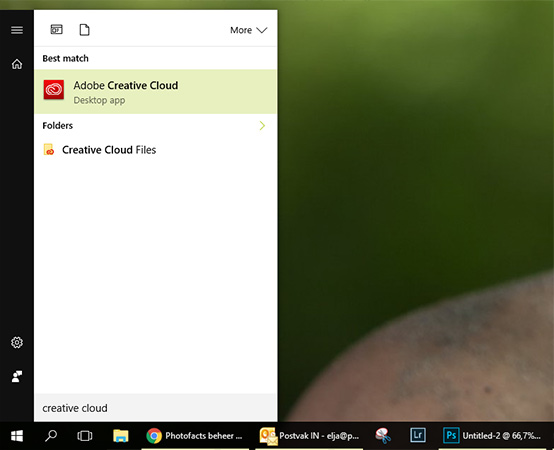
If the Creative Cloud app is shown at the top as a result, you can press 'Enter' to start the app.
Step 2: Go to your preferences
In the app, click the cog icon to view your preferences. To do this, click the word 'Preferences'.
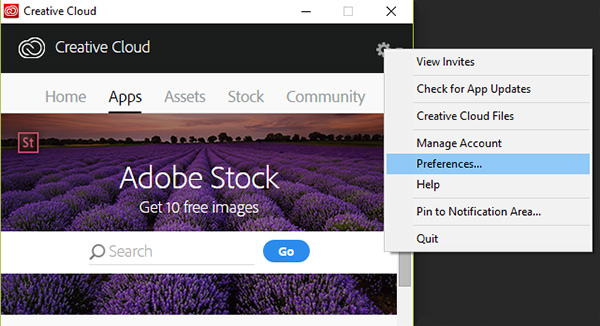
In the 'Preferences' screen, choose 'Creative Cloud' and then 'Apps'.
Step 3: Choose the desired language
You can now choose 'Dutch' under 'App Language'.
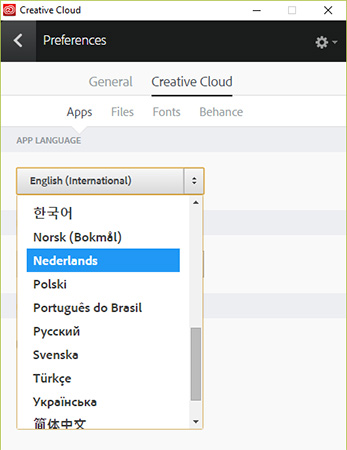
After choosing the correct language, you can close the 'Preferences' screen by clicking the left arrow at the top, next to the word 'Preferences'.
Step 4: Restart the Creative Cloud app
You can now close the app for a moment, so that your choice can be processed. Close the app using the cross in the top right-hand corner.
You can then start the app again straight away. You can do this in the same way as in step 1 of this article.
Step 5: Reinstall Photoshop CC
You should now be able to reinstall Photoshop in the app. To do this, look at the main screen (in the 'Apps' tab) and scroll down if necessary to find the installation button. Click 'Install' and wait until Photoshop has been installed again.
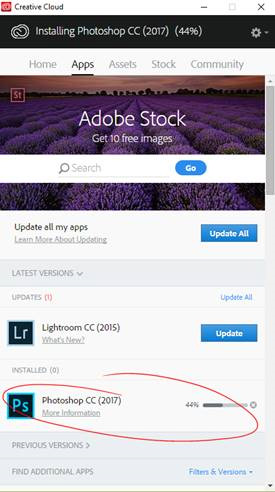
After the installation, you can close the Creative Cloud app again.
Step 6: Start Photoshop
You can now start Photoshop again. Note: unfortunately, this process will remove all your Photoshop presets. You will have to adjust panels and such to your preferences again. It is therefore best to do this immediately after installing Creative Cloud for the first time.
Step 7: Change the language
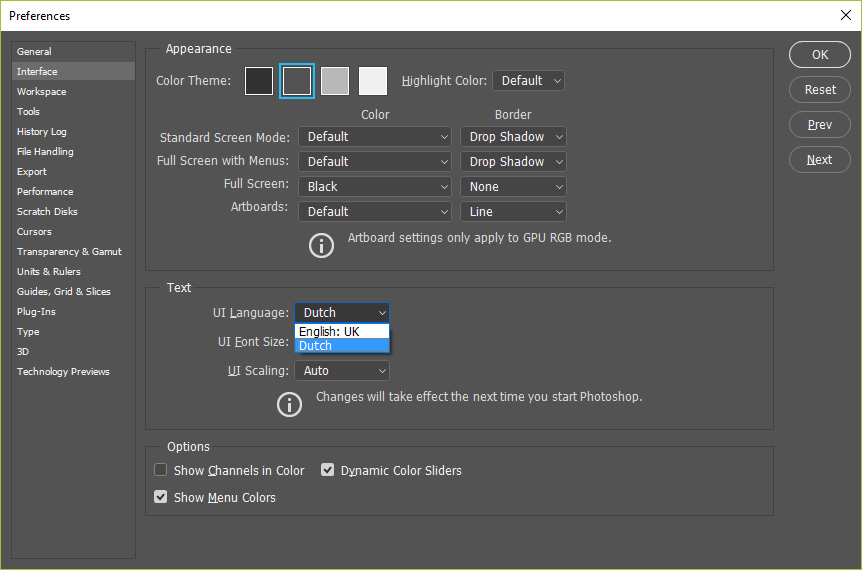
Now go to Photoshop's settings. You can do this via Edit -> Preferences -> Interface, or by using the shortcut CRTL + K, after which you still need to click 'Interface'. You can now also choose 'Dutch' under 'UI Language'.
About the author
Elja Trum is the founder of Photofacts and online photography course website Photofacts Academy. He has been writing about photography since 2006. Elja is also the author of (Dutch) books on composition, black-and-white photography, flash photography and portrait photography.
You might also like
-
 Getting started with Lightroom CC
by Elja Trum
-
5 tips for the new Lightroom CC
by Elja Trum
-
 Street Photography Tip: Try Using the Dutch Tilt Too
by Michiel Heijmans
-
 Adobe releases Lightroom Classic CC 7.3
by Elja Trum
-
 Lightroom Classic 8.0 and Lightroom CC 2.0
by Michelle Peeters

7 comments
-
 Sjoukje wrote on Tuesday 17 January 2017 at 15:22 | reply
Glad to hear how I can change it does this also work with Lightroom
Translated from Dutch. -

 Elja Trum
wrote on Tuesday 17 January 2017 at 15:37
| reply
@Sjoukje; In Lightroom it's easier, all languages are available by default there. To do this, go to 'Edit' -> 'Preferences' and choose 'General' in the window that opens. Here you can choose the language at the top. After restarting Lightroom, the language should then be set correctly.
Translated from Dutch. -
 Bart Telling wrote on Tuesday 17 January 2017 at 16:12 | reply
I've always worked with Dutch versions and I like it just fine
Translated from Dutch. -
 Dick de Roos wrote on Tuesday 17 January 2017 at 17:54 | reply
If you have already set the language to Dutch in Mac OSX, an app (including Photoshop CC and Lightroom) will also have Dutch as its default language.
Translated from Dutch.
I know people who have set their Mac OSX to English (or Portuguese or Chinese, or....) Their programs will then also open in that language.
Apps that e.g. do not have the Dutch language available will open in the 2nd language. Usually that will be English. -
 Reina wrote on Tuesday 17 January 2017 at 22:02 | reply
It's a shame that you have to reinstall Photoshop with the method above. If you're a bit handy with a Windows PC, you can change the tw10428.bak file into a *dat file (with the same name). Path Windows (C) (usually) > Program Files > Adobe > Adobe Photoshop CC 2017 > Locales > nlNL > Support Files
Translated from Dutch. -
-
Reina
wrote on Thursday 19 January 2017 at 08:16
| reply
Yes Elja, you are absolutely right. Because I keep switching back and forth from English to Dutch and from Dutch to English, I didn't stop to think about that so quickly. By the way, that works excellently... it has never gone wrong. But once you have the English version you can change the *bak file to *dat in the same way (but via the same route in Locales to the Eng folder).
Translated from Dutch.
Have your say
Please note: Articles older than a week can only be commented on by signed-in visitors.Would you still like to comment? sign in or create a free account.
Become a better photographer every week
A practical photography tip in your inbox every week.
38,783 photography enthusiasts already receive the tips! More about the weekly mail. Or keep up to date via  Facebook.

Elja Trum
Photofacts; everything to do with photography!
Would you like to take better photos and keep up with what is happening in photography? Photofacts publishes articles that teach you something about photography — from a product announcement to a practical shooting tip or a look at a website. Photofacts covers photography every day and is a hobby project of Elja Trum's that got out of hand. The articles are written by a team of volunteer authors. If you would enjoy writing one or more articles for Photofacts, do get in touch.More about PhotofactsPhotofacts is made possible in part by
