
How do you turn a landscape photo into portrait format?
Monday 10 December 2018, 20:02 by Michelle Peeters | 33,319 views | 10 commentsThis article was translated from Dutch with the help of AI. Read the original.
We received another interesting question from one of our readers. The question came from Erwin Honig and was as follows:
I have taken a few portrait photos in landscape format. But I would like to be able to print them in portrait format so they fit in the photo frames. What is the best way to do this? I use Adobe Photoshop Elements 2018 as my editing software.
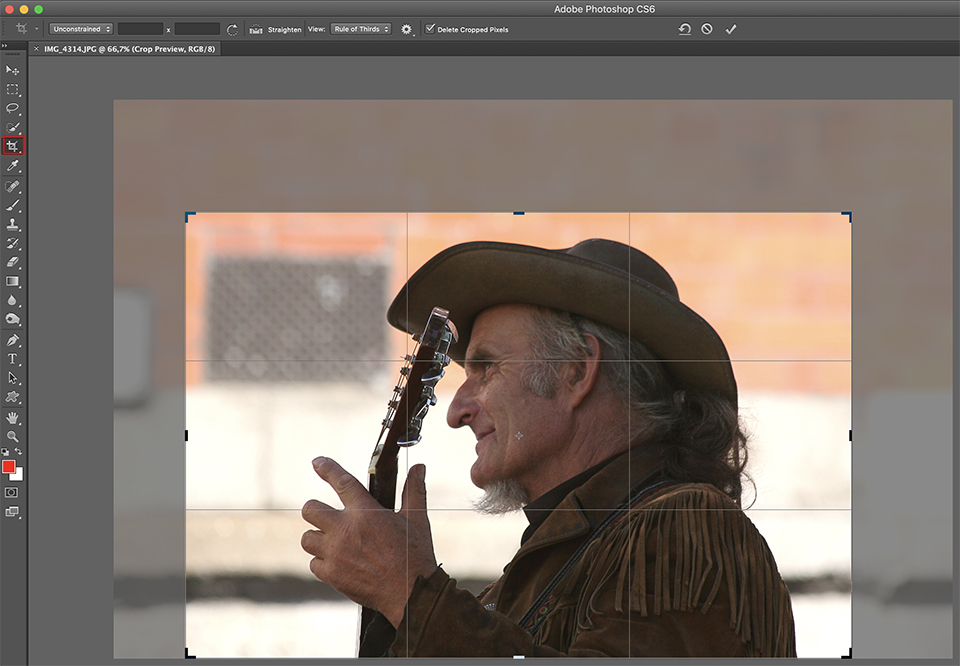
Crop tool
Cropping the photo to portrait format is not the biggest problem. Photoshop has a nice Crop tool for this. You select it by pressing C.
A crop border is placed around the entire image. To make a crop, click one of the small handles that appear along the sides and in the corners, and drag it.
To move the entire crop frame, click inside it and drag it to the desired position. To enlarge or reduce the crop frame proportionally, hold down the Shift key while dragging the handles. To change your crop from landscape to portrait, or vice versa, press the X key on the keyboard.
To rotate your crop, move the cursor outside the crop frame. It changes into a double arrow. You can now click and drag to rotate the entire crop frame. To remove the crop frame completely, press the Esc key. When the crop is as you want it, press the Return key (PC: Enter) to confirm your crop.
Cropping to a specific format
But how do you make sure the original proportions, often 2:3 or 3:2, are preserved so the photo fits the frame exactly? When you activate the Crop tool with the C key, a list of various crop ratios and sizes appears on the left of the options bar in the preset shortcut menu.
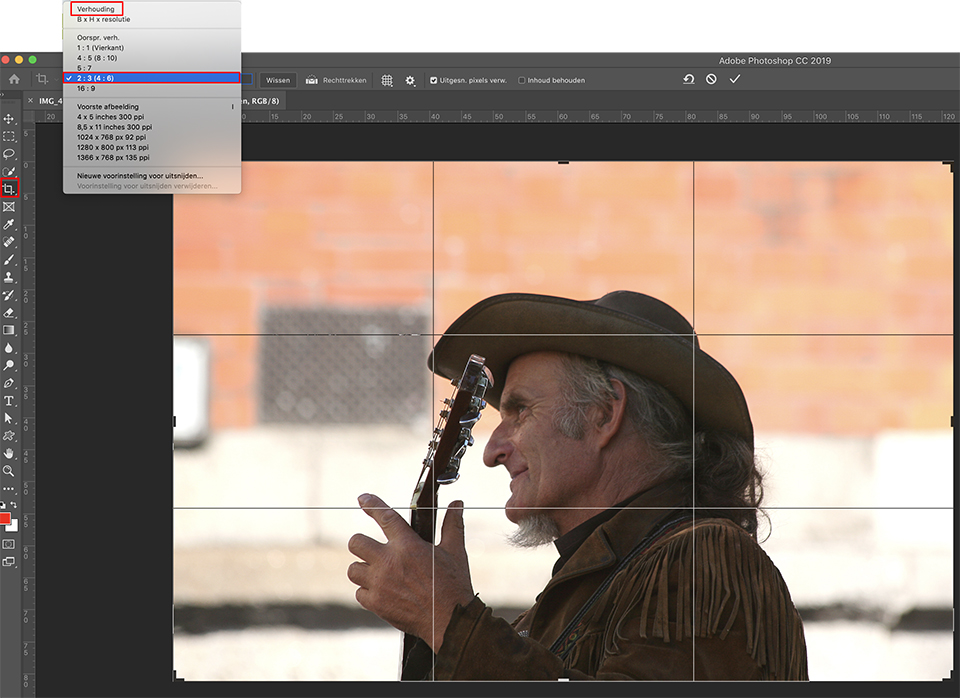
Now choose your crop ratio in the shortcut menu, such as 2:3 (4:6). When you click and drag with the Crop tool (C), the frame will be limited to a format with a 2:3 ratio.
If you want to create your own custom ratio or size, you only need to enter it in the two fields that appear directly to the right of the shortcut menu. To quickly switch these numbers, click the Clear button to the right of them.
The button with the two small arrows between the input fields for the custom ratios swaps the two numbers. This changes a 2:3 ratio to a 3:2 ratio with one click.
If you change your mind and want to make a different crop, press the Esc key on the keyboard. To cancel the crop completely, press the Delete key (PC: Backspace).
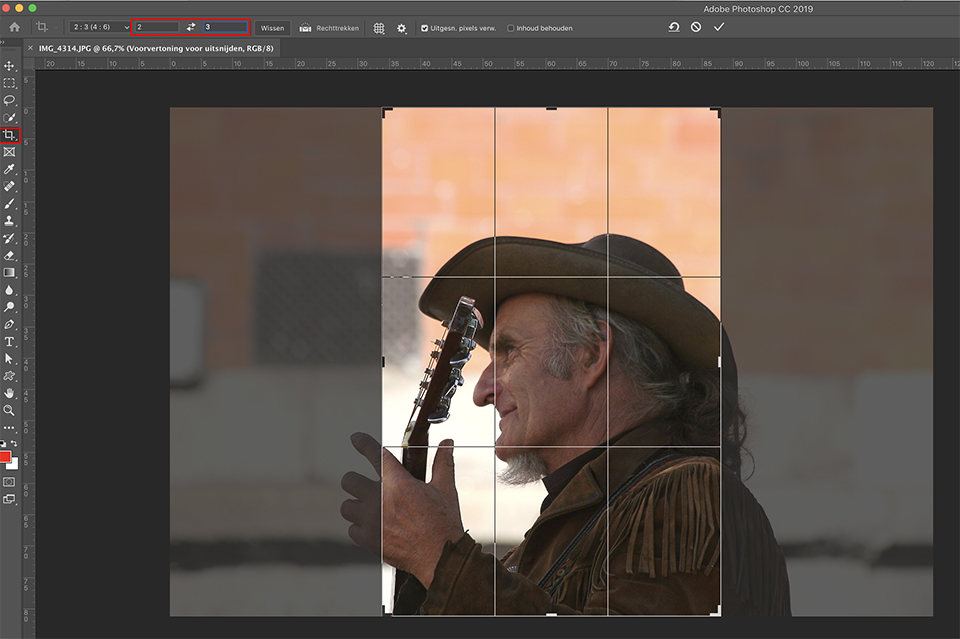
The crop ratios now need to be changed from 3:2 (landscape) to 2:3 (portrait). So make sure that the numbers 2 and 3 are entered in the two fields respectively. You can see that a large part of the musician's left hand and back is now cut off. Not very nice!
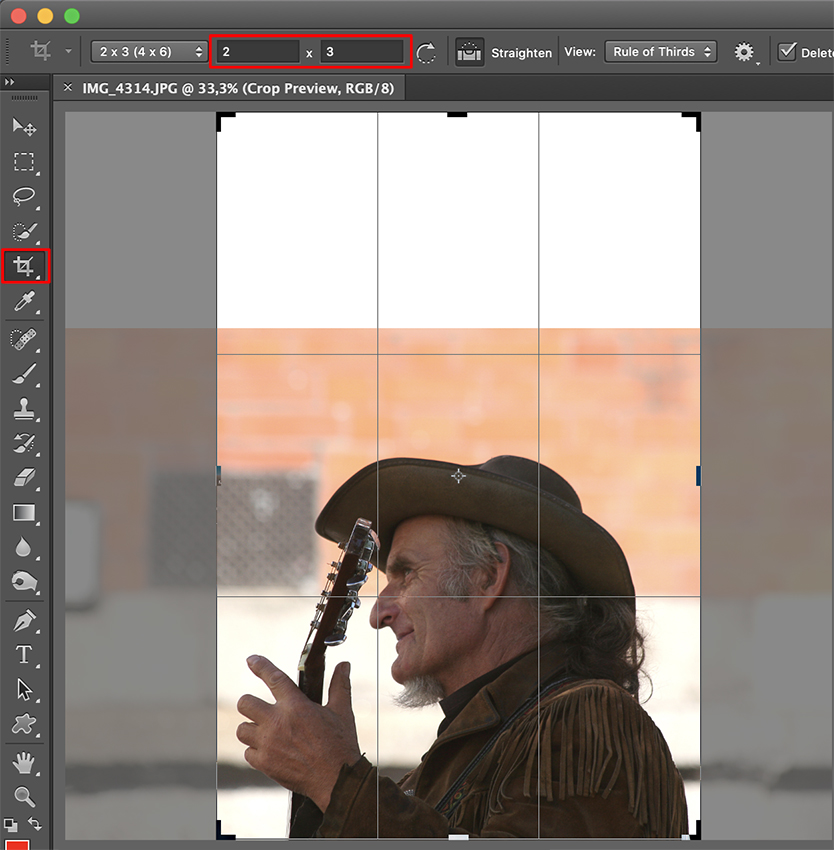
You can now expand the canvas, keeping the proportions intact, so that the musician fits in it completely. However, you now have a large white area at the top.
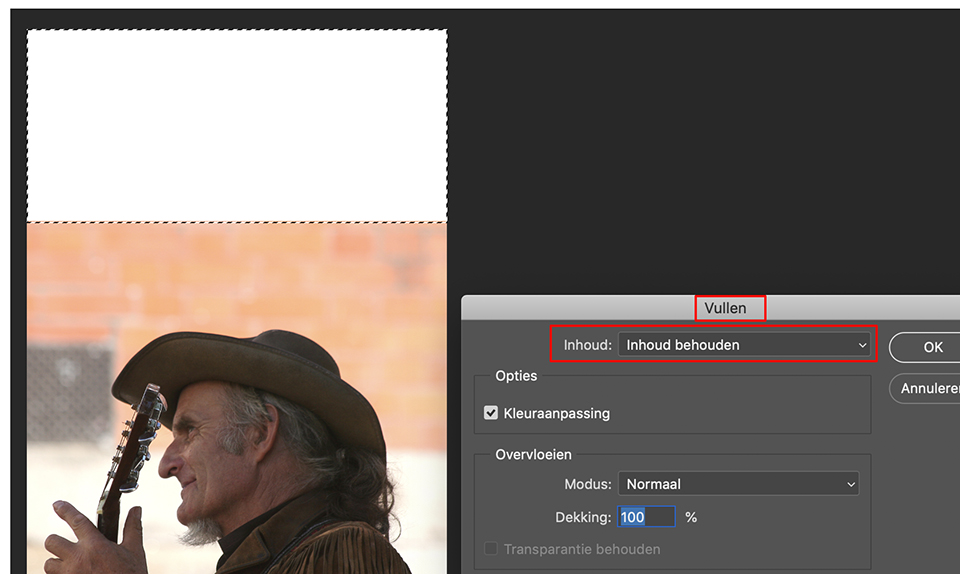
You can try to fill this white area. In this case, that is easy because it can be selected easily. Select the white area with the rectangular marquee tool. Then go to the Edit menu and choose Fill.
When the Fill dialogue box appears, choose Content-Aware from the shortcut menu if it has not already been selected. When you click OK, Photoshop looks at the surroundings and intelligently adapts the fill, rather than simply filling it with white or black.
It usually produces a fairly good result, as in the inset below. However, when it does not, it looks terrible and makes no sense. Use Command-Z (PC: Ctrl-Z) to undo it, then find another way to fill those areas manually. Usually with the Clone Stamp tool.
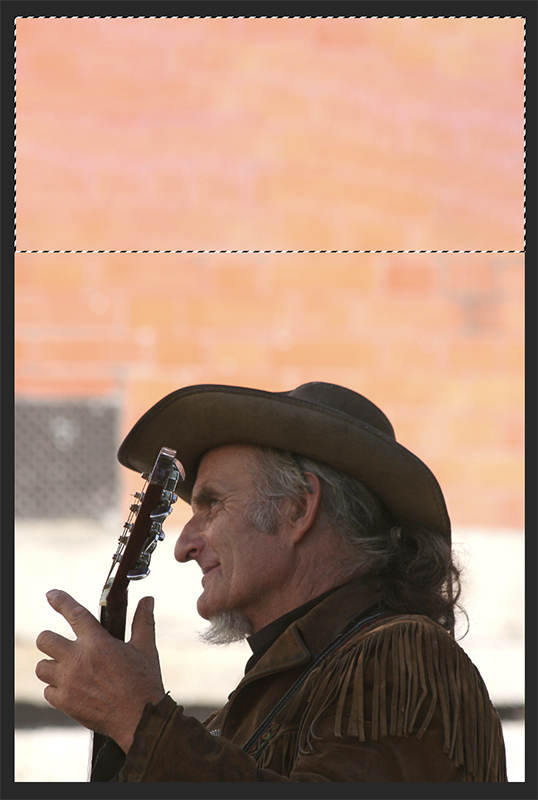
The result is still not very good, as there is far too much empty space at the top of the photo. It might still be usable for a magazine, as you could fit a lot of text in it.
Landscape portrait photos often work better in a square format, with a 1:1 ratio, when you convert them, rather than in portrait format. So thinking carefully before taking the photo is the more convenient option!
Conclusion
So there is no really good solution for converting a landscape portrait photo to portrait format. There are exceptions, of course, as some landscape photos are perfectly suited to a portrait format.
If you have any nice alternative solutions or methods, they are of course very welcome in the comments!
Photoshop course at Photofacts Academy
And if you would like to learn more about Photoshop, the Photoshop for beginners course by expert Johan Elzenga at Photofacts Academy might be just the thing for you.
About the author
Michelle Peeters is fotografe en oprichter van DeuxBleus Fotografie. Michelle herkent het bijzondere in het gewone en het gewone in het bijzondere. Ze heeft zich nooit willen specialiseren en is daardoor van alle markten thuis.
You might also like
-
 Photographing or cropping a panorama
by Nando Harmsen
-
 A panorama or a panorama crop?
by Nando Harmsen
-
 The advantage of a crop sensor in landscape photography
by Nando Harmsen
-
 Which is better, cropping a full-frame image or using a crop sensor?
by Nando Harmsen
-
 How far do you dare to crop your photo?
by Nando Harmsen
-
 Aspect Ratio, Very Important!
by Michelle Peeters
10 comments
-
 guest wrote on Tuesday 11 December 2018 at 13:09 | reply
And how does this work in Photoshop Elements, as the questioner indicated?
Translated from Dutch. -
 Noortje wrote on Tuesday 11 December 2018 at 13:29 | reply
Regarding portrait format:
Translated from Dutch.
Maybe use a 3:4 size and keep the crop on the right just behind the ear?
Then the man still has some looking room.
I think the hand will then also just be included. I haven't tried it.
But I do agree: not the best photo for this. -

 Michelle Peeters wrote on Tuesday 11 December 2018 at 14:06
| reply
Michelle Peeters wrote on Tuesday 11 December 2018 at 14:06
| reply
@Guest: I assume in the same way. I don't know Photoshop Elements in detail, but understand that there are many similarities.
Translated from Dutch. -
Michelle Peeters wrote on Tuesday 11 December 2018 at 14:11
| reply
@Noortje: with a 3:4 aspect ratio, it indeed becomes a slightly different story. The question, however, is which aspect ratio most photo frames have...
Translated from Dutch. -
Noortje wrote on Tuesday 11 December 2018 at 15:09 | reply
Michelle, these days there are more lists than stars (so to speak)
Translated from Dutch. )
) -
Michelle Peeters wrote on Tuesday 11 December 2018 at 15:12
| reply
@Noortje: absolutely right! And otherwise a square crop is guaranteed to be a success...
Translated from Dutch. -
 Noortje wrote on Tuesday 11 December 2018 at 15:45 | reply
That was also my very first thought
Translated from Dutch..
I really like this format, but essentially the photographer made the wrong choice for this portrait.
In addition, there is also a lot of loss of pp pixels.
But that makes it educational in this case for a possible solution. -
Michelle Peeters wrote on Tuesday 11 December 2018 at 16:26
| reply
@Noortje: it's always handy to choose a somewhat wider framing when you're photographing anyway, so there's more to crop. Or to think beforehand about what you want to do with the photo. But that often doesn't happen in practice, especially with spontaneous photography.
Translated from Dutch. -
 Leo Chaulet wrote on Tuesday 11 December 2018 at 18:57 | reply
Hi, in my opinion I would buy a square frame, with the portrait-oriented frame you lose part of his hands and back. And then crop square as in the story above
Translated from Dutch. -
 Han Gerretsen wrote on Wednesday 12 December 2018 at 13:42 | reply
Cropping is easy with Fireworks
Translated from Dutch.
Have your say
Please note: Articles older than a week can only be commented on by signed-in visitors.Would you still like to comment? sign in or create a free account.
Become a better photographer every week
A practical photography tip in your inbox every week.
38,938 photography enthusiasts already receive the tips! More about the weekly mail. Or keep up to date via  Facebook.

Elja Trum
Photofacts; everything to do with photography!
Would you like to take better photos and keep up with what is happening in photography? Photofacts publishes articles that teach you something about photography — from a product announcement to a practical shooting tip or a look at a website. Photofacts covers photography every day and is a hobby project of Elja Trum's that got out of hand. The articles are written by a team of volunteer authors. If you would enjoy writing one or more articles for Photofacts, do get in touch.More about PhotofactsPhotofacts is made possible in part by
