

Automate your Lightroom Classic imports
Friday 12 January 2024, 16:08 by Nando Harmsen | 4,016 views | 0 commentsThis article was translated from Dutch with the help of AI. Read the original.
Every time you import photos into Lightroom Classic, you need to make sure all the information is correct. Where should the photos go, what should the file name be, which collection should they go into, keywords, and so on? Make things easier for yourself by automating everything.
You can import your photos into Lightroom Classic (LrC) and then organise and edit them, and carry out all the other operations on them. You can also work in a structured way, especially when you do different types of photography.
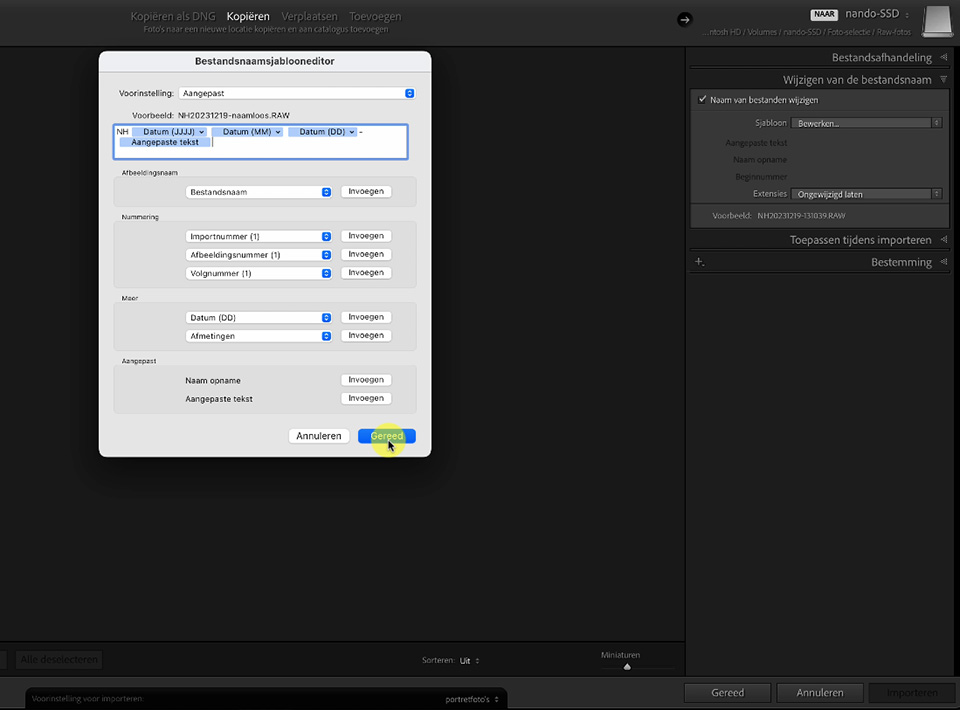
Do you photograph portraits and landscapes? Then you don't want to throw those photos all together on your hard drive. That destroys the structure, and your photos will never be easy to find again. You want to import portrait photos differently from landscapes.
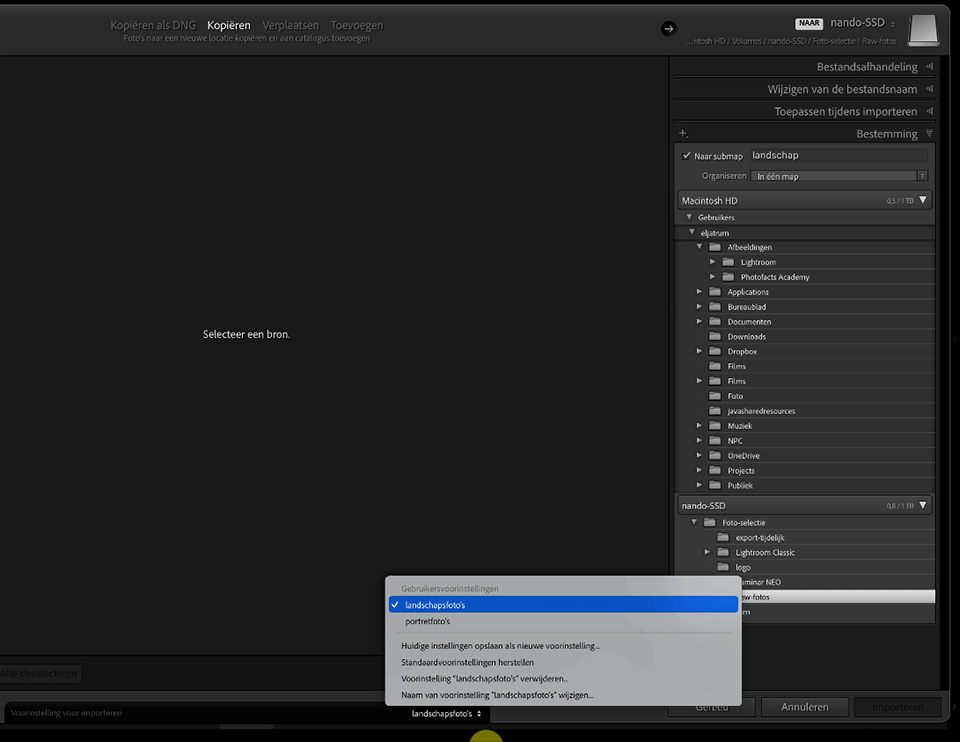
For example, you can put the landscapes in one folder on your hard drive, and the portraits in another folder. You can then divide them up by shoot or by model as well.
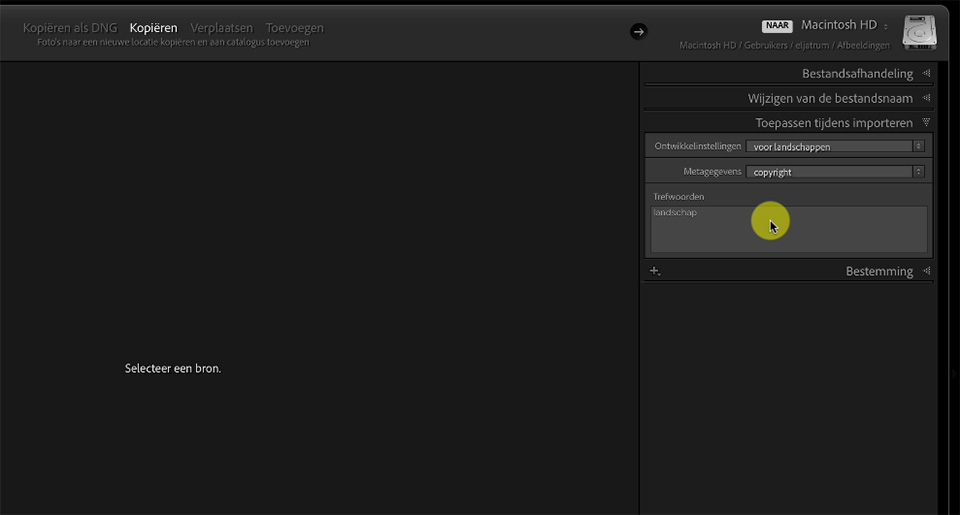
For example, you can have one preset for your landscapes and another preset for your portraits. You may want to add metadata to your portraits, such as your name as the photographer and licensing information. For landscapes, a name and copyright may be enough.
Place your photos directly in a collection, but you don't want to see both types in the same collection. You can even change the file name. For example, use just the date for landscapes, and a combination of the date and model name for portraits.
That is a lot of settings to change, every time. This makes the chance of mistakes quite high. You can correct all of this perfectly afterwards, but that takes time. Automating your imports prevents this.
Open the Import window and enter the settings you would want for portrait photography. Choose a file name preset, a location, a collection, an edit and the required metadata. Then save this as an import preset.
Do the same for your landscape photos, and save this as an import preset too. If you do other types of photography, create a separate preset for each type. This takes a bit of work once, but it will save you a lot of time in the end and prevent mistakes.
The next time you import, select one of the import presets and everything is ready. You can still add information or make changes, but most of it will be set up just the way you want it.
This helps you keep an overview and prevents your photos from ending up in the wrong place. That applies both to your LrC catalogue and to the location on your hard drive.
About the author
Nando Harmsen has been photographing for more than 40 years. He specialises in wedding photography and landscape photography. Nando also gives talks, workshops, masterclasses and photo trips, and regularly reviews new and interesting equipment.
You might also like
-
 Presets in Lightroom Classic
by Nando Harmsen
-
 What is the Comments tab in Lightroom Classic for?
by Nando Harmsen
-
 5 Tips for Managing Photos in Lightroom Classic (and Other Software)
by Nando Harmsen
-
 What's new in the Lightroom Classic 13 update?
by Nando Harmsen
-
 5 tips to customise Lightroom Classic
by Nando Harmsen
-
 How do you get started with Lightroom Classic?
by Nando Harmsen
0 comments
Be the first to share what you think!
Have your say
Please note: Articles older than a week can only be commented on by signed-in visitors.Would you still like to comment? sign in or create a free account.
Become a better photographer every week
A practical photography tip in your inbox every week.
39,024 photography enthusiasts already receive the tips! More about the weekly mail. Or keep up to date via  Facebook.

Elja Trum
Photofacts; everything to do with photography!
Would you like to take better photos and keep up with what is happening in photography? Photofacts publishes articles that teach you something about photography — from a product announcement to a practical shooting tip or a look at a website. Photofacts covers photography every day and is a hobby project of Elja Trum's that got out of hand. The articles are written by a team of volunteer authors. If you would enjoy writing one or more articles for Photofacts, do get in touch.More about PhotofactsPhotofacts is made possible in part by
