

Presets in Lightroom Classic
Thursday 19 October 2023, 15:30 by Nando Harmsen | 4,229 views | 2 commentsThis article was translated from Dutch with the help of AI. Read the original.
Do you take lots of photos, and especially take them often? Do you use Lightroom Classic? Then you know that you have to choose a number of things with every import. You can automate much of this. This saves you from having to enter, select and set all those things again and again.
Are you going to import photos into Lightroom Classic? Then you know that you have to enter a number of things. Here are some of them.
- The destination on the hard drive
- Keywords
- A collection they should be added to
- Renaming the file
You can automate all these things and save them in import presets. You can make this as complete as you want. You probably already have some things set up as standard.
It is important to use the same file name consistently. You can set this as the default in a template in the File Renaming panel.
Previews and other file handling are probably also set up the same way by default. In that panel, the only thing you have to enter each time, if you use it, is adding the photos to a collection.
You can also use a standard method for the destination. For example, in an overarching folder on your hard drive, and then organise by date or in another way.
Besides these things, you can also automate an edit, metadata and keywords. But this requires some preparation. The important thing is to automate general things here, after which you can add the details manually.
An edit can never be automated down to the smallest detail. Use general edits, such as lens corrections, noise reduction, sharpening and minor colour corrections. In short, things you always apply as standard.

Create this edit in the Develop module and save it as a preset. You can do this with metadata too. Add it to a photo, and then save it as a metadata preset.
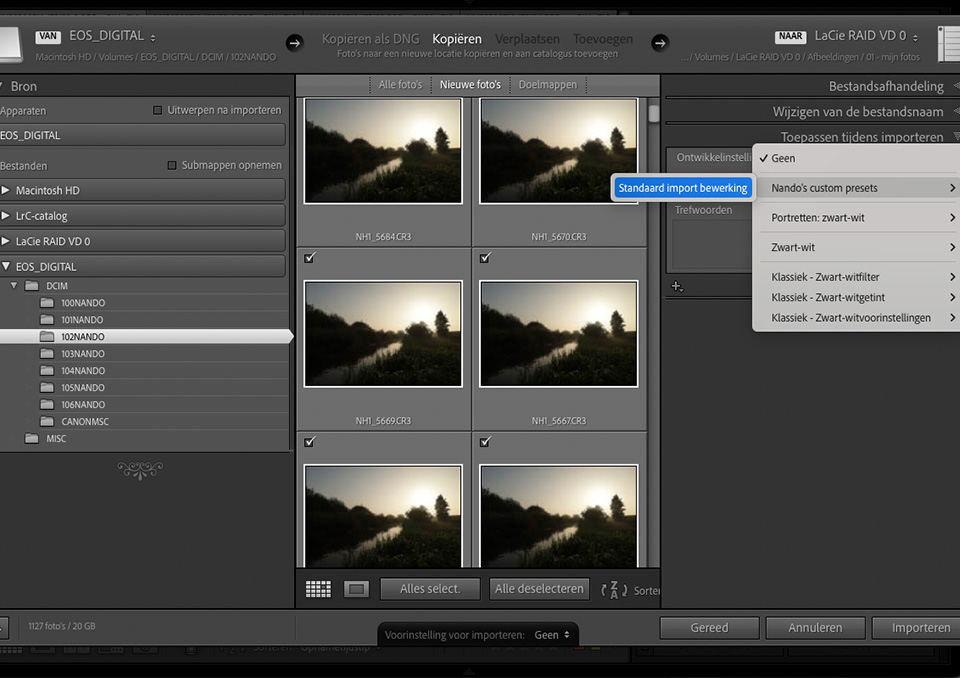
Select these presets when importing. You can do this in the Apply During Import panel. You can then enter keywords as well. However, this can also be automated.

When you look at the bottom of the Import window, you will see a black bar with import presets. You can save different types of imports there. For example, an import for portraits, landscapes, cityscapes, and so on.
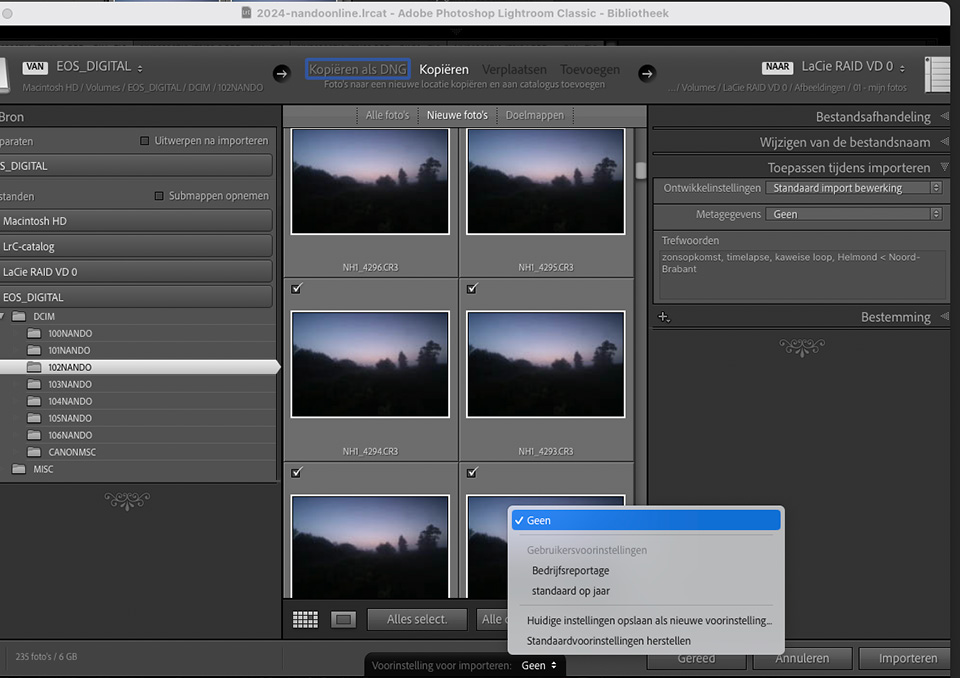
To use this, you can fill in everything for an import. File handling, including the collection, file renaming, Apply During Import, including keywords, and the destination. Then save this as an import preset.
You can do this for every type of photography you want. Create an import preset for each of those types. With a single action, you can set all the basic information at once, without having to go through everything again and again.
About the author
Nando Harmsen has been photographing for more than 40 years. He specialises in wedding photography and landscape photography. Nando also gives talks, workshops, masterclasses and photo trips, and regularly reviews new and interesting equipment.
You might also like
-
 Lightroom Classic tip: Create smart presets
by Elja Trum
-
 Automate your Lightroom Classic imports
by Nando Harmsen
-
 What is the Comments tab in Lightroom Classic for?
by Nando Harmsen
-
 What's new in the Lightroom Classic 13 update?
by Nando Harmsen
-
 How do you get started with Lightroom Classic?
by Nando Harmsen

2 comments
-
 michel wrote on Tuesday 24 October 2023 at 16:28 | reply
Many Lightroom users make good use of many functions to improve photos but rarely get the most out of it for managing the photos.
Translated from Dutch.
With these tip(s) you save a lot of time, time that you can then use for editing photos.
Thanks for the short but concise explanation! -


Have your say
Please note: Articles older than a week can only be commented on by signed-in visitors.Would you still like to comment? sign in or create a free account.
Become a better photographer every week
A practical photography tip in your inbox every week.
38,982 photography enthusiasts already receive the tips! More about the weekly mail. Or keep up to date via  Facebook.

Elja Trum
Photofacts; everything to do with photography!
Would you like to take better photos and keep up with what is happening in photography? Photofacts publishes articles that teach you something about photography — from a product announcement to a practical shooting tip or a look at a website. Photofacts covers photography every day and is a hobby project of Elja Trum's that got out of hand. The articles are written by a team of volunteer authors. If you would enjoy writing one or more articles for Photofacts, do get in touch.More about PhotofactsPhotofacts is made possible in part by
