

5 tips to customise Lightroom Classic
Monday 4 August 2025, 20:02 by Nando Harmsen | 3,985 views | 1 commentThis article was translated from Dutch with the help of AI. Read the original.
Anyone who uses Lightroom Classic will naturally have set it up to suit their own preferences. I have five tips to personalise the popular programme even further.
You probably take Lightroom's default layout for granted. You can work with it, and you get used to it. However, it is possible to change many things. This makes the programme more personal.
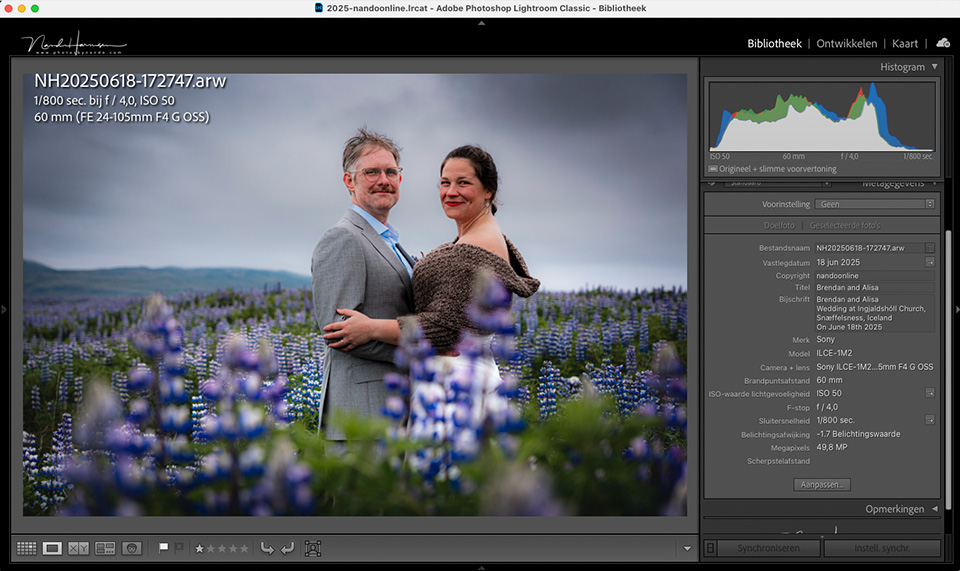
A few settings are cosmetic, but there is also a lot that can help you have the necessary information immediately available. You can disable things you do not want to see. I have five tips to make working with it much more pleasant.
Tip 1 - Your own name and logo
You can place your own name and logo in the top bar on the left. By default, your Adobe ID is shown, or the text Lightroom Classic. The third option is personalised.
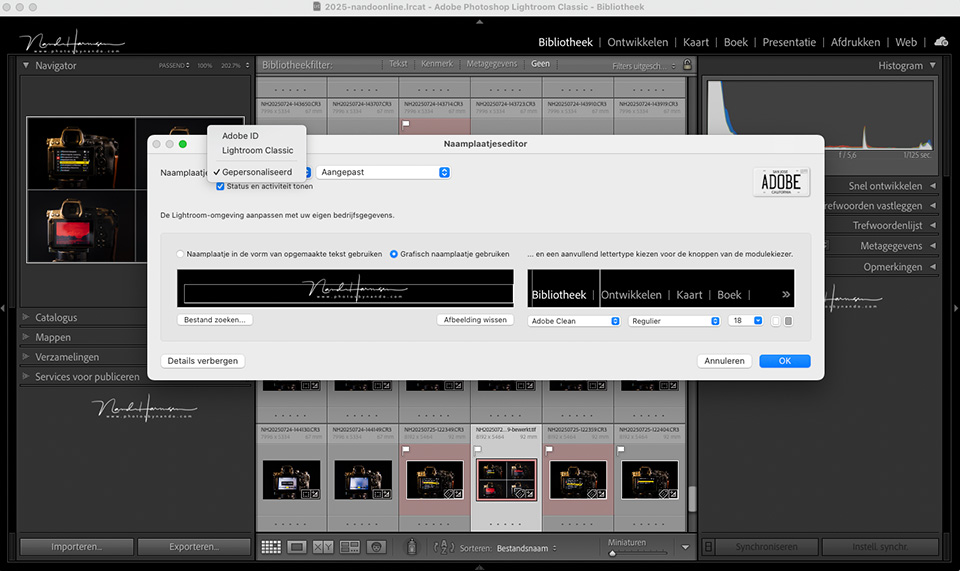
Right-click the text and first select personalised. Right-click again and select edit nameplate. Choose a text or graphic nameplate.
You can personalise even more, such as the font. You can also adjust the text display of the modules.
Tip 2 - Hide modules
Do you not use all the modules in Lightroom Classic? Hide the modules you never use. This means you are never distracted by unnecessary things in the bar.
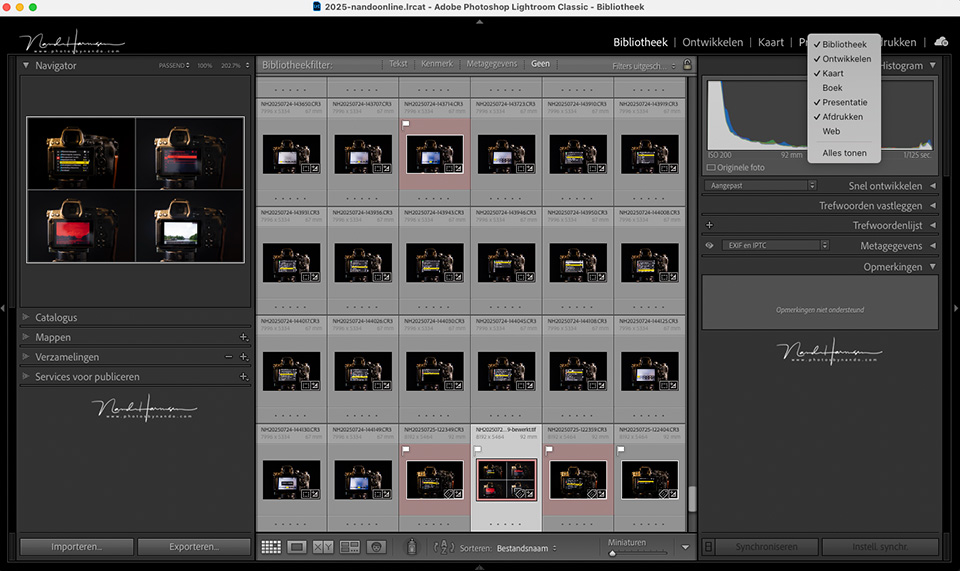
Right-click the list of modules and untick the modules you do not want to see. If you later want to make a module visible again, repeat the procedure and tick it again.
Tip 3 - Change the behaviour and order of Develop panels
You use the panels in the Develop module to edit your photo. There are a great many panels, some of which you may never use.
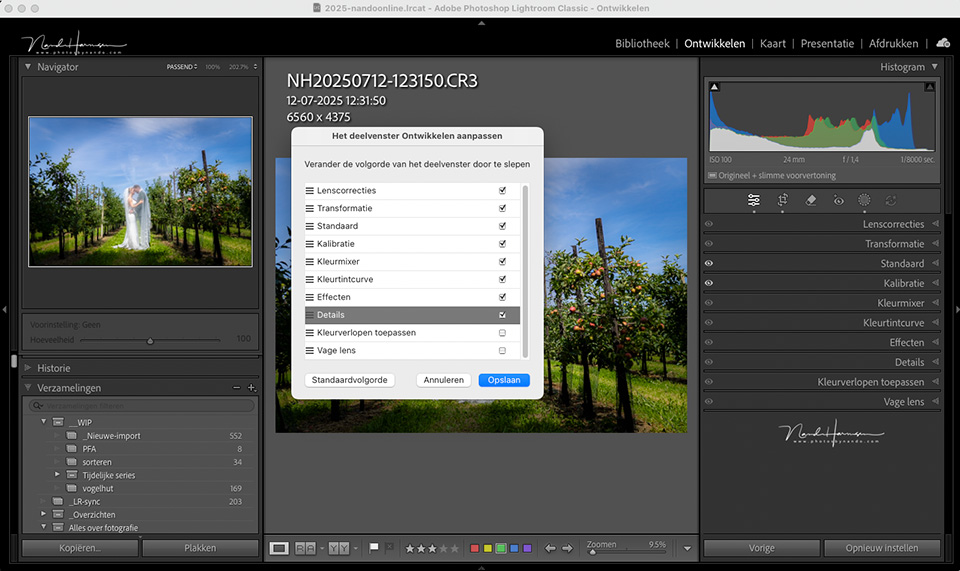
You can hide the panels you do not use. You can also change the order of the panels. Make sure you are in the Develop module and right-click one of the panels. Choose 'customise Develop panel.'
You can then untick the panels you do not use. Drag the panels into the order you prefer. You then need to restart Lightroom to activate it.
Tip 4 - Choose your own information overlay
In Loupe view in the Library module, you can display information about the photo in the left-hand corner. Two different information blocks are available, and the letter i lets you cycle through them.
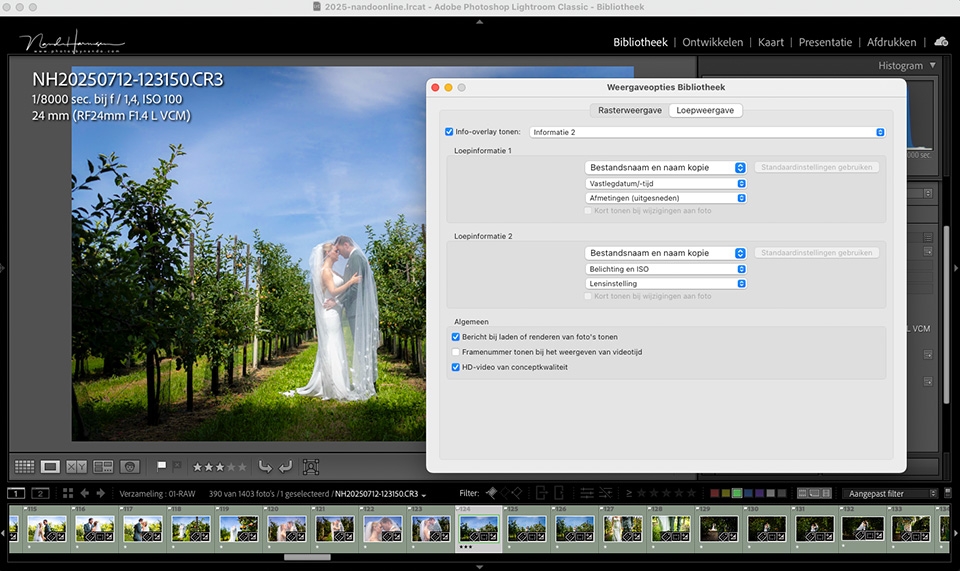
Make sure you are in the Library module and right-click the photo. Choose the 'view options...' option. In the window that opens, you can choose which information is displayed in these blocks. Choose what you want to see there.
Tip 5 - Adjust Grid view
The information around the photo in Grid view in the Library can be adjusted to suit your preferences. As in the previous tip, choose the 'view options...' option when you right-click a photo.
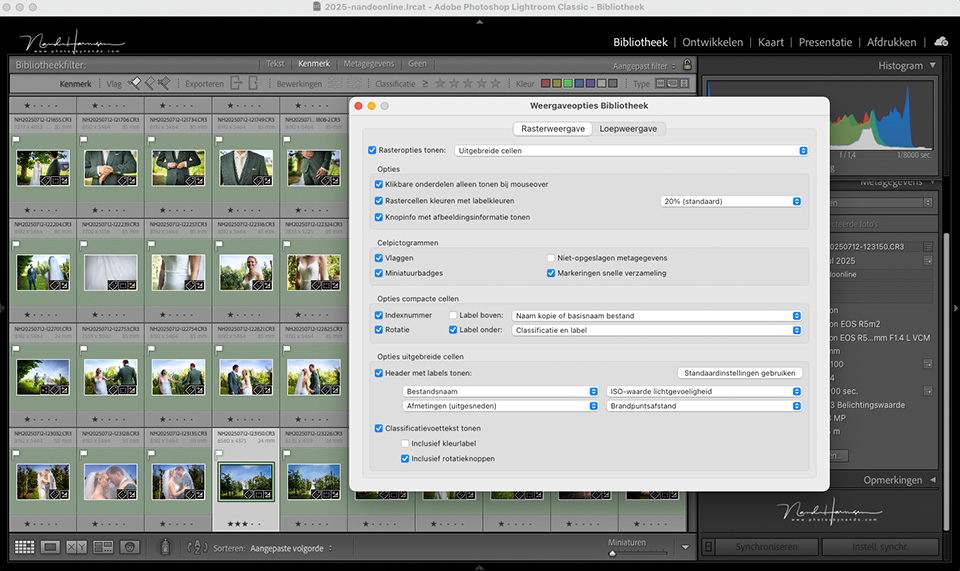
Here you can adjust all the information that should be visible to suit your own preferences. This makes it easier to have the necessary information in Grid view at a glance.
Bonus tip - Customise the interface
It is not something you quickly go to: the Preferences window that you open through the menu. Choose the Interface tab there.
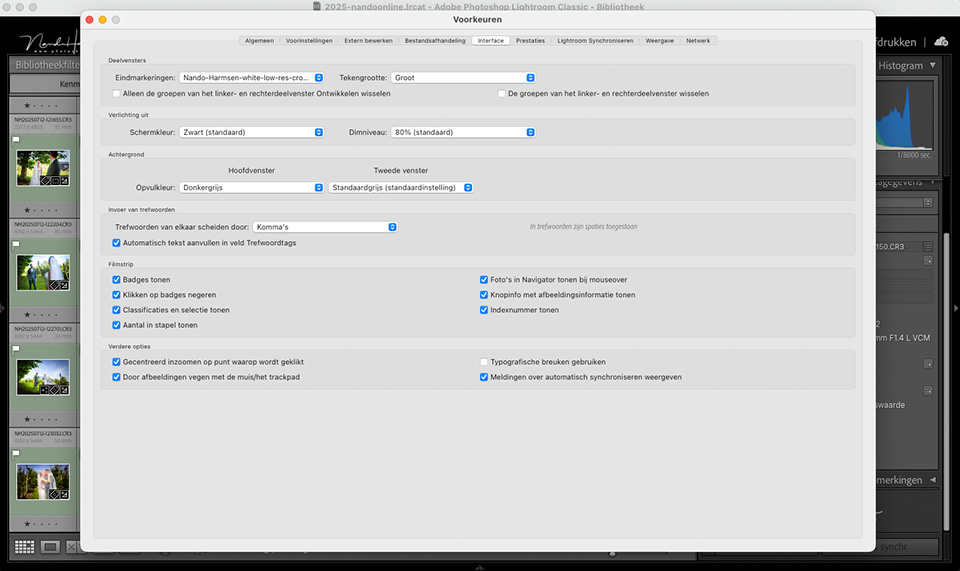
There are many more things you can set here. You can choose a decorative end mark, or your own PNG image. You can reverse the panels on the left and right, choose buttons in the filmstrip, and much more.
Go through the options and try them out. See what works for you, and what does not.
What personal settings have you made? Let us know in a comment below this post and explain how you do it.
About the author
Nando Harmsen has been photographing for more than 40 years. He specialises in wedding photography and landscape photography. Nando also gives talks, workshops, masterclasses and photo trips, and regularly reviews new and interesting equipment.
You might also like
-
 Automate your Lightroom Classic imports
by Nando Harmsen
-
 Presets in Lightroom Classic
by Nando Harmsen
-
 What is the Comments tab in Lightroom Classic for?
by Nando Harmsen
-
 Updates for LrC, LR and ACR
by Nando Harmsen
-
 What's new in the Lightroom Classic 13 update?
by Nando Harmsen

1 comment

Have your say
Please note: Articles older than a week can only be commented on by signed-in visitors.Would you still like to comment? sign in or create a free account.
Become a better photographer every week
A practical photography tip in your inbox every week.
38,901 photography enthusiasts already receive the tips! More about the weekly mail. Or keep up to date via  Facebook.

Elja Trum
Photofacts; everything to do with photography!
Would you like to take better photos and keep up with what is happening in photography? Photofacts publishes articles that teach you something about photography — from a product announcement to a practical shooting tip or a look at a website. Photofacts covers photography every day and is a hobby project of Elja Trum's that got out of hand. The articles are written by a team of volunteer authors. If you would enjoy writing one or more articles for Photofacts, do get in touch.More about PhotofactsPhotofacts is made possible in part by
