

GPU acceleration in Lightroom, does it work?
Tuesday 31 July 2018, 14:41 by Michelle Peeters | 11,002 views | 0 commentsThis article was translated from Dutch with the help of AI. Read the original.
In Lightroom CC and Lightroom Classic CC/Lightroom 6, you can now use a compatible graphics processor, also known as a graphics card, video card or GPU, to speed up editing images in the Develop module, or Detail view in Lightroom CC.
When using a compatible GPU, the performance of high-resolution displays, such as 4K and 5K monitors, can also be improved considerably.
That was good news for photographers who wanted to improve their Lightroom performance, which seemed to get painfully slower with every update.
However, GPU acceleration often turned out to be a disappointment for many Lightroom users. This article explains when using a GPU does and does not make sense.
What is a GPU?
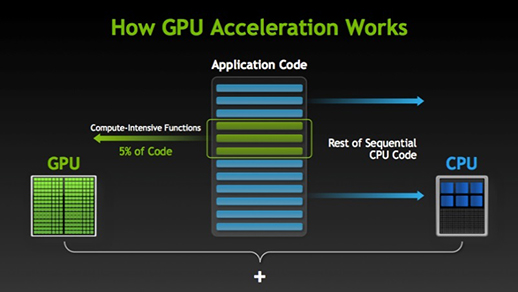
A GPU (Graphics Processor Unit) is the processor on your video card. This processor only handles the creation and processing of graphics, taking the strain off the central processor (CPU).
When using a compatible GPU, the performance of high-resolution displays, such as 4K and 5K monitors, can also be improved considerably.
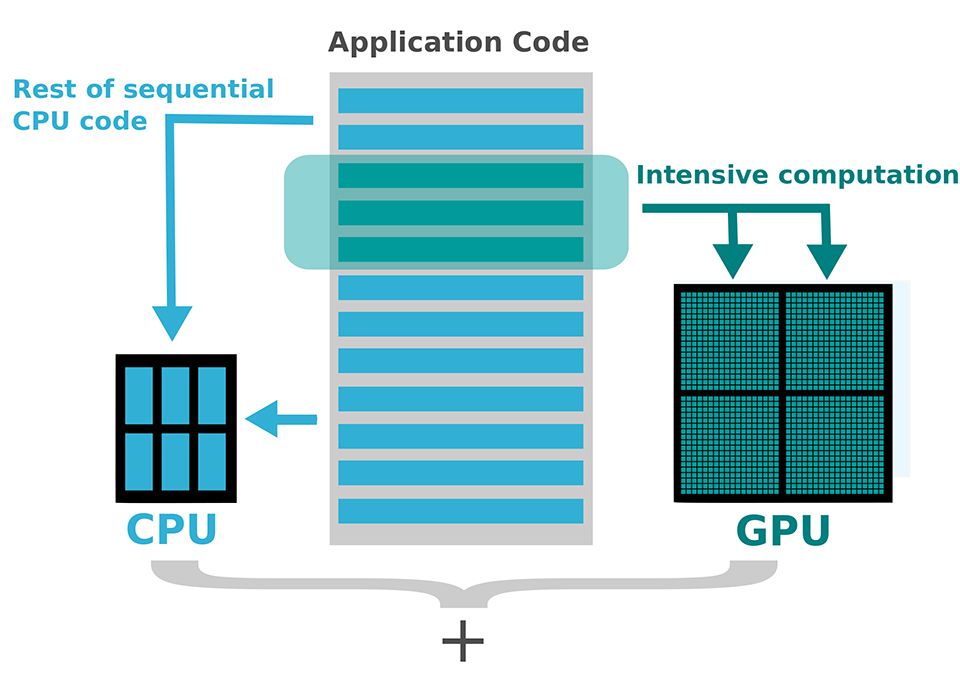
The GPU is used for specific tasks such as the new HDR and Panorama functions, but also when making adjustments with the sliders in the Develop module.
This should ensure that every adjustment you make is immediately visible on the screen, without delay.
Pain points
Unfortunately, GPU acceleration turned out to be a major disappointment for many Lightroom users. They either saw no benefit at all, or saw very little improvement during their photo editing.
Many pain points relating to the use of the GPU concern importing and browsing photos, thumbnails taking a long time to load and declining performance when the application has been open for a long time. This can be noticed, for example, when processing large numbers of panoramas or HDR images.
Here is a list of possible problems:
- Extremely slow brush performance
- Image previews disappear and are displayed in black or another colour;
- Black image when zooming in or panning the image;
- Slow performance when switching between photos;
- Overall reduced Lightroom performance.
If you notice one of the problems above, disable GPU acceleration and see whether this improves Lightroom's performance and stability.
But when does GPU acceleration actually work, and when doesn't it? Below are some suggestions to think about and perhaps apply in the context of your computer configuration and settings.
Also think about the file types you use and your specific workflow. Every situation is unique and requires a different combination of techniques to achieve the best performance in Lightroom.
First, take a look at the minimum system requirements for optimal use of a GPU with Lightroom.
What are the minimum system requirements?
- Only 64-bit Windows and macOS versions;
- Video adapter with OpenGL 3.3 functionality, or later, for GPU functions;
- (Windows) GPU drivers must support DirectX 12 or OpenGL 3.3, and Intel drivers must have been released in 2015 or later. Otherwise, disable the graphics processor in Lightroom's performance preferences;
- (Mac) GPU drivers must support Metal or OpenGL 3.3. Otherwise, disable the graphics processor in Lightroom's performance preferences.
There is no support for SLI, two or more video cards, or multiple monitors. Only the main or primary display is accelerated.
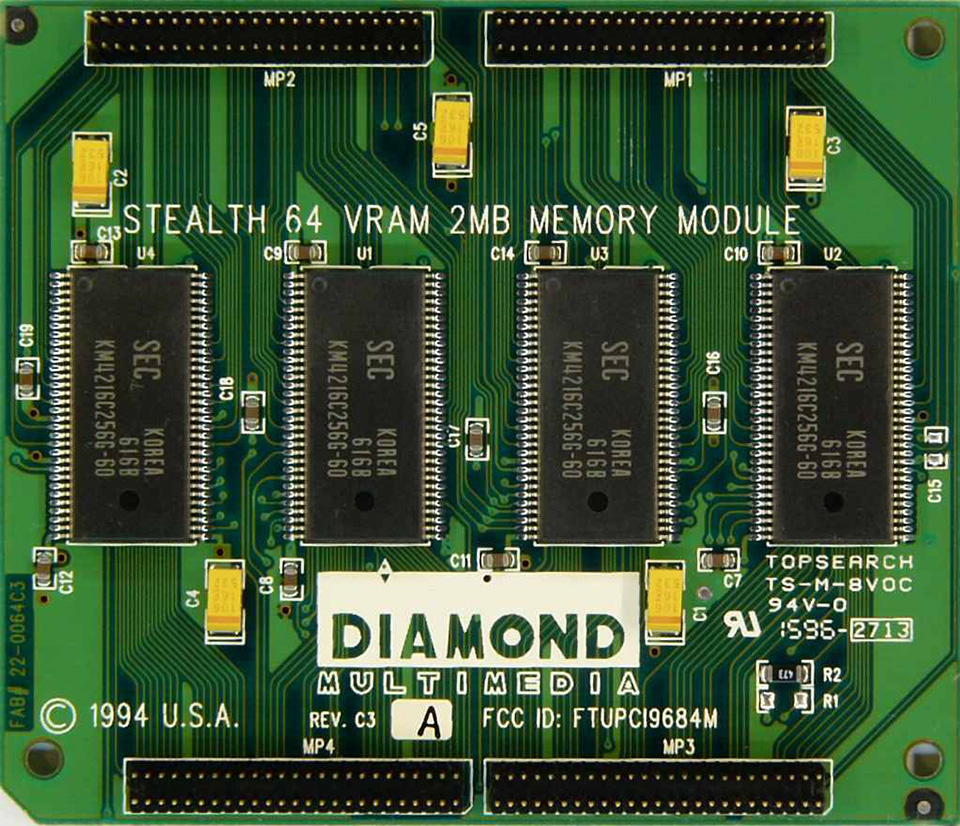
Adobe also recommends at least 1 GB of VRAM, video RAM, but 2 GB of VRAM or more is recommended for 4K+ monitors. For the best GPU acceleration performance, you should use the latest version of Lightroom CC. See the system requirements for each version of Lightroom.
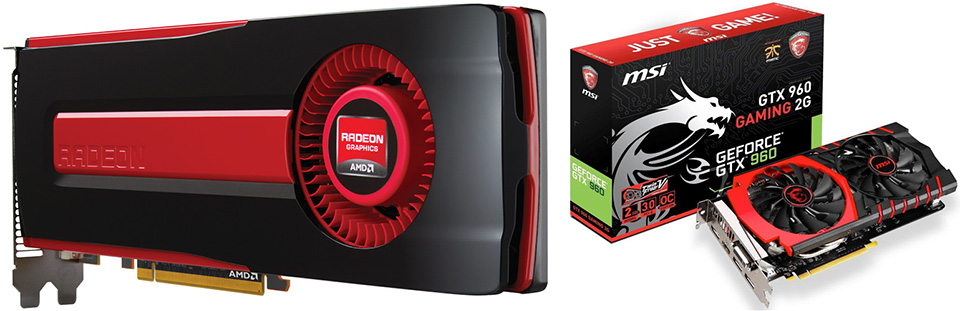
Adobe recommends video cards from three different manufacturers: AMD, NVIDIA and Intel, as long as the cards were made after 2014 and the latest drivers are installed.
They specifically recommend the AMD Radeon R9 series and later cards, NVIDIA GeForce GTX 760+ and GTX 900+ cards, and Intel HD or Intel Iris Pro cards for GPU acceleration.
However, using a video card recommended and tested by Adobe does not guarantee that Lightroom will be faster with GPU acceleration enabled. Enabling GPU acceleration can also lead to inferior performance and all kinds of software problems when a video card is not powerful enough.
With integrated Intel GPUs, there seems to be little or no possibility of enabling GPU acceleration. The same applies to most older dedicated laptop video cards. They are generally just not powerful enough for GPU acceleration.
Here are some recommended video cards:
* AMD Radeon Pro 555+ (for mobile devices)
* AMD Radeon RX 480+, 550+, Vega 56+ (for desktops)
* NVIDIA GTX 960+, 1060+, QUADRO P4000+ (for mobile devices and desktops)
To find out the make and model of your graphics card, start Lightroom. Then select Help > System Info.
2K versus 4K+ environments
GPU acceleration mainly has an effect when using high-resolution monitors with more than the standard 2K resolution. So if you have an older or high-end 2K monitor with a resolution of, for example, 1920 x 1080 pixels, it is better to disable GPU acceleration.
However, if you have a 4K+ monitor or one of those lovely large Retina displays, GPU acceleration can indeed be useful for speeding up Lightroom.
Latest updates installed
Make sure you always install the latest versions and updates of your drivers and Lightroom. Update Lightroom via: Help > Updates.
Download the latest driver directly from the website of your graphics card manufacturer. Do not leave this to Windows or macOS.
Download links for the latest graphics drivers:
NVIDIA drivers
AMD/ATI drivers
Intel drivers
Use a fast hard drive
For a simple workflow, a fast internal Serial ATA drive, 7200 rpm, is sufficient. For more demanding workflows, you could consider a RAID array.
Make sure your hard drive is large enough and has sufficient free space. Too little available disk space can also cause poor performance. Make sure that at least 20% is available on the hard drive where your Lightroom catalogue, previews and image files are stored.
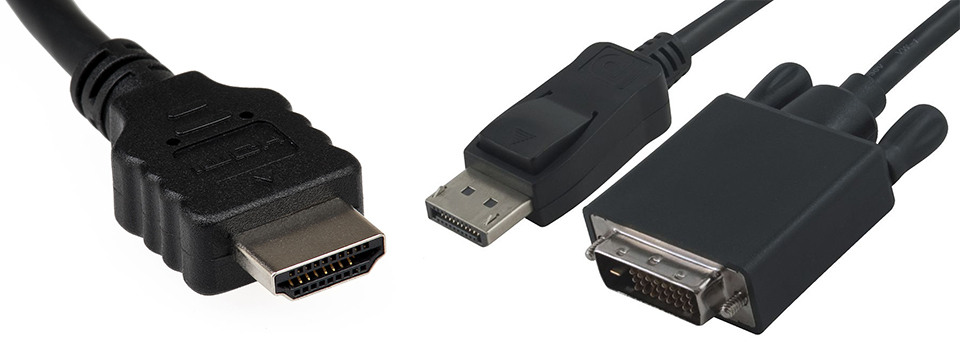
HDMI versus DP / Mini DP / Thunderbolt
It is best to connect your monitor to your computer using a DisplayPort (DP), Mini DP or Thunderbolt cable.
If you use an HDMI cable, you may experience slow performance. If that is the case, try disabling audio output via your HDMI settings and see whether this makes a difference.
What is and is not GPU-accelerated in Lightroom
The Develop module is currently the only one that uses GPU acceleration. Commands and processes separate from the Develop module are not affected by this.
Commands for merging multiple images to create HDR files or panoramas, for example, do not use the GPU. Only Lightroom's main window is accelerated. The secondary window is not.
Lightroom tools and actions that can be GPU-accelerated:
Panels: Basic, Tone Curve, HSL / Colour / Black and White, Split Toning, Detail, Lens Corrections, Transform, Effects and Camera Calibration
Tools: Crop & Straighten, Graduated Filter and Radial Filter
Actions: Panning and zooming
Tools and actions that are not GPU-accelerated:
Spot Removal, Red Eye Correction, Adjustment Brush, brushes with graduated and radial filters, loading RAW images, generating JPEG previews, HDR preview / merging, Panorama Preview / merging, Face Detection.

How do you enable GPU Acceleration?
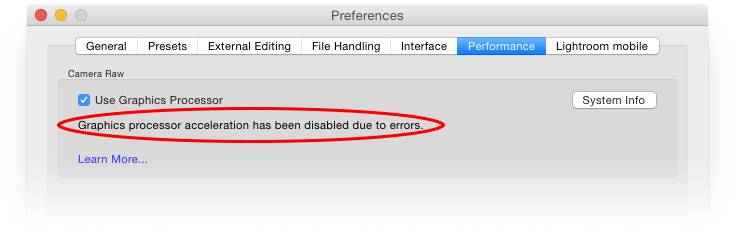
Enabling GPU acceleration is very simple. Go to Lightroom Preferences (Edit -> Preferences), click the “Performance” tab, click the checkbox next to “Use Graphics Processor” and click “OK”.
You should now immediately be able to see information about your graphics card. If you want more information about your computer, click the “System Info” button on the right-hand side of the window.
Conclusion
GPU acceleration could be a solution for many Lightroom users. But it is a matter of experimenting and seeing whether it improves your performance.
The best thing is to test for yourself whether the GPU you have offers benefits in your working environment. Test it in Lightroom with GPU acceleration enabled and disabled.
Try for yourself whether GPU acceleration introduces many software errors and/or suddenly makes other Lightroom operations very slow when GPU acceleration is enabled.
About the author
Michelle Peeters is fotografe en oprichter van DeuxBleus Fotografie. Michelle herkent het bijzondere in het gewone en het gewone in het bijzondere. Ze heeft zich nooit willen specialiseren en is daardoor van alle markten thuis.
You might also like
-
 Lightroom update for GPU acceleration
by Michelle Peeters
-
 A new update for Lightroom Classic
by Nando Harmsen
-
 The Lightroom interface in brief
by Michelle Peeters
-
 Presets in Lightroom Classic
by Nando Harmsen
-
 What's new in the Lightroom Classic 13 update?
by Nando Harmsen
-
 5 tips to customise Lightroom Classic
by Nando Harmsen
0 comments
Be the first to share what you think!
Have your say
Please note: Articles older than a week can only be commented on by signed-in visitors.Would you still like to comment? sign in or create a free account.
Become a better photographer every week
A practical photography tip in your inbox every week.
38,900 photography enthusiasts already receive the tips! More about the weekly mail. Or keep up to date via  Facebook.

Elja Trum
Photofacts; everything to do with photography!
Would you like to take better photos and keep up with what is happening in photography? Photofacts publishes articles that teach you something about photography — from a product announcement to a practical shooting tip or a look at a website. Photofacts covers photography every day and is a hobby project of Elja Trum's that got out of hand. The articles are written by a team of volunteer authors. If you would enjoy writing one or more articles for Photofacts, do get in touch.More about PhotofactsPhotofacts is made possible in part by
