

17 Lightroom tips for editing architecture photos
Saturday 11 May 2019, 20:10 by Michelle Peeters | 10,006 views | 0 commentsThis article was translated from Dutch with the help of AI. Read the original.
Architecture photos are often very beautiful. But as a photographer, you are dependent on the conditions at the time. The weather and lighting conditions are not always optimal at the location you had in mind. Or you cannot get there, or there is a van inconveniently in the frame.
This article contains 17 tips for fixing these kinds of issues in post-processing with Lightroom.
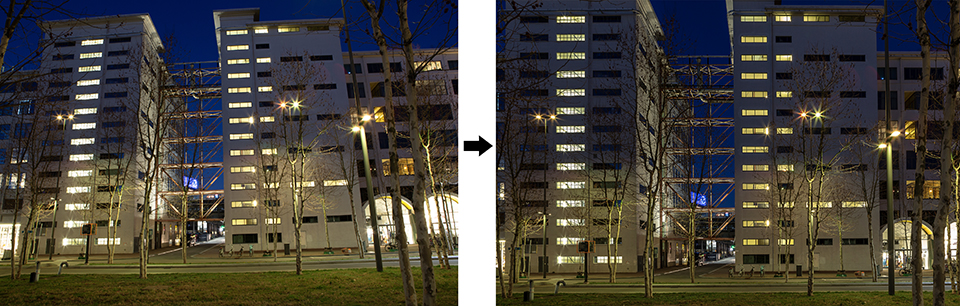
1. Automatic lens corrections
It is useful to start by correcting lens distortions. Lightroom can recognise which camera and lens you used and correct distortion automatically. This can make the image brighter, so it is better to apply lighting and colour corrections afterwards.
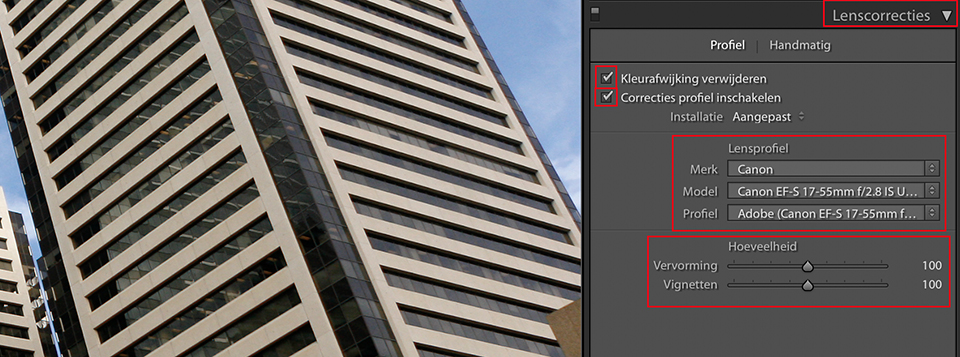
In the Develop module, go to Lens Corrections/Profile in the right-hand panel and tick Remove Chromatic Aberration and Enable Profile Corrections.
If all goes well, the profile for your camera and lens will be selected automatically. If your equipment is not recognised, use the Distortion and Vignetting sliders to manually correct the worst distortion.
2. Correcting perspective with Upright
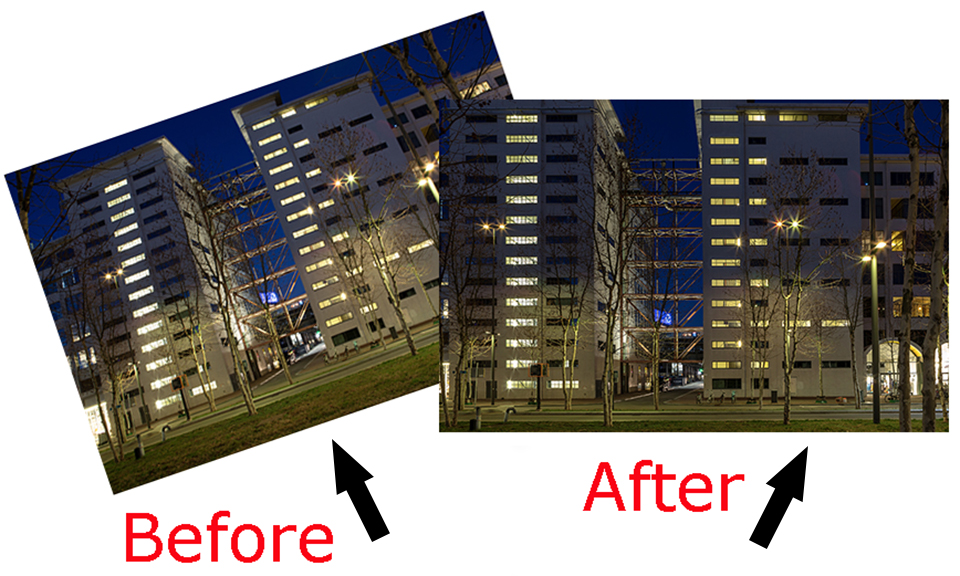
If you did not point the camera exactly straight at the building, perspective distortion occurs. This is especially noticeable when you point the camera upwards, as the building may appear to lean backwards. Lightroom sometimes fixes this itself when you click Auto under Lens Corrections/Basic.
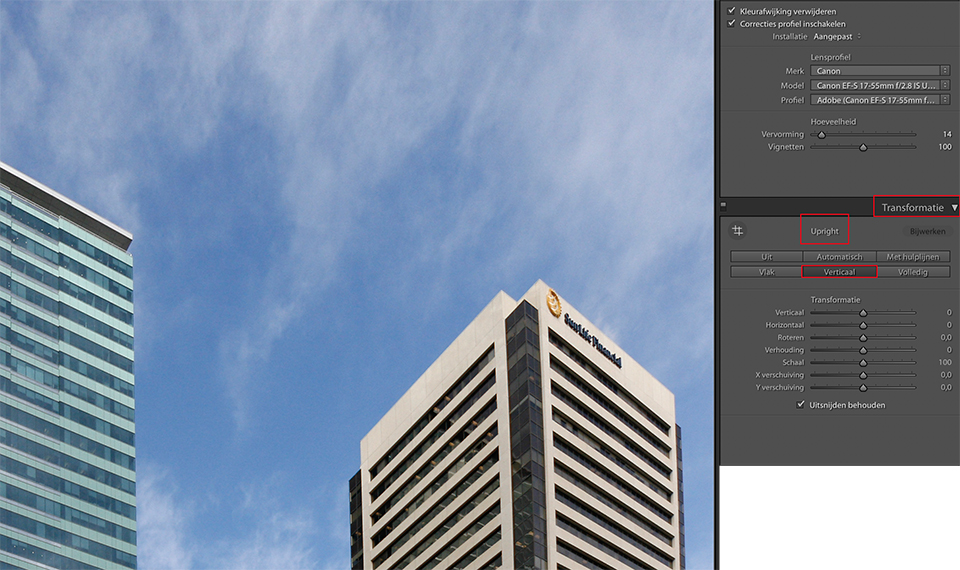
Perspective distortion is particularly visible in architecture photos with vertical lines or geometric shapes. With the Upright function in the Transform panel, you can easily correct photos with distorted vertical or horizontal perspective.
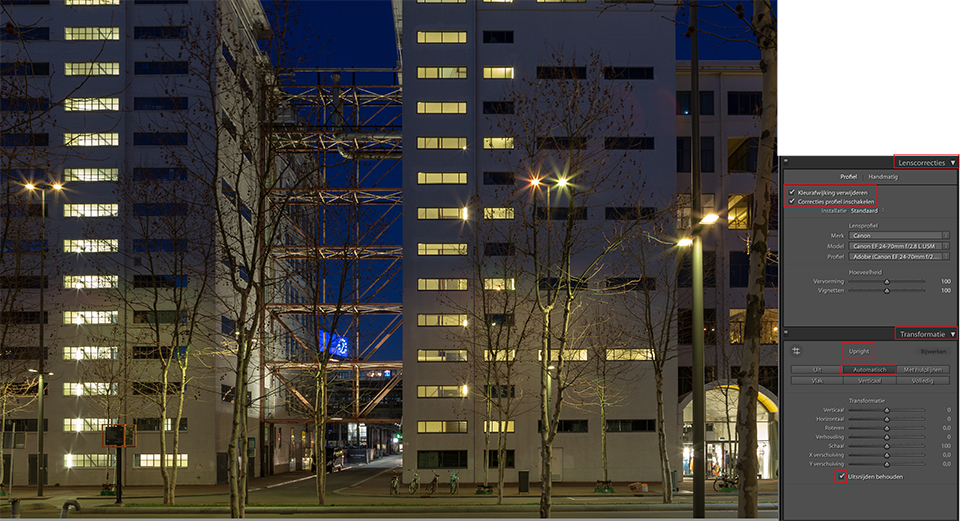
The Upright function offers four options for automatic perspective correction: Auto, Level, Vertical and Full, plus a Guided option. After applying an Upright option, you can fine-tune the adjustment by manually changing the available transform slider options.
Navigate to the Transform panel. Click one of the five available Upright options to apply the corresponding correction to the photo:
- Level: Corrects horizontal distortion
- Vertical: Corrects vertical distortion;
- Auto: Corrects both vertical and horizontal distortion while preserving the overall balance and original image as much as possible;
- Full: A combination of the complete Level, Vertical and Auto perspective corrections;
- Guided: Allows you to draw two or more guides on your photo to adjust perspective correction.
3. Exposure
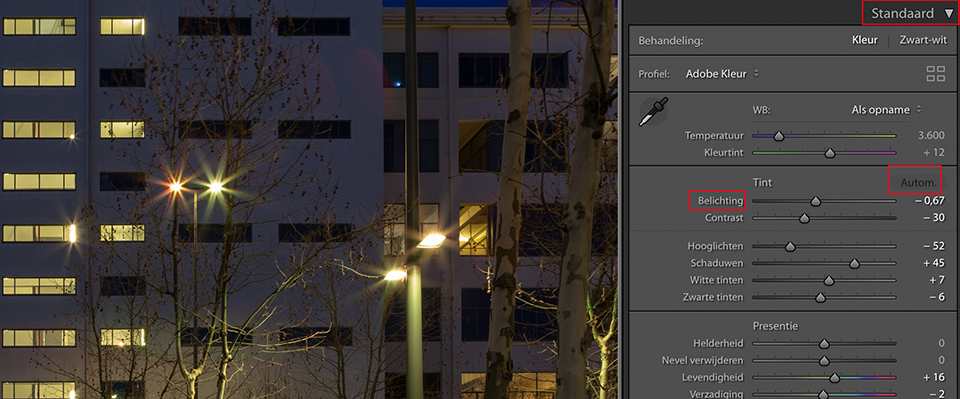
Now that all distortions have been corrected, it is time to look at the exposure. In the right-hand panel, go to the Basic section. Use Exposure to adjust the overall exposure. This is very similar to exposure compensation while taking the photo.
Use the J keyboard shortcut to enable warnings for overexposure and underexposure. Try to expose the building as well as possible, although you will not always manage this with just this one slider. You will soon also need the sliders from the next step. Feel free to move back and forth between the sliders until you get the best result.
The 'Auto' button often produces good results too, which you can adjust a little further yourself if necessary.
4. Four areas
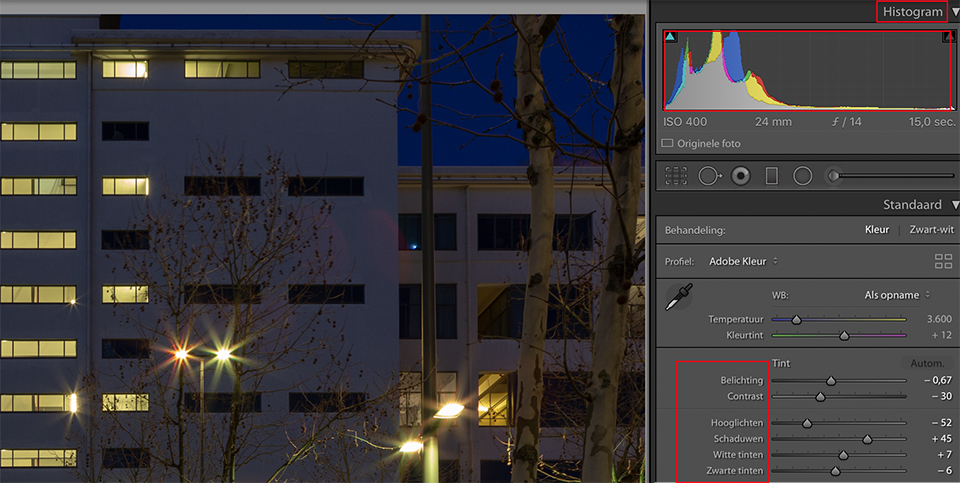
In architectural photography, you often have bright light and deep shadows. In that case, it is useful that you can improve the exposure in four areas. These are Highlights and Shadows, as well as Whites and Blacks. Confused about which is which?
If you hover the mouse over the histogram, opening Histogram first if necessary, you can see exactly which part of the histogram corresponds to each of the four areas. If you drag while holding down the mouse button, the same thing happens as when you use the corresponding slider. You can adjust the overall exposure in the middle of the histogram.
5. Colour
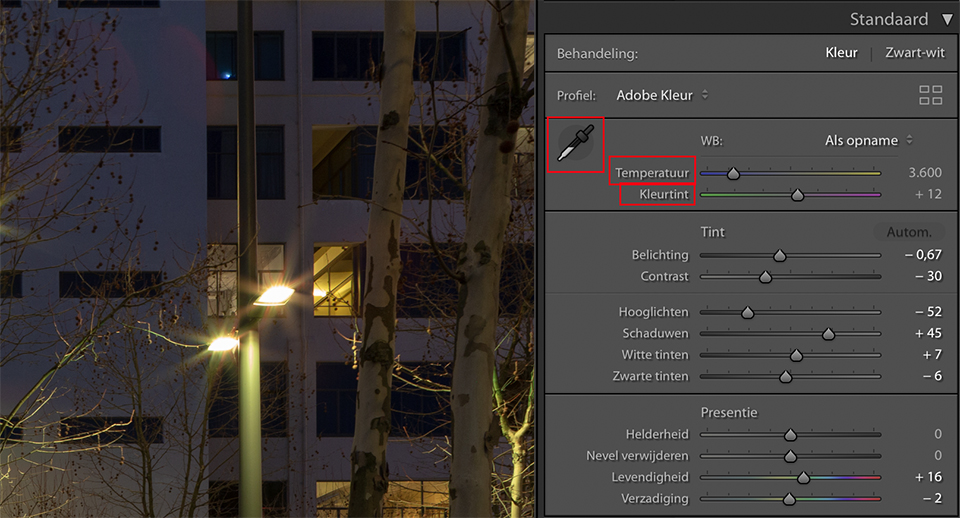
It is particularly important to adjust the colours in the shadows and in cloudy conditions. Move the Temperature slider to the right to warm up the image, or to the left to cool it down. If there is a colour cast, remove it using Tint.
If the building has a detail that you know should be white, neutral grey or black, you can also click that detail with the eyedropper next to it, using the W keyboard shortcut. You can then use the two sliders to fine-tune the result if necessary.
6. Detail and saturation
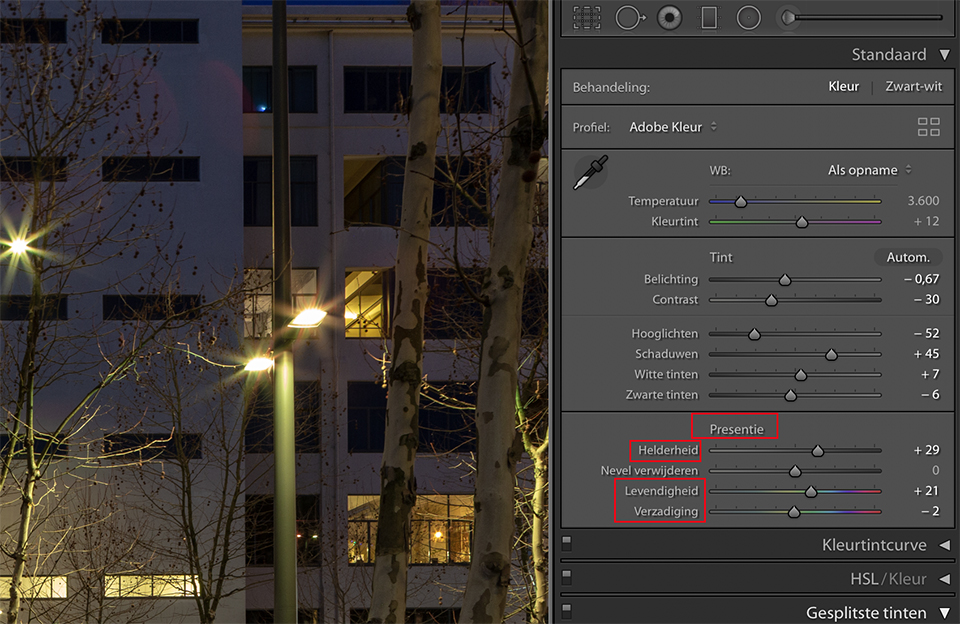
Especially in sidelight, beautiful textures can be visible on a facade. To emphasise the fine details, you can slightly increase the microcontrast using the Clarity slider under Presence. The photo will look noticeably sharper. Move the slider carefully to the right, but be careful not to overdo it and make the photo look unnatural.
To make colours sparkle more, use Vibrance. This slider leaves skin tones alone, but generally produces a more natural result with non-portraits too. Alternatively, you can still use the traditional Saturation.
7. Tone curve
If the architecture photo looks a little flat and lifeless, you can increase the contrast in the Tone Curve section by strengthening or weakening highlights, lights, darks or shadows. You certainly do not always have to use all of them. You can operate the slider by clicking the relevant area in the histogram and dragging with the mouse.
It is even more intuitive to click the small circle to the left of the histogram. You can then click directly on the relevant area in the photo and drag with the mouse. The correct area in the histogram is selected automatically.
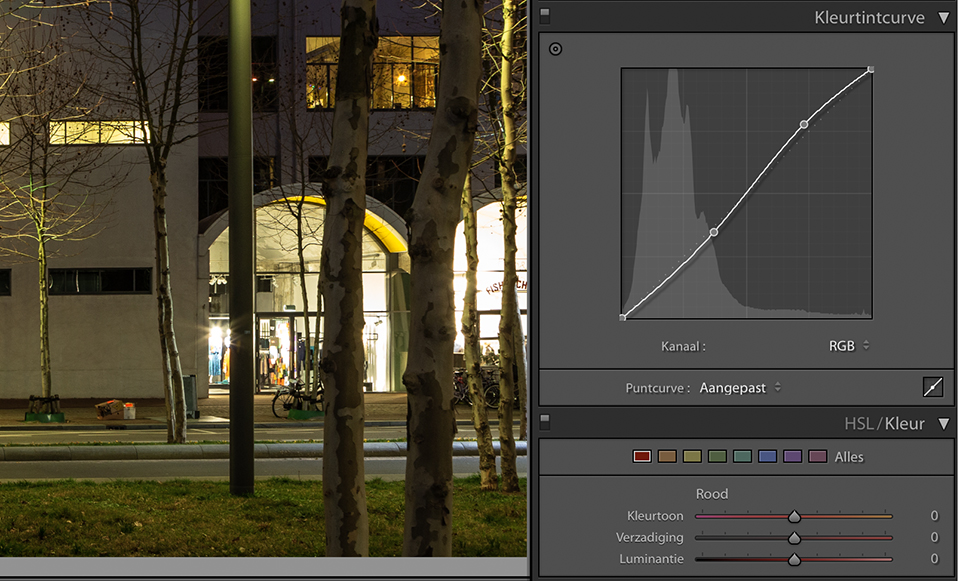
8. Selective colours
With colourful architecture, some colours may not come across well. In Lightroom, you can improve individual colours by going to the HSL section in the right-hand panel. You will find several tabs here.
With Hue, you can shift a colour such as red or blue slightly, giving it a different tint. This is how you correct a colour deviation. With Saturation, you can strengthen an inconspicuous colour or slightly dim a colour that is distracting too much. With Luminance, you adjust the brightness. This allows you to perfectly restore an overexposed colour.
9. Graduated filter
Sometimes the sky is too bright or the foreground is too dark. You can use a graduated filter for this. Click the Graduated Filter tool at the top of the right-hand panel, after which you will see a large set of sliders. Among other things, you can use these to adjust exposure, highlights, shadows, clarity (microcontrast), saturation and sharpness.
It is a filter, so your edit is applied only to a selected area. Click in the photo and drag downwards or upwards to indicate the transition. By dragging further, you make the transition more gradual.
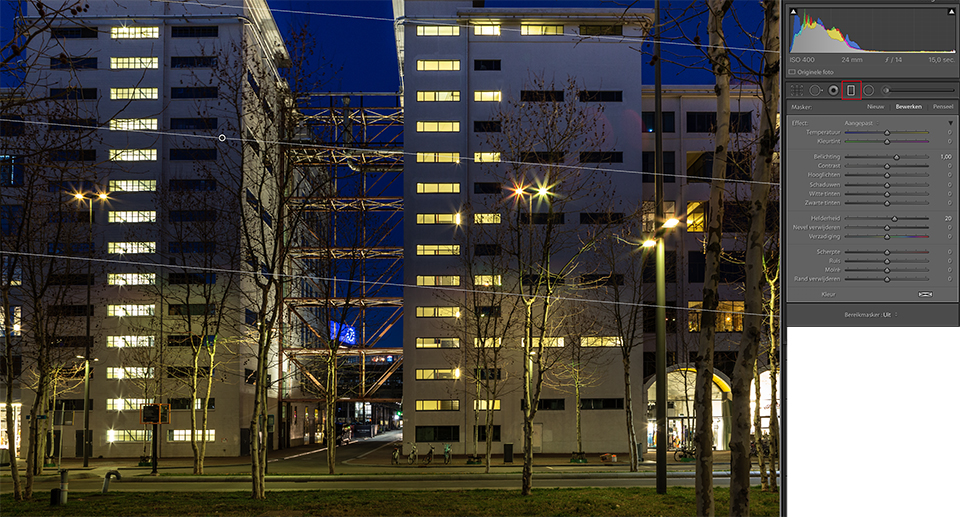
10. Selecting an area
Do you want to improve the sky next to a building, for example? Then the graduated filter is less suitable, because you will adjust the building as well. Choose the Adjustment Brush tool instead. You will see the same sliders as with the graduated filter, but now you can paint the area you want to adjust yourself with a brush.
Tick Auto Mask to have the edges of the building, for example, detected automatically. Choose New if you want to edit another part of the photo in a different way.
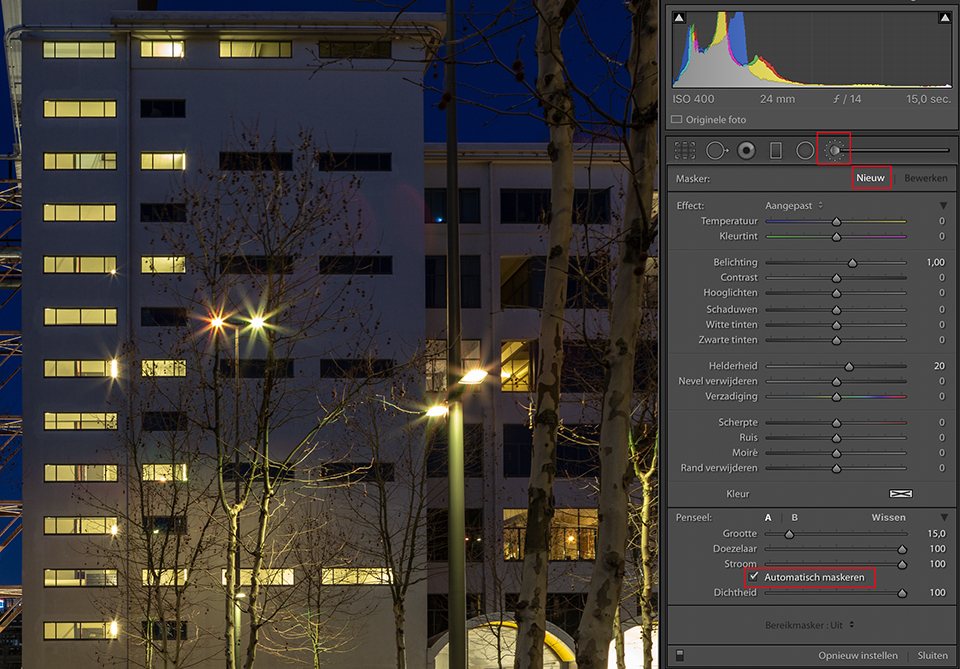
11. Cropping
When you photograph architecture, there is a good chance that distracting objects will be visible at the edges of the photo. For example, part of another building. Use the Crop tool to create a pleasing crop and solve this problem.
It is best to reduce the photo from the corners, as this lets you adjust two sides at once. If you hold down the Shift key while doing this, the aspect ratio remains intact. You can also specify the desired ratios under Aspect. With Angle, you can straighten the photo if necessary, should it turn out that this was not quite successful in the second step.
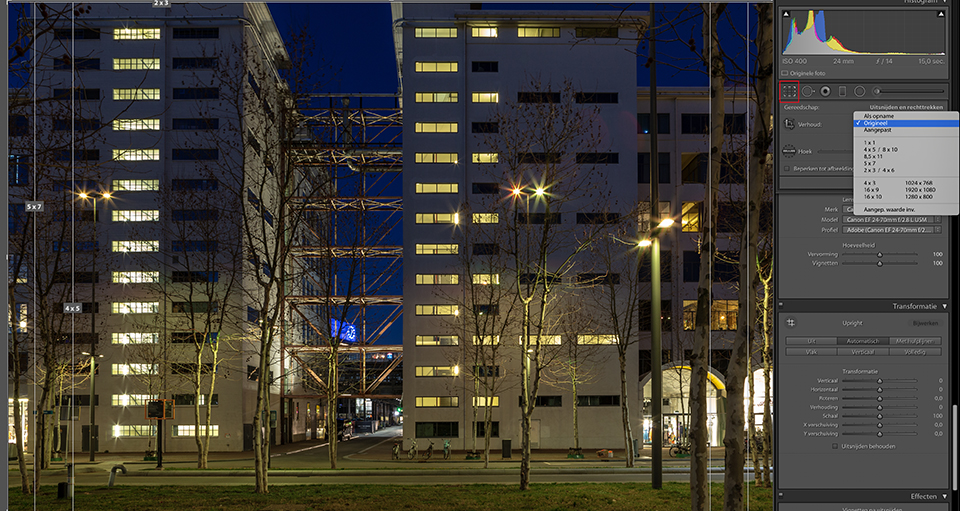
12. Noise and sharpness
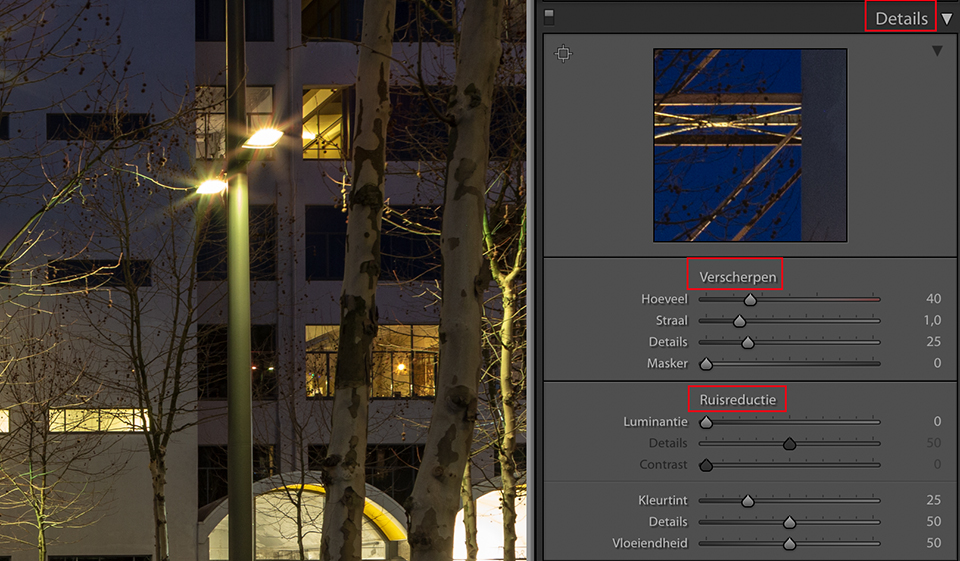
You often photograph architecture from a tripod, but sometimes you shoot handheld. If distracting noise has nevertheless appeared because of a high ISO setting or a very slow shutter speed, you can easily fix this in the Detail section of the right-hand panel.
Under Noise Reduction, use Luminance to remove distracting speckles. Use Colour to remove any colour noise. Sharpen the image with the Amount slider under Sharpening. With Masking, you can limit this to, for example, just the contours of the building. If you hold down the Alt key, you can see exactly which parts of the photo are being sharpened.
13. Spot Healing Brush
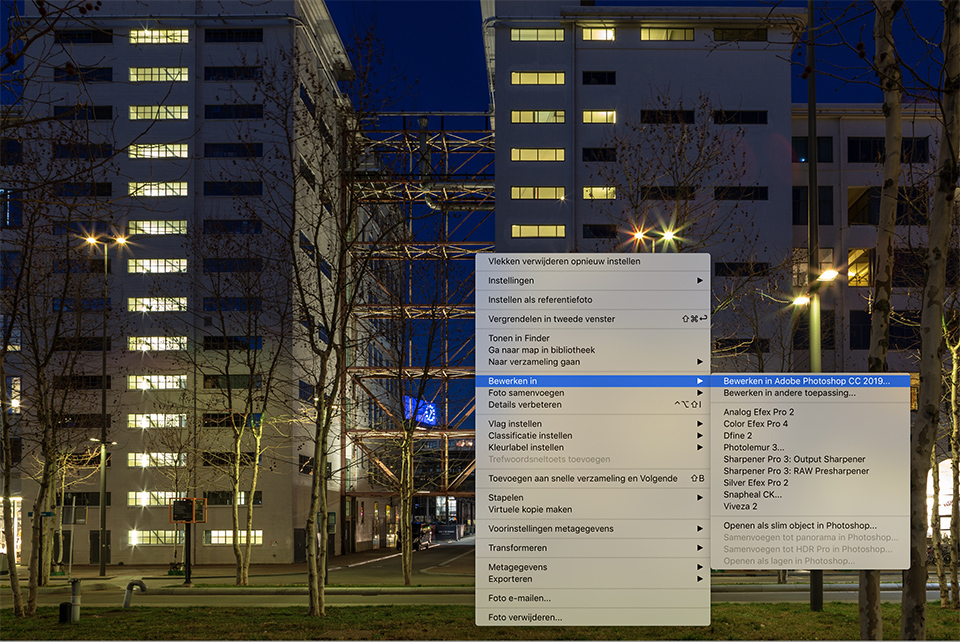
You can remove spots with Lightroom, but it is easier and better in Photoshop. Right-click the photo or thumbnail and choose Edit In / Edit in Adobe Photoshop CC. In Photoshop, click Create a new layer in the Layers panel, so that the original photo remains intact while you retouch.
Then choose the Spot Healing Brush. Make sure Sample All Layers is enabled above the photo. Then click a spot or paint over an object you want to remove, and Photoshop will take care of it for you.
14. Healing Brush
The Spot Healing Brush works completely automatically. If you would rather decide yourself how the photo is repaired, it is better to use the Healing Brush tool. Again, work on a separate retouching layer and make sure that, above the photo, you choose Current & Below or All Layers under the Sample option.
Then first hold down the Alt key and click the source material, meaning a representative section of the photo. Next, click or paint over the spot or object you want to remove. If necessary, you can make larger objects disappear step by step.
15. Clone Stamp
The two healing brushes take the colour of the area you are adjusting into account, among other things, so that the new image material fits in well. Would you rather have the source material placed over it exactly as it is, unchanged? Then you need the Clone Stamp.
Again, first select the source material while holding down the Alt key, then click or paint to remove spots or objects. You can build up the change gradually with Opacity. With Aligned, you determine whether the location of the source material remains the same or is relative to the cursor position.
16. Staying within the lines
With the healing brushes and Clone Stamp, you risk adjusting too much of the image. For example, you may only want to remove a reflection or a dirty spot from a window, but accidentally adjust part of the window frame or wall as well.
You can easily solve this by first using the Lasso or Polygonal Lasso to define the area. In this example, make a rough selection of the glass. After that, only image material within the selection can be adjusted. The source material can be located anywhere in the photo.
17. Lens flare
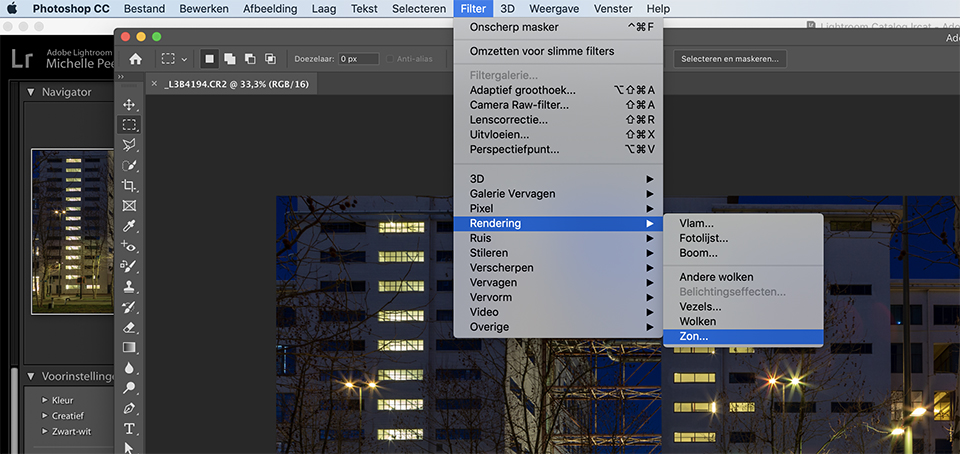
With the sun in or just outside the frame, you will soon have to deal with lens flare. You can easily fix this with either of the healing brushes. Lens flare is not always distracting, it can also add atmosphere. So you can also create lens flare deliberately. Or add it afterwards to the original photo layer in Photoshop via Filter/Render/Sun.
Click and drag in the photo to get the best effect. Then choose a lens below the preview that gives you the most attractive lens flare. The 105mm option, for example, produces a natural effect.
Want to learn more about Lightroom?
Then follow one of Piet van den Eynde's Lightroom courses on Photofacts Academy. The Lightroom Workflow tips & tricks course is a very useful one to start with.
You can follow this and other courses for two weeks with a free trial membership.
Want to learn more about architectural photography?
And if you want to learn more about architectural photography, you can follow our course on Photofacts Academy and head out through Arnhem with architectural photographer Jan Paul Mioulet. Learn exactly how to photograph buildings such as Rozet and the Provincial House of Gelderland professionally.
About the author
Michelle Peeters is fotografe en oprichter van DeuxBleus Fotografie. Michelle herkent het bijzondere in het gewone en het gewone in het bijzondere. Ze heeft zich nooit willen specialiseren en is daardoor van alle markten thuis.
You might also like
-
 Wanneer Lightroom en Photoshop niet meer samenwerken
by Nando Harmsen
-
 Does Lightroom make Photoshop redundant?
by Nando Harmsen
-
 17 ON1 Photo RAW tips
by Michelle Peeters
-
 7 tips for architectural photography
by Michelle Peeters
-
 Look at your own photos with fresh eyes in Lightroom
by Frédéric Paulussen
0 comments
Be the first to share what you think!
Have your say
Please note: Articles older than a week can only be commented on by signed-in visitors.Would you still like to comment? sign in or create a free account.
Become a better photographer every week
A practical photography tip in your inbox every week.
38,982 photography enthusiasts already receive the tips! More about the weekly mail. Or keep up to date via  Facebook.

Elja Trum
Photofacts; everything to do with photography!
Would you like to take better photos and keep up with what is happening in photography? Photofacts publishes articles that teach you something about photography — from a product announcement to a practical shooting tip or a look at a website. Photofacts covers photography every day and is a hobby project of Elja Trum's that got out of hand. The articles are written by a team of volunteer authors. If you would enjoy writing one or more articles for Photofacts, do get in touch.More about PhotofactsPhotofacts is made possible in part by
