

Using Lightroom Without a Catalogue
Friday 5 June 2026, 23:23 by Nando Harmsen | 1,936 views | 2 commentsThis article was translated from Dutch with the help of AI. Read the original.
Lightroom Classic uses a catalogue. Lightroom desktop uses a kind of catalogue in the cloud. But with Lightroom desktop, you can also work directly on your hard drive, without needing a catalogue.
Lightroom desktop, you know, the Lightroom referred to by the abbreviation LR, works with the Cloud. This means that all the photos you import into it are sent directly to the Cloud.
The disadvantage is that you quickly need a lot of storage space. The amount of storage space you get by default is limited. This means that if you take a lot of photos, using Lightroom desktop isn't always practical.
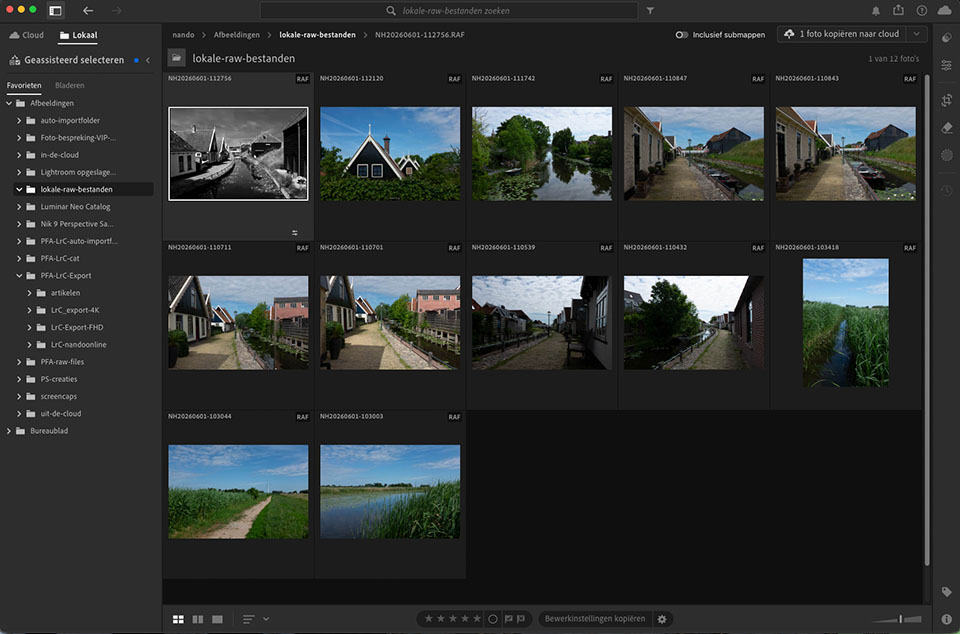
Lightroom desktop also allows you to view and edit photos on your hard drive. The special thing about this is that these photos aren't added to a catalogue. Unless you want them to be.
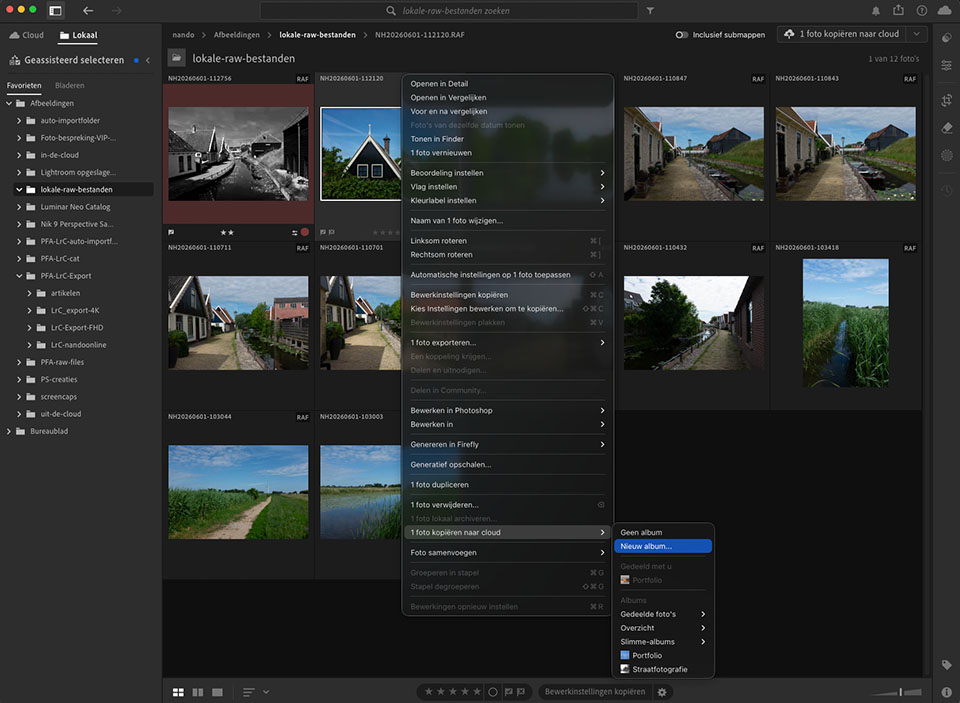
By choosing local storage, you can browse through your computer's hard drives. Choose a photo, give it ratings, edit it, and export it as you normally would. Everything is saved in an XMP sidecar file.
Do you take a lot of photos and only want to store a selection in the cloud? This way, you can upload the photos that are worth keeping to the cloud. This way, you only have your best photos in the cloud.
This prevents you from having second-choice photos in the cloud. Or simply photos that aren't worth keeping, but that you still want to save. This allows you to make the best use of the cloud storage available to you.
You may be wondering what the difference is compared to syncing via Lightroom Classic. As you may know, syncing only sends smart previews to the cloud. With Lightroom desktop, they are the original files.
Give it a try. Open Lightroom desktop and click 'local' in the top left. Browse through your folders and view and edit the photos you want without having to upload or import them.
About the author
Nando Harmsen has been photographing for more than 40 years. He specialises in wedding photography and landscape photography. Nando also gives talks, workshops, masterclasses and photo trips, and regularly reviews new and interesting equipment.
You might also like
-
 Speed up Lightroom Classic by reinstalling it
by Elja Trum
-
 6 Tips for Importing Photos into Lightroom
by Nando Harmsen
-
 5 Tips for Managing Photos in Lightroom Classic (and Other Software)
by Nando Harmsen
-
 What is the Comments tab in Lightroom Classic for?
by Nando Harmsen
-
 Take your portfolio with you using Lightroom Mobile
by Nando Harmsen
-
My 10-step Lightroom Classic workflow
by Nando Harmsen
2 comments
-
 TW van Urk wrote on Tuesday 9 June 2026 at 19:16 | reply
I don't quite understand it.
Translated from Dutch.
I have Lightroom Classic and for all my work I have my own 'local' catalog. So nothing to and from the cloud.
By 'local', do you mean that you can also work on files without a catalog? Or do you simply mean the catalog on your own drive? -


Have your say
Please note: Articles older than a week can only be commented on by signed-in visitors.Would you still like to comment? sign in or create a free account.
Become a better photographer every week
A practical photography tip in your inbox every week.
38,937 photography enthusiasts already receive the tips! More about the weekly mail. Or keep up to date via  Facebook.

Elja Trum
Photofacts; everything to do with photography!
Would you like to take better photos and keep up with what is happening in photography? Photofacts publishes articles that teach you something about photography — from a product announcement to a practical shooting tip or a look at a website. Photofacts covers photography every day and is a hobby project of Elja Trum's that got out of hand. The articles are written by a team of volunteer authors. If you would enjoy writing one or more articles for Photofacts, do get in touch.More about PhotofactsPhotofacts is made possible in part by
