

5 Tips for Managing Photos in Lightroom Classic (and Other Software)
Monday 9 October 2023, 20:02 by Nando Harmsen | 8,682 views | 22 commentsThis article was translated from Dutch with the help of AI. Read the original.
Recently, I was told that the computer of a photographer friend had broken down. What would happen to the photos and the Lightroom Classic catalogue? That was the question I was asked. Fortunately, it could be solved thanks to good photo management. Let this be a lesson to everyone.
As you take photos for longer, they start to pile up. Faster for some than for others. Sometimes because a lot of photos are simply being taken. Sometimes because nothing is allowed to be deleted, not even the unsuccessful photos.
Where do you keep all those photos? On your hard drive, of course. If you use Lightroom Classic, you also have a catalogue containing all the information about your photos. Edits, keywords, collections, star ratings, and much more.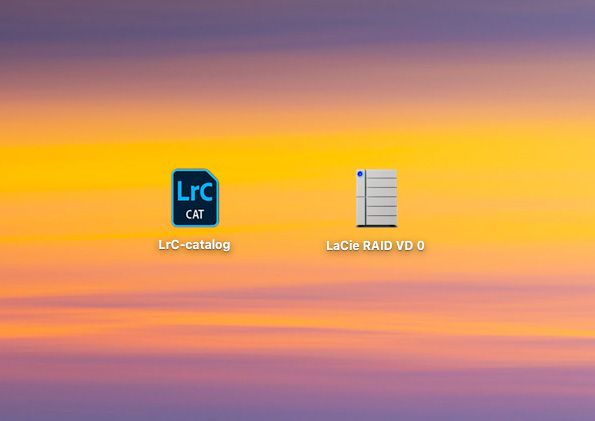
This is not limited to Lightroom Classic, by the way. Other photo management software works in a similar way. Whether it is Luminar, Capture One, or any other software. If you lose the catalogue, you only have the unedited photos left.
How do you keep your photos and catalogue safe? A backup is one answer, but not a complete answer. That is why I have some tips, or recommendations. They help protect your photos and the work you have put into them if something happens to your computer.
1. An external hard drive for your photos
The best place to store your photos is not on your computer's hard drive. It quickly fills up if you take a lot of photos. Even with a hard drive of 1 TB or more. Besides, a very large internal hard drive is often particularly expensive.
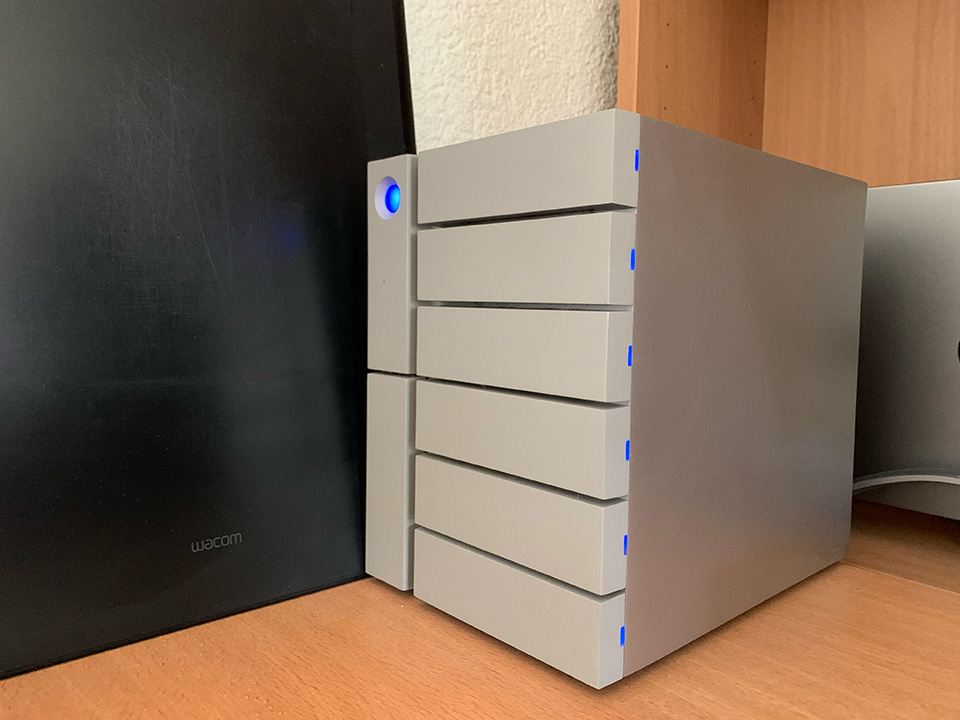
Choose an external hard drive. They are affordable, even at 12 terabytes. Make sure it has a reasonably fast connection, such as USB 3.2, or the latest USB-C connections.
If your computer breaks down, or you upgrade, connect your external hard drive to your new computer and you can continue working without any problems.
Want more certainty? Choose a NAS or DAS system. This allows you to make several hard drives work together so that nothing is lost if one of them fails. This is known as a RAID configuration.
2. An external SSD for your Lightroom Classic catalogue
Put your Lightroom Classic catalogue, or the catalogue from other photo editing software, on a very fast external SSD. Choose one with a very fast connection, and make sure it has a capacity of about 1TB.
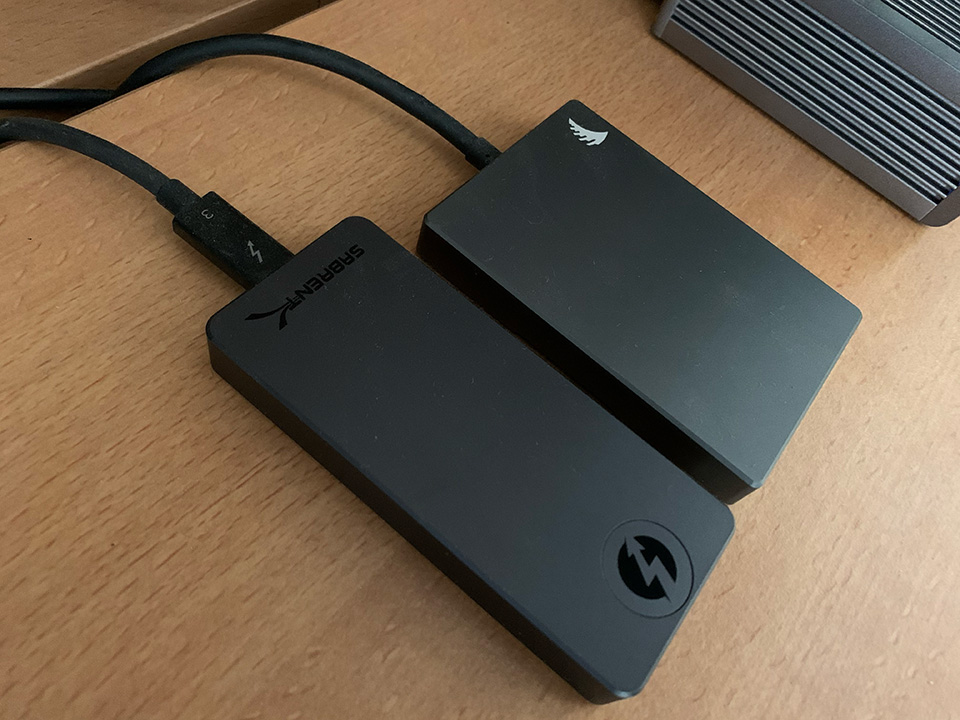
Put the Lightroom Classic catalogue on this fast SSD, and make sure you have smart previews. This means you can even work on your photos when the external hard drive containing your photos is temporarily disconnected. In fact, you can simply connect the SSD with your Lightroom Classic catalogue to another computer and work on it there.
Is your computer broken, or are you upgrading? Simply connect the SSD with your Lightroom Classic catalogue to your new computer, just like your external hard drive with the photos. You can then continue working directly in the Lightroom Classic installation.
3. Choose the location for the Lightroom Classic backup
Lightroom Classic regularly makes a backup of the catalogue. However, the default location is next to that of the regular catalogue. I do not think that is wise. It is better to keep that backup in another location.
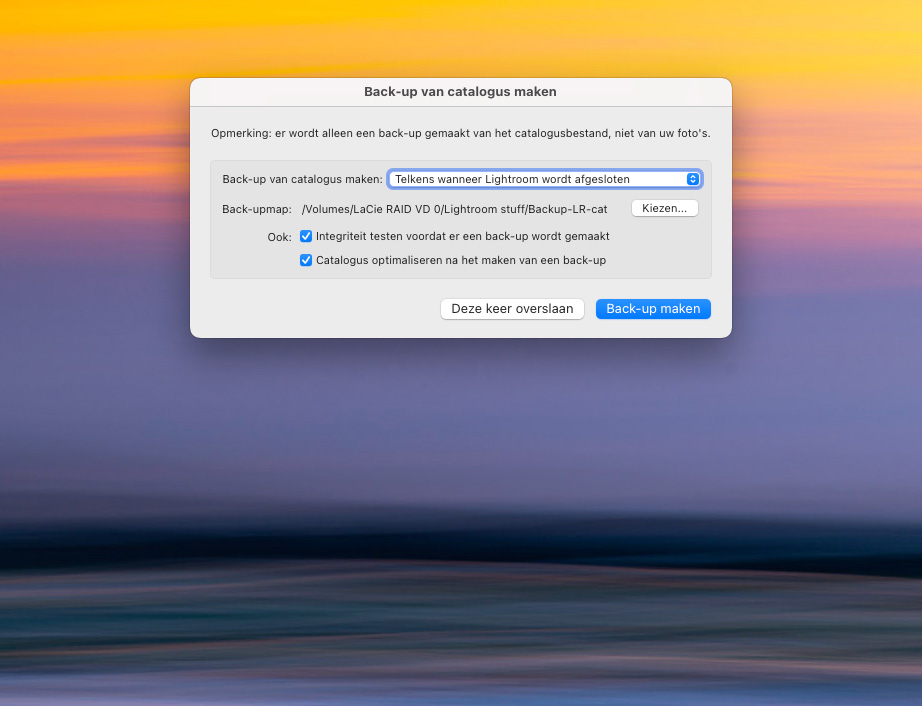
I always choose to put that backup on the same external hard drive where my photos are stored. If something goes wrong with the SSD, you have the backup in another location. There is little chance that both external drives will fail at the same time.
4. Cloud backup
A single backup is no backup. Do you want to be sure that nothing happens to your photos and Lightroom Classic catalogue? Then choose a backup in the Cloud. That way, you do not have to worry about it.
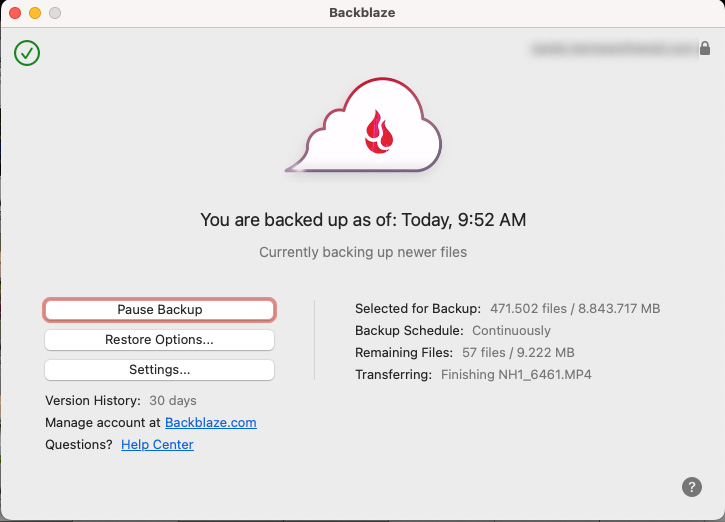
Cloud backup can be reasonably cheap, and you can back up more than just your photos and catalogue. The advantage of the cloud is that it happens in the background. If something goes wrong, you can retrieve all your files from there.
You can also manually make an extra backup on a second external hard drive. But it takes enormous discipline to do this regularly. Besides, both hard drives are in the same location. Or they are both connected. If something happens at home, it happens to both drives.
5. Save your edits in an XMP file
Are you worried about losing the edit on your photo? Lightroom Classic has an option to save that edit in an external XMP file. This is a small text file that sits next to your photo.
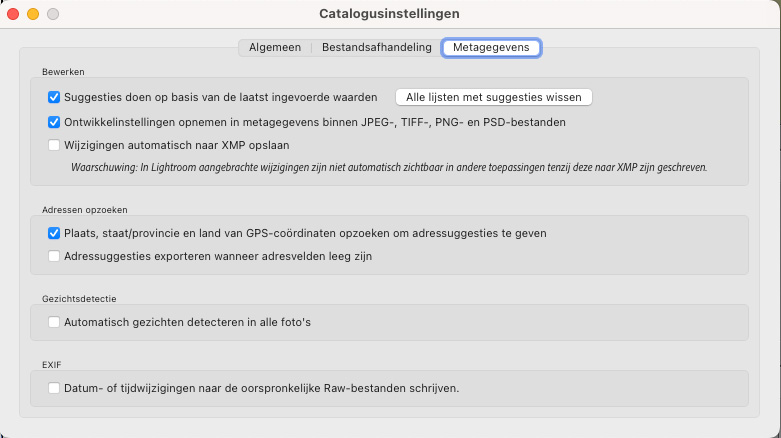
If something happens to Lightroom Classic, or you want to switch to another photo editing programme, the edit and all the work you have put into it will not be lost. You can turn this option on or off in the preferences menu.
Some photo editing software uses XMP files by default. If you do not use Lightroom Classic but another programme, it is worth looking into that too.
Better safe than sorry
There are various alternatives to these tips and recommendations. For example, you could keep your Lightroom Classic catalogue on your internal hard drive, with the standard backup on your external hard drive. That works too, provided your internal hard drive is large enough.
However you arrange it, make sure your photos and your Lightroom Classic catalogue, or the catalogue from other photo editing software, are safe. That way, you can work on and manage your photos with peace of mind.
How have you arranged the security of your photos and catalogue? Or do you leave it to chance and have nothing to fall back on? Let us know in a comment below this post.
About the author
Nando Harmsen has been photographing for more than 40 years. He specialises in wedding photography and landscape photography. Nando also gives talks, workshops, masterclasses and photo trips, and regularly reviews new and interesting equipment.
You might also like
-
 How do you get started with Lightroom Classic?
by Nando Harmsen
-
 My 10-step Lightroom Classic workflow
by Nando Harmsen
-
 Speed up Lightroom Classic by reinstalling it
by Elja Trum
-
 What is the Comments tab in Lightroom Classic for?
by Nando Harmsen
-
 Automate your Lightroom Classic imports
by Nando Harmsen
-
 Using Lightroom Without a Catalogue
by Nando Harmsen
22 comments
-

 Donald Willemsen
wrote on Monday 9 October 2023 at 23:13
| reply
Donald Willemsen
wrote on Monday 9 October 2023 at 23:13
| reply
Good story Nando, you're right. I don't save anything on the PC's C drive (500GB SSD). That drive only contains the operating system and apps such as Photoshop, Lightroom and other Adobe software and software from Skylum. The photos and catalogues go on another SSD ( 500GB) built into the PC. In addition, I have 3 external drives, one of which contains a backup of the system, one drive contains a backup of all the photos and one drive contains a backup of all the catalogues. These 3 drives are backed up monthly to a large external 5 TB drive that is always kept in the safe (except on the day the backup is made).
Translated from Dutch. -
 Tim Groeneveld wrote on Tuesday 10 October 2023 at 10:52 | reply
I find an external hard drive a bit inconvenient, because I don't only work at my desk but sometimes also on the couch or at a small table.
Translated from Dutch.
The catalog and RAWs are therefore also on the C drive. That is automatically backed up to a NAS daily (and manually after a large import).
The local drive does indeed fill up quickly, of course. That's why it only contains current files. If I no longer use a folder daily, I move it to another folder on the NAS.
The NAS backs up to the cloud daily (Backblaze indeed)
Smart previews? I've tried them a few times, but had a falling-out with them. I'll try again sometime, I do see the advantages. -
 MacBigfoot wrote on Tuesday 10 October 2023 at 16:11
| reply
MacBigfoot wrote on Tuesday 10 October 2023 at 16:11
| reply
Which subscription do you use for the backup from the NAS to Backblaze? I still keep reading that you should use Backblaze B2 instead of an 'unlimited storage'
Translated from Dutch.
https://www.cloudwards.net/cloud-backup-for-mac/
https://www.cloudwards.net/review/backblaze/ -

-
 Peter van Dinther wrote on Tuesday 10 October 2023 at 14:39 | reply
Hi Nando
Translated from Dutch.
I really like your argument. I do still have a question about the required read speed of an SSD drive. I see variations between 1000 and 2800 MB/s. Which one should I get, assuming large files?
Thanks in advance and regards. -
 Elja Trum
wrote on Tuesday 10 October 2023 at 15:12
| reply
Elja Trum
wrote on Tuesday 10 October 2023 at 15:12
| reply
Basically, of course: the faster the better. In practice, however, it is often the case that the promised speeds are not achieved.
Translated from Dutch.
Especially if it doesn't make (much) difference in terms of cost, always go for the faster variant. -
MacBigfoot wrote on Tuesday 10 October 2023 at 15:57
| reply
I have indeed recently put my photos on a NAS with 2 HDDs (in a RAID-1 setup). Because of the space, costs and indeed separately from the computer.
Translated from Dutch.
The LrC catalogue is still on the internal SSD today, but I am going to change that: when stacking photos, it turned out I did not have enough free space on the internal drive. Adobe's advice was to connect a suitable external drive, which indeed worked.
Then it is only a small step to also make the catalogue safe(r). I was already making its backup on the NAS.
An online backup of my photos from a NAS is not supported by Backblaze for consumers, or it becomes a very expensive solution. For me it remains a hobby, not a source of income.
The backup of my computer is taken care of by Time Machine (macOS). At home too, but as I said, the hobby has to remain affordable. -
 Maarten Karnekamp wrote on Wednesday 11 October 2023 at 09:50 | reply
My photos (RAW and jpg) are on a NAS and an external 16 TB hard drive (approximately 10 TB of photos). My question is: what is the maximum size of the catalog? Can Lightroom handle such a volume?
Translated from Dutch. -
Nando
wrote on Wednesday 11 October 2023 at 10:18
| reply
The catalog has nothing to do with the number of terabytes, but with the number of photos.
Translated from Dutch.
To give you an idea, I have more than 150,000 photos in it and it works perfectly. I don't believe there is a maximum number of photos. -
Donald Willemsen wrote on Wednesday 11 October 2023 at 10:30 | reply
The catalog consists solely of references to the location where the original photos are stored + the edits made. That is all the catalog is. Those references look a bit like a registry reference in Windows.
Translated from Dutch. -
 Bernard Wortelboer wrote on Wednesday 11 October 2023 at 16:53 | reply
My Lightroom catalog is on C: 2TB SSD (M.2 = lightning fast)
Translated from Dutch.
The photos are imported to E: 6TB hard drive
My edited (exported) photos are on D: 2TB SSD (M.2)
The contents of the catalog, the imported and exported photos are all synchronized (one-way) with my NAS (16 TB, my own cloud) using the Syncovery program and all plugins/settings, etc.
I deliberately chose the fastest option for the catalog: a fast internal M.2 SSD. Even a fast external SSD is still quite a bit slower. Apart from that, this is sufficient for me. As soon as I ever need more, I'll just replace the internal SSD.
All my other data is not on C: but on D: (also a 2TB SSD M.2) -
Nando
wrote on Thursday 12 October 2023 at 10:05
| reply
That sounds good.
Translated from Dutch.
However, there is a gap in this backup system: everything is in one physical location. In the event of a fire, lightning strike, or theft, it could all be gone in one go. That is why the cloud is so ideal. Incidentally, a NAS is not cloud storage. -

-
Nando
wrote on Thursday 12 October 2023 at 10:08
| reply
That could indeed be the case. However, it is relatively expensive for backup use. Especially if you have (much) more than 2TB of data.
Translated from Dutch.
I see Onedrive and similar storage more as storage for active use. Files that you should always be able to access everywhere.
You will never use the backup data, only in case of emergency. IN that respect, I personally prefer a cheaper provider that does not offer the storage space as cloud storage. -
Donald Willemsen wrote on Thursday 12 October 2023 at 12:20 | reply
The cloud is ultimately also in a physical location where the whole thing can catch fire. Just not at your own location, but the data are still stored somewhere in a data center in Europe or the US
Translated from Dutch. -
Elja Trum
wrote on Thursday 12 October 2023 at 13:26
| reply
Of course, it is also mainly about not having all your backups in 1 location. By storing in the cloud, there is a second location. The chance that both your house and the data center catch fire on the same day is very small.
Translated from Dutch.
With backups, you should always make sure you have 3 copies of your material. 1x the original, 1x a local backup (which you can quickly restore and which is always up-to-date) and 1x an external backup in a physically different location.
And if you want to have it properly arranged, make sure both backups happen automatically. If you have to perform an action for it, you can be sure that sooner or later it will go wrong. Then you need the backup and discover that your last backup was already from months ago. -
 bert van herk wrote on Friday 13 October 2023 at 15:55 | reply
why don't you just put your photos online on myalbum.com after editing them, for 50 euros a year you have unlimited storage.
Translated from Dutch.
why make it difficult?? -
Nando
wrote on Tuesday 2 April 2024 at 09:37
| reply
I'm only seeing your message now.
Translated from Dutch.
This is about something completely different from putting edited photos in the cloud. What you're talking about is online storage, and not a backup of a system that you work with continuously. Your photos may be safe in your way, but your original files and your Lightroom Catalog aren't. -
Peter van Dinther
wrote on Tuesday 2 April 2024 at 10:13
| reply
I don't quite follow you. My backup is just in the cloud then, right? If my original files get lost for whatever reason, I still have the files in the cloud, right? If I synchronize those regularly, then there's nothing to worry about, right? I do that with the LR catalog too.
Translated from Dutch. -
-
 Erik wrote on Monday 1 April 2024 at 22:42
| reply
Erik wrote on Monday 1 April 2024 at 22:42
| reply
Dear Nando, Elja,
Translated from Dutch.
I am now working on my second Backblaze trial. Just like with the first trial, the problem occurs that in Backblaze's settings I cannot select my two external hard drives. They are listed in the settings, but without a little square in front of them, so I cannot tick them either. Backblaze's help desk has already suggested all kinds of things to solve it, but the problem remains. For example, I ticked the Backblaze app under 'privacy', started a new trial and tried a Beta version. Nothing works. Maybe you have an idea. Thanks in advance for a response. Regards, Erik -
Nando
wrote on Tuesday 2 April 2024 at 09:35
| reply
That is an annoying problem. Strange that Backblaze can't solve it either.
Translated from Dutch.
If you use iOS, you could check whether Backblaze has permission in the system settings to use all hard drives. I can't think of anything else either.
Have your say
Please note: Articles older than a week can only be commented on by signed-in visitors.Would you still like to comment? sign in or create a free account.
Become a better photographer every week
A practical photography tip in your inbox every week.
39,077 photography enthusiasts already receive the tips! More about the weekly mail. Or keep up to date via  Facebook.

Elja Trum
Photofacts; everything to do with photography!
Would you like to take better photos and keep up with what is happening in photography? Photofacts publishes articles that teach you something about photography — from a product announcement to a practical shooting tip or a look at a website. Photofacts covers photography every day and is a hobby project of Elja Trum's that got out of hand. The articles are written by a team of volunteer authors. If you would enjoy writing one or more articles for Photofacts, do get in touch.More about PhotofactsPhotofacts is made possible in part by
