

Saving a JPEG in Photoshop has changed
Wednesday 19 May 2021, 20:02 by Nando Harmsen | 23,605 views | 0 commentsThis article was translated from Dutch with the help of AI. Read the original.
With the latest update to Adobe Photoshop, it is no longer possible to save a JPEG using the Save As menu option. In this article, I explain what has changed and why.
Over the past week, I have already received a few messages from people who could no longer save a JPEG in Photoshop. To save a JPEG, you always had to go to the File-Save As menu option. From the drop-down menu, you could choose JPEG from the many available file formats.
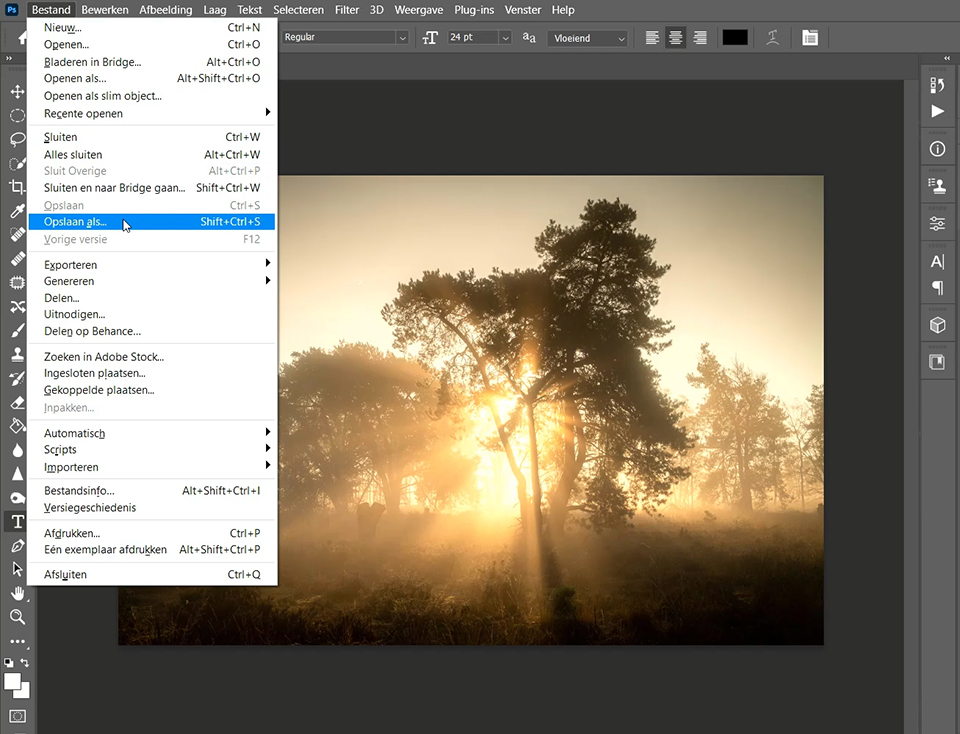
This is no longer possible, however. Many of the file formats have disappeared from this menu, including JPEG.
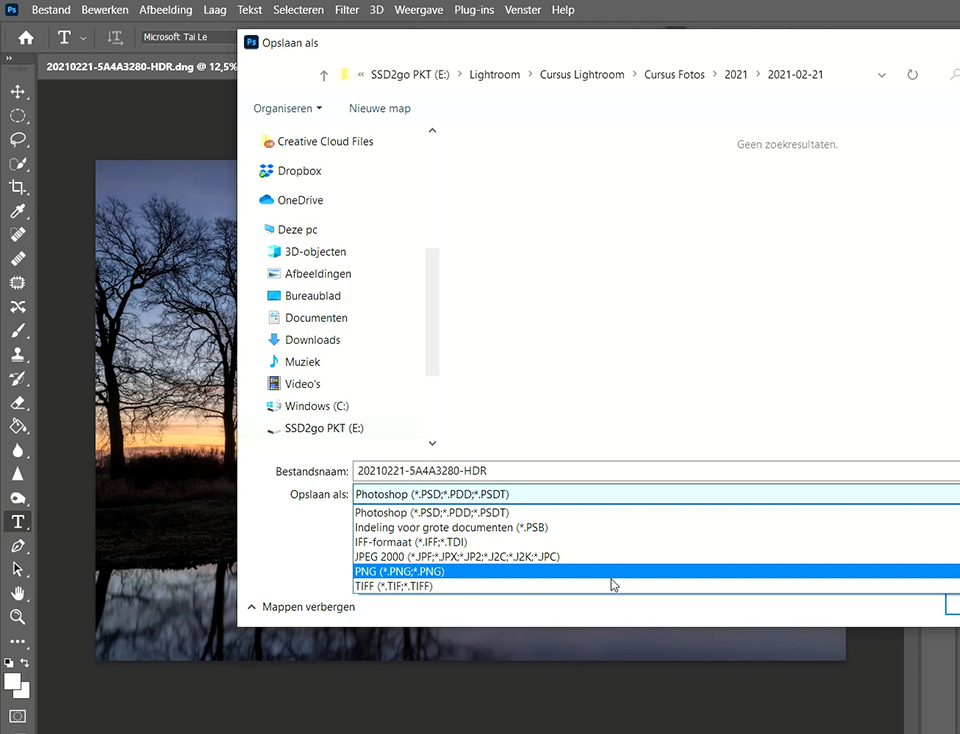
One of the latest Photoshop updates unfortunately introduced an unexpected change to the way files are saved. When you look in the menu, you will now see that there are three options for saving files.
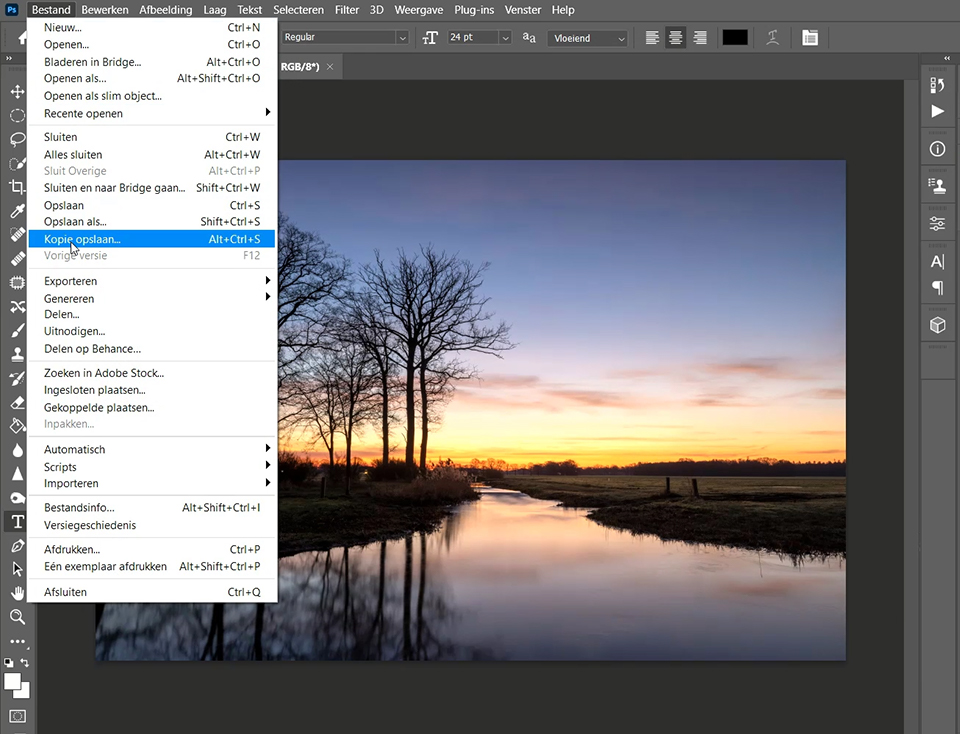
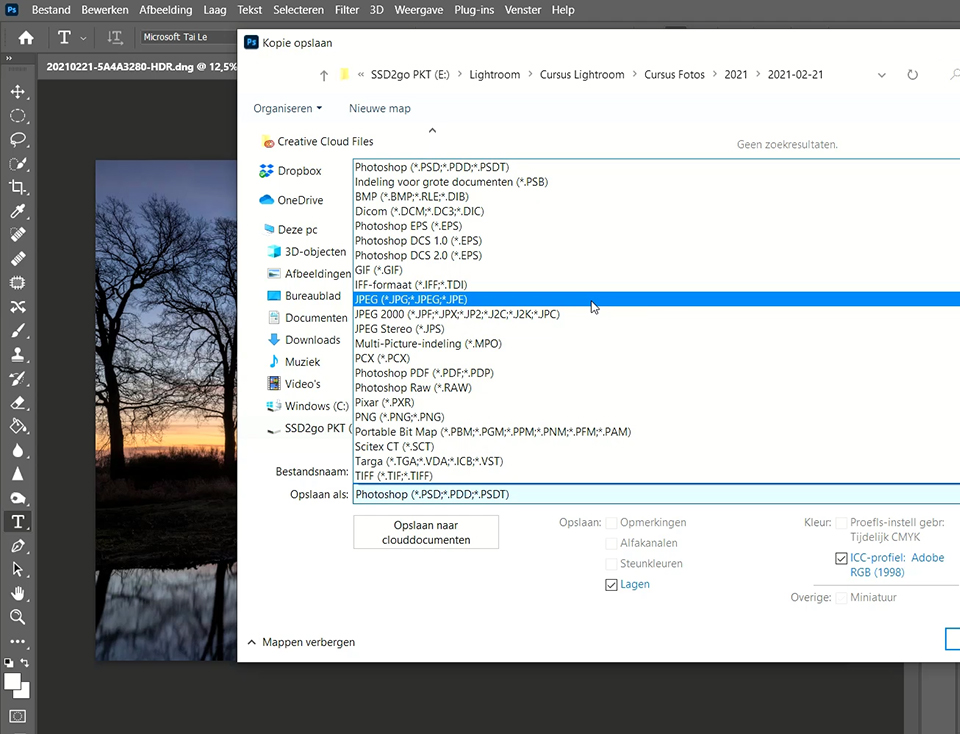
There is the familiar Save, Save As, and the new Save a Copy option. The options for saving to a JPEG file have moved to this new saving option. Have you lost the option to save to a JPEG file? Then you need to choose the Save a Copy menu option.
On the petapixel.com website, I found the reason for this strange change. It appears to be related to Apple, which no longer supports the normal communication options with Photoshop in its latest OS.
For the techies among us, Apple no longer accepts the API key that Save As in Photoshop depends on. I do not know the exact details, but the consequence is that Adobe had to find another way to save JPEGs. That became the Save a Copy menu option.
There are a few things worth knowing. If you have opened a JPEG in Photoshop, you can still save a JPEG using Save As. This only matters when you have opened another file format in Photoshop, such as a raw file or a TIFF file, and want to save it as a JPEG.
The Export-Export As option can still be used as usual to create a JPEG file from your photo. This option remains the best way to create a small JPEG file from your photo if it is intended for social media purposes.
About the author
Nando Harmsen has been photographing for more than 40 years. He specialises in wedding photography and landscape photography. Nando also gives talks, workshops, masterclasses and photo trips, and regularly reviews new and interesting equipment.
You might also like
-
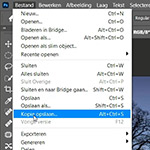 Having trouble with Photoshop's new 'Save As'? Change your shortcut
by Nando Harmsen
-
 Replacing skies in Photoshop is getting easier
by Johan Elzenga
-
 The New Photoshop 2020 Updates
by Nando Harmsen
-
 The new updates for Adobe Lightroom and Photoshop
by Nando Harmsen
-
 The new Lightroom update now offers super-resolution
by Nando Harmsen
-
 The annual major update for Lightroom and Photoshop
by Nando Harmsen
0 comments
Be the first to share what you think!
Have your say
Please note: Articles older than a week can only be commented on by signed-in visitors.Would you still like to comment? sign in or create a free account.
Become a better photographer every week
A practical photography tip in your inbox every week.
38,982 photography enthusiasts already receive the tips! More about the weekly mail. Or keep up to date via  Facebook.

Elja Trum
Photofacts; everything to do with photography!
Would you like to take better photos and keep up with what is happening in photography? Photofacts publishes articles that teach you something about photography — from a product announcement to a practical shooting tip or a look at a website. Photofacts covers photography every day and is a hobby project of Elja Trum's that got out of hand. The articles are written by a team of volunteer authors. If you would enjoy writing one or more articles for Photofacts, do get in touch.More about PhotofactsPhotofacts is made possible in part by
