

Having trouble with Photoshop's new 'Save As'? Change your shortcut
Thursday 20 May 2021, 20:20 by Nando Harmsen | 6,100 views | 6 commentsThis article was translated from Dutch with the help of AI. Read the original.
The change Adobe made to 'Save As' can be inconvenient. It can be particularly troublesome with automated actions and actions. If you use the shortcut, you need to get used to the new one. Or you can change the shortcut. That works too.
Do you often use the 'Save As' option in Photoshop when you want to save the photo you have been working on as a JPEG? Then it can be tricky if you are used to using keyboard shortcuts. The [shift-ctrl-S] shortcut does open the 'Save As' option, but you can no longer use it for your JPEG format.
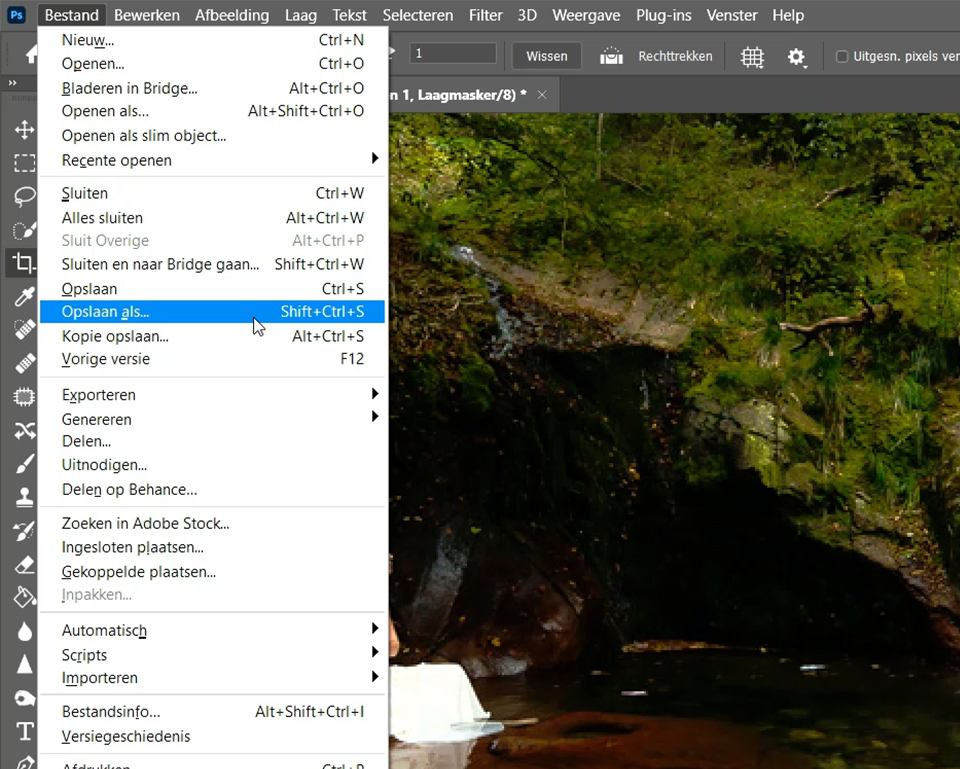
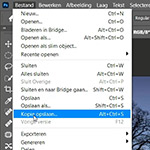
The new function for saving a JPEG can be found under 'Save a Copy'. I explained this in detail in my previous article. However, this saving option has a different keyboard shortcut: [alt-ctrl-S]. If you are used to the other shortcut, it can be difficult to get used to this new one.
This also applies if you have created actions or automated processes that include the shortcut as part of one of those actions. A new shortcut means that you have to adjust that action. But why not change the shortcut? That is possible too.
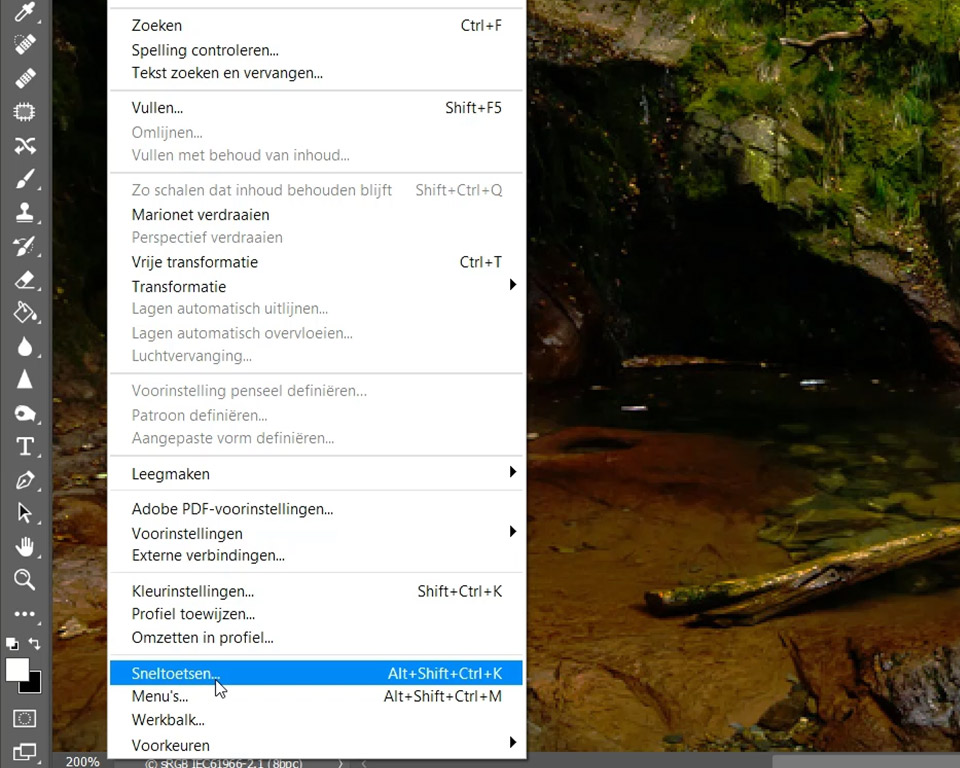
Through the Edit - Keyboard Shortcuts menu, you can change any shortcut in Photoshop. This also applies to the shortcut assigned to the new 'Save a Copy' function. In this window, you can change it to [shift-ctrl-S], the shortcut you already used for 'Save As'.
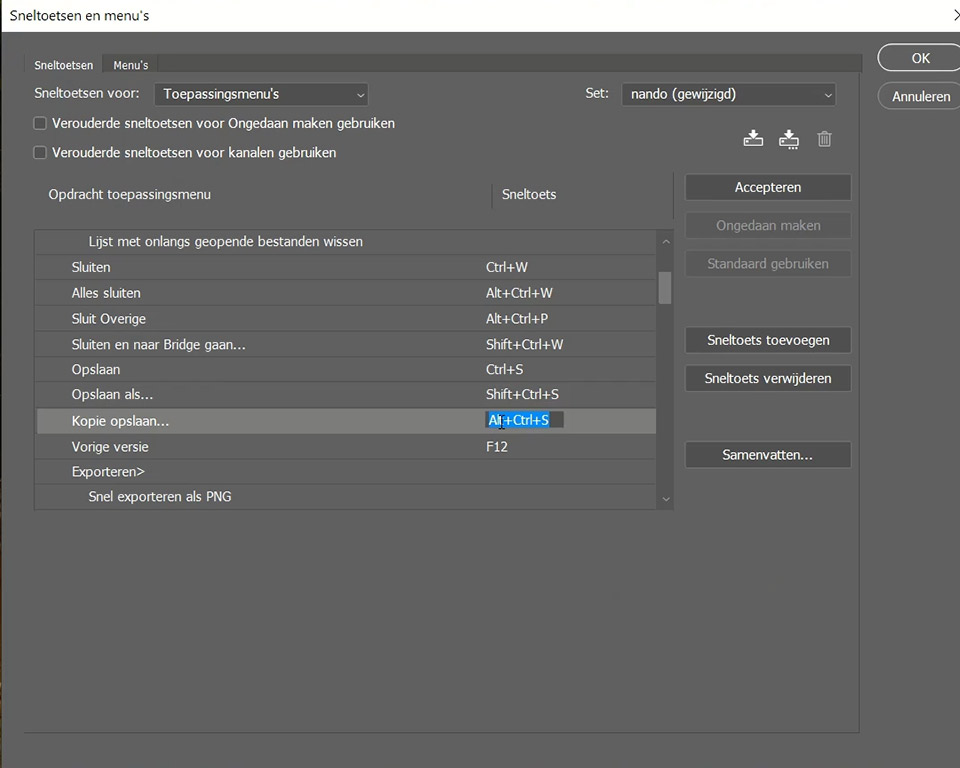
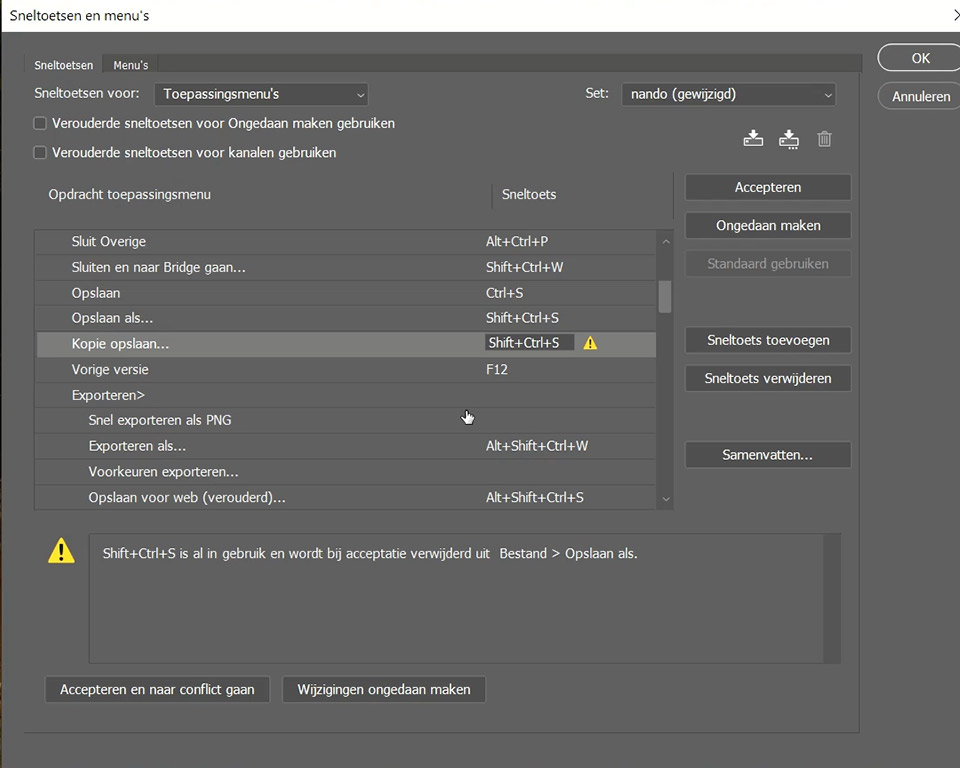
Find the 'Save a Copy' option in the presets. Click the shortcut assigned to it and press the desired key combination. Because this combination already exists, Photoshop will indicate a conflict. You will then be given the option to resolve this conflict.
About the author
Nando Harmsen has been photographing for more than 40 years. He specialises in wedding photography and landscape photography. Nando also gives talks, workshops, masterclasses and photo trips, and regularly reviews new and interesting equipment.
You might also like
-
 Saving a JPEG in Photoshop has changed
by Nando Harmsen
-
 Photoshop tip: Use keyboard shortcuts to work faster
by Elja Trum
-
 Photoshop tip: Use a copy of a merged layer
by Nando Harmsen
-
 Combine star trails in Photoshop with an action
by Nando Harmsen
-
 Photoshop tip: use the export function
by Nando Harmsen
-
Photoshop tip: Keep your layer stack organised
by Nando Harmsen
6 comments
-

 Donald Willemsen
wrote on Tuesday 25 May 2021 at 00:26
| reply
Donald Willemsen
wrote on Tuesday 25 May 2021 at 00:26
| reply
@Nando, an excellent tip and well explained. I actually never work with those keyboard shortcuts, because I can't remember them. So I use the menu structure by clicking on File/Save As. Now that is no longer possible, I have to choose 'Save a Copy'. That is quite an adjustment for me and I will certainly still make mistakes often. Is it possible to remove 'Save As' from the dropdown menu?
Translated from Dutch. -
 guest wrote on Tuesday 25 May 2021 at 14:27 | reply
Thanks for the article.
Translated from Dutch.
It might be useful to mention that this applies to Windows computers and that on a Mac, the ctrl key should be the cmd key (the former "Apple key" .
. -
 Dick de Roos wrote on Tuesday 25 May 2021 at 14:58 | reply
Thanks for the article.
Translated from Dutch.
Maybe it would be useful to mention that with the key combinations mentioned, the "cmd" key should be used on the Mac instead of the "ctrl" key (for the Windows PC) (the former Apple key). -

-
 PvRFotografie
wrote on Tuesday 25 May 2021 at 15:35
| reply
PvRFotografie
wrote on Tuesday 25 May 2021 at 15:35
| reply
@Nando and @Donald,
Translated from Dutch.
you indeed can't hide "save as", but perhaps a tip. You can give menu items a color, namely.
This can be done via "edit/edit" -> "menus". then you get a pop-up with all menus. Click on the arrow next to "File/File" and you will see a number of menu items. Among other things, you see: "Save/save", "Save as/save as" and "Save a copy /save a copy".
To the right of it you have the option to choose a color for your menu items. If, for example, you choose red for "save as" and green for "save a copy", then they will at least stand out when you open the men "file".
(Red for don't use and green for do use) -
Donald Willemsen
wrote on Tuesday 25 May 2021 at 21:40
| reply
@PvRFotografie. A really great tip. Many thanks. I’m going to get to work on it.
Translated from Dutch.
Have your say
Please note: Articles older than a week can only be commented on by signed-in visitors.Would you still like to comment? sign in or create a free account.
Become a better photographer every week
A practical photography tip in your inbox every week.
38,937 photography enthusiasts already receive the tips! More about the weekly mail. Or keep up to date via  Facebook.

Elja Trum
Photofacts; everything to do with photography!
Would you like to take better photos and keep up with what is happening in photography? Photofacts publishes articles that teach you something about photography — from a product announcement to a practical shooting tip or a look at a website. Photofacts covers photography every day and is a hobby project of Elja Trum's that got out of hand. The articles are written by a team of volunteer authors. If you would enjoy writing one or more articles for Photofacts, do get in touch.More about PhotofactsPhotofacts is made possible in part by
