

Photoshop tip: use the export function
Thursday 25 December 2025, 13:31 by Nando Harmsen | 2,841 views | 6 commentsThis article was translated from Dutch with the help of AI. Read the original.
There are many ways to save files in Photoshop. The export function is ideal for JPG and PNG files, and for GIF, although with limitations. I show you the benefits in this article.
Each way of saving files in Photoshop has its own use. If you want to keep layers, saving as PSD or TIFF is best. Make sure you use the right one, otherwise the photo may not look as you expect.
Do you want to save for use on the internet, by email, or for a photo print? Then JPG is best, using the sRGB colour profile. The size depends on how it will be used. Small for the internet, large for print.
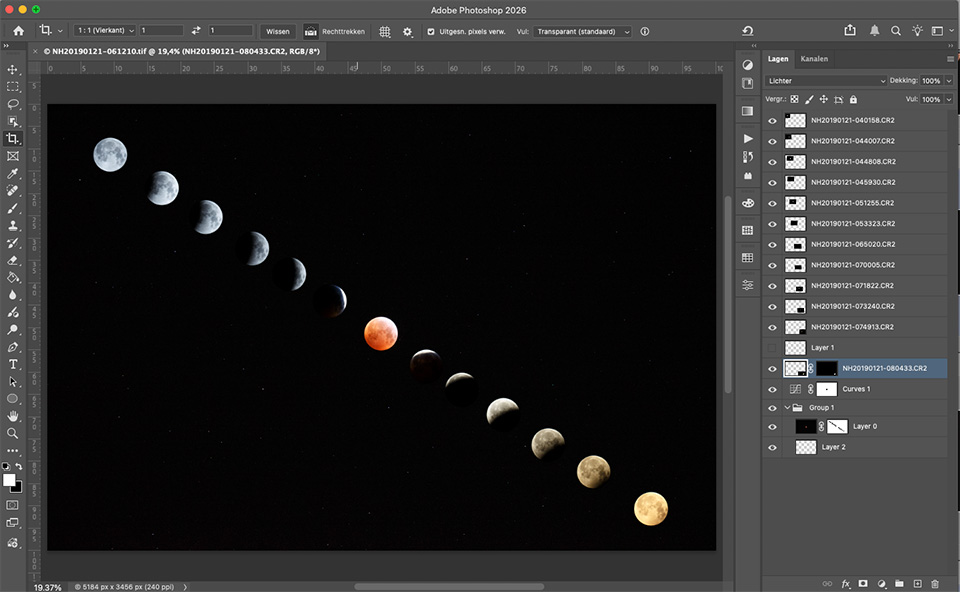
For the internet, PNG can also work well. It supports transparency, for example. So there are many choices to make, and you usually have to make them before saving. Unless you use the export function.
You can find the export function in the menu under 'File > Export > Export As...'. But it is much easier and faster to use the keyboard shortcut: CMD/CTRL - OPT/ALT- SHIFT - W.
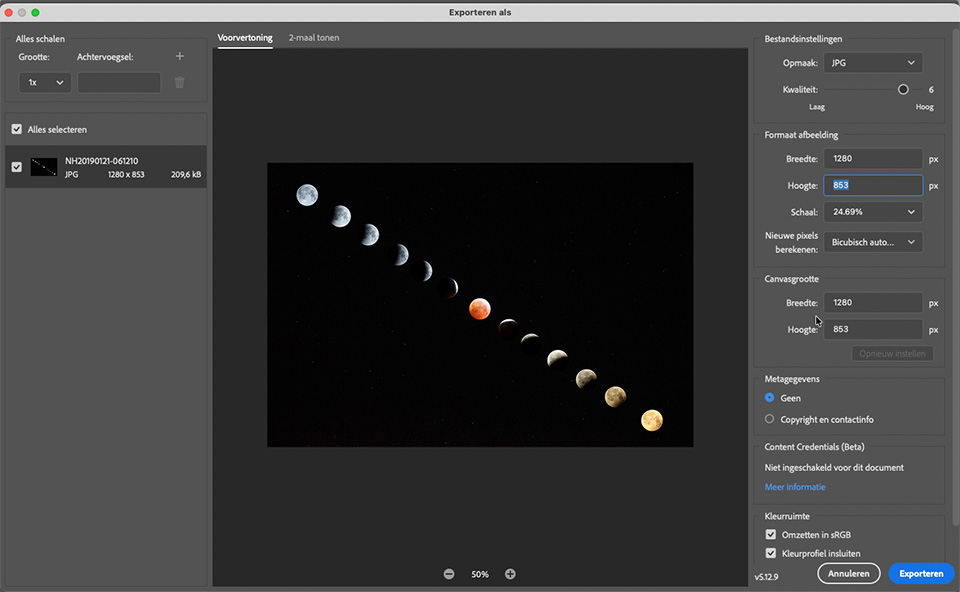
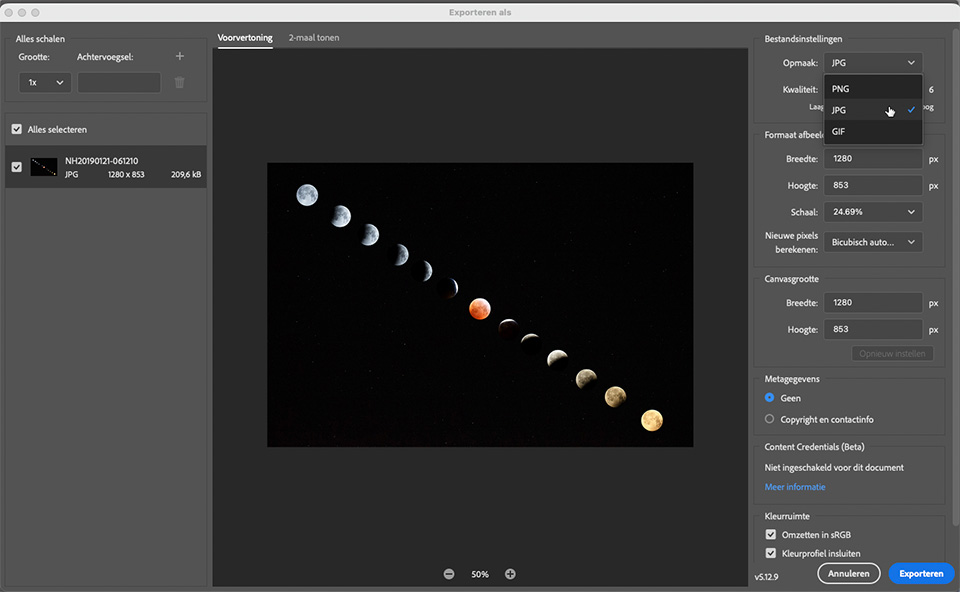
In the window, you can choose between JPG, PNG or GIF. Enter the desired dimensions in pixels, or choose a percentage. You can also adjust the canvas size if you want. But be careful, as this creates white space or a crop.
Enter which metadata you want to include, choose to convert to the sRGB colour profile and embed the profile. With all this information, you can see the dimensions on the left and how large the file will be in kB or MB.
You can then export, and the file will be saved in the location and with the name you enter. Best of all, the original file remains unchanged, including the layers you had.
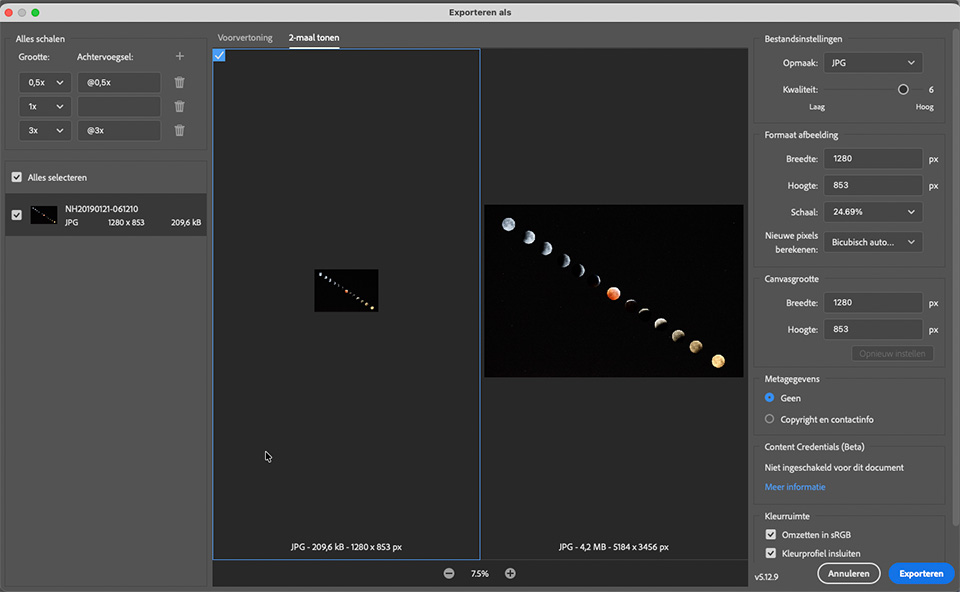
If you want, you can enter multiple formats by clicking the plus sign on the left next to the heading 'Scale All'. This is useful if you want to save multiple formats at once.
Make the keyboard shortcut your own, and exporting to JPG or PNG will take no time at all. GIF works too, but gives you less control. In that case, it is better to choose 'File > Export > Save for Web...'.
About the author
Nando Harmsen has been photographing for more than 40 years. He specialises in wedding photography and landscape photography. Nando also gives talks, workshops, masterclasses and photo trips, and regularly reviews new and interesting equipment.
You might also like
-
 Saving a JPEG in Photoshop has changed
by Nando Harmsen
-
 The 6 most important new options for photographers in Photoshop 2020
by Nando Harmsen
-
Having trouble with Photoshop's new 'Save As'? Change your shortcut
by Nando Harmsen
-
Photoshop tip: Keep your layer stack organised
by Nando Harmsen
-
 Create your own reusable photo frame in Photoshop
by Nando Harmsen
-
 Keyword Exporter Lightroom plug-in, the story behind it
by Dick Holtman
6 comments
-
 Donald Willemsen wrote on Tuesday 30 December 2025 at 14:22 | reply
Quote: '
Translated from Dutch.
Then you can export and the file will be saved at the location and with the name you enter at that point. Best of all, the original file remains unchanged, including the layers you had.' end quote.
I don't understand this in the workflow you describe.
I always save the photo as a psd precisely to preserve all the layers and edits.
But how does that work with your method? The original file is a RAW (CR3). -

-
Donald Willemsen wrote on Tuesday 30 December 2025 at 17:05 | reply
Thanks for your response, Nando.
Translated from Dutch.
Ultimately you make a jpg, that's right. I always save the photo as a psd. Why? , you may wonder. I only make a jpg when I have a purpose for the photo. Suppose the photo is for the internet, then I make a jpg in a specific format and resolution. If I want to use the photo ater as a print, then I take the psd again and finish it in a format and resolution for printing.
So it is not the case that I immediately make multiple jpgs suitable for various purposes.
Another reason for keeping the psd is to have the possibility over time to still edit the photo in a different way without having to start all over again. -
 Nando
wrote on Tuesday 30 December 2025 at 23:25
| reply
Nando
wrote on Tuesday 30 December 2025 at 23:25
| reply
I understand that, but if you want to save a PSD file as a jpeg, you have to adjust the resolution, maybe you want to merge layers, and so on. If you then accidentally save the original file when closing, you've lost everything.
Translated from Dutch.
Export is safer and prevents unpleasant situations where you lose the original editable PSD file -
 Arnold Velderhof wrote on Tuesday 30 December 2025 at 20:46 | reply
Hi Nando, I always use Ctrl+Alt+S (Save a Copy) and then choose JPG, what advantages does the Export function have compared to the method I use?
Translated from Dutch. -
Nando
wrote on Tuesday 30 December 2025 at 23:19
| reply
You can see that in the article: more control.
Translated from Dutch.
You also don't have to resize the file first, with the risk that you accidentally save it in the reduced-size version when closing the original file (after you have saved the copy JPEG).
Have your say
Please note: Articles older than a week can only be commented on by signed-in visitors.Would you still like to comment? sign in or create a free account.
Become a better photographer every week
A practical photography tip in your inbox every week.
38,937 photography enthusiasts already receive the tips! More about the weekly mail. Or keep up to date via  Facebook.

Elja Trum
Photofacts; everything to do with photography!
Would you like to take better photos and keep up with what is happening in photography? Photofacts publishes articles that teach you something about photography — from a product announcement to a practical shooting tip or a look at a website. Photofacts covers photography every day and is a hobby project of Elja Trum's that got out of hand. The articles are written by a team of volunteer authors. If you would enjoy writing one or more articles for Photofacts, do get in touch.More about PhotofactsPhotofacts is made possible in part by
