

Preset Viewer: see what a preset does
Saturday 25 November 2017, 13:13 by Dick Holtman | 6,921 views | 0 commentsThis article was translated from Dutch with the help of AI. Read the original.
This plug-in was inspired by Matt Kloskowski's All about presets video. In it, he says he is often asked: How do I know what a preset does.
His answer is: 'Unfortunately, Lightroom has no way to do this. I will show you one way, but you won't like it'.
The good news is that there is a plug-in that can do this. The plug-in answers the question, and it does so in Dutch as well!
The Preset Viewer plugin shows all the settings of a preset in an easy-to-read format, without cryptic codes and so on, and in Dutch!
The video by Matt above is well worth watching if you are fluent in English. It also explains the two types of presets, which I will briefly describe below.
What is the point, why do you need to know?
Why would you want to know what a preset does? Good question! Once you realise that a preset firmly overwrites your current Develop settings, you will understand why you want to know this.
After all, if you apply a preset after editing a photo, there is a chance that earlier work will be overwritten. Here is a challenge for you: create two virtual copies of a photo in Lightroom.
Overexpose one and underexpose the other. Then apply the standard Lightroom presets colour -> Verouderde foto to both copies.
What is the result? Exactly. It does not matter whether the exposure before applying the preset was -1 or +1. After applying this preset, both photos have the same setting for, for example, the default exposure values.
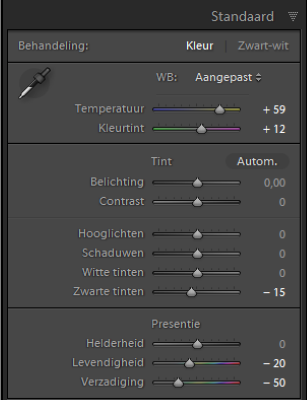
Small section of the preset code:
      s = {
          id = "784759DD-34EC-4861-BBE8-3FE5FA2F33D4",
          internalName = "Verouderde foto",
          title = "Verouderde foto",
          type = "Develop",
          value = {
              settings = {
                  Blacks2012 = -15,
                  Clarity2012 = 0,
                  Contrast2012 = 0,
                  Exposure2012 = 0,
                  Saturation = -50,
                  Shadows2012 = 0,
                  Temperature = 12500,
                  Vibrance = -20,
                  WhiteBalance = "Custom",
                  Whites2012 = 0,
              },
              uuid = "6AC1AFBE-9F39-4517-8E66-08B619F2AF76",
          },
          version = 0,
      }
You can view the complete code for this preset here, or export it yourself.
In short: depending on its contents, a preset can overwrite earlier work! That is why!
The big question: what is in a preset?
There are three ways to determine what a preset does.
- Apply the preset to an unedited photo
- View the code, see video: 4:30 - 5:00
- Use the Lightroom Preset Viewer plug-in.
Apply it to an unedited photo
Of course, you can apply a preset to an unedited photo or virtual copy and go through all the panels and sliders to determine which ones have changed. That works.
However, bear in mind that there are 9 panels with just under a hundred sliders in total, but it can be done. To make things even more difficult, some sliders are not set to 0 by default. Hopefully you will not overlook anything
View the code
Right-click a preset and choose "Export" or "Show in Explorer". You can then open the "lrtemplate" file with a text editor. Matt shows this in his video, at 4 minutes and 33 seconds.
Click the following links for a few examples: the standard LR Verouderde foto and Matt Kloskowski's 13-Forest-and-Trees.
Use the Preset Viewer plugin
The Preset Viewer plug-in shows what the preset or presets contain in a simple, readable overview. Almost all codes have been replaced with the names you also find in the Lightroom panels, in Dutch!
This is how Preset Viewer displays the presets mentioned above: the standard LR Verouderde foto and Matt Kloskowski's 13-Forest-and-Trees.
Demo of the "Preset Viewer"
The video below shows how the Preset Viewer works in practice.
Two types of presets
In the aforementioned YouTube video, Matt Kloskowski explains the different types of presets in a simple way.
Broadly speaking, you can divide presets into two types:
- Starting point presets
- Stackable presets
Starting point
The great advantage of this type of preset is that you can give a photo a particular look with one click. "Verouderde foto" is an example. The "Lightroom presets for black and white tones" also fall into this category. For example, "Antiek" contains 89 adjustments (sliders).
An "Antiek" preset saves you a lot of work if you want this effect. Matt's "17 Silhoutted Landscape" preset is another example.
These types of presets usually contain many different "sliders", so you normally apply them at the beginning of the developing process. They do not overwrite anything yet and set a great deal at once.
You then optimise the effect for the particular photo.
Stackable presets
This type of preset contains a limited number of sliders and therefore applies a limited adjustment. Examples include the "Lightroom general presets". The "Doordrukken" preset, for example, contains only three settings .
There are many sets of presets for sale online that are based on this model. You have presets for exposure, colour, skin and so on.
Because they apply only a limited number of settings, you do not have to worry about them overwriting adjustments you have already made.
Finally
With the Preset Viewer plug-in, you can view both types of preset. Every preset can be viewed, as can several at the same time.
You can download a free trial version from the Photographer-Toolbox.com website.
About the author
Dick Holtman is getrouwd met een enthousiaste fotografe en een ervaren Lightroom post-processing specialist. Hij werkt al ruim 30 jaar in de IT. Uit deze interesses is het bedrijf LightroomStatistics.com ontstaan. Dick maakte al 11 Lightroom plug-ins die te vinden zijn op de Photographers-Toolbox.com. Ook geeft hij IT en workflow adviezen aan fotografen.
You might also like
-
 What are Lightroom plug-ins and what can you do with them?
by Dick Holtman
-
 LUT Export-plug-in, het verhaal erachter
by Dick Holtman
-
 An impression of the DxO PureRAW4 plugin for Lightroom
by Nando Harmsen
-
 Keyword Exporter Lightroom plug-in, the story behind it
by Dick Holtman
-
 Lightroom Classic tip: Create smart presets
by Elja Trum
-
 Presets in Lightroom Classic
by Nando Harmsen
0 comments
Be the first to share what you think!
Have your say
Please note: Articles older than a week can only be commented on by signed-in visitors.Would you still like to comment? sign in or create a free account.
Become a better photographer every week
A practical photography tip in your inbox every week.
38,764 photography enthusiasts already receive the tips! More about the weekly mail. Or keep up to date via  Facebook.

Elja Trum
Photofacts; everything to do with photography!
Would you like to take better photos and keep up with what is happening in photography? Photofacts publishes articles that teach you something about photography — from a product announcement to a practical shooting tip or a look at a website. Photofacts covers photography every day and is a hobby project of Elja Trum's that got out of hand. The articles are written by a team of volunteer authors. If you would enjoy writing one or more articles for Photofacts, do get in touch.More about PhotofactsPhotofacts is made possible in part by
