

How to check your resolution for a maximum print?
Monday 25 February 2019, 14:28 by Michelle Peeters | 34,483 views | 6 commentsThis article was translated from Dutch with the help of AI. Read the original.
This article offers practical tips for checking whether you can print your photo as large as possible while still achieving a razor-sharp photo print. A photo may look fine on your screen, but printing it in a large or very large format is a different story.
The photos are physically larger then, in centimetres or inches, than on your computer or in a photo book when you have printed them small. This means you also need more digital information, or pixels, for this than for a small, or small-format, photo.
We have already written about how much dpi you need in your photo. You can resample, with Photoshop filling in extra pixels for you, but only up to a maximum of 30% larger.
You also often view a large photo print, such as a poster, from a distance. This means you can still print photos with a lower resolution well enough.
Below are five steps for checking whether your resolution is high enough for your maximum photo print size. Finally, there is a table where you can look up the largest dimensions at which you can have your photo printed in good quality.
1. Photograph at the highest resolution
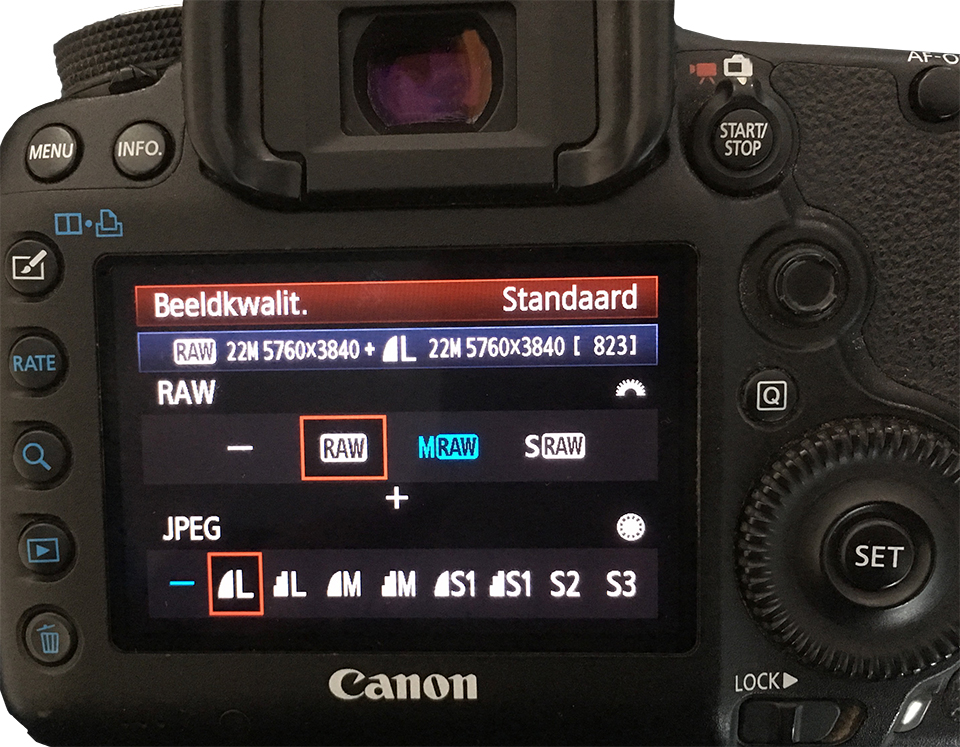
Preferably photograph at the highest possible resolution, to make sure your photo is saved on your memory card at maximum quality. If you want to reduce the resolution of photos you plan to share on social media, you can always do that later. Just make sure you keep your original in its original format!
Conversely, it is very difficult to enlarge a low-resolution photo into a high-quality photo. Preferably shoot in RAW to keep quality loss to a minimum, including during post-processing. Every time you edit a JPG file, you lose quality because of the compression mechanism.
2. Number of megapixels on your camera
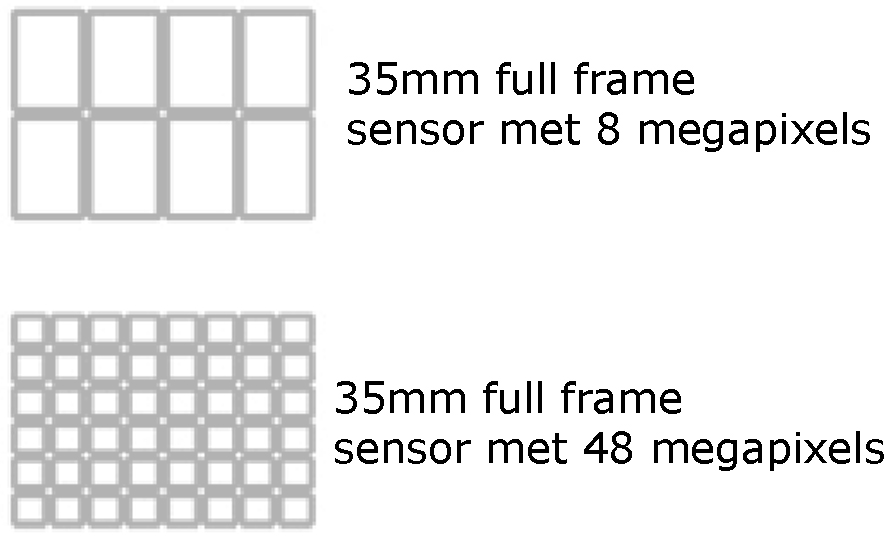
Most cameras and even smartphones now shoot at more than 12 megapixels. Photos taken with an 8-megapixel camera can already be enlarged to 90x60 centimetres.
If you want even larger photo prints, it is advisable to use a camera with more than 8 megapixels. My Canon Eos 5d Mark III full-frame DSLR has 22.3 megapixels. With this, I can print at very large sizes, 100x150 or 120x180cm, in good to very good quality, as you can see in the table at the bottom.
3. Check the number of pixels
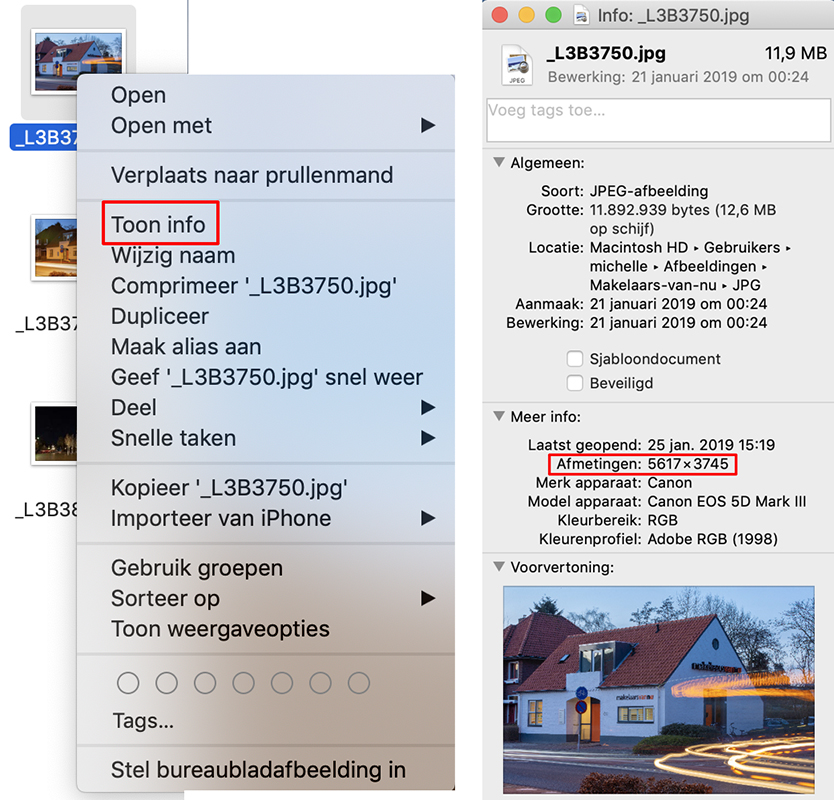
The resolution of your photo is measured in pixels. To check the resolution of a photo, you need to check its width and height in pixels. This information is stored in the data file of your photo.
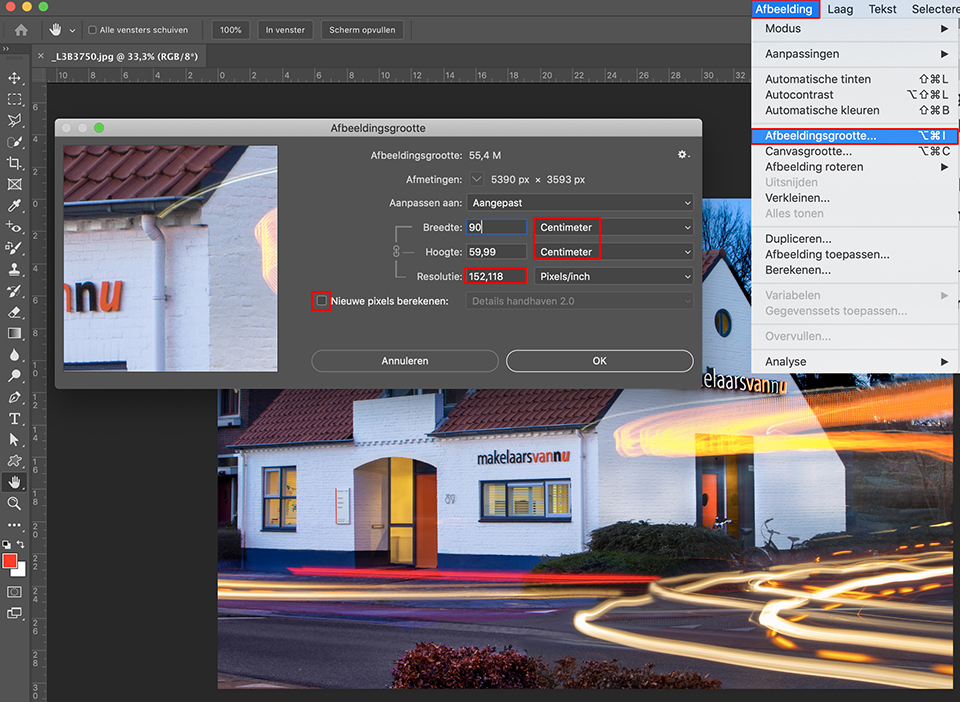
If you use Photoshop, you can easily see your photo's resolution there. Open the photo in Photoshop, click Image, Image Size, and check the height and width in pixels, so not in centimetres or inches. You now know the height and width of your photo in pixels.
If you do not use Photoshop, you can also right-click your photo and then click Properties, or Properties in Windows. On a Mac, click Get Info. Under Details, or More Info on a Mac, you will see the number of pixels.
4. Determine the maximum photo print size
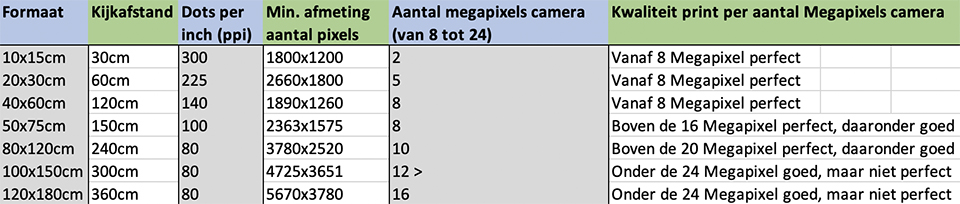
You can print small photos at 300 dots per inch (ppi), because you view them from a short distance. Larger photo formats are different, because you usually view them from a distance, no closer than 30 centimetres from your face.
A useful rule of thumb to remember is that the viewing distance for a photo is three times the short side of the photo. A 50x75 cm photo print is therefore generally viewed from a distance of about 1.5 metres. The greater the viewing distance, the fewer details you see, and the fewer pixels you need.
This gives you more room to manoeuvre with the number of ppi. In any case, try to maintain a minimum resolution of 80 ppi.
With Photoshop, you can easily check whether you can print your photo at the desired photo print size. Follow these steps:
- Go to Image > Image Size
- For Width and Height, choose Centimetres instead of Pixels
- Untick 'Resample'
- Enter the desired size under Width and Height, for example 90 by 60
- If the resolution is higher than 80 Pixels/Inch (ppi), your photo is of good enough quality for this photo print size
5. Check at actual size
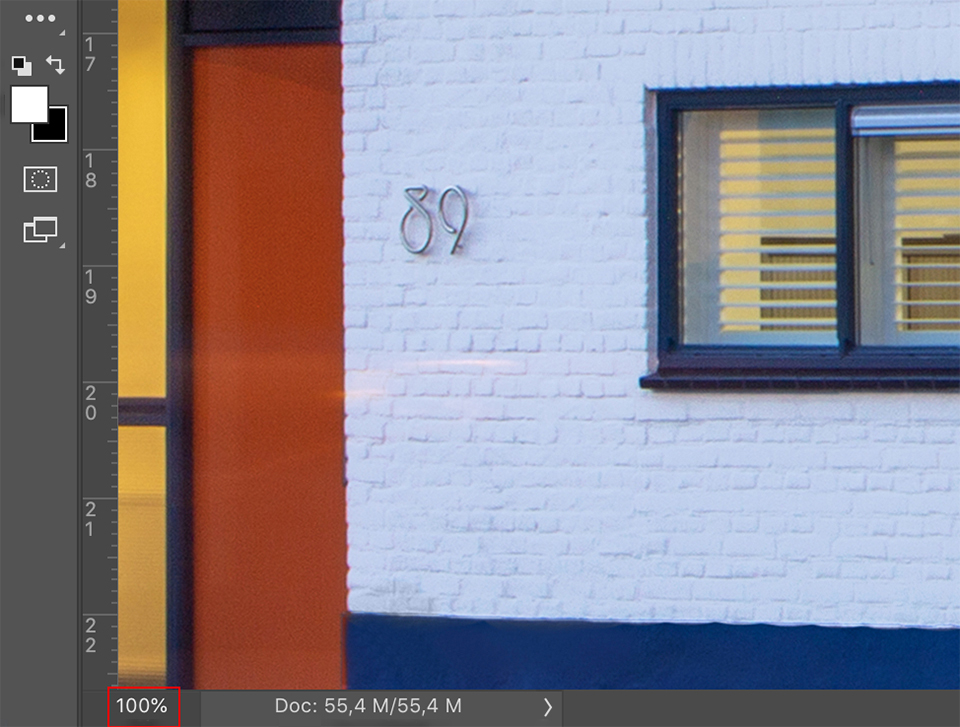
Always check the sharpness of your photo at 100% actual size.
Below is a table providing a guide to the recommended resolution for your photo print and the image size of your photo for a good-quality print:
Want to know more about printing and everything involved?
At Photofacts Academy, our online learning environment for photographers, we have, among other things, a course on Business and Printing. You can take this and other courses for two weeks with a free trial membership.
About the author
Michelle Peeters is fotografe en oprichter van DeuxBleus Fotografie. Michelle herkent het bijzondere in het gewone en het gewone in het bijzondere. Ze heeft zich nooit willen specialiseren en is daardoor van alle markten thuis.
You might also like
-
 How do resolution, dpi and ppi actually work?
by Nando Harmsen
-
Everything you need to know about resolution
by Nando Harmsen
-
The downside of a camera with lots of pixels
by Nando Harmsen
-
 Does lower resolution mean less noise in the dark?
by Elja Trum
-
 The difference between file size and resolution
by Nando Harmsen
6 comments
-
 Corry wrote on Tuesday 26 February 2019 at 11:13 | reply
Very nice to see this clearly laid out. Thank you. I do still have a question: when I edit my photo, the number of pixels often increases considerably. When printing, is it the number of pixels in the file that matters or the number from the camera?
Translated from Dutch. -
 Johny Degroote wrote on Tuesday 26 February 2019 at 18:07 | reply
Great explanation.
Translated from Dutch. -

 Michelle Peeters wrote on Tuesday 26 February 2019 at 18:11
| reply
Michelle Peeters wrote on Tuesday 26 February 2019 at 18:11
| reply
@Corry: from the file.
Translated from Dutch. -
 guest wrote on Tuesday 26 February 2019 at 19:40 | reply
Hello Michelle,
Translated from Dutch.
thanks for this clear explanation, very useful!
In the heading of the little table it says "dots per inch" [ppi] so that should actually be "pixels per inch", right?
cheers
José
-
-
 patrickvanelk wrote on Monday 17 June 2019 at 14:51
| reply
patrickvanelk wrote on Monday 17 June 2019 at 14:51
| reply
Another possibility (although I have no experience with it myself): Gigapixel AI https://topazlabs.com/gigapixel-ai/
Translated from Dutch.
Have your say
Please note: Articles older than a week can only be commented on by signed-in visitors.Would you still like to comment? sign in or create a free account.
Become a better photographer every week
A practical photography tip in your inbox every week.
38,936 photography enthusiasts already receive the tips! More about the weekly mail. Or keep up to date via  Facebook.

Elja Trum
Photofacts; everything to do with photography!
Would you like to take better photos and keep up with what is happening in photography? Photofacts publishes articles that teach you something about photography — from a product announcement to a practical shooting tip or a look at a website. Photofacts covers photography every day and is a hobby project of Elja Trum's that got out of hand. The articles are written by a team of volunteer authors. If you would enjoy writing one or more articles for Photofacts, do get in touch.More about PhotofactsPhotofacts is made possible in part by
