

17 ON1 Photo RAW tips
Saturday 25 May 2019, 16:32 by Michelle Peeters | 13,714 views | 1 commentThis article was translated from Dutch with the help of AI. Read the original.
The ON1 Photo Raw converter/editor has been around for a while and continues to expand. You don't need a subscription, time-consuming importing is a thing of the past, all edits including complex retouching are non-destructive, and you can even work with masks and layers.
ON1 recently launched its latest version Photo RAW 2019.5, a free and extra-large update to the Lightroom alternative. With new features, extra organisational benefits, improved features / performance and camera support. In this article, 17 tips for achieving fast and attractive results with the programme.
1. Importing is a thing of the past
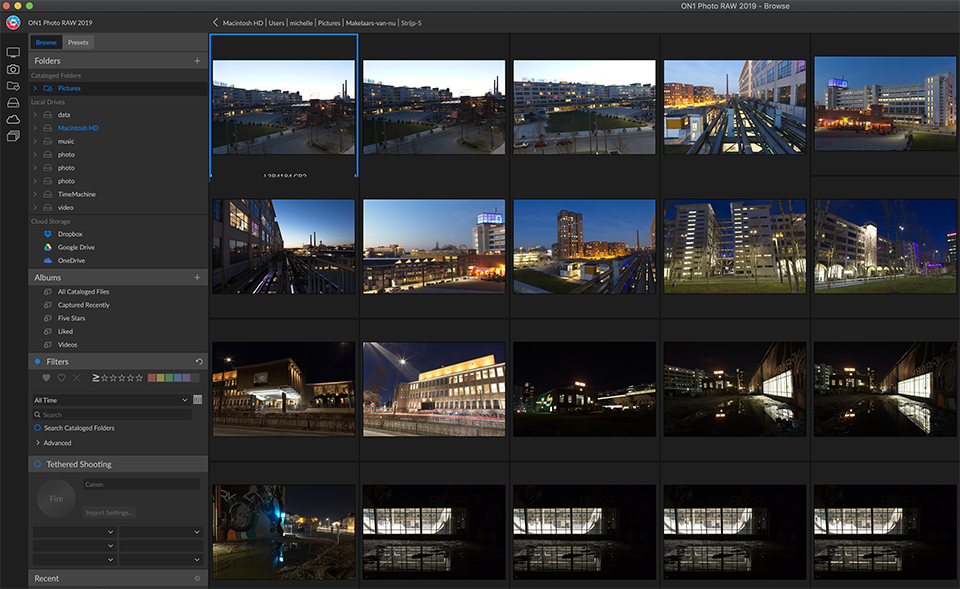
You can install ON1 Photo Raw as a standalone package or as a plugin. Unlike some other converters such as Adobe Lightroom, you don't need to import photos beforehand. You start in what is known as the Browse screen.
Using a sort of file explorer, you find a folder on a drive containing Raw files, after which you see them directly as thumbnails. So you can start editing immediately, without a lengthy import process.
2. Filmstrip
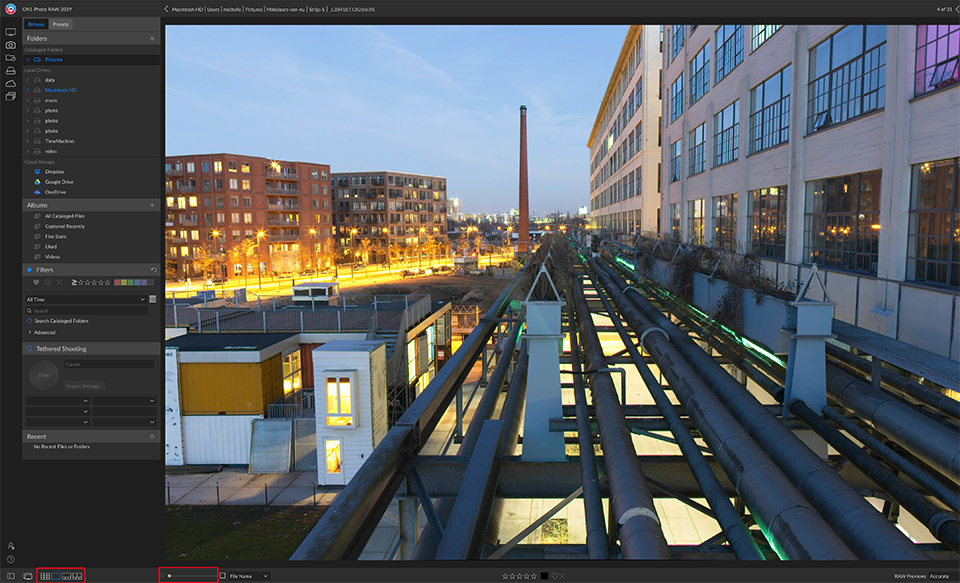
Double-click a thumbnail and you will see the photo enlarged. You can then move through all the photos in the folder using the arrow keys. Via the Switch to filmstrip view icon at the bottom left, you can bring up a filmstrip, which makes navigating just that bit easier.
With the other two icons, you return to the large preview view, without a filmstrip, or to thumbnails only. Use the slider next to them to zoom in on the field or make the thumbnails larger or smaller.
3. Editing
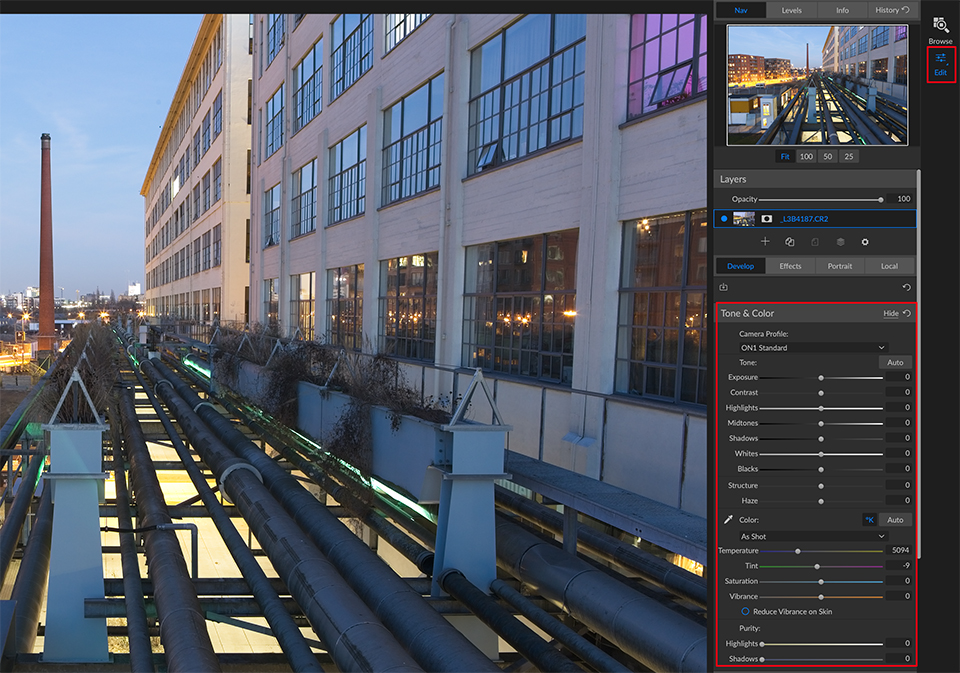
To edit a photo, click the Edit icon on the far right. The Tone & Color section then appears next to the photo. Use sliders here to optimise things such as exposure and contrast, highlights and shadows, colour temperature and saturation. But that's not all.
Click Show above this section and you can add extra edits selectively. Such as colour adjustments, sharpening, noise reduction, curves and transformations. So you only add what you really need.
4. Global or local
All the edits from the previous step are applied globally. This means that they affect the whole photo. For example, you adjust the exposure or white balance of the entire image. Or you improve the highlights or shadows.
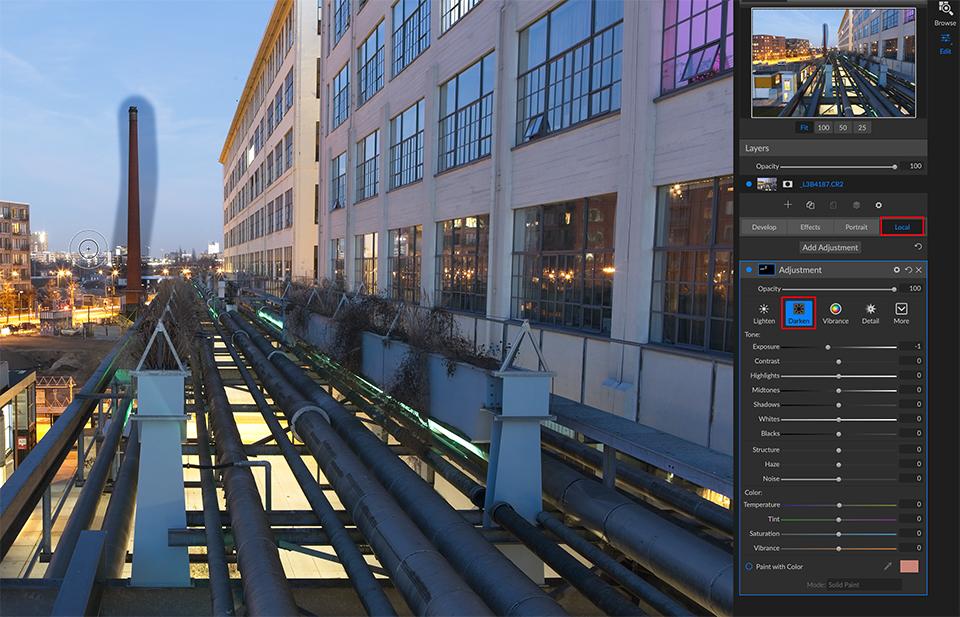
After these global edits, a few local adjustments are almost always needed. For example, to darken only the sky or give a snowy landscape a cooler colour.
You can do this by switching above the sliders from Overall settings to Local adjustments.
5. Local adjustments
For a local adjustment, set the desired slider or sliders and paint over part of the photo. At the top of the screen, you will find options for setting the brush, such as its size and hardness.
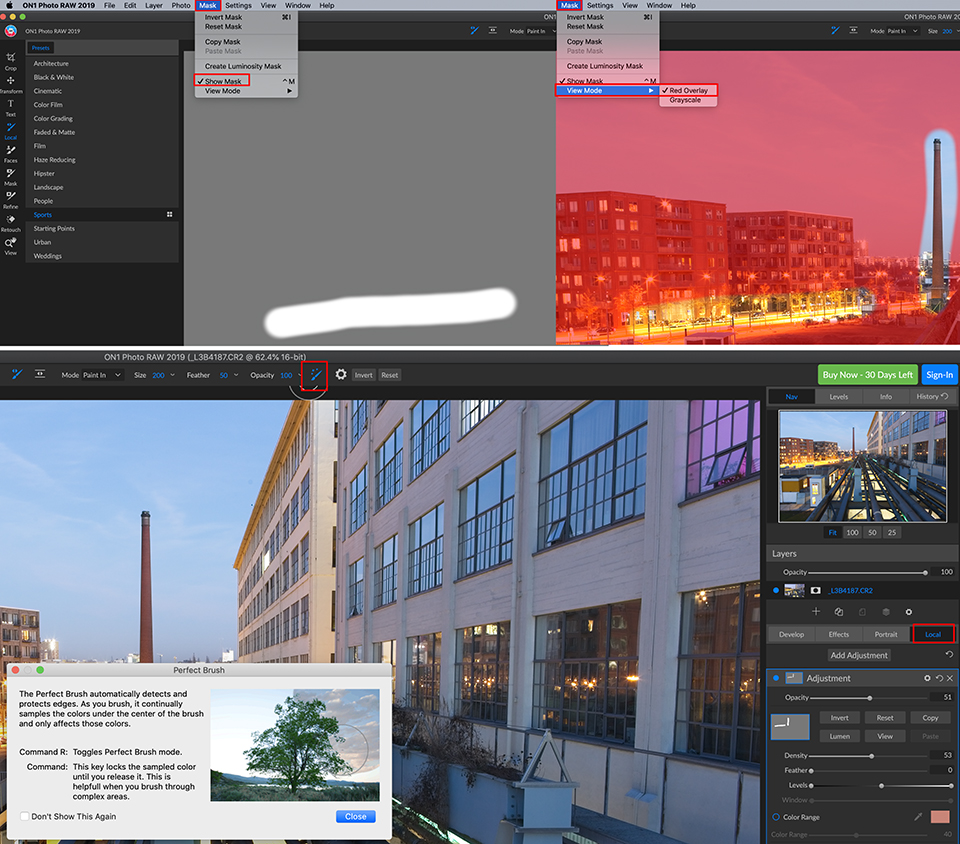
If you turn on Perfect Brush, edges are detected. This makes it easier to select the foreground or background. Via Mask, Show Mask, you can see exactly what you have selected. You can choose between a black-and-white mask or a red transparent layer via Mask, View Mode.
6. Working with layers
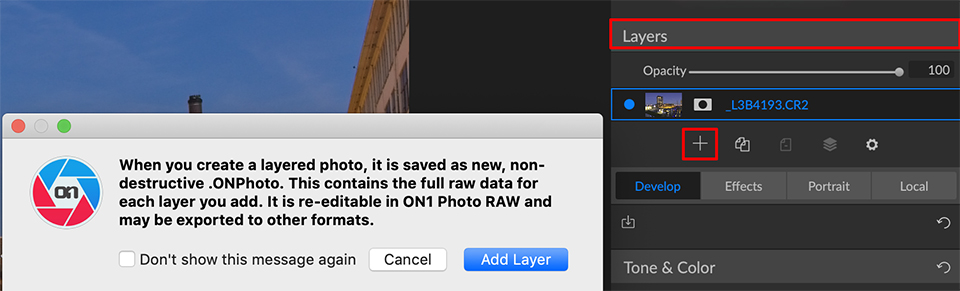
You can make several local adjustments. Simply click Add Layer to add a new layer and set the sliders. Fortunately, you don't always have to draw a completely new mask.
Suppose you selected the sky earlier and now want to adjust only the landscape. In that case, it is enough to invert your previous selection. Click the mask in the first layer here and choose Copy. Then click the black mask of the new layer, choose Paste and then Invert.
7. Graduated filter
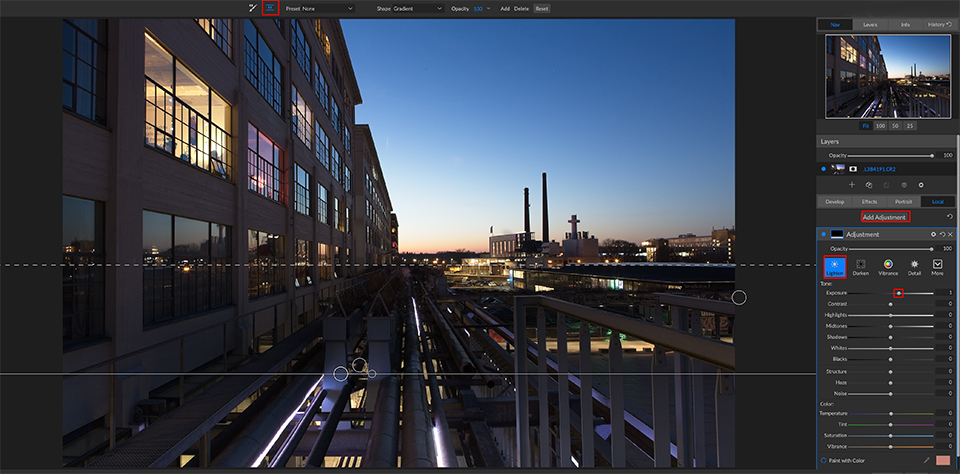
Another local adjustment is applying a graduated filter. You don't have to draw on the photo, but drag across it to indicate where the filter should and shouldn't have an effect.
The adjustment flows seamlessly into the photo via an adjustable gradient. You add a graduated filter by first creating a new Adjustment layer, setting the Adjustment to 'Lighten' in my case, and clicking the Adjustable Gradient icon at the top. A rectangle appears on your screen, whose direction and type you can change.
8. Retouching
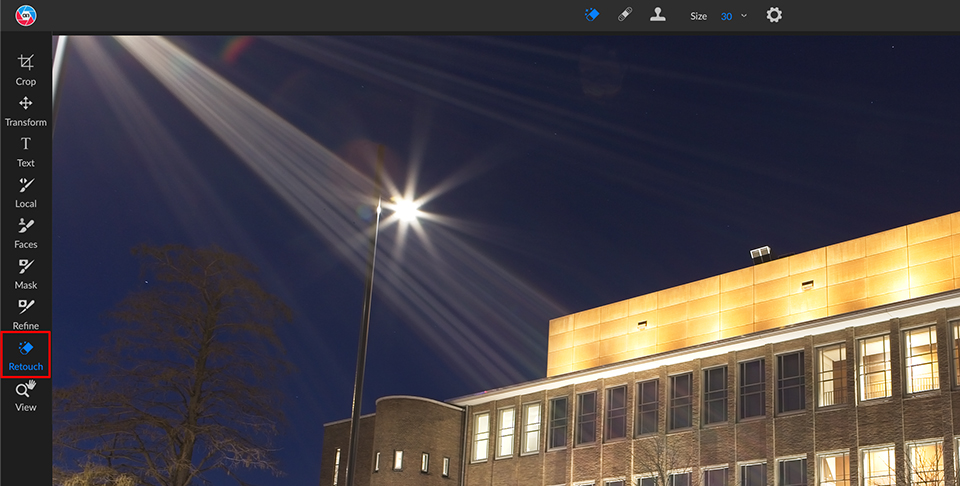
There is always something to remove from a photo. Think of sensor dust, an ugly plastic bag hanging in a bush, or a spot on a portrait. At the left edge of the screen, you can select the Retouch Brush or Perfect Eraser.
This uses image material from the surrounding area to make a blemish disappear. You can remove objects as well as carry out very precise retouching. With this retouching brush, you can set soft edges (Feather) and the opacity of the adjustment (Opacity), for example.
9. Cropping
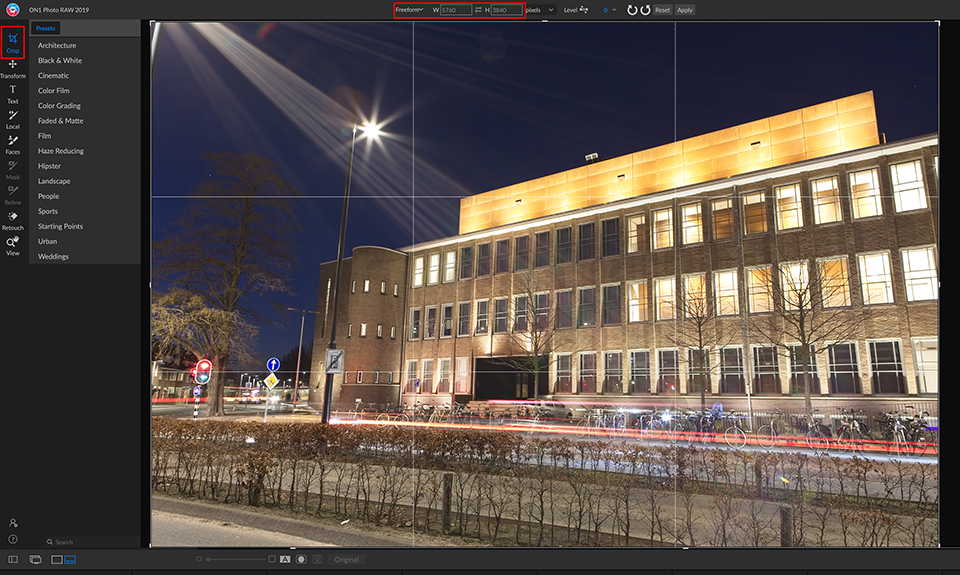
To crop a photo, click the Crop icon on the left edge of the screen. You can then drag the edges or corners. At the top of the screen, you can optionally choose a standard aspect ratio, such as square, 3:2 or 4:3.
By default, Freeform is selected, allowing you to make a crop as you see fit. Use Level to straighten a crooked photo by drawing a horizontal or vertical line across something in the photo that should be straight.
10. Effects
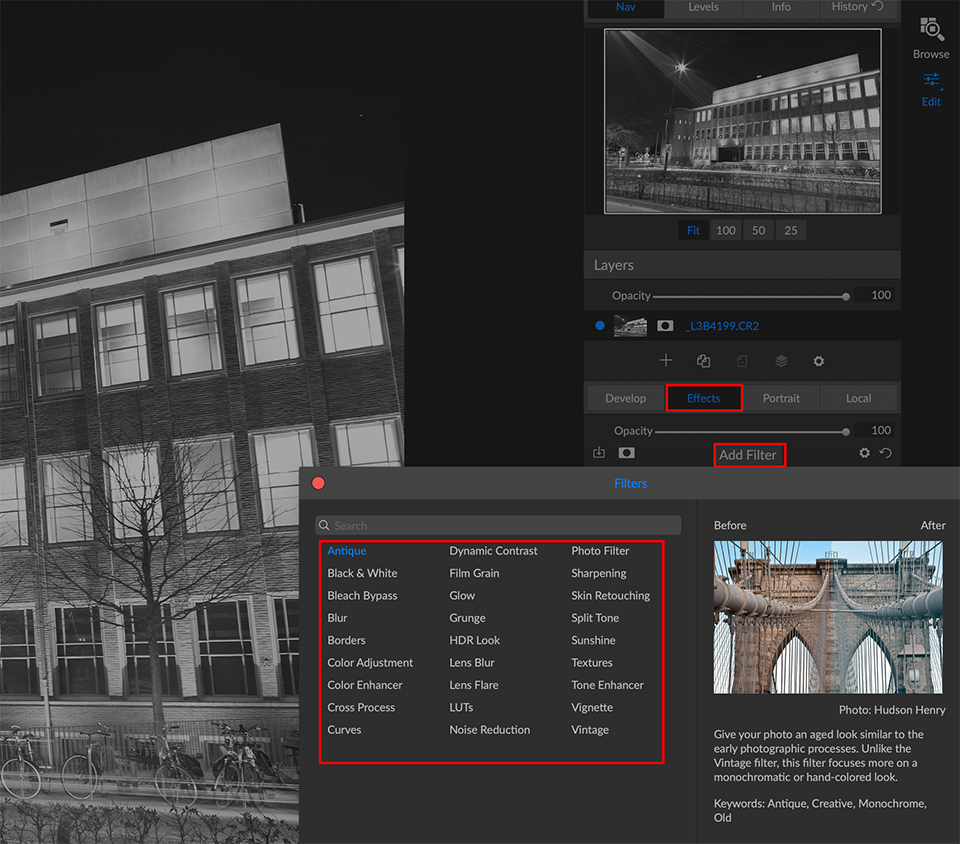
With the Effects section, via the icon at the right edge of the screen, you can quickly and easily change the look and feel of a photo. Think of converting it to black and white, HDR from a single raw file, adding atmospheric lens flare, split toning or noise reduction.
Click Add filter, choose an effect and then adjust the filter using the sliders, or click More and choose a preset. Use Opacity to control the filter effect. You can stack different filter effects.
11. Presets
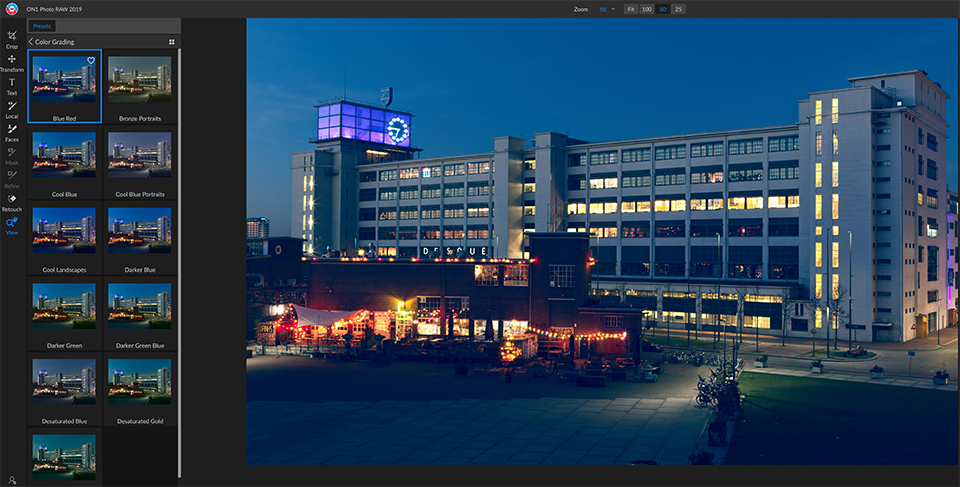
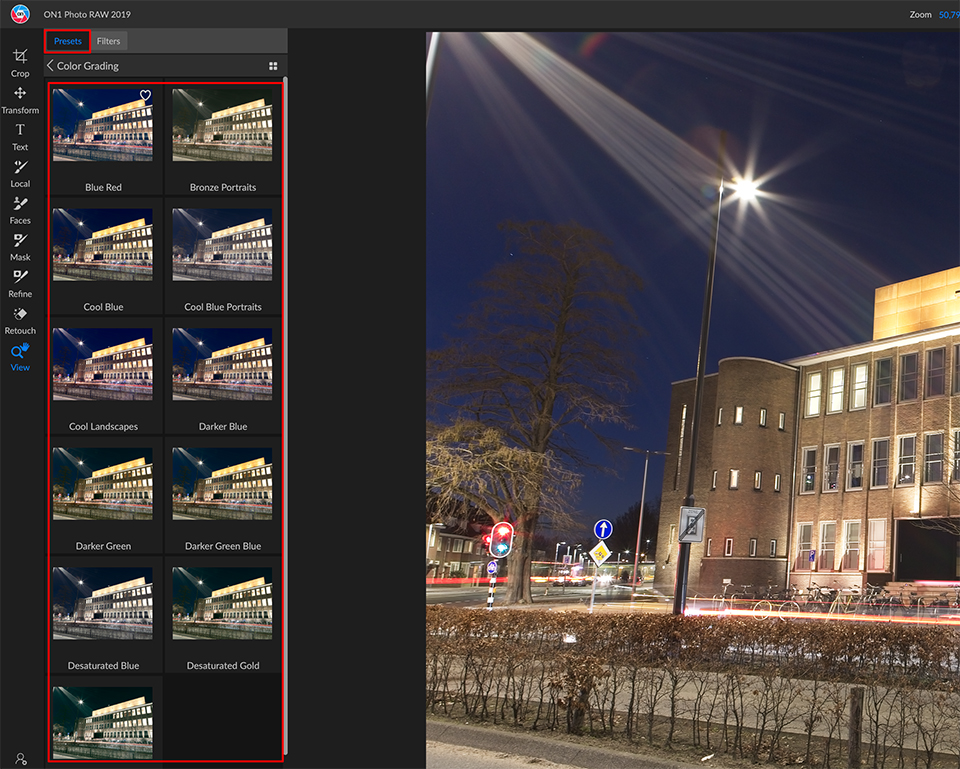
Instead of adjusting all kinds of sliders yourself, you can also choose a preset. You can use them in Browse, Develop and Effects. In Browse, first go to the Presets tab at the top of the screen. In Develop and Effect, they are already displayed on the left.
Examples include Landscape, Golden Hour Enhancer and Black & White, Ansel in the Valley. If you are working in Develop or Effects, you can then still adjust the sliders to get the photo exactly as you want it.
12. Reset
Have you changed your mind about your edits and want to return to the original image? You can, because the raw file remains completely intact. This is known as non-destructive editing. Every edit you make is saved as an instruction in a separate place and can therefore easily be undone.
To return to the original, right-click a thumbnail. If you do this via the filmstrip, you can undo all changes, only the edits from Develop or Effects, for example, or just your retouching work.
13. Copying edits
If you have taken more photos under similar conditions, it is a waste of effort to edit them one by one. Fortunately, you can copy edits from one photo to another.
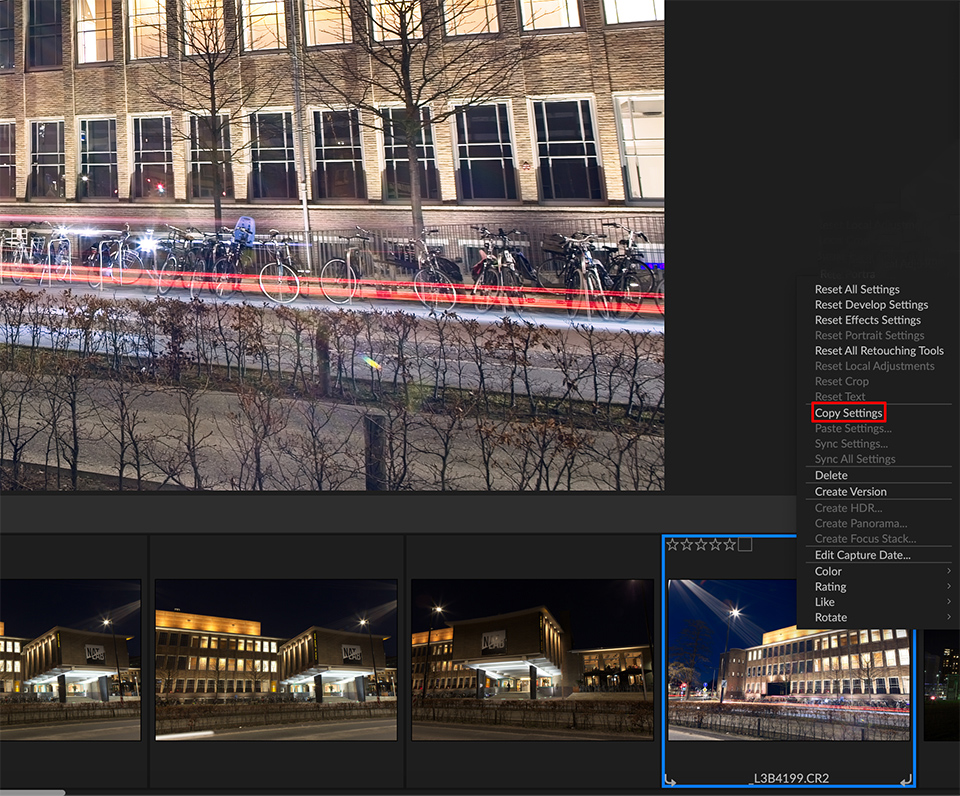
First edit one photo until you are completely happy with it. Then right-click the thumbnail and choose Copy Settings. Next, select one or more other thumbnails. Right-click, choose Paste settings and specify which ones you want to apply.
14. Securing your edits
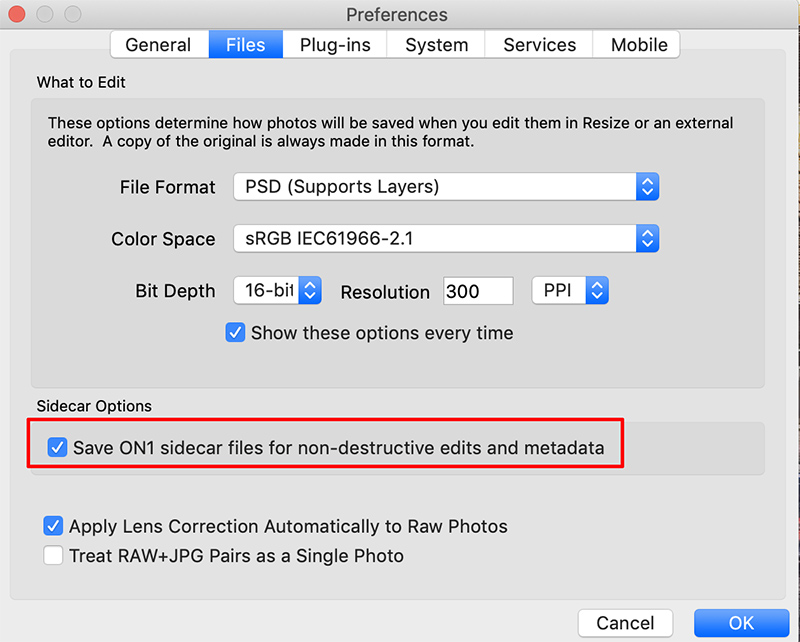
All changes you make are saved in the ON1 Photo Raw database. If you copy a raw file to another computer, you will not see your edits there. That is why it is smarter to save the edits 'alongside' the raw files.
You can do this by going to ON1 Photo Raw 2019, Preferences, the Files tab, and ticking Save ON1 sidecar files for non-destructive editing and metadata. Once you then edit photos, ON1 files containing all the changes are placed alongside them. You can back these up and copy them to other computers.
15. Photo montages
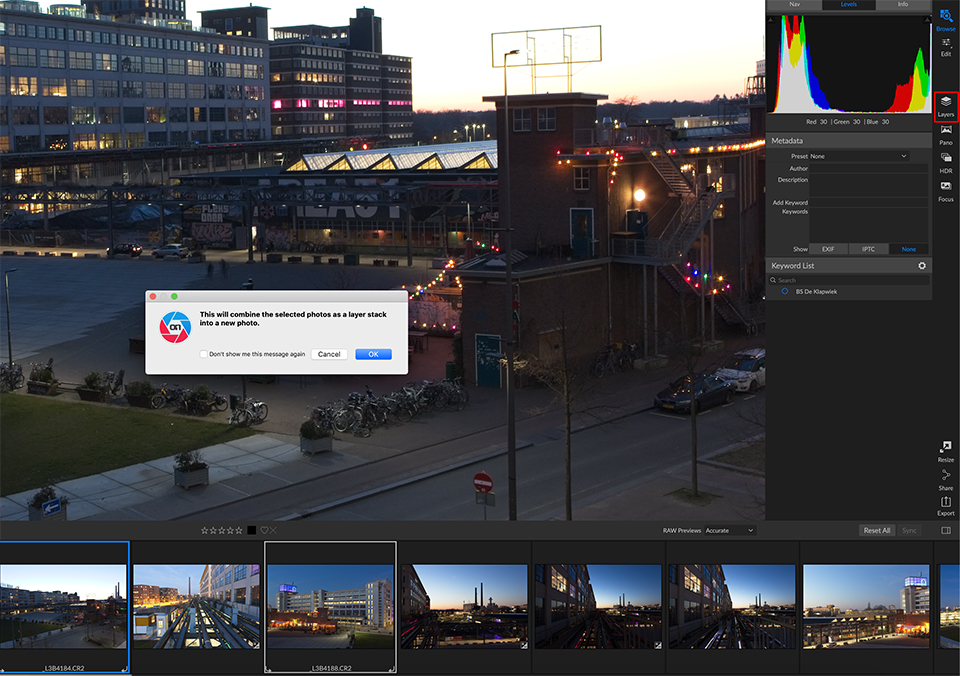
Do you want to create a creative double exposure? Or replace a dull sky in a landscape photo with beautiful clouds? Select the photos in Browse, go to Layers via the icon at the right edge of the screen and choose Add as layer when you see the selection window.
The photos become layers in a new image, a PSD file, whose transparency (Opacity) and the way they blend (Blending) you can set. At the left edge of the screen, you will find all kinds of tools. Such as Quick make to quickly select and replace that dull sky.
16. Exporting
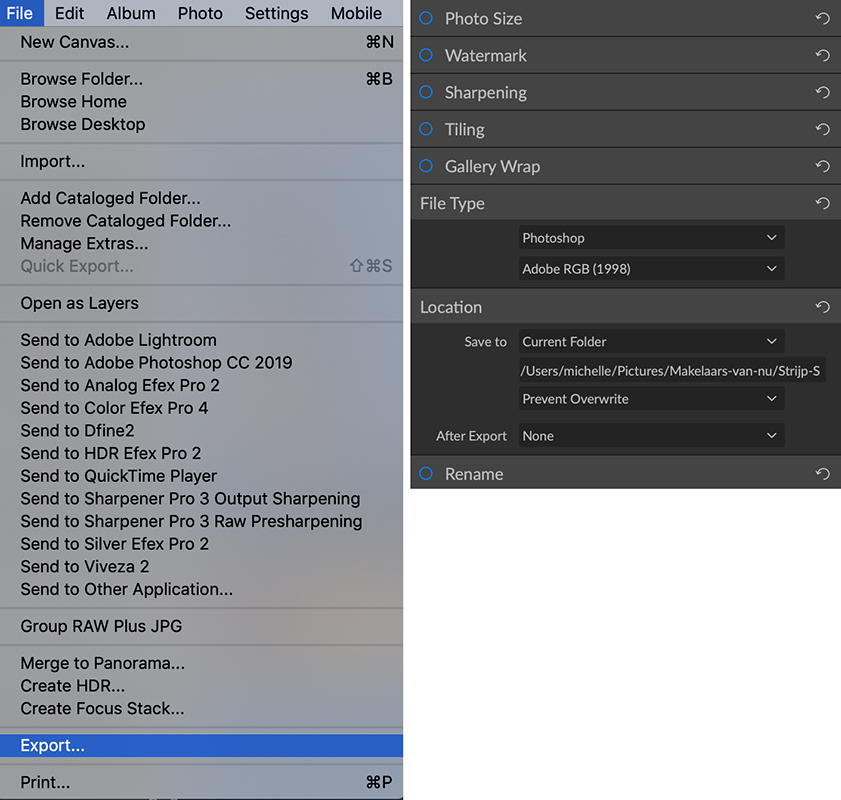
You keep the edited raw files for yourself. They are your digital negatives and you are no doubt very careful with them. To put photos on a website or share them on social media, you generate JPG photos. This is called exporting.
You can do this via File, Export, for example, or click the icon of a square with an arrow at the bottom right. Choose the file type, such as JPG, the quality and the location where you want to save the photos. If necessary, specify that they should be resized and click Export.
17. New developments
The maker of ON1 Photo Raw releases new updates with new functionality fairly regularly. Automatic correction of lens distortions, as well as perspective distortions, if you were standing at an angle opposite a building or held the camera crooked, has already been added.
A migration tool has also been added to transfer all your raw files edited in Lightroom to ON1 Photo Raw. Read about the latest updates in the article about the newest version Photo RAW 2019.5. I am quite impressed with the programme!
About the author
Michelle Peeters is fotografe en oprichter van DeuxBleus Fotografie. Michelle herkent het bijzondere in het gewone en het gewone in het bijzondere. Ze heeft zich nooit willen specialiseren en is daardoor van alle markten thuis.
You might also like
-
 ON1 Photo RAW 2019.5 launched. Lightroom rival?
by Michelle Peeters
-
 Is there a quality difference between raw and compressed raw?
by Nando Harmsen
-
 How much do Lightroom and Photoshop subscriptions really cost?
by Nando Harmsen
-
 Make a raw file 90% smaller with lossy DNG
by Nando Harmsen
-
 RAW output for the Nikon Z 7 and Z 6
by Michelle Peeters
-
 Everyone photographs in raw, there are no exceptions
by Nando Harmsen
1 comment
-
 Johan Buyse wrote on Wednesday 29 May 2019 at 15:10 | reply
Ik denk niet alleen concurrent van lightroom maar in bepaalde gevallen ook van photoshop. Er is al heel veel (al een paar jaar) gesleuteld om tot het programma te komen zoals het vandaag is en in de toekomst zal er nog heel wat nieuws en verbeteringen bijkomen, een degelijke concurrent dus. Ik werk al een paar jaar ermee en merk dat het een blijver is !
This comment was written in another language and has not been translated yet.
Have your say
Please note: Articles older than a week can only be commented on by signed-in visitors.Would you still like to comment? sign in or create a free account.
Become a better photographer every week
A practical photography tip in your inbox every week.
38,982 photography enthusiasts already receive the tips! More about the weekly mail. Or keep up to date via  Facebook.

Elja Trum
Photofacts; everything to do with photography!
Would you like to take better photos and keep up with what is happening in photography? Photofacts publishes articles that teach you something about photography — from a product announcement to a practical shooting tip or a look at a website. Photofacts covers photography every day and is a hobby project of Elja Trum's that got out of hand. The articles are written by a team of volunteer authors. If you would enjoy writing one or more articles for Photofacts, do get in touch.More about PhotofactsPhotofacts is made possible in part by
