

Take your portfolio with you using Lightroom Mobile
Monday 20 April 2026, 15:16 by Nando Harmsen | 2,300 views | 9 commentsThis article was translated from Dutch with the help of AI. Read the original.
You probably have a selection of photos that you are proud of. Photos you want to show everyone when the opportunity arises. How do you do that? Do you use Lightroom Classic? Consider putting them in Lightroom Mobile.
There are many ways to keep a portfolio available. You can put the photos on a website. They can then always be viewed by everyone, with the disadvantages that come with it.
You can use a NAS that can be accessed anywhere with a password. But this requires the necessary knowledge of these systems, and security against hackers is essential. This is fairly complicated, unless you have someone with the relevant knowledge.
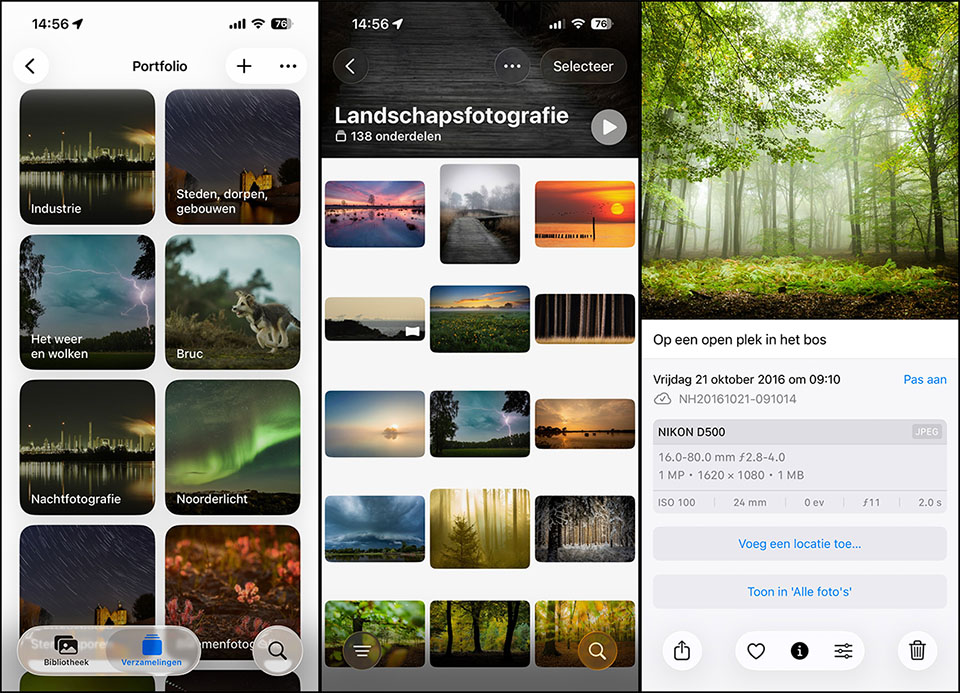
There are more ways to do this, including putting the photos on your smartphone. I have always done this, and it works quite well. But replacing or adding photos is not done particularly quickly. In addition, you need enough storage space on your smartphone.
Do you use Lightroom Classic? Then there is a simple way to make a portfolio available in Lightroom Mobile (LR Mobile). You only need to synchronise the photos for your portfolio in your Lightroom Classic catalogue.
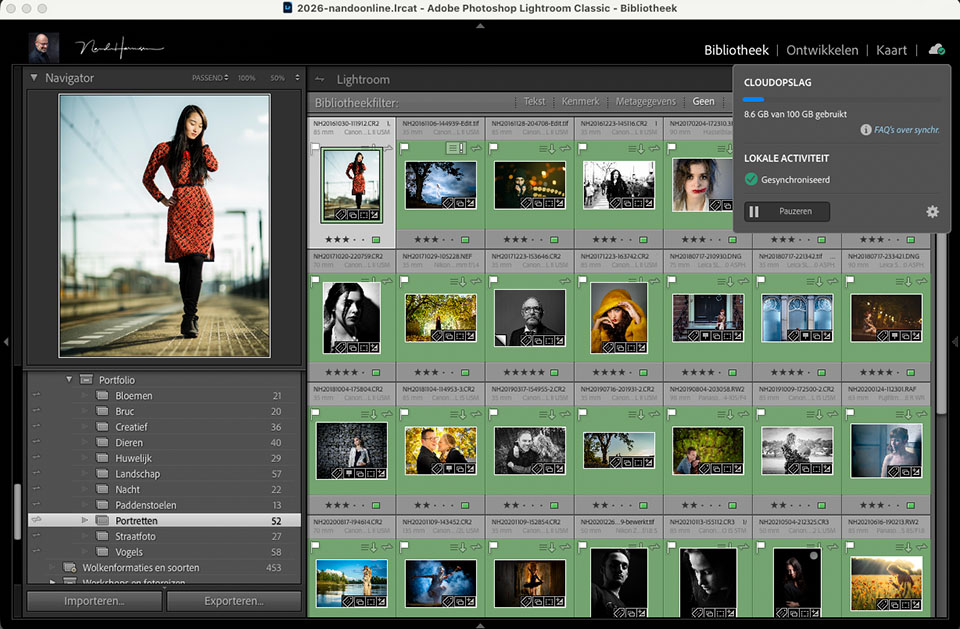
Create a collection, or a number of collections in a collection set, and activate synchronisation for these collections. Drag the photos you want to include in the portfolio there and you are done.
The photos are synchronised with Lightroom. Not at full resolution, but as smart previews. These are small files that require little storage space in Adobe's cloud. These photos then become available in LR Mobile.
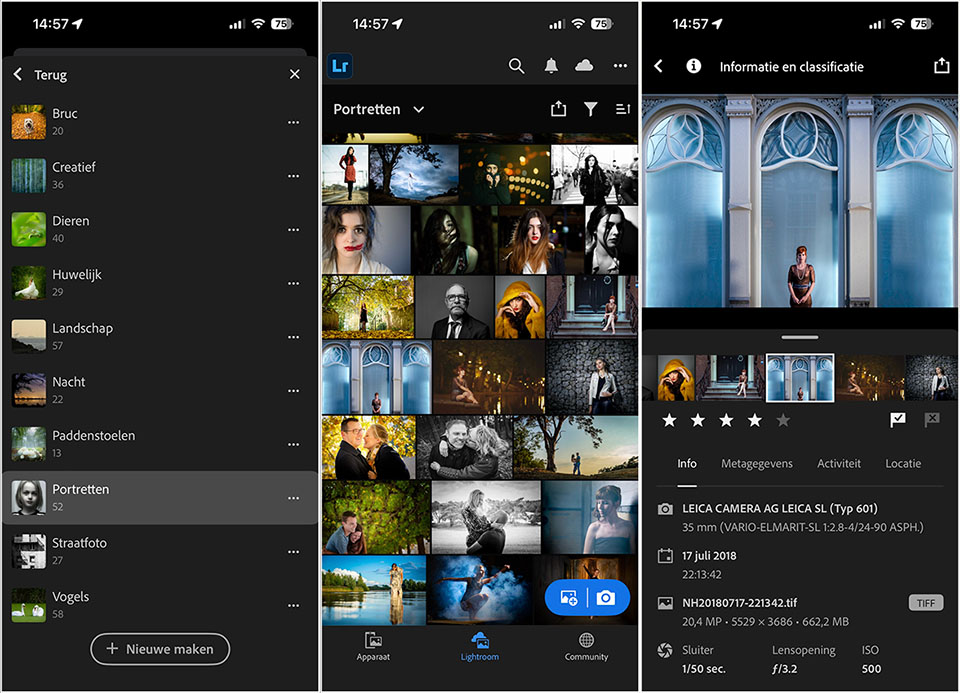
All you need to do is install LR Mobile on your smartphone or tablet, and then log in with your account. The photos can then be viewed, and they can even be shared if you want.
You can also edit the photos in LR Mobile if necessary. Add keywords, descriptions, and so on. This is then synchronised directly with Lightroom Classic as well.
I have started using this way of keeping a portfolio available. It works seamlessly with my Lightroom Classic, and adding or changing photos takes no effort. Any edits are synchronised straight away.
About the author
Nando Harmsen has been photographing for more than 40 years. He specialises in wedding photography and landscape photography. Nando also gives talks, workshops, masterclasses and photo trips, and regularly reviews new and interesting equipment.
You might also like
-
 Lightroom Classic 8.0 and Lightroom CC 2.0
by Michelle Peeters
-
 5 Tips for Managing Photos in Lightroom Classic (and Other Software)
by Nando Harmsen
-
 Presets in Lightroom Classic
by Nando Harmsen
-
 Automate your Lightroom Classic imports
by Nando Harmsen
-
 What is the Comments tab in Lightroom Classic for?
by Nando Harmsen
-
 Wanneer Lightroom en Photoshop niet meer samenwerken
by Nando Harmsen
9 comments
-
 Ruurd wrote on Tuesday 21 April 2026 at 14:05 | reply
I use it a lot. Nice extra: the photos are not only visible in Lightroom Mobile, but also as a web album. You can create a link to it in LrC. Handy for people who don't have Lightroom (Mobile) installed!
Translated from Dutch. -

 Nando
wrote on Tuesday 21 April 2026 at 14:20
| reply
Nando
wrote on Tuesday 21 April 2026 at 14:20
| reply
A good point. That is definitely an advantage.
Translated from Dutch.
I just created a link (https://adobe.ly/4sQzr0t) and it works perfectly this way.
Add a title and description, and you can also link to it from Social Media, your own webpage, or whatever.
Thanks for the addition, Ruurd. -
 ifiamminghi wrote on Wednesday 22 April 2026 at 17:54
| reply
ifiamminghi wrote on Wednesday 22 April 2026 at 17:54
| reply
Creating a collection, I can still manage that (one that may or may not contain subcollections, which ultimately contain all the photos you want to see in LR Mobile). But, "activate synchronization" for these collections... how does that work?
Translated from Dutch. -
-
ifiamminghi wrote on Thursday 23 April 2026 at 11:38
| reply
I don't have that option! And meanwhile in LRClassic syncing is paused... apparently I can't disable it anymore either! ...and Mr Google isn't helping me any further either...
Translated from Dutch. -
-
 guest wrote on Thursday 23 April 2026 at 12:33 | reply
I have that option for folders, not for collections. I understood "create a collection for that...." to mean that it was about a collection, and then you could, for example, also automatically have all photos you give 5 stars come into that collection at once with a smart collection.
Translated from Dutch.
But it's not about collections, but about folders then?
I also assume that you "start" the synchronization from LRClassic and then get to see it in LR Mobile (and only the synchronized folder).
Is that correct ? (...or am I really such an idiot ?) -
Nando
wrote on Thursday 23 April 2026 at 14:02
| reply
Synchronizing is possible for both folders and collections. it is NOT possible for smart collections.
Translated from Dutch.
You do of course need to be logged in to the Adobe account.
If you don't see an option in the right-click menu, then you haven't set something up correctly. Every Lightroom Classic is the same; you don't have a different version with different possibilities.
As Ruurd mentions below: look at the web pages.
I have a course ready for using Adobe Cloud and Lightroom Classic. But that will be on Photofacts Academy. -
Ruurd wrote on Thursday 23 April 2026 at 12:50 | reply
It is also described here:
Translated from Dutch.
https://helpx.adobe.com/nl/lightroom-classic/help/lightroom-mobile-desktop-features.html
https://www.adobe.com/nl/learn/lightroom-classic/web/sync-photos-lightroom-mobile?learnIn=1
Have your say
Please note: Articles older than a week can only be commented on by signed-in visitors.Would you still like to comment? sign in or create a free account.
Become a better photographer every week
A practical photography tip in your inbox every week.
38,937 photography enthusiasts already receive the tips! More about the weekly mail. Or keep up to date via  Facebook.

Elja Trum
Photofacts; everything to do with photography!
Would you like to take better photos and keep up with what is happening in photography? Photofacts publishes articles that teach you something about photography — from a product announcement to a practical shooting tip or a look at a website. Photofacts covers photography every day and is a hobby project of Elja Trum's that got out of hand. The articles are written by a team of volunteer authors. If you would enjoy writing one or more articles for Photofacts, do get in touch.More about PhotofactsPhotofacts is made possible in part by
