

How to handle JPEGs and prevent quality loss
Friday 7 August 2020, 20:02 by Nando Harmsen | 12,743 views | 9 commentsThis article was translated from Dutch with the help of AI. Read the original.
At some point, we all use photos in the JPEG, or JPG, file format. That is not surprising, because it is still the most common file format at the moment.
You use it on the internet, with social media, for emailing, and when you send photos to a print lab. Photo album software can also often handle JPEG files best.
A JPEG file is a compressed file. This means that it is stored in a very clever way, so that the file size is relatively small. The software reads the photo and determines where image information can be discarded.
That may sound strange, but a plain blue sky is simply easier to store in bits and bytes than the crown of a tree with all its branches and leaves.
For this reason, a JPEG file of a certain size never has exactly the same file size. Taking a 30-megapixel file of 6720 x 4480 pixels as an example, it is sometimes 8 megabytes in size, and at other times 20 megabytes. The more detail the photo contains, the larger the file becomes.
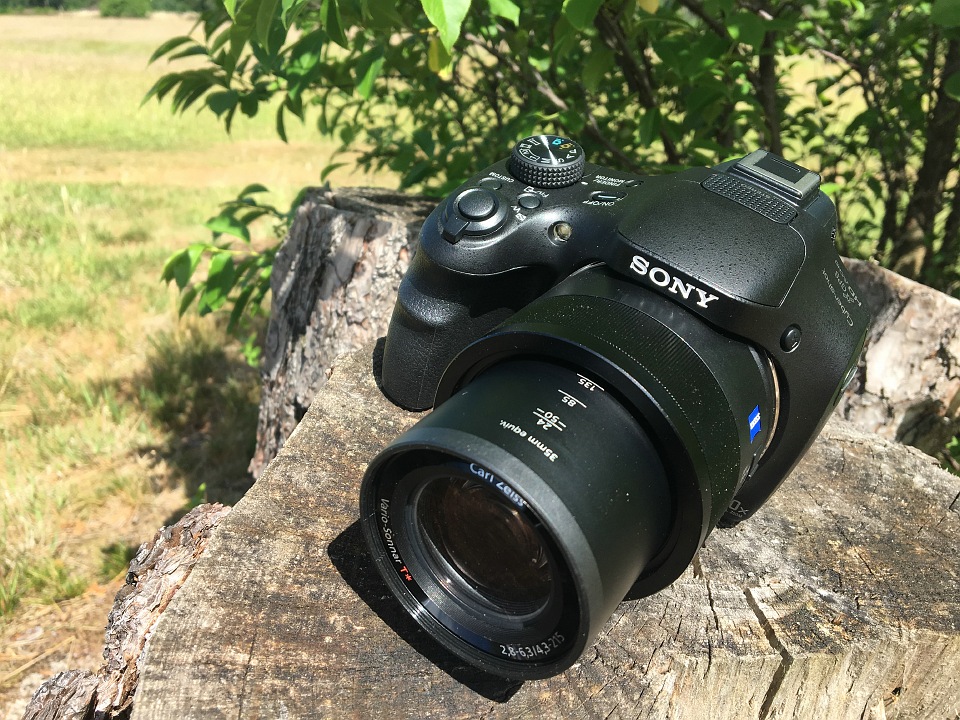
Compression of the JPEG file
There is something else that affects the size of the JPEG file, and that is the degree of compression. The greater the compression, the smaller the file. But the consequence is a decrease in image quality.
The greater the compression, the more image information has to be removed. That is why it is best to save a JPEG with as little compression as possible. In other words, at the best quality.
The best-quality JPEG is good enough for printing in a large format. As long as your resolution is high enough, of course. But you must not adjust the JPEG photo too often.
Every time you edit a JPEG photo and save it again, the photo is compressed again, even at the best quality. And each time this results in a small amount of image information being lost.
The test of repeatedly saving a JPEG photo
To put it to the test, I took a photo and saved it from a RAW file as a JPEG file with 1280 pixels on its longest side, at the best possible quality.
I then opened this JPEG file in Photoshop CC 2020 and saved it as a new file without editing it any further.
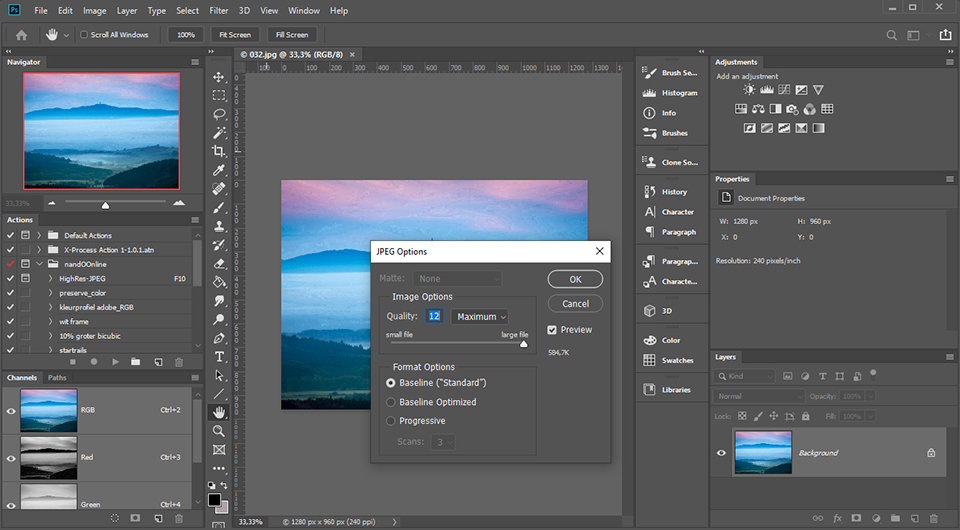
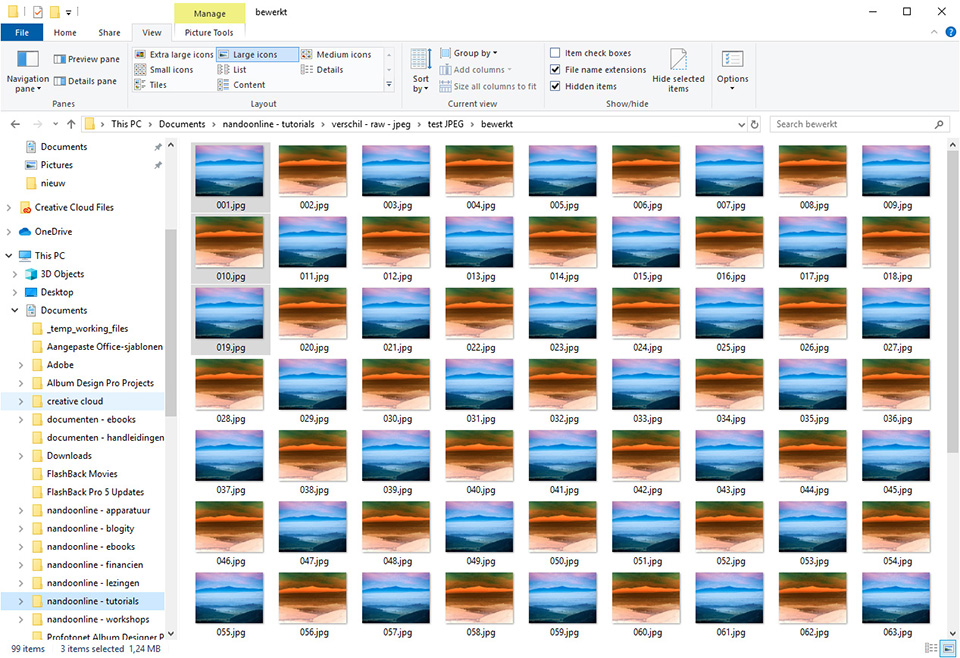
I opened this new file in Photoshop again and once more saved it as a new file without making any edits. I repeated this 99 times, saving it as a new file at the best possible JPEG quality each time. This is the result.
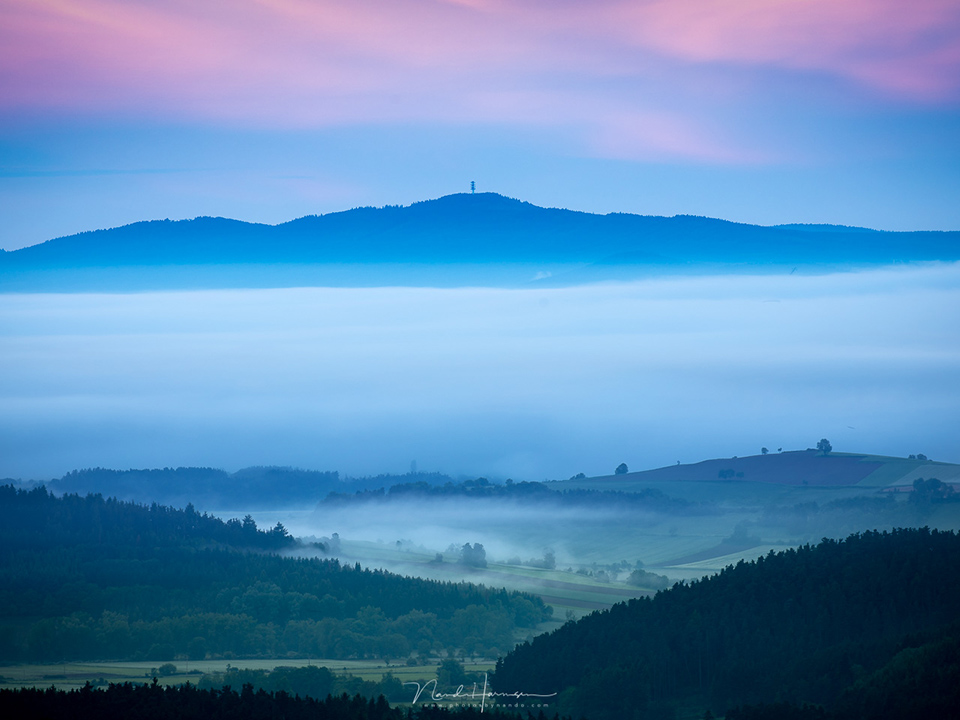
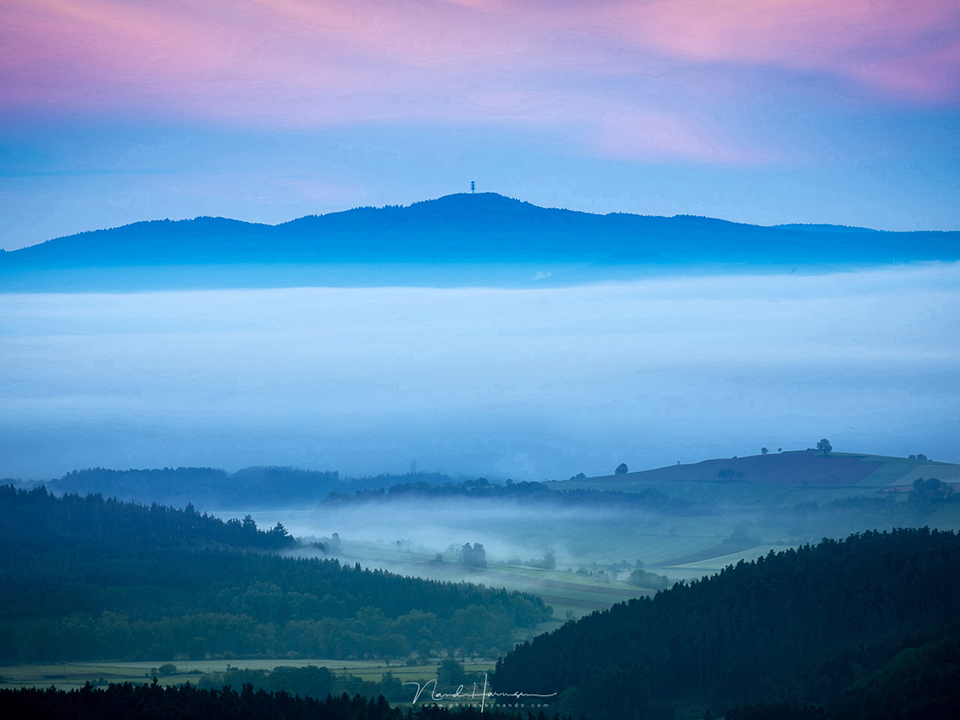
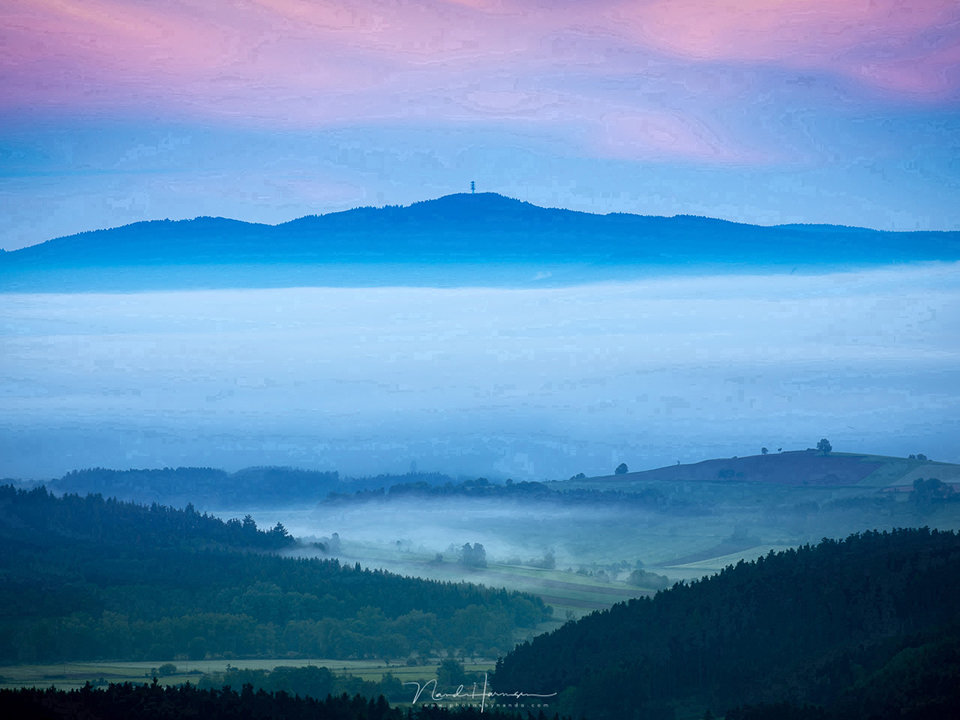
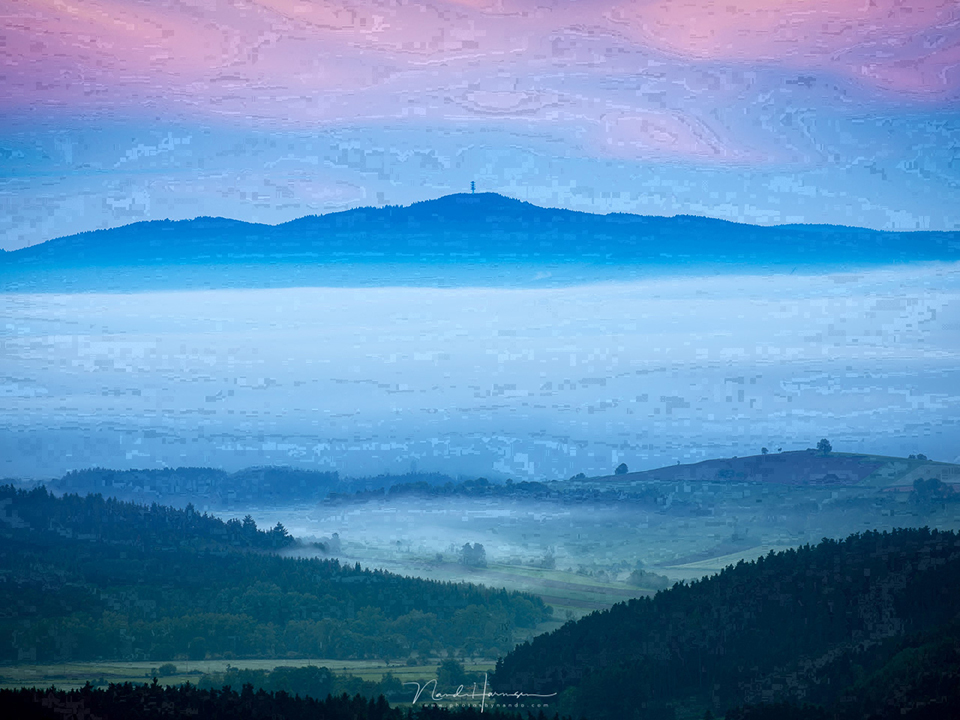
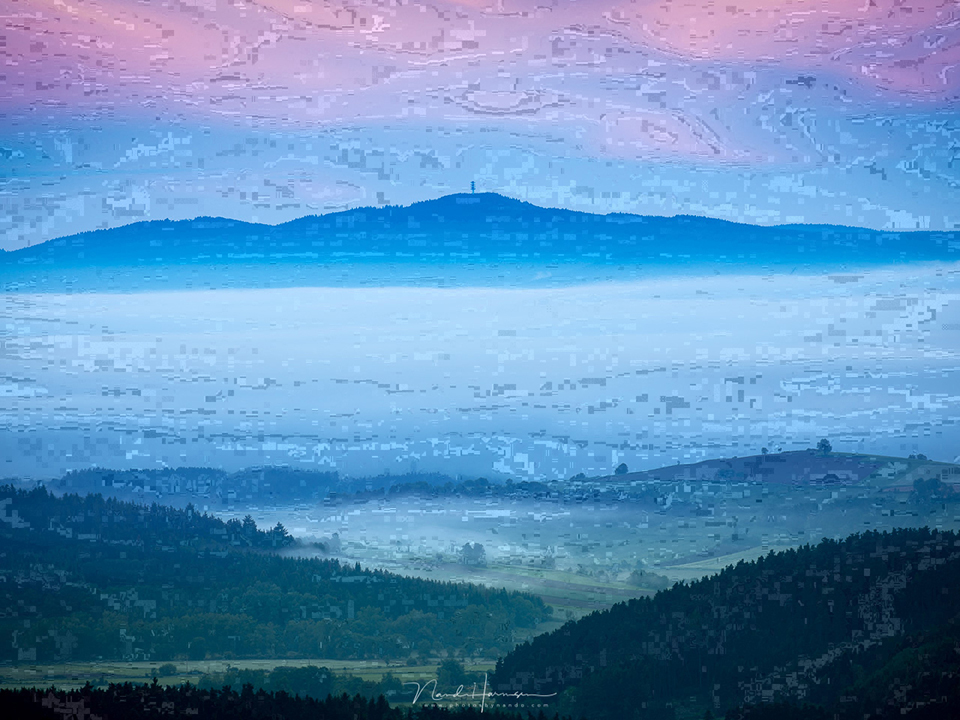
The result
I immediately noticed that a JPEG file already produced an unusable result after being saved again 10 times. However, I carried on opening each newly saved file and saving it as a new file again.
The final result after 99 times is something that can no longer be seen as an ordinary photo.
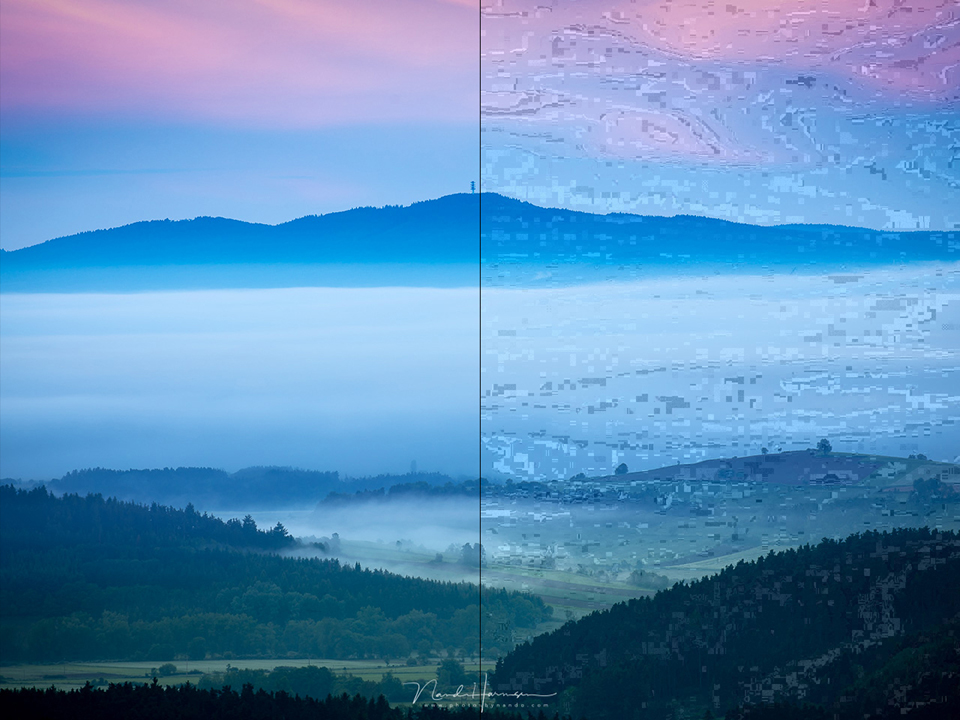
What can you learn from this?
Most people know that a JPEG photo suffers some image loss when you save it. And that is an acceptable amount of image loss when you use the best-quality JPEG.
But it is tempting to make one more small change to the photo and then save it. It does not have to be much, such as removing a distracting element or adding just a little extra contrast.
Even a photographer who shoots in RAW and generates a JPEG from their RAW file may be tempted to make one quick small adjustment to the JPEG. The lesson is to do this in your RAW file and create a new JPEG. That is always better.
I learned from this experiment that after saving the file again six times, enough quality loss had occurred to make a photo unacceptable. At least for me.
How to prevent this problem when shooting in JPEG
I recently gave tips for the JPEG photographer on how to get the best possible photo in the camera.
However, if you want to edit a JPEG photo, bear the loss of image quality in mind. After opening and editing an edited JPEG file again six times, your photo has deteriorated to such an extent that it is effectively no longer usable.
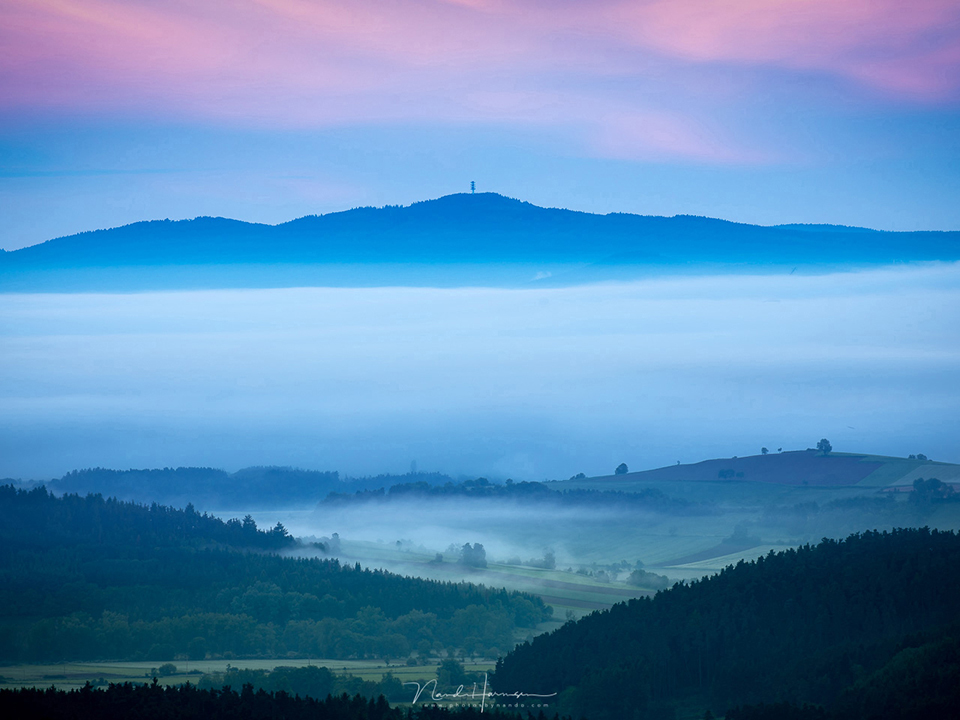
If you shoot in JPEG but still want to edit your photo, make sure you do this using a copy of the original JPEG photo from the camera.
Make sure you always leave the original JPEG photo untouched and perform each edit on a copy of it. This prevents your photo from eventually becoming unusable.
Keep these tips in mind:
- Straightening or cropping a photo already means that you save the JPEG again. You save a photo more often than you realise without being aware of it.
- Copying a JPEG photo does not affect its quality. Only opening and saving the JPEG photo again does.
- Opening a JPEG and then saving it as a TIFF or DNG file prevents you from losing more quality. You do have to create a JPEG from this TIFF or DNG file each time.
- When you make a TIFF or DNG from a JPEG, you might as well shoot directly in RAW.
Should you switch to RAW files after all?
When you shoot in JPEG and do not make any changes to the photo, the JPEG from the camera is perfectly usable.
A small adjustment, such as straightening a photo, should not be a problem, as long as you leave the original untouched and save the corrected version as a new file.
Do you like editing your photos after all? Then it is best to shoot in RAW. This allows you to tweak your photo as much as you like, without the quality loss I have shown in this experiment.
This also applies when you convert a JPEG from the camera to a TIFF or DNG file. The photo has already been compressed, with some loss of quality.
You may not see it, or barely see it, but it is there and can emerge when you adjust the photo too much. There are also more advantages to shooting directly in RAW, but I will save those for a later article.
About the author
Nando Harmsen has been photographing for more than 40 years. He specialises in wedding photography and landscape photography. Nando also gives talks, workshops, masterclasses and photo trips, and regularly reviews new and interesting equipment.
You might also like
-
 Street photography tip: JPG or RAW: An old debate
by Michiel Heijmans
-
 JPG or RAW: an age-old choice
by Michiel Heijmans
-
 Is there a reason to save both raw and jpeg?
by Nando Harmsen
-
 Keep an overview: don't make JPEGs of your RAW files
by Nando Harmsen
-
 10 tips for photographers who prefer shooting JPEG
by Nando Harmsen
-
 Comparison of Profotonet photo papers
by Nando Harmsen
9 comments
-
 Jan de Visser wrote on Tuesday 11 August 2020 at 14:19 | reply
But why would you edit the same JPG again and again and then save it or want to save it again? If you work in, for example, Lightroom, then in principle you always work from the 'base file' (as imported, applies to both RAW and JPG), you edit it and then export it as a new file. If you do that because, for example, you don't think an earlier edit is right after all, you can create a new file or overwrite the old edited file, but even in the latter case a new file is created based on the original base file. So then you always simply have a 'fresh' new edit.
Translated from Dutch.
I think the moral of the story is to simply always keep the original as the base file and export when making edits instead of overwriting: work 'non-destructively', in other words. With RAW this usually happens automatically, but if you treat your JPGs in the same way there is nothing to worry about, and no visible loss of quality after editing. -
 guest wrote on Tuesday 11 August 2020 at 15:58 | reply
Thx clear and straightforward explanation
Translated from Dutch. -

-

 Theotje wrote on Tuesday 11 August 2020 at 16:12
| reply
Theotje wrote on Tuesday 11 August 2020 at 16:12
| reply
I assume that if you open a jpeg and only look at it and then close it again, no loss occurs. Otherwise a jpeg would be some kind of perishable marzipan.
Translated from Dutch. -
-
 Trudy Kunst wrote on Tuesday 11 August 2020 at 18:18 | reply
@Jan de Visser: put yourself in beginners' shoes for once, for them this is important basic information! They have usually never heard of non-destructive editing and generally don't use Lightroom yet. When I took my first steps in digital photography, I had no idea why my edited photos were deteriorating so much in quality. By then it was too late: I had ruined my best originals by editing them over and over again and overwriting the original each time.
Translated from Dutch.
Now I know better, when I shoot in JPG I keep the originals separate and only edit copies. -
 Jacques wrote on Thursday 13 August 2020 at 06:49 | reply
In the past I couldn't photograph in RAW with my cameras at the time. But even then I got used to converting all JPEGs to TIFF. Because I quickly noticed the loss of quality when editing JPEGs. Nowadays I have been photographing in RAW for years. Sometimes I still need an "old" JPEG. Then I first convert it to TIFF. So I completely agree with your article
Translated from Dutch. -
 Albert wrote on Thursday 8 October 2020 at 23:52
| reply
Albert wrote on Thursday 8 October 2020 at 23:52
| reply
Following up on Jan de Visser. I work in Lightroom (Lr)and almost always make a virtual copy before I start editing!. What I like about Lr is that the original imported into it is always left untouched and it only saves a little table containing your edits to the original, and only when exporting or printing does it combine the table with changes with (a copy of) the original for the desired image. Advantage compared to Photoshop is that your edited photos take up much less storage space!
Translated from Dutch. -
Nando
wrote on Tuesday 13 October 2020 at 16:16
| reply
@Albert,
Translated from Dutch.
when you open a JPEG in Lightroom, Lightroom will treat the JPEG as a RAW file. Edits are only added when you create a new JPEG from it.
There is therefore no need to make a virtual copy of it. That is of no use to you.
Have your say
Please note: Articles older than a week can only be commented on by signed-in visitors.Would you still like to comment? sign in or create a free account.
Become a better photographer every week
A practical photography tip in your inbox every week.
39,024 photography enthusiasts already receive the tips! More about the weekly mail. Or keep up to date via  Facebook.

Elja Trum
Photofacts; everything to do with photography!
Would you like to take better photos and keep up with what is happening in photography? Photofacts publishes articles that teach you something about photography — from a product announcement to a practical shooting tip or a look at a website. Photofacts covers photography every day and is a hobby project of Elja Trum's that got out of hand. The articles are written by a team of volunteer authors. If you would enjoy writing one or more articles for Photofacts, do get in touch.More about PhotofactsPhotofacts is made possible in part by
