

Macphun Luminar Neptune now with AI filter
Saturday 17 June 2017, 13:31 by Michelle Peeters | 6,437 views | 0 commentsThis article was translated from Dutch with the help of AI. Read the original.
Software company Macphun has launched an update to its easy-to-use image editing programme Luminar. The main innovation in Luminar 'Neptune' (version 1.2) is a new AI (Artificial Intelligence) filter.
The Accent AI Filter improves your images with one simple slider. It is a substitute for dozens of traditional adjustments such as shadows, highlights, contrast, tone, saturation and exposure.
Review Luminar Pluto
In March 2017, I already wrote a review of Luminar, 'Pluto' (version 1.1.0).
Artificial Intelligence
The new filter uses artificial intelligence (AI) to analyse different areas of an image based on structure, objects, dark and light zones, colours and other parameters.
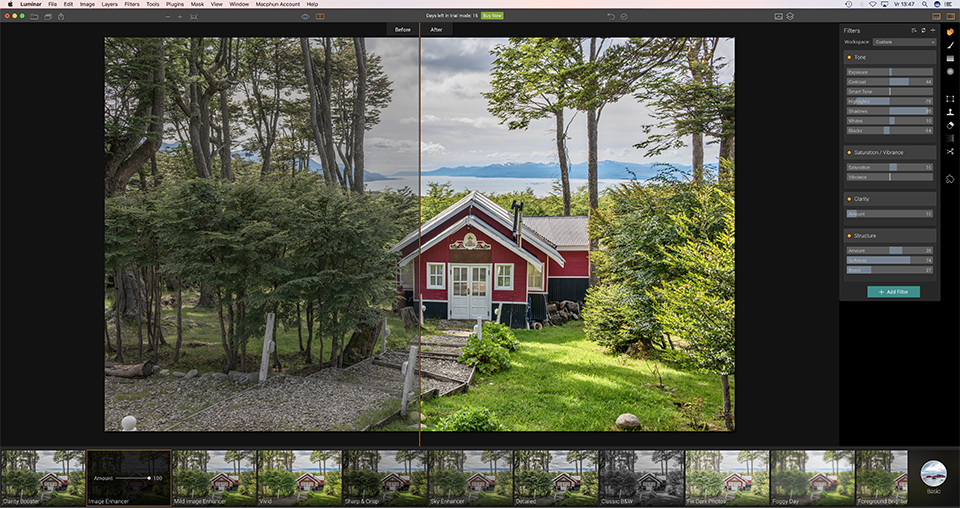
When you move the slider over the image, the software automatically detects which areas of the image need improvements and then applies them.
You can also adjust the intensity of the changes, giving you a natural or dramatic look, depending on the desired effect.
Mission
Macphun sees it as its mission to make complex photo editing tasks simple and enjoyable. The Accent AI Filter was created as a special way to create perfect images instantly, bundling the power of dozens of filters into one handy tool.
This is something that other photo editing programmes lack. They think many photographers will benefit from it.
Quick & Awesome
There is also a new workspace called Quick & Awesome. It consists of three filters that can produce very quick results:
1. The Accent AI Filter described above
2. Saturation & Vibrance
3. Brightness
The last two filters allow you to refine the image after applying the Accent AI filter.
Other improvements
Other updates include plug-in integration with Aurora HDR 2017, faster masking / brushing, an improved vignette filter and better memory management.
For Windows too?
This latest update to Luminar is currently only available for Mac, but Macphun plans to start a public beta of Luminar for Windows PCs in July.
Free trials
More information and free trials are available on the Macphun website.
How does it work?
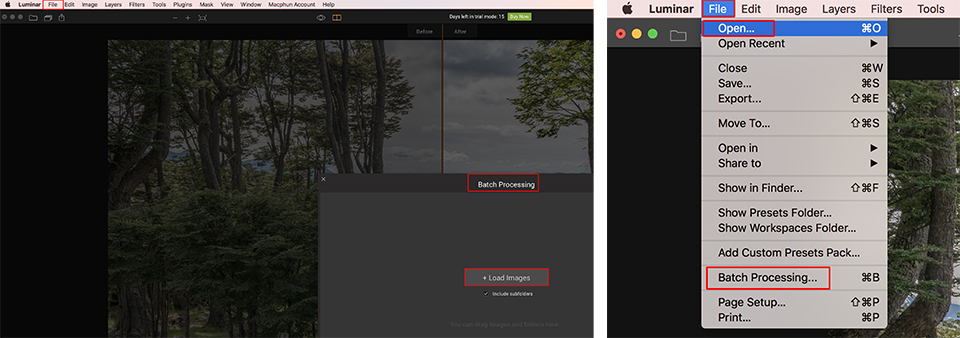
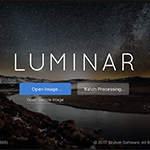
Luminar can be used as a standalone application. When you start it, you see a simple window asking you to load an image or an entire series of images for batch processing.
Workspaces
Luminar works differently from most photo editors because you do not see all the tools at the same time. Instead, it uses workspaces that contain only the tools you need for different types of photography.
Each workspace is essentially just a collection of filters for a specific photographic genre. Luminar 1.2 has six workspaces by default: 'Quick & Awesome (new)', 'Essentials', 'B & W', 'Landscape', 'Portrait' and 'Street'. Each workspace displays a smaller subset of the complete set of filters.
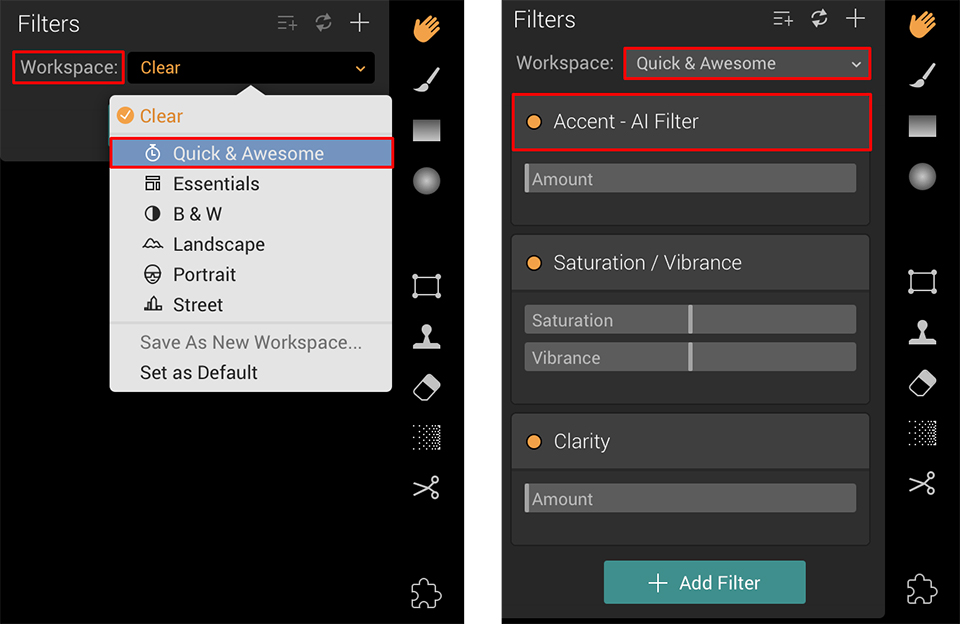
This is MacPhun's standard way of making working with Luminar as simple as possible. You could even approach it the other way around and start with the 'Clear' workspace option, which contains no filters at all. You can then add the filters you want to see one by one.
These filters do many different things, from standard adjustments such as Brightness / Contrast, Curves and sharpening to effects such as Dehaze, Foliage Enhancer and Polarizing filter.
There are 41 filters in total, including the new Accent AI filter, which uses artificial intelligence to divide your images into different areas and then optimise the colour, contrast and structure for each area separately.
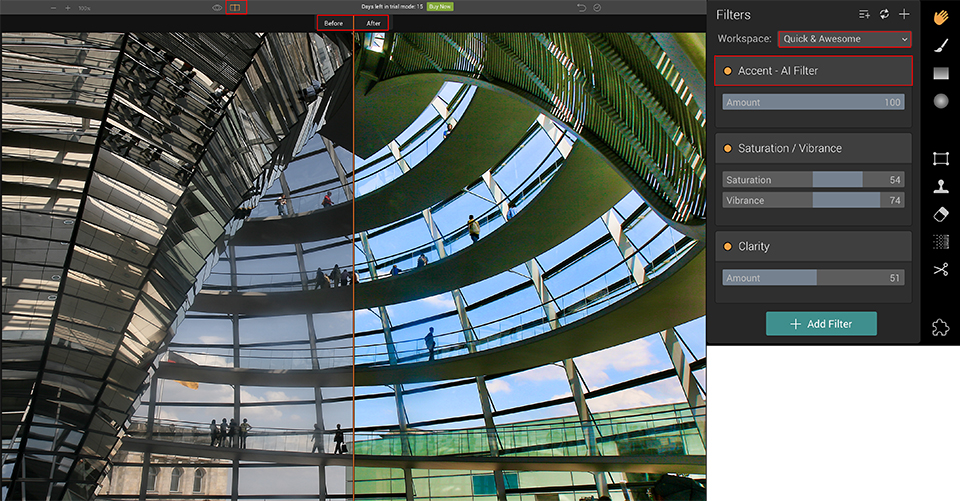
As an instant solution, this new filter works quite well. Details in high-contrast scenes are restored well, especially in the sky. The saturation is increased quite a lot, but you can correct this by adding the Saturation / Vibrance filter.
What do I think?
The Luminar interface is simple, elegant and stylish. You can choose only the filters you need to create your own customised workspaces, but it would be even better if you could see only the filters / tools you are using at that moment. You can make that tool panel even cleaner and simpler for yourself.
And the pre-programmed effects supplied by default probably do not fully reveal the potential of this software.
Many of the pre-programmed effects are on the soft and subtle side, and the software certainly seems capable of demonstrating a much wider range of presets.
A bokeh filter would be nice, as would some border effects and other analogue filters. Something similar to what you get in Google Analog Efex Pro, for example.
But Luminar has already come a long way, and there is undoubtedly much more in the pipeline. It is very reasonably priced. The ability to run it both as a standalone application and as a plug-in is already a considerable bonus.
About the author
Michelle Peeters is fotografe en oprichter van DeuxBleus Fotografie. Michelle herkent het bijzondere in het gewone en het gewone in het bijzondere. Ze heeft zich nooit willen specialiseren en is daardoor van alle markten thuis.
You might also like
-
 Macphun Luminar for Windows announced
by Michelle Peeters
-
 Review: Luminar by Macphun
by Michelle Peeters
-
 The new Luminar AI is now available
by Nando Harmsen
-
 Review: Luminar 2018
by Michelle Peeters
-
 Macphun Becomes Skylum
by Michelle Peeters
-
 Skylum's next-generation Accent AI filter for Luminar
by Michelle Peeters
0 comments
Be the first to share what you think!
Have your say
Please note: Articles older than a week can only be commented on by signed-in visitors.Would you still like to comment? sign in or create a free account.
Become a better photographer every week
A practical photography tip in your inbox every week.
38,765 photography enthusiasts already receive the tips! More about the weekly mail. Or keep up to date via  Facebook.

Elja Trum
Photofacts; everything to do with photography!
Would you like to take better photos and keep up with what is happening in photography? Photofacts publishes articles that teach you something about photography — from a product announcement to a practical shooting tip or a look at a website. Photofacts covers photography every day and is a hobby project of Elja Trum's that got out of hand. The articles are written by a team of volunteer authors. If you would enjoy writing one or more articles for Photofacts, do get in touch.More about PhotofactsPhotofacts is made possible in part by
