

Adding keywords, do you do it consistently?
Monday 1 January 2024, 15:15 by Nando Harmsen | 4,948 views | 9 commentsThis article was translated from Dutch with the help of AI. Read the original.
Adding keywords to your photos makes them searchable. However, it is difficult to keep doing this consistently, as it takes some work. Lightroom Classic offers a simple way to keep track of your keywords and make it less of a chore.
You import your photos, and then you have to add keywords. At least, you should. But it is tedious work, and very difficult to do every time. You are not the only one who skips it for convenience.
You can make adding keywords less of a chore by making it easy to do. Lightroom Classic offers this option with the keyword list. The keywords you have used are stored in this list.
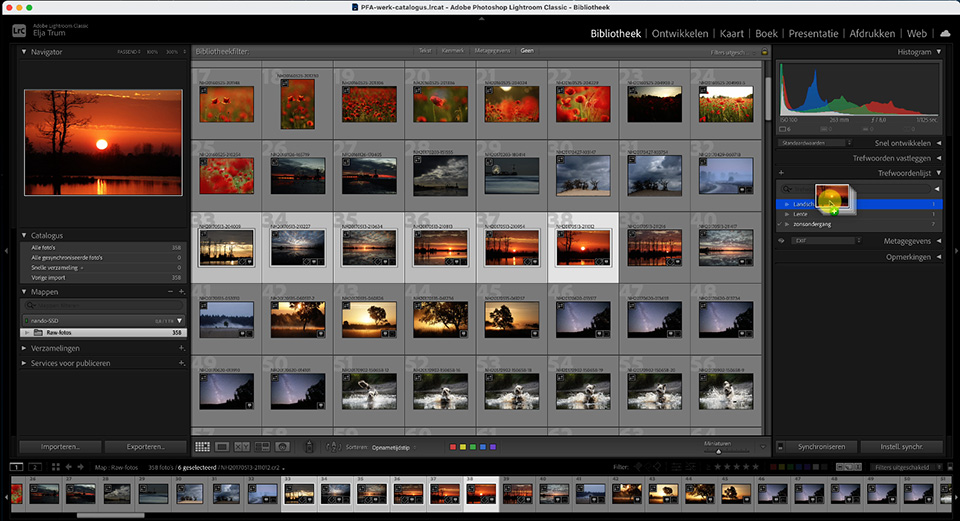
Instead of using the 'Add Keywords' panel, it is easier to use the 'Keyword List'. This is especially quick when working with large numbers of photos. More importantly, it prevents spelling mistakes.
Entering keywords every time makes mistakes more likely. For example, one time you enter sunset as a keyword, and the next time you accidentally enter sunsett, or sunse, or sunse, or sunet. And there are many other variations.
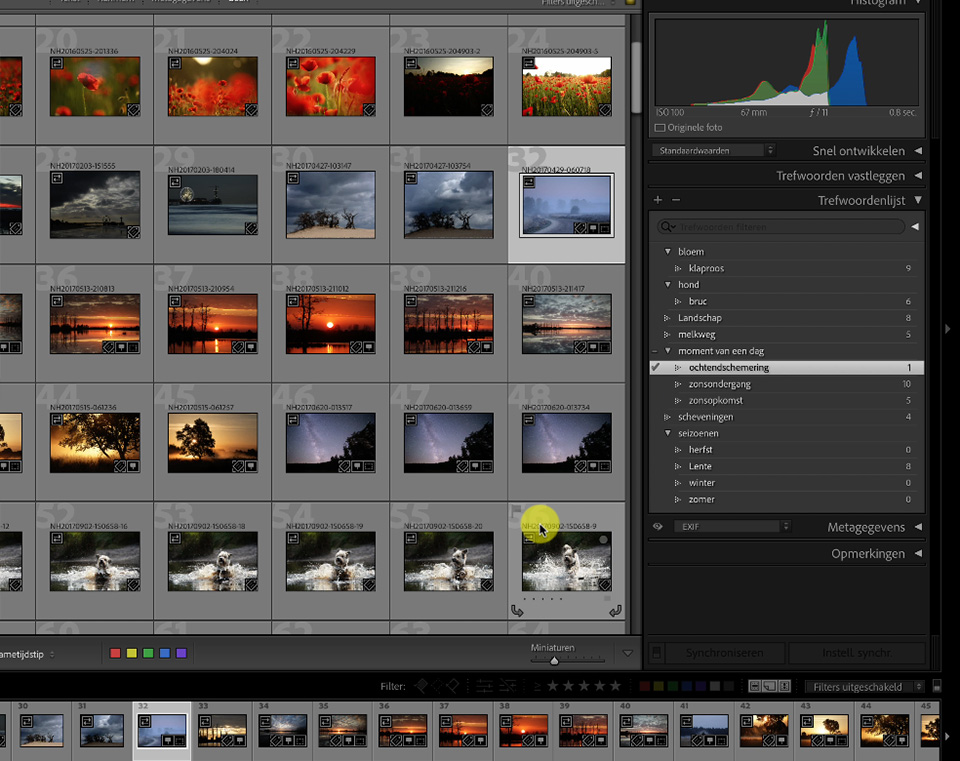
With a keyword list, you can easily tick the keyword you want to add. Select the photo or photos and tick the correct keyword. Or drag the photos to the relevant keyword.
You can create overarching keywords, allowing you to create a clear structure. It even enables you to add multiple keywords in one go. That saves a lot of work, and the keyword list remains clear.
About the author
Nando Harmsen has been photographing for more than 40 years. He specialises in wedding photography and landscape photography. Nando also gives talks, workshops, masterclasses and photo trips, and regularly reviews new and interesting equipment.
You might also like
-
 Presets in Lightroom Classic
by Nando Harmsen
-
 How do you get started with Lightroom Classic?
by Nando Harmsen
-
 Automate your Lightroom Classic imports
by Nando Harmsen
-
 What is the Comments tab in Lightroom Classic for?
by Nando Harmsen
-
 What's new in the Lightroom Classic 13 update?
by Nando Harmsen
-
My 10-step Lightroom Classic workflow
by Nando Harmsen
9 comments
-
 PixelDude Raoul wrote on Tuesday 2 January 2024 at 10:59 | reply
Yes, consistently. Until a while ago via the last old paid version of LR, currently via Bridge.
Translated from Dutch. -

 ifiamminghi wrote on Tuesday 2 January 2024 at 11:57
| reply
ifiamminghi wrote on Tuesday 2 January 2024 at 11:57
| reply
It is indeed very important to always add keywords, in order to quickly find certain photos again.
Translated from Dutch.
The method shown here is nice to get started with, but before long you have a great many keywords, neatly grouped or not, and then all overview has immediately disappeared as well. Just think of Animal>bird> (whether or not further divided into song-/wading-/bird of prey-/...bird), of which I now have about 300 different species...
It becomes more convenient then to also start using the spray can, that works very conveniently too! (and you can also add multiple keywords at once, e.g. "BIF, red kite, male, juv.", for a juvenile male in flight)
In any case, it is built into my workflow to also check whether all photos have at least one keyword, just as I do for the (GPS) location.
If the GPS location is also entered, for example, you can simply see on the map which photos were taken at a certain place, instead of having to create all those locations as keywords! So no spelling/typing errors anymore! -
 Nando
wrote on Wednesday 3 January 2024 at 14:15
| reply
Nando
wrote on Wednesday 3 January 2024 at 14:15
| reply
Setting up a keyword structure is an art. It is incredibly difficult.
Translated from Dutch.
For birds I also have an enormous number of species, but a tree structure helps.
If you also want male, female, juvenile, and that kind of non-species-specific keywords, add them as standalone keywords and not under every species you have in your list. Ideally, each keyword should only appear once in your list.
One thing I will always advise: stick to Dutch (or English) and don't start using multiple languages interchangeably. You are better off placing translations in synonyms, if you want to have them. That also applies to Latin names. -
PixelDude Raoul wrote on Tuesday 2 January 2024 at 13:52 | reply
Perhaps my method isn't the best for many, but it works wonderfully for me.
Translated from Dutch.
I start with a date yyyymmdd and then the most applicable (multiple) keywords. When I want to perform other edits, I also immediately have the date to search for on (other) drives. -
-
 T.W. van Urk wrote on Tuesday 2 January 2024 at 16:37 | reply
All keywords thrown onto one big pile quickly become confusing. A good subdivision is therefore really necessary. It takes real thought and a lot of refining to develop a good keyword tree (for your own photography).
Translated from Dutch.
My own keyword tree in Lightroom looks, in very broad terms, like “Who-Where-What-How-When”. Each main keyword has several (sub)categories that you then have to organize further according to your own ideas and photographic material.
For example, under ‘Who’ you could put: ‘family’, ‘family , ‘colleagues’, ‘models’ and you can possibly also organize those keywords another (few) levels deeper.
With ‘Where’ you can think of: the Netherlands, Germany, Belgium and so on. Under the Netherlands I have a subkeyword for each province, and my own place of residence also has its own category.
The classification under What is very dependent on the kind of photos you as a photographer take.
With How you could think of HDR, Low-key, High-Key, stacked et cetera
Incidentally, a keyword tree is never finished. I regularly go back to refining it.
You can have Lightroom export your keywords to a Keywords.txt file. I have made a number of macros for Word with which I can print out a nicely formatted version of my keywords. And every now and then I need a new printout 😊.
And oh yes, I have also physically stored my photos in a logical file structure with a date-time-place and a concept description in the name of the photo. All photos in one shoot get that same name with a sequence number. For that, a few smart presets in Lightroom are very useful again. -
-
 foxhusky
wrote on Thursday 4 January 2024 at 21:54
| reply
foxhusky
wrote on Thursday 4 January 2024 at 21:54
| reply
I consistently always add keywords to my photos in LrC. And no, I certainly don't find that difficult to keep up. I also really don't find it annoying or troublesome at all. Keywords are very useful for sorting and finding images again, especially when the catalog is quite large.
Translated from Dutch.
I use a lot of 'smart' collections in LrC. Based on the right keywords, the photos are then automatically placed in the right collection. This way I have collections with, for example, all kinds of names of people I photograph. Lightroom is also quite good at recognizing faces by now, especially if you have added that person more often. I also have smart collections with street names, place names, themes, and so on. All based on keywords. -

Have your say
Please note: Articles older than a week can only be commented on by signed-in visitors.Would you still like to comment? sign in or create a free account.
Become a better photographer every week
A practical photography tip in your inbox every week.
39,024 photography enthusiasts already receive the tips! More about the weekly mail. Or keep up to date via  Facebook.

Elja Trum
Photofacts; everything to do with photography!
Would you like to take better photos and keep up with what is happening in photography? Photofacts publishes articles that teach you something about photography — from a product announcement to a practical shooting tip or a look at a website. Photofacts covers photography every day and is a hobby project of Elja Trum's that got out of hand. The articles are written by a team of volunteer authors. If you would enjoy writing one or more articles for Photofacts, do get in touch.More about PhotofactsPhotofacts is made possible in part by
