

What if AI spot removal doesn't see all the spots?
Sunday 21 December 2025, 20:10 by Nando Harmsen | 2,211 views | 2 commentsThis article was translated from Dutch with the help of AI. Read the original.
Does your sensor have spots? Then it is important to remove them from your photos during post-processing. AI can now do this almost automatically. But what if it doesn't remove all the spots automatically? Photoshop might be the answer.
In autumn 2025, automatic spot removal was added to Lightroom, Lightroom Classic and Photoshop. Machine learning techniques are used to recognise spots and remove them in one go.
That saves a lot of work, especially if your sensor is not the cleanest. Unfortunately, it never works completely flawlessly. The pun is intentional. There are often still some spots left. You still have to remove those by hand.
Do you work in Lightroom? Then Photoshop can still come in handy. I will show you using an example with hundreds of sensor spots. The Visualise Spots option makes them clearly visible.
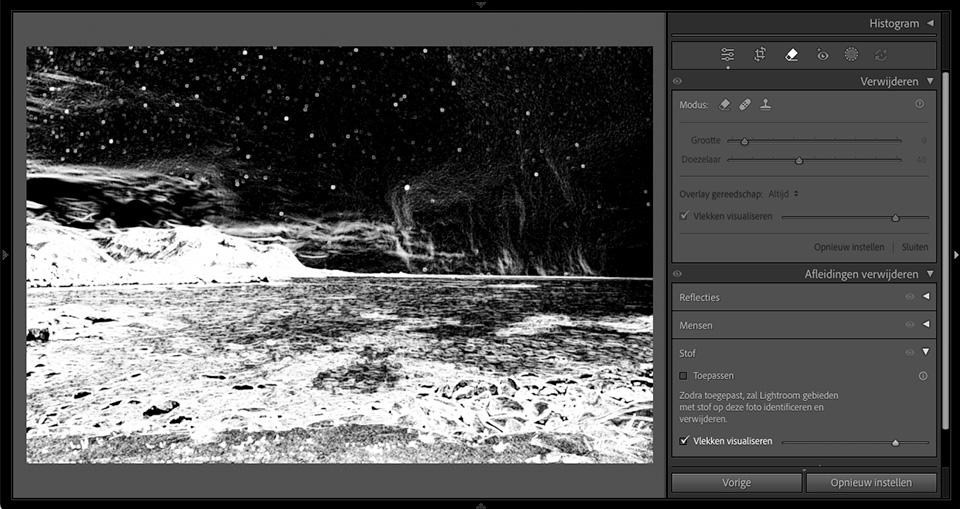
AI spot removal removes many spots. But not all of them. In this example, there are still a lot left. Unfortunately, I cannot apply AI spot removal again or fine-tune it further.
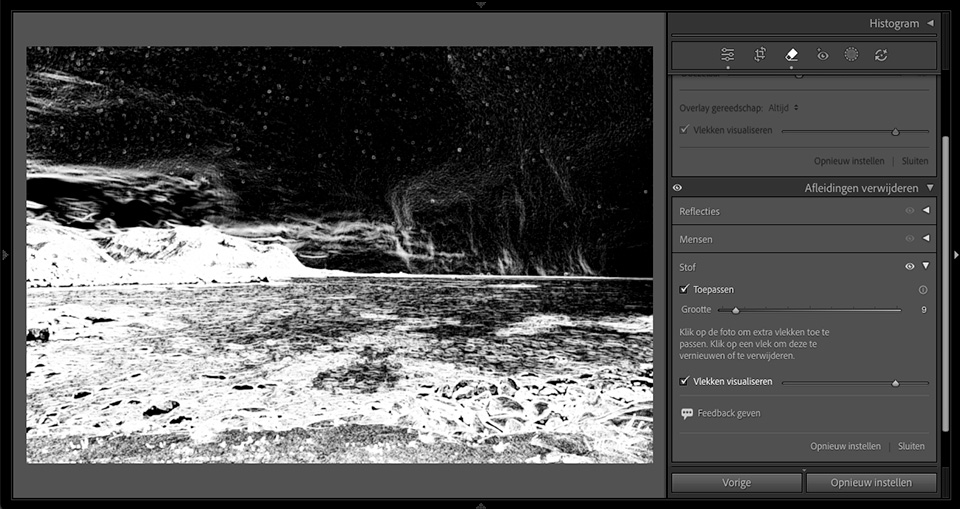
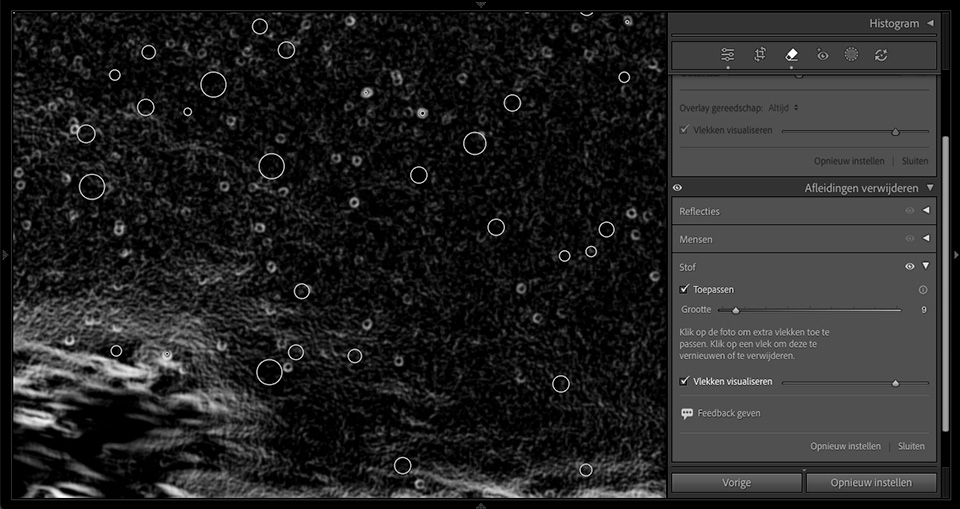
Instead of using Lightroom, you can choose to use AI spot removal in Photoshop. Forget about the spots for a moment and edit the photo to your liking. Then open the photo in Photoshop via the right-click menu and the edit in > Photoshop option.
Is the photo open in Photoshop? Then apply the Camera Raw Filter. There you will find the same AI spot removal as in Lightroom. Apply it and watch the spots disappear. Close the Camera Raw Filter when it is finished.
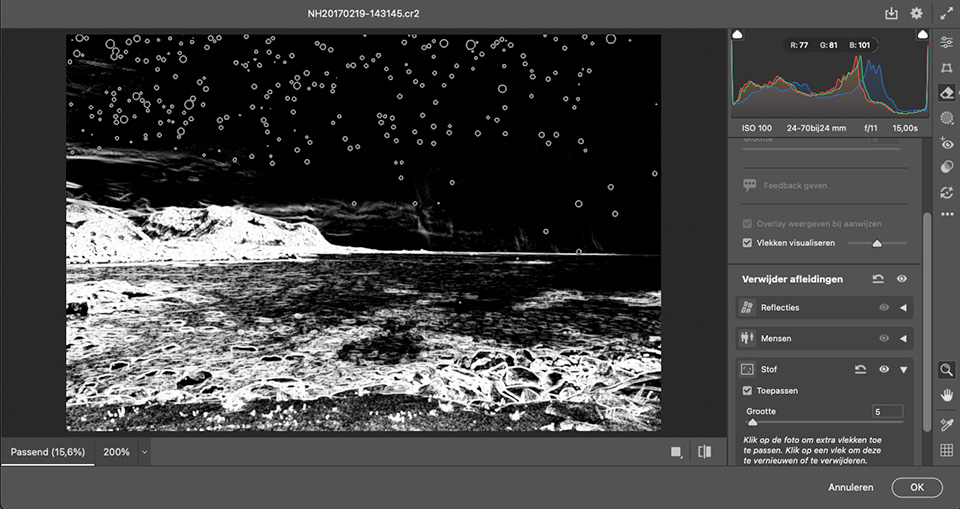
Are there still spots left? Then simply open the Camera Raw Filter again and run AI spot removal once more. You can do this as often as you like. Finished? Then close the photo in Photoshop. The photo will automatically be added to Lightroom.

Although it should not make any difference, AI spot removal in the Camera Raw Filter seems to produce a better result than in Lightroom. Try it yourself if your sensor has a lot of spots.
But also remember that prevention is better than cure. Does your sensor have so many spots? Then clean the sensor, or have it done. Are you going on holiday, as I was at the time? Check it before you leave.
About the author
Nando Harmsen has been photographing for more than 40 years. He specialises in wedding photography and landscape photography. Nando also gives talks, workshops, masterclasses and photo trips, and regularly reviews new and interesting equipment.
You might also like
-
 Lightroom update with generative AI
by Nando Harmsen
-
 Does Lens Blur in Lightroom have any value for photographers?
by Nando Harmsen
-
 Playing with black and white contrast in Lightroom Classic
by Nando Harmsen
-
 New update for Lightroom Classic enables AI noise reduction
by Nando Harmsen
-
 New AI feature for Lightroom and Lightroom Classic
by Nando Harmsen

2 comments
-
 Paulus van Aken wrote on Wednesday 24 December 2025 at 13:29 | reply
Good piece again.
Translated from Dutch.
I’m still working a lot with analogue stuff, and you do still sometimes (!) get spots, dust and scratches in them. I always use the quick retouch stamp for that in ps. Works nice and quickly, especially if, like me, you use a graphics tablet and pen.
Fortunately, it rarely gets as bad as in your example. -


Have your say
Please note: Articles older than a week can only be commented on by signed-in visitors.Would you still like to comment? sign in or create a free account.
Become a better photographer every week
A practical photography tip in your inbox every week.
38,983 photography enthusiasts already receive the tips! More about the weekly mail. Or keep up to date via  Facebook.

Elja Trum
Photofacts; everything to do with photography!
Would you like to take better photos and keep up with what is happening in photography? Photofacts publishes articles that teach you something about photography — from a product announcement to a practical shooting tip or a look at a website. Photofacts covers photography every day and is a hobby project of Elja Trum's that got out of hand. The articles are written by a team of volunteer authors. If you would enjoy writing one or more articles for Photofacts, do get in touch.More about PhotofactsPhotofacts is made possible in part by
