

Managing your photos smartly
Saturday 29 December 2018, 20:02 by Huub Keulers | 13,079 views | 24 commentsThis article was translated from Dutch with the help of AI. Read the original.
Many articles about managing photos quickly describe a horror scenario. Usually, they start with the sentence: Everyone has experienced it. Your hard drive crashes and you can no longer access your photos.
Let me not do that for a change, because there are plenty of people who have never experienced this and probably never will.
That does not mean you should not handle your photos in a safe and smart way. Quite the opposite. You do not want to lose memories like these.

What I hope to achieve with this article is that you realise and start thinking about how good management of your photos can make your photography activities more enjoyable and efficient.
What do I mean by managing your photos? Simply put, I mean:
• The places where you store your photos
• The structure and naming of your photo folders
• The naming of your photos
• The backup process
If you already have such a system in place, that is one less thing to worry about, but it may still be interesting to read this article. You might think: 'Hey, I had not thought of that.' Or I might learn from you if you already have a smart method and would like to leave it in a comment. After all, we can all learn from one another, including from our mistakes.
One of the first and perhaps most important aspects of managing your photos safely and efficiently is where you store your files and what names you give your files and folders.
A well-thought-out system is essential if you want to find your photos quickly and easily, even without assigning keywords in, for example, Lightroom. Whichever method you choose, make sure it suits the way you work. If you do not, there is a good chance you will become 'sloppy' or simply forget things.
Since I am someone who likes to share my 'mistakes' for education and entertainment, I will briefly explain my way of working below. It may not be the best or most efficient method, but it works for me.
The method you use will mainly depend on your character, your financial resources and how important your photos are to you or your clients.
Where you store your files
The first question you need to ask yourself is where you should store your photos.
Do you store them on your computer's hard drive, on an external drive, on a DVD or in the Cloud? Or a combination of these? In my workflow, I use four locations:
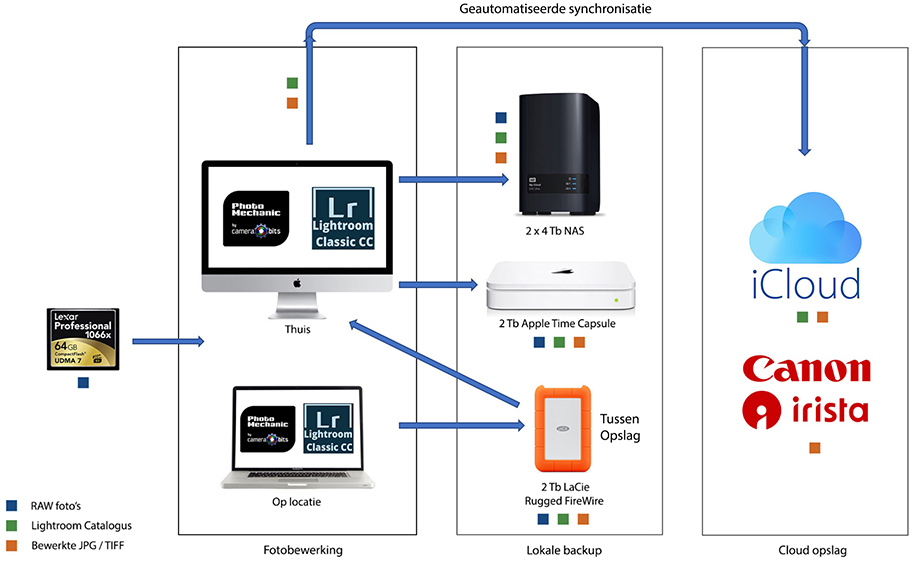
- My computer. This can actually be two computers, namely my iMac, which has a permanent place at home, and my MacBook (laptop). I take the latter with me so I can quickly edit a selection of my photos on location and possibly send them to a press agency.
I only store my RAW photos temporarily on both computers. After selecting, editing and backing them up, I delete the RAW photos from my computer so that I can keep enough free space on my hard drive - 2x4 Tb WD MyCloud NAS. This external storage, connected to my home network, has two copies. Both drives therefore contain the same files and folder structure, also known as mirroring.
This is where my RAW photos are stored. I do not keep all my RAW photos, only a selection. Because I often photograph sport and 'shoot' in burst mode, I can easily come home with 3,000 photos after a weekend event.
There is no added value for me in keeping them all. I did that a few years ago, but I abandoned that system; - Portable external hard drive. I store my JPG photos, RAW photos and documents on this drive. This is also the drive that goes with me on location as temporary storage and a backup. I use a LaCie 2Tb with a FireWire connection for this.
My 2012 iMac does not have a USB3 bus, but fortunately it does have this FireWire 800 connection, which makes transferring files considerably faster than via USB2; - Cloud. For security, and so I can access my files away from home, I have a 1Tb iCloud subscription with Apple. iCloud synchronises the files on my computer's hard drive, but not the RAW files, to the Cloud every day.
I also currently use Canon's Irista Cloud environment to test whether this solution adds value for me. My RAW photos are not in this Cloud environment, because I do not see the need for that in my situation.
Naming your folders and files
Whichever method you use does not really matter, as long as you use it consistently and make sure every photo has a unique name. There are a few 'rules' to keep in mind when naming your folders and files:
• Do not use extremely long descriptions;
• Store photos only once on the same medium;
• Use letters and numbers from the standard alphabet;
• Leave out unusual punctuation marks such as !?~^]{|;
• Do not change a file's extension, for example NEF, CR2 or JPG
As soon as you import your photos, you can rename your files in programs such as Lightroom or PhotoMechanic. The reason for renaming them is simple: you want to give your photos a unique, recognisable name. Your camera simply counts up in its file names and gives those names no meaning.
A file name such as dsc1572.JPG means nothing to anyone, and sooner or later another photo will come along with the same name. After 9999, the camera simply starts counting from zero again. Naturally, you want to avoid photos having the same name when they are different photos.
The format I use for my photos is yyyy/mm/dd followed by the name of the event or photo shoot and finally the sequence number. An example is: 20180703_nk_atletiek_utrecht_dsc1259.JPG.
The second thing you need to think about is the folders where you store your photos. A good directory structure is very important. You can scatter your photos across your drive or put everything in one folder, but at some point you will need to find a photo.
Some people do this and use their photos' metadata to find their photos in Lightroom. I still think it is smart to use a well-thought-out folder structure and file naming system. Your computer often already has a directory called 'Pictures'.
Within this folder, you can create various subfolders with names that make it clear what the folder contains. For example, a folder called 'Sport'. Within the 'Sport' folder, you can then create subfolders for main subjects, such as athletics, gymnastics or swimming.
Within those subfolders, you can then store the photos for each competition or event, with the date mentioned first. A subfolder within the 'Athletics' folder could then be called '20180703_nk_atletiek_utrecht', for example. It is useful to keep the name of your folder the same as the name of your photo shoot.
In this case, the folder name is therefore: '20180703_nk_atletiek_utrecht' and the file name of one of the photos in this folder would be: '20180703_nk_atletiek_utrecht_dsc1259.JPG'
As I mentioned at the beginning, this is the method I use. Everyone has their own way of dealing with photo management. Whichever system you use, make sure you have thought it through beforehand, that you are consistent and that you keep it as simple as possible.
You would rather spend your time taking photos than searching for them.
Backup process
In the image below, I have tried to show the 'flow' of my photos. As you can see, my RAW files are on three different drives and my edited photos are even in four locations. I only empty memory cards once my photos have gone through the entire workflow.
About the author
Huub Keulers is een enthousiasmerende veelzijdige freelance fotograaf woonachtig in Elsloo (Li). Hij is gespecialiseerd in sport-, bedrijfs-, straat-, honden en portretfotografie. Daarnaast is Huub auteur van diverse educatieve fotografieboeken en verzorgt hij allerlei fotoworkshops, masterclasses en lezingen.
You might also like
-
 5 Tips for Managing Photos in Lightroom Classic (and Other Software)
by Nando Harmsen
-
 File names are not important in Lightroom
by Nando Harmsen
-
 The pros and cons of a backup camera
by Nando Harmsen
-
 10 tips to save hard drive space
by Nando Harmsen
-
 DXO Photolab photography tip: Use sensible file management
by Nando Harmsen
24 comments
-
 Huub Sanders wrote on Saturday 29 December 2018 at 23:22 | reply
very clear and lucid explanation Huub. Can confirm that the steps you mention are very important!
Translated from Dutch. -

 Huub Keulers
wrote on Sunday 30 December 2018 at 09:50
| reply
Huub Keulers
wrote on Sunday 30 December 2018 at 09:50
| reply
Thanks Huub!
Translated from Dutch. There are of course countless possibilities for someone's photo workflow and unfortunately it takes time to set everything up properly, but in the end it does benefit you. Especially useful for people like me, who like some overview and structure
-

-
 Reinoud
wrote on Sunday 30 December 2018 at 15:31
| reply
Reinoud
wrote on Sunday 30 December 2018 at 15:31
| reply
There is a major disadvantage to using folders as a way to search: you can only find your photo in one way. What do you do with a sports photo that also happens to be a beautiful portrait of someone? Do you put it in the folder 20180703_nk_atletiek_utrecht or in 20180703_portretten? Or in both? If you only put it in one folder you will have a much harder time finding it again, and if you put it in both it becomes a drama with duplicate files and version control...
Translated from Dutch.
That is why I only use filenames to be unique. I didn't come up with a system for that myself, but simply use the NIDF standard: initials_date_number.extension. Then it also works well if you take photos with multiple people at that NK athletics event that you combine.
And if you work with multiple camera bodies it is useful to set it so that one makes DSC1234.NEF and the other DSE1234.NEF (you can set that in your camera)
I only use folders for storage. I search using metadata. The filename is far too limited for that -
-
Huub Keulers
wrote on Sunday 30 December 2018 at 23:42
| reply
Hi Reinoud, thanks for your response. Good to read that your system works for you.
Translated from Dutch.
Photos that I have taken at a sports event are also only on my drive once, and only in the folder of the event in question. To avoid the problem of duplicates and difficulty finding photos that you describe, I work with (smart) collections in Lightroom. You can also work with ‘filters’ in Lightroom, for example, which allow you to select photos by camera type or lens. Using the right keywords in Lightroom also makes finding photos much easier. -
Huub Keulers
wrote on Sunday 30 December 2018 at 23:48
| reply
It’s true that I also keep edited photos, Reinoud, and in principle that indeed isn’t necessary if you save your RAWs. The reason I also save my jpg files is mainly for my portfolio and in case someone needs a photo quickly and I can access it in the Cloud. Plus, jpgs take up almost no storage space, so I don’t really consider it a problem.
Translated from Dutch. -
Huub Keulers
wrote on Sunday 30 December 2018 at 23:52
| reply
Hi Ankie, for me Photomechanic still works faster for what I use it for. This is mainly due to the large number of images. From there I drag my selected photos to Lightroom to import them there. Photomechanic also carries over the metadata I enter to Lightroom. Regards, Huub
Translated from Dutch. -
 guest wrote on Tuesday 1 January 2019 at 12:49 | reply
I solved the problem with the numbering (after 9999, the count starts over from the beginning) by adjusting the prefix in the camera. DSC became DS1 and in the meantime that has become DS2. After DS1(9999), I can get another 10,000 photos ahead with DS2(0000) through DS2(9999).
Translated from Dutch.
The switch from DS1 to DS2, and after a while to DS3, of course happens while taking photos, and there’s a good chance you won’t be thinking about it at that moment.
For that, I use Bulk Rename Utility at home to rename the DS10000 etc photos to DS20000 etc and then adjust the prefix in the camera. -
 Fritsflow wrote on Tuesday 1 January 2019 at 17:05
| reply
Fritsflow wrote on Tuesday 1 January 2019 at 17:05
| reply
All well and good; on your desktop PC, on your notebook and also on a NAS. Until your house burns down one day or everything gets stolen, then you've still lost everything. Cloud storage should therefore be your primary storage.
Translated from Dutch.
I use pretty much everything there is; iCloud, Google Drive, Onedrive, Stack and Dropbox.
For photo work I use Dropbox (paid version) for all storage. Everything is then automatically also stored locally on the desktop PC and the notebook. Dropbox is by far the fastest online storage on the market.
I find Stack and iCloud far too slow and things also go wrong there from time to time: files that don't transfer properly/completely etc.
It is still the case that Dropbox is basically the only service that should really be taken seriously. Despite being a disgustingly arrogant company.
I have a separate SSD connected via USB3 on which I can make an extra backup.
iCloud I only use to keep my Apple devices in sync, including the iPhone photos. I use Stack (1TB) for files that absolutely have to be stored in the Netherlands. I don't find Microsoft's Onedrive reliable and Goolge changes how it works and especially its Terms and Conditions far too often. Moreover, you don't want to expose clients' files to those terms.. -
Huub Keulers
wrote on Tuesday 1 January 2019 at 18:00
| reply
Dear ‘guest’ and Fritsflow, thank you very much for sharing your experiences and way of working. I really appreciate it.
Translated from Dutch.
Smart renaming method.
Fritsflow, I agree with you that having one or more backups off-site is important.
You mention that Cloud storage should be your main storage. Is that the case for you with Dropbox? I assume that you first edit your photos from your laptop or desktop and then synchronize them to the Cloud. And are you talking about RAW files in the Cloud, or where do you store them?
Personally, I chose not to store my RAWs in the cloud because of the slowness of uploading. I do also have an external HD off-site. -
 M. Lois wrote on Tuesday 1 January 2019 at 21:20 | reply
@ Fritsflow: You wrote ... on your desktop PC, on your notebook and also on a NAS. Until your house burns down one day or everything gets stolen, then you have lost everything anyway.
Translated from Dutch.
And then you wonder ... how can you protect yourself even better ???
Our daughter (part-time photographer) comes home after a photo shoot and has to establish that her (currently ex-)partner had completely emptied the house himself and changed her access to her storage media.
Consequence: EVERYTHING lost or inaccessible ... she was able to collect a few photos of her own children through brothers and sisters, but she could not finish the albums of her previous clients (a few wedding reports - damage claims were threatened).
The ex was kind enough to provide the login details (albeit in exchange for payment, of course).
Fortunately, she did not go along with it and regained access through lawyers and the court, but many files were "missing without a trace and gone".
The moral is that no matter how you try to protect your data, something can always happen that causes you to lose everything that is dear to you. -
 Elja Trum
wrote on Wednesday 2 January 2019 at 09:22
| reply
Elja Trum
wrote on Wednesday 2 January 2019 at 09:22
| reply
@M. Lois; I personally use Backblaze to back up my photos (and all other files) online. That costs about 5 euros per month for unlimited backups. You can then retrieve your files from any computer connected to the internet.
Translated from Dutch. -
Huub Keulers
wrote on Wednesday 2 January 2019 at 09:30
| reply
@M. Lois What a terrible story, quite apart from the photos. I hope that by now everything has settled down reasonably well. I completely agree with you that you can't 'insure' yourself against everything. A Cloud subscription, however, as @Elja Trum and I also indicate in my article, can be a good solution to prevent unpleasant situations like the one you describe. Of course, there are never any 100% guarantees unfortunately. I used BackBlaze for a while, by the way, and was very satisfied with it.
Translated from Dutch. -
 hypofocus
wrote on Wednesday 2 January 2019 at 10:46
| reply
hypofocus
wrote on Wednesday 2 January 2019 at 10:46
| reply
I have my photos not only here on the PC and on 3 separate external hard drives (2 of which are only connected during a backup and never at the same time). But also 1 spare external hard drive at another location.
Translated from Dutch.
And the hard drives that have become "full" over the years are also stored at another location.
Short circuit, water damage, fire or a deranged (ex) partner can thus be covered for under € 100,- (the price of 1 external HDD). -
M. Lois wrote on Wednesday 2 January 2019 at 11:53 | reply
First and foremost, wishing everyone a happy and prosperous 2019 and thank you for your responses.
Translated from Dutch.
Her relationship with her ex is so "soured" (and that is still putting it politely), it will never be good again.
But that fact has nothing more to do with photography and managing the photos.
I only wanted to ask whether you can protect yourself even better against such malicious people.
She does not use BackBlaze (yet), mainly because it is not available in Dutch.
She now does have several hard drives and USB sticks stored as backups with family and friends.
Furthermore, she works with Dropbox but above all, she no longer discloses any password.
To no one anymore ...
She has rented a safe deposit box and also stores the latest assignments there so that we as parents (if something were to happen) can still provide her clients with something.
In the past she was too ( ? ) trusting but yes, who expects something like that from that "lovely" partner and dad ... -
Fritsflow wrote on Thursday 3 January 2019 at 09:21
| reply
I manage my photos in LR and everything is stored in Dropbox. Raw and edited.
Translated from Dutch.
With my ICT background, I have seen a lot go wrong with companies dragging hard drives around; one always out of the building, but only connecting 1 at a time and some kind of storage for full drives.. A whole lot of hassle and eventually it just goes wrong. In the end, an old drive is taken out of the archive, but then it turns out it can no longer be accessed. Not to mention tapes.
A good online environment stays alive; you never work on old hard drives.
Backblaze is attractive as Backup, not as Storage because it does not have multi-device support. Dropbox does. In addition, I have a backup extension on my Dropbox account so I can always go back.
Dropbox is simply king and master in this area, followed by Stack. -
Fritsflow wrote on Thursday 3 January 2019 at 09:58
| reply
For clarity: With Dropbox, your files are immediately stored locally in the local Dropbox folder and you can work with them right away. So no internet for a while is not a problem either. Synchronizing to Dropbox and your other computers happens in the background. You don't even notice that you're working with Dropbox.
Translated from Dutch.
On mobile devices, you download the files one by one when you need them. -
Huub Keulers
wrote on Friday 4 January 2019 at 08:52
| reply
Thanks for your response and tip Frits @Fritsflow. Dropbox does indeed seem like a good alternative for online (backup) storage. I’ll also take a good look at it for myself.
Translated from Dutch. -
 Peter wrote on Friday 4 January 2019 at 14:12 | reply
there are various companies that offer online storage (cloud), I myself have a subscription with KPN (online backup). Your data is also stored in the Netherlands in this case, which I certainly consider an advantage (with American companies it is nevertheless less clear who has access to your data...). In my case, cloud storage is really only for backup, alongside (duplicate) storage on hard drives in and next to my computer.
Translated from Dutch. -
Huub Keulers
wrote on Friday 4 January 2019 at 15:20
| reply
Nice addition Peter @Peter. How much cloud storage do you have with KPN, if I may ask?
Translated from Dutch. -
Fritsflow wrote on Monday 7 January 2019 at 11:21
| reply
Another thing is the continuity of the service of choice. Dropbox won't just disappear from the market, nor will KPN. But there are a whole lot of those services
Translated from Dutch.
and I've already seen quite a few of them go. Just imagine having your stuff stored there... -
Reinoud
wrote on Monday 7 January 2019 at 11:42
| reply
You don't want to store your stuff in just one place either. A backup is only a backup if it's stored in two different locations. And "everything at Dropbox" is, in my view, 1 copy.
Translated from Dutch.
Some will say that everything is also stored locally with Dropbox, but how much control do you have over that? Because the Dropbox client on your computer also deletes files when necessary. And you have no guarantee that they won't do that if they discontinue the service.
A backup shouldn't be based on trusting that they would never do that, a backup should insure you against the worst-case scenario. -

Have your say
Please note: Articles older than a week can only be commented on by signed-in visitors.Would you still like to comment? sign in or create a free account.
Become a better photographer every week
A practical photography tip in your inbox every week.
38,937 photography enthusiasts already receive the tips! More about the weekly mail. Or keep up to date via  Facebook.

Elja Trum
Photofacts; everything to do with photography!
Would you like to take better photos and keep up with what is happening in photography? Photofacts publishes articles that teach you something about photography — from a product announcement to a practical shooting tip or a look at a website. Photofacts covers photography every day and is a hobby project of Elja Trum's that got out of hand. The articles are written by a team of volunteer authors. If you would enjoy writing one or more articles for Photofacts, do get in touch.More about PhotofactsPhotofacts is made possible in part by
